- Orderan dibawah 500.00 via Goshop / Offline / Marketplace
Local Disk C Full for No Reason on Windows? Causes and Fixes
Sheer panic takes over the moment you launch File Explorer and find your Local Disk C capacity bar glowing an alarming shade of bright red, with barely a few meager megabytes of storage left to spare. You have not downloaded any gigantic video files or installed massive software packages, yet your primary drive space vanishes into thin air day after day, turning your once responsive machine sluggish and causing constant system freezes.
This eerie mystery of Local Disk C filling up automatically frequently tricks users into assuming their operating system has been infected by aggressive file duplicating malware. In reality, this storage nightmare is almost exclusively orchestrated by invisible system clutter including bloated temporary directories, leftover rollback archives from previous Windows updates (Windows.old), gigantic hibernation cache files consuming tens of gigabytes, and redundant System Restore snapshots. Much like identifying slow laptop causes upgrade costs to reclaim snappy performance, you can safely clean out this system drive congestion on your own without jeopardizing your precious personal files.
Featured Snippet (Quick Answer):
The most effective way to fix Local Disk C full for no reason is by running the Disk Cleanup tool with Clean up system files enabled, disabling the Hibernation feature via Command Prompt (
powercfg -h off), clearing the Temp and %temp% cache folders, and setting Storage Sense to automate background cleanups.
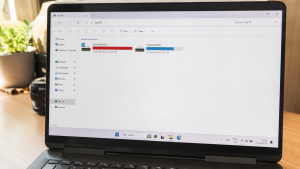
Checklist: Why Is Your Local Disk C Disappearing Automatically?
Check the boxes below if any of these symptoms match your laptop’s current condition:
-
[ ] The Local Disk C capacity bar inside File Explorer turns bright red.
-
[ ] The laptop recently completed a major Windows Update version rollout.
-
[ ] A persistent Low Disk Space system notification repeatedly interrupts your workflow.
-
[ ] Demanding creative applications or browsers crash due to lack of temporary scratch disk space.
-
[ ] The Downloads directory and Desktop haven’t been purged of old setup installers in months.
Practical Recommendation: If your C drive abruptly hemorrhages dozens of gigabytes right after a major operating system update, the culprit is almost certainly the archived Previous Windows Installations (Windows.old) folder preserved by the system.
Comparison Table: Hidden Clutter Depleting Local Disk C Space
To pinpoint what is silently consuming your primary partition storage, review this breakdown of hidden system files:
4 Ways to Fix Local Disk C Full for No ReasonFollow these step by step maintenance methods to reclaim valuable space across your system partition:
When Should You Upgrade to a Higher Capacity SSD?If you have cleaned out all obsolete system files but your Local Disk C remains perpetually in the red due to demanding professional software suites and extensive project files, running an undersized drive will persistently bottleneck system stability. Upgrading to a high speed 512GB or 1TB NVMe / SATA SSD represents the ultimate long term investment. Beyond providing expansive breathing room for your operating system and heavyweight applications, modern SSD technology delivers blazing responsiveness across all computing tasks. FAQ (Frequently Asked Questions)Is it completely safe to delete the Windows.old folder?Yes, absolutely, provided your current Windows build operates smoothly and you have no intention of rolling back to the previous operating system version. Why does the Downloads folder fill up the C drive so fast?By default, web browsers route all incoming downloads into the user Downloads directory located directly on Local Disk C. Moving archived installers and massive media files over to a secondary Local Disk D partition keeps your C drive running smoothly. ConclusionA Local Disk C partition filling up for no obvious reason is typically provoked by archived Windows.old files, active hiberfil.sys allocations, and unpurged temporary cache directories. By running Disk Cleanup and disabling the hibernation utility, you can effortlessly restore dozens of gigabytes of vital storage space. Shop NVMe SSDs, External Hard Drives & Parts at Aipel ComputerLooking for high speed M.2 NVMe SSDs, reliable SATA solid state drives of all capacities, shock resistant external hard drives for secure backups, or precision laptop toolkits? Explore our extensive inventory of genuine hardware components at competitive wholesale prices directly in our store. To check storage drive availability, browse our product catalog, or get directions to our retail store, visit the official Aipel Computer website today! |
Tags: command to disable hibernate windows, delete windows old folder c drive, how to clean c drive windows 10, local disk c full for no reason

Local Disk C Full for No Reason on Windows? Causes and Fixes

Attending an important work meeting, presentation, or online lecture via Zoom or Google Meet, only to find out that no... selengkapnya
Ada beberapa tips memilih processor laptop yang perlu kamu perhatikan supaya nantinya tidak salah membelinya. Sebab, dalam memilih perangkat processor... selengkapnya
Perkembangan zaman yang semakin maju, semua kegiatan yang dilakukan akan dipermudah dengan inovasi yang diciptakan seperti adanya komputer. Hadirnya komputer... selengkapnya
Printer Epson L121 bisa menjadi pilihan untuk Anda yang sedang mencari printer dengan kualitas terbaik dan menawarkan banyak keunggulan. Printer... selengkapnya
Saat ini ada berbagai jenis kabel di grosir komputer dengan fungsi, kelebihan, dan kekurangan masing-masing. Adapun salah satunya yaitu kabel... selengkapnya
Baterai CMOS CR2032 merupakan baterai ringan yang berbentuk lingkaran serta berukuran kecil dan memiliki tegangan operasi sebesar 3 V. Biasanya... selengkapnya
Salah satu produk yang akan Anda temukan di pusat komputer murah adalah PC Rakitan. Seperti namanya, maka jenis PC ini... selengkapnya

Dalam era digital yang semakin maju, keamanan komputer menjadi hal yang sangat penting. Serangan malware, virus, dan ransomware semakin canggih... selengkapnya
Flashdisk tidak terbaca merupakan masalah umum yang sering dihadapi oleh pengguna laptop atau PC. Flashdisk adalah perangkat penyimpanan data portable... selengkapnya
Contoh hardware input tentunya sangat beragam. Berikut akan kita bahas beberapa contohnya beserta fungsinya masing-masing. Komponen utama komputer terdiri atas... selengkapnya
-3%
AIPEL COMPUTER – Pusat Grosir dan Eceran – Belanja Hebat dan Hemat – Harga Murah Garansi Prima * GARANSI –… selengkapnya
Rp 175.000 Rp 170.000
3%
A. DESKRIPSI (DESCRIPTION) Refill Ink EPSON T6735 Light Cyan Original 100 % adalah tinta isi ulang berkualitas dari EPSON yang… selengkapnya
Rp 136.000 Rp 140.000
23%
A. DESKRIPSI (DESCRIPTION) Kabel Audio RCA-2 M to M CENTROO 3 M adalah kabel audio berkualitas tinggi yang ideal untuk… selengkapnya
Rp 17.000 Rp 22.000
23%
A. DESKRIPSI (DESCRIPTION) Catridge HP 678 Colour Original 100 % adalah tinta warna berkualitas tinggi yang dirancang untuk menghasilkan cetakan… selengkapnya
Rp 155.000 Rp 200.000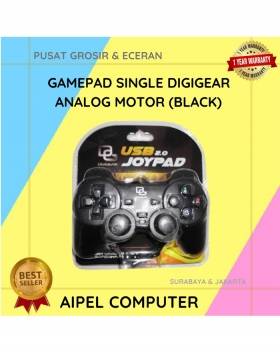
24%
A. DESKRIPSI (DESCRIPTION) Gamepad Single DIGIGEAR Analog Motor (Black) adalah kontroler gaming modern yang dirancang untuk pengalaman bermain yang lebih… selengkapnya
Rp 32.000 Rp 42.000
21%
GARANSI * AIPEL COMPUTER – Pusat Grosir dan Eceran – Belanja Hebat dan Hemat – Harga Murah Garansi Prima *… selengkapnya
Rp 55.000 Rp 70.000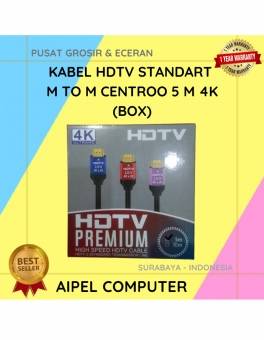
26%
A. DESKRIPSI (DESCRIPTION) Kabel HDTV Standart M To M CENTROO 5 M 4K adalah pilihan tepat bagi Anda yang menginginkan… selengkapnya
Rp 40.000 Rp 54.000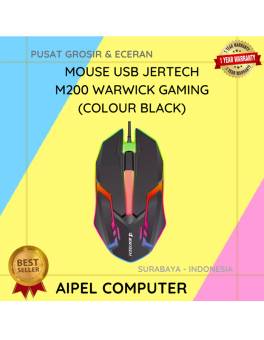
18%
A. DESKRIPSI (DESCRIPTION) Mouse USB JERTECH M200 WARWICK Gaming adalah mouse kabel yang dirancang khusus untuk memberikan performa maksimal dalam… selengkapnya
Rp 23.000 Rp 28.000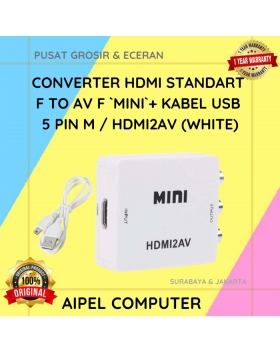
30%
A. DESKRIPSI (DESCRIPTION) HDMI to AV Converter Mini adalah solusi cerdas untuk Anda yang ingin menghubungkan perangkat digital modern ke… selengkapnya
Rp 35.000 Rp 50.000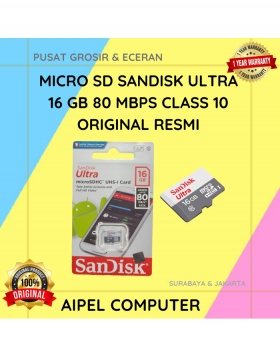
13%
A. DESKRIPSI (DESCRIPTION) Micro SD SANDISK Ultra 16 GB 80 MBPS CLASS 10 Original (Black) adalah kartu memori canggih berkapasitas… selengkapnya
Rp 113.000 Rp 130.000



Saat ini belum tersedia komentar.