- Orderan dibawah 500.00 via Goshop / Offline / Marketplace
Bluetooth Mouse Not Connecting? Causes and 4 Easy Fixes
Turning on your wireless Bluetooth mouse only to find the screen cursor completely frozen is a common headache. Checking your Windows Bluetooth menu reveals your device status stuck on “Connecting…” without establishing a link, or throwing a red “Driver error” notification.
A Bluetooth mouse struggling to connect or frequently disconnecting on its own is rarely caused by a broken optical sensor; it usually stems from power management settings and corrupted hardware pairing caches. The most frequent triggers are Windows Power Management turning off internal Bluetooth adapters during idle periods, low AA/AAA battery voltage, or corrupted connection profiles. Much like diagnosing laptop bluetooth not connecting or missing how to fix to restore wireless performance, you can resolve these connection issues yourself in a few quick steps.
Featured Snippet (Quick Answer):
To fix a Bluetooth mouse that is not connecting or keeps disconnecting, remove the device profile in Windows Settings and re-pair it, disable power saving for the Bluetooth adapter in Device Manager, replace depleted AA/AAA batteries, and restart the Bluetooth Support Service.
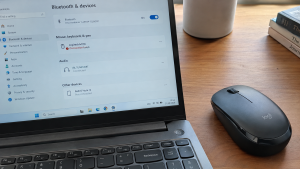
Checklist: Diagnosing Bluetooth Mouse Connection Failures
Check the boxes below if these physical symptoms describe your mouse:
-
[ ] The LED optical sensor underneath flashes rapidly (indicating active pairing mode).
-
[ ] The mouse name appears in Windows Bluetooth Settings but fails when clicking Connect.
-
[ ] The cursor stutters or delays for several seconds after leaving the laptop idle.
-
[ ] The Bluetooth mouse connects smoothly when tested on a phone or another laptop.
-
[ ] Connection issues started immediately after Windows installed system updates.
Practical Recommendation: Avoid disassembling your mouse. Remove the saved device profile in Windows Bluetooth Settings and put your mouse back into pairing mode to re-establish a fresh link.
Comparison Table: Causes of Bluetooth Mouse Connection Failures and Fixes
Here is an overview of why Bluetooth mice fail to connect and recommended troubleshooting actions:
|
4 Ways to Fix a Bluetooth Mouse Not Connecting
Follow these troubleshooting steps in order:
-
Remove and Re-Pair the Device. Open Settings (
Win + I) > Bluetooth & devices > Devices. Locate your problematic Bluetooth mouse, click the three-dots icon beside it, and select Remove device. Toggle your mouse power switch off and on, hold down the pairing button underneath until the LED flashes rapidly, then click Add device in Windows to re-pair. -
Disable Bluetooth Power Saving in Device Manager. Search for and open Device Manager. Expand the Bluetooth category, right-click your laptop’s main Bluetooth adapter (e.g., Intel Wireless Bluetooth or Realtek Adapter), and choose Properties. Switch to the Power Management tab, uncheck Allow the computer to turn off this device to save power, and click OK.
-
Restart the Bluetooth Support Service. Press
Win + R, typeservices.msc, and press Enter. Locate Bluetooth Support Service. Right-click and choose Restart. Double-click the service entry, change the Startup type dropdown from Manual to Automatic, and click Apply. -
Replace Mouse Batteries and Clean the Optical Lens. Most Bluetooth mice require stable voltage. AA or AAA batteries drained down to 20% can still light up sensor LEDs, but lack the power to maintain stable Bluetooth radio transmissions to your laptop. Install fresh batteries and wipe the optical sensor lens clean with a dry cloth.
When to Seek Professional Laptop Hardware Service
If you have tried all troubleshooting steps and tested another Bluetooth mouse without success, while your laptop’s Wi-Fi connection also drops frequently, the internal wireless card (Wi-Fi & Bluetooth Combo Card) on your motherboard has suffered physical failure.
This requires installing a replacement internal Bluetooth card or using an External 2.4GHz USB Dongle Adapter as an instant workaround to keep your wireless mouse working smoothly.
FAQ (Frequently Asked Questions)
Which is more reliable: Bluetooth mice or 2.4GHz USB Dongle mice?
2.4GHz USB Dongle mice offer superior connection stability and zero input latency because they operate over dedicated USB hardware receivers. However, Bluetooth mice preserve your laptop’s USB ports.
Why does my Bluetooth mouse cursor stutter (lag)?
Stuttering typically results from 2.4GHz frequency interference if you run a 2.4GHz Wi-Fi network simultaneously alongside Bluetooth peripherals in close proximity.
Conclusion
A Bluetooth mouse failing to connect or dropping connection is usually caused by corrupted pairing profiles, active Windows power saving settings, or depleted batteries. By removing stale device profiles and disabling power saving in Device Manager, your Bluetooth mouse will reconnect smoothly and responsively.
Shop OEM Bluetooth Mice, Batteries & Service at Aipel Computer
Struggling with a broken Bluetooth mouse, looking for silent-click wireless mice, long-lasting batteries, or guaranteed USB Bluetooth Dongles? Find dependable computer peripherals at wholesale prices directly in our store.
To check product availability or get store directions, visit the official Aipel Computer website in Surabaya today.

Bluetooth Mouse Not Connecting? Causes and 4 Easy Fixes
Distributor Grosir Accessories Komputer sepertinya harus Anda cari tahu informasinya ketika Anda tertarik ingin berjualan berbagai produk yang terkait dengan... selengkapnya
Instant panic kicks in the moment your bright and crisp laptop display suddenly turns into an ugly shade of warm... selengkapnya
Keyboard merupakan salah satu piranti keras atau hardware. Keyboard tidak hanya digunakan pada komputer, namun juga bisa digunakan pada laptop.... selengkapnya
Having a high-performance desktop computer for work, video editing, or gaming is a goal for many tech enthusiasts. However, when... selengkapnya
Toko komputer tentunya menyediakan berbagai aksesoris komputer. Misalnya yaitu mouse, kabel USB, printer, keyboard, dan lainnya. Aksesoris tersebut tentunya penting... selengkapnya
GA H61M DS2 merupakan salah satu tipe motherboard dari vendor Gigabyte, yang biasa digunakan dalam perangkat laptop atau PC. Motherboard... selengkapnya
Kinerja komputer bisa lebih optimal apabila didukung dengan accesories yang sesuai. Maka dari itu, pastikan anda segera mencari dan membeli... selengkapnya

Cara mengecek spek komputer penting untuk konsumen pahami sebelum membeli perangkat PC atau laptop di toko komputer. Spesifikasi komputer meliputi... selengkapnya
Stavolt komputer atau biasa disebut stabilizer ini menjadi salah satu komponen yang dapat menjaga daya tahan komputer serta juga menstabilkan... selengkapnya
Spyware komputer mungkin masih terasa asing bagi sebagian orang. Istilah ini berbeda dari CPU, mouse, dan keyboard yang sudah sering... selengkapnya
17%
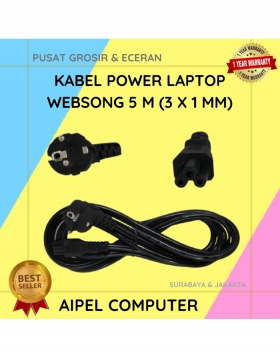
A. DESKRIPSI (DESCRIPTION) Kabel Power Laptop WEBSONG 5 M (Black) merupakan salah satu inovasi unggulan dari WEBSONG yang dirancang khusus… selengkapnya
Rp 72.500 Rp 87.000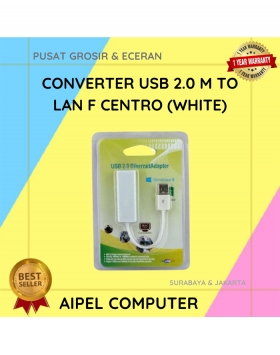
27%
A. DESKRIPSI (DESCRIPTION) USB 2.0 to LAN CENTROO 100 Mbps adalah adapter jaringan simpel dan efisien yang memungkinkan koneksi internet… selengkapnya
Rp 24.000 Rp 33.000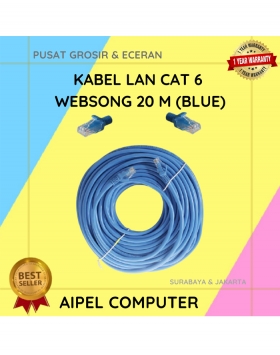
9%
A. DESKRIPSI (DESCRIPTION) Kabel LAN CAT 6 WEBSONG 20 Meter warna biru dari WEBSONG hadir sebagai jawaban atas kebutuhan jaringan… selengkapnya
Rp 75.000 Rp 82.000
30%
AIPEL COMPUTER ADDRESS (Offline Store) Ruko Manyar Mas 27 Blok C3 – C4 Jalan Raya Manyar 63C Kelurahan Menur Pumpungan… selengkapnya
Rp 42.000 Rp 60.000
33%
A. DESKRIPSI (DESCRIPTION) Connector RJ45 F To F CENTROO Single / Barrel (Brown) adalah solusi ideal untuk kebutuhan koneksi jaringan… selengkapnya
Rp 1.000 Rp 1.500
33%
A. DESKRIPSI (DESCRIPTION) Kabel Power Laptop CENTROO 1.8 M adalah kabel daya laptop berkualitas tinggi yang dirancang untuk memastikan suplai… selengkapnya
Rp 10.000 Rp 15.000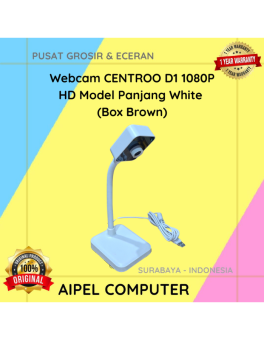
11%
A. DESKRIPSI (DESCRIPTION) Webcam D1 1080P HD Model Panjang White adalah webcam dengan resolusi HD dan desain model panjang yang… selengkapnya
Rp 120.000 Rp 135.000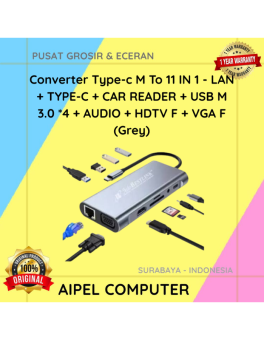
11%
A. DESKRIPSI (DESCRIPTION) Converter Type-C M To 11 IN 1 (Grey) adalah converter multifungsi yang menyediakan berbagai pilihan koneksi dalam… selengkapnya
Rp 120.000 Rp 135.000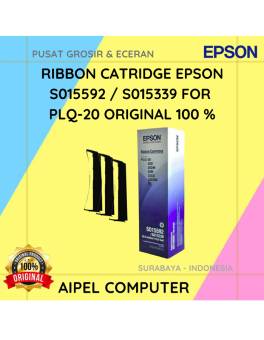
3%
A. DESKRIPSI (DESCRIPTION) Ribbon Cartridge EPSON S015592 / S015339 for PLQ-20 adalah pita printer original yang didesain secara presisi untuk… selengkapnya
Rp 490.000 Rp 505.000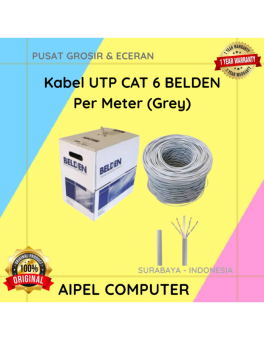
0%
A. DESKRIPSI (DESCRIPTION) Kabel UTP CAT 6 BELDEN Per Meter (Grey) merupakan kabel jaringan yang digunakan untuk kebutuhan instalasi LAN…. selengkapnya
Rp 8.000 Rp 8.000



Saat ini belum tersedia komentar.