- Orderan dibawah 500.00 via Goshop / Offline / Marketplace
Laptop Lagging or Freezing When Multitasking? Easy Fixes
Instant frustration kicks in the moment your smooth laptop suddenly stutters, locks up, and grinds to a total freeze as soon as you open a few browser tabs while typing a document and streaming background music. The mouse pointer trails sluggishly across the screen, open windows fade into a pale white Not Responding state, and switching between running applications takes agonizing minutes.
Experiencing severe laptop lag when multitasking frequently makes owners worry that their machine is crippled by destructive malware. In reality, this performance bottleneck happens simply because physical memory (RAM) is completely maxed out, storage drives are choked at 100 percent disk usage, or the Windows Virtual Memory (Paging File) configuration is poorly allocated. Just like discovering essential tips for slow laptop causes upgrade costs to regain fast daily performance, you can apply several easy DIY tweaks to restore snappy multitasking speed.
Featured Snippet (Quick Answer):
The fastest way to fix laptop lag when multitasking is to close heavy background processes in Task Manager, increase Virtual Memory (Paging File) allocation in Windows Advanced System Settings, switch power plans to Best Performance, enable browser Memory Saver modes, and upgrade to a Dual Channel RAM kit (16GB) alongside an SSD.
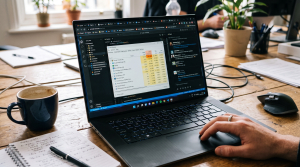
Checklist: Why Does Your Laptop Slow Down Under Heavy Multitasking?
Check the boxes below if any of these symptoms match your laptop’s current condition:
-
[ ] Memory usage in Task Manager quickly hits 85–95% after opening just a few browser tabs.
-
[ ] The entire screen stutters for several seconds whenever pressing Alt + Tab to switch apps.
-
[ ] Heavy software randomly throws Out of Memory warning dialogs or closes unexpectedly.
-
[ ] The operating system runs on a traditional mechanical Hard Disk Drive (HDD).
-
[ ] Internal fans roar loudly and the chassis turns hot the second two programs run side by side.
Practical Recommendation: Open Task Manager (
Ctrl + Shift + Esc) and check the Performance tab. If physical memory usage climbs past 90%, Windows is forced to use slow storage drive sectors as temporary RAM (paging), which is the primary cause of system-wide stutter.
Comparison Table: Causes of Multitasking Lag and Easy Fixes
To diagnose what is choking your laptop during heavy workloads, review this comparison:
| Multitasking Symptom | Likely Cause | Primary Fix | Real Device Impact |
|---|---|---|---|
| “Not Responding” on Alt+Tab | Maxed out RAM capacity (Single Channel) | Upgrade to 16GB Dual Channel RAM | Instant app switching without delay |
| Slow loading across open tabs | Slow mechanical hard drive bottlenecks | Replace boot HDD with an SSD | Massive boost in data read/write speed |
| Random app crashes / exits | Virtual memory allocation too small | Configure custom Paging File size | Prevents crashes from low memory |
| Heavy stutter during heat spikes | High temperatures trigger Thermal Throttling | Clean dusty fans & repaste CPU | Stable CPU clock speeds under load |
4 Ways to Fix a Laptop Lagging When Multitasking
Follow these step by step optimization methods to relieve hardware strain:
-
Increase Virtual Memory (Paging File) Size. Open Settings > search for View advanced system settings. On the Advanced tab, click Settings under Performance. Go to the Advanced tab, click Change under Virtual memory. Uncheck the automatic manage box, select your C: drive, choose Custom size, set the Initial size to 1.5 times your physical RAM (in MB) and Maximum size to 3 times your RAM, then click Set and OK.
-
Enable Efficiency Features in Your Web Browser. Launch Google Chrome or Microsoft Edge. Navigate to Settings > System and performance. Toggle on Memory Saver (or Efficiency mode). This automatically frees up RAM from inactive background tabs, keeping memory available for active software.
-
Switch Power Mode to Best Performance. Click the battery icon in your taskbar or go to Settings > System > Power & battery. Change your Power mode dropdown to Best performance. This prevents the processor from aggressively downclocking when handling multiple simultaneous workloads.
-
Adjust Visual Effects for Maximum Performance. Back inside the Performance Options window within Advanced system settings, select Adjust for best performance. If you want clean text and thumbnails, simply keep Show thumbnails instead of icons and Smooth edges of screen fonts checked, then click Apply.
When Should You Upgrade to Dual Channel RAM and an SSD?
If you have optimized your virtual memory and closed non essential background tasks but your laptop still struggles with basic daily software (like photo editing, large data spreadsheets, or running video calls alongside web research), your physical hardware has hit its ceiling.
Upgrading to 8GB or 16GB Dual Channel RAM and switching to an M.2 NVMe SSD is the most effective permanent fix. Dual Channel setups double memory communication bandwidth to your CPU, allowing dozens of open tabs and heavy programs to run side by side without frustrating lag.
FAQ (Frequently Asked Questions)
Why does Single Channel RAM cause multitasking lag?
Single Channel RAM provides only one 64-bit data pipeline to the processor. Adding a second matching memory stick enables Dual Channel mode (128-bit pipeline), doubling data transfer bandwidth so multiple active programs can be processed twice as fast.
How much RAM is needed for smooth multitasking in Windows 10/11?
For basic web browsing and document editing, 8GB is the entry baseline. However, for seamless multitasking across heavy browser sessions, office suites, and conferencing tools, 16GB Dual Channel RAM is the ideal standard.
Conclusion
A laptop lagging when multitasking is primarily caused by insufficient physical RAM, small virtual memory paging files, or slow mechanical hard drives. By configuring custom Virtual Memory, turning on browser Memory Saver, and upgrading to Dual Channel RAM, you can restore smooth and responsive multitasking performance.
Shop Laptop RAM, SSD Upgrades & Parts at Aipel Computer
Looking for SODIMM DDR4/DDR5 laptop memory kits, blistering fast M.2 NVMe SSDs, laptop cooling pads, or precision screwdriver sets? Explore our extensive inventory of genuine computer components at competitive wholesale prices directly in our store.
To check memory part compatibility, browse our hardware inventory, or get directions to our retail store, visit the official Aipel Computer website today!
Tags: fix laptop freezing opening multiple apps, increase virtual memory windows 10, laptop lag when multitasking, laptop ram upgrade surabaya, upgrade dual channel ram laptop

Laptop Lagging or Freezing When Multitasking? Easy Fixes
Waktu booting lama pada sistem operasi Windows bisa menjadi masalah yang mengganggu. Proses booting yang lambat tidak hanya menghambat produktivitas.... selengkapnya
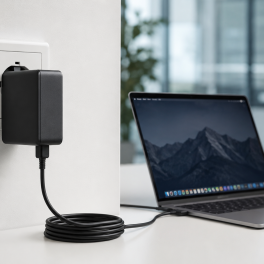
Have you ever felt frustrated because your laptop charger or desktop power cord easily slips out of the wall socket,... selengkapnya

Saat ini sudah banyak toko komputer murah terdekat. Namun bagi Anda yang juga ingin membuka usaha dalam bidang toko komputer... selengkapnya

Toko komputer baik online maupun offline juga menyediakan berbagai aksesoris komputer maupun laptop yang penting dan berguna. Salah satu aksesorisnya... selengkapnya
Tips memilih processor yang tepat tidaklah sulit. Semua bisa Anda dapatkan sesuai kebutuhan. Sama seperti memilih komponen pada komputer atau... selengkapnya

CPU nyala monitor mati, kira-kira apa yang menyebabkan hal tersebut bisa terjadi? Ketika kita menyalakan PC dan CPU berfungsi dengan... selengkapnya

Manfaat belanja di grosir komputer penting untuk Anda pertimbangkan. Sebagaimana yang kita tahu, grosir menyediakan produk secara lengkap dengan harga... selengkapnya
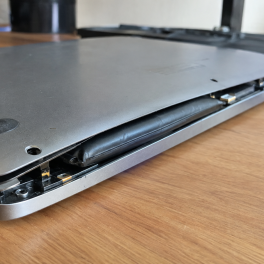
Pernahkah kamu mendapati permukaan touchpad laptop mendadak keras saat ditekan, terangkat naik melebihi permukaan bodi, atau bagian bawah casing laptop... selengkapnya
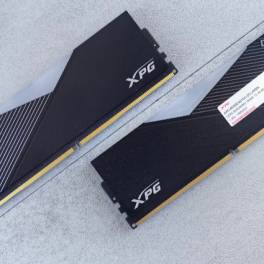
DDR5 merupakan generasi RAM terbaru yang telah diperkenalkan ke pasaran setelah melalui proses penelitian dan pengembangan yang cukup panjang. Para... selengkapnya
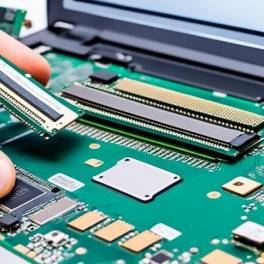
Slot RAM rusak pada laptop dapat menyebabkan berbagai masalah, mulai dari kinerja lambat hingga sistem yang tidak bisa booting. Masalah... selengkapnya

18%
A. DESKRIPSI (DESCRIPTION) Flash Disk SANDISK 64 GB adalah perangkat penyimpanan praktis yang mampu menampung berbagai file penting dengan mudah… selengkapnya
Rp 159.000 Rp 195.000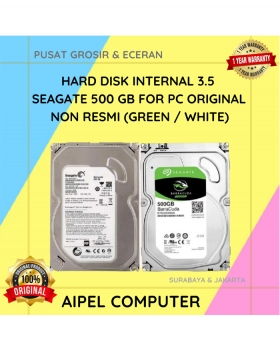
11%
A. DESKRIPSI (DESCRIPTION) Hard Disk Internal 3.5 SEAGATE 500 GB For PC Original adalah solusi penyimpanan untuk desktop yang mengedepankan… selengkapnya
Rp 200.000 Rp 225.000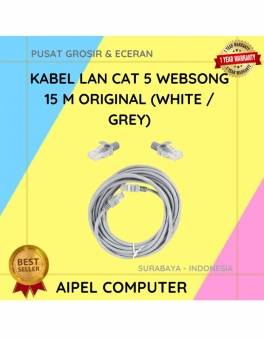
19%
A. DESKRIPSI (DESCRIPTION) Kabel LAN WEBSONG 15 M hadir sebagai solusi konektivitas berkualitas tinggi untuk segala kebutuhan jaringan Anda. Dibuat… selengkapnya
Rp 35.000 Rp 43.000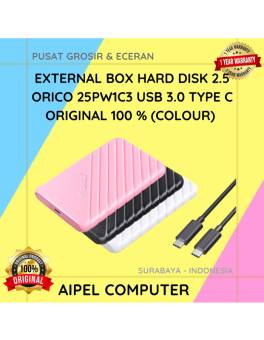
17%
A. DESKRIPSI (DESCRIPTION) ORICO 25PW1C3 USB 3.0 Type C Original adalah solusi penyimpanan data eksternal modern yang didesain khusus untuk… selengkapnya
Rp 73.000 Rp 88.000
8%
A. DESKRIPSI (DESCRIPTION) TP-LINK DECO E4 1-PACK adalah solusi mesh WiFi pintar dari TP-LINK yang dirancang untuk memberikan koneksi internet… selengkapnya
Rp 367.000 Rp 400.000
25%
A. DESKRIPSI (DESCRIPTION) GENAI GM-T10 adalah solusi audio modern dengan port Type-C, menyuguhkan pengalaman mendengarkan yang jernih dan memuaskan. 🎵… selengkapnya
Rp 51.000 Rp 68.000
15%
A. DESKRIPSI (DESCRIPTION) Speaker JERTECH S7-01 Outpost Original 100 % adalah speaker kompak dengan performa suara luar biasa. 🔉 Menghasilkan… selengkapnya
Rp 63.767 Rp 75.000
27%
AIPEL COMPUTER – Pusat Grosir dan Eceran – Belanja Hebat dan Hemat – Harga Murah Garansi Prima * GARANSI –… selengkapnya
Rp 44.000 Rp 60.000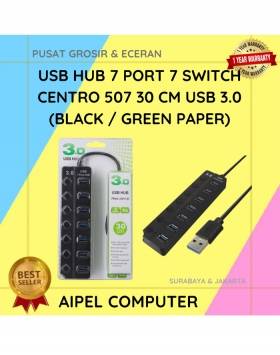
20%
A. DESKRIPSI (DESCRIPTION) USB Hub 7 Port 7 Switch CENTROO 507 adalah perangkat ekspansi port USB yang fungsional dan bergaya…. selengkapnya
Rp 60.000 Rp 75.000
40%
A. DESKRIPSI (DESCRIPTION) Keyboard Protector 11″ adalah pelindung keyboard transparan yang dirancang khusus untuk melindungi keyboard berukuran 11 inci dari… selengkapnya
Rp 3.000 Rp 5.000



Saat ini belum tersedia komentar.