- Orderan dibawah 500.00 via Goshop / Offline / Marketplace
Printer Not Printing? Common Causes and How to Fix It Easily
Trying to print an important document only to have your printer suddenly refuse to work is one of the most common and most frustrating tech problems people run into, whether at home or in the office. The good news: in most cases, the cause is simple and fixable in just a few minutes, no repair shop required.
Before you panic or start shopping for a replacement, run through the checks below. They solve the issue in the vast majority of cases.
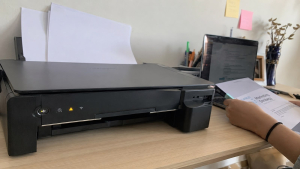
Why Is Your Printer Not Printing?
Before assuming there’s a major hardware failure, rule out these common culprits first:
| Cause | How Common | Quick Check |
|---|---|---|
| Loose or wrong connection | Very common | USB cable seated properly / device on same WiFi network |
| Printer set to “offline” | Very common | Check status in printer settings |
| Outdated or corrupted driver | Common | Check for driver updates in Device Manager / System Settings |
| Empty or dried-up ink | Common | Check ink level indicator |
| Paper jam | Common | Open the tray and check for stuck paper |
| Print spooler stuck (Windows) | Often overlooked | Restart the Print Spooler service |
| Print head clogged | Less common but recurring | Run a nozzle check / cleaning cycle |
That last one, a stuck print spooler, is a step most troubleshooting guides skip, but it’s actually one of the more frequent silent causes on Windows machines. If your printer shows “online” and has ink, yet nothing happens when you hit print, this is usually the culprit.
How to Fix a Printer That Won’t Print
Work through these steps in order:
1. Check the Connection
If you’re using a USB cable, make sure it’s fully plugged in on both ends. A loose connection is often invisible at a glance. If you’re on WiFi, confirm both the printer and your device are on the same network. This trips people up constantly with dual band routers, where a laptop connects to the 5GHz band and the printer only supports 2.4GHz.
2. Make Sure the Printer Is Online
Open your printer settings and check the status. If it shows “offline,” switch it back to “online” manually. Printers sometimes flip to offline mode after a sleep cycle or a brief network drop, even when they’re perfectly fine.
3. Restart the Printer and Your Device
Turn the printer off, unplug it for about 30 seconds. A full unplug clears more of the internal cache compared to just using the power button. Power it back on, then restart your computer as well.
4. Clear the Print Spooler (Windows only)
If restarting doesn’t help, open Services, find Print Spooler, right click and select Restart. This clears stuck print jobs that silently block everything behind them, a step that fixes the problem more often than people expect.
5. Check the Ink Levels
Empty or dried up ink stops many printers from printing entirely, even in black and white mode. Some models block all printing once any cartridge, including color, runs dry.
6. Look for a Paper Jam
Open the printer carefully and check every accessible panel, not just the main tray. A small torn scrap left behind from a previous jam is enough to stop the machine.
When the Problem Might Be More Serious
If you’ve worked through every step above and it still won’t print, the issue is likely deeper:
-
Driver incompatibility, especially after a major OS update
-
A clogged print head, which is common in printers left unused for weeks
-
Aging internal components like rollers, sensors, or the print head reaching end of life
At this stage, the problem usually starts happening more frequently and becomes harder to ignore. If you’re refilling ink often, running cleaning cycles weekly, or restarting the spooler every other day, that’s a sign the printer is on its way out rather than having a one off glitch.
Thinking About a Long-Term Solution
If your printer keeps having issues, it becomes frustrating less because of the fault itself and more because of how often it interrupts your work. At some point, the time lost troubleshooting costs more than the price of a reliable replacement.
If you need genuine parts, ink, or accessories to try one more fix before replacing anything, Aipel Computer stocks components for most common printer brands. And if your office is past the point of patching things up and needs a proper hardware upgrade for the whole team, it’s worth talking to a bulk supplier who can advise on models suited to your print volume rather than just selling the cheapest unit in stock.
FAQ (Frequently Asked Questions)
-
Why is my printer not responding when I try to print? It’s usually caused by connection issues, offline status, driver problems, or a stuck print spooler on Windows.
-
Can empty ink stop the printer from working completely? Yes. Many printers refuse to print at all once ink is fully depleted, even for black and white jobs.
-
Do I need to open the printer to fix this issue? Rarely. Most problems are solved through basic checks and settings. Opening the printer is usually only needed to clear a paper jam.
-
Why does restarting fix so many printer problems? Printers cache print jobs and settings in temporary memory. A full power cycle clears that cache, along with any corrupted job stuck in the queue.
Tips to Keep Your Printer Running Smoothly
-
Print something at least once a week to keep ink from drying out in the nozzles.
-
Don’t let ink cartridges run completely empty before replacing them.
-
Keep the printer in a clean, dust free, and reasonably humid area since dry environments speed up ink drying.
-
Run the built in cleaning cycle monthly, even if print quality looks fine.
-
Use good quality ink and accessories because off brand ink is a common cause of clogged print heads over time.
Tags: computer accessories, paper jam fix, printer driver issue, printer ink problem, printer maintenance tips, printer not printing, printer offline fix, printer troubleshooting

Printer Not Printing? Common Causes and How to Fix It Easily

Toko komputer tidak hanya menyediakan komputer. Sektor utamanya memang bergerak dalam penjualan komputer, namun tak menutup kemungkinan toko juga menawarkan... selengkapnya
Keyboard merupakan salah satu piranti keras atau hardware. Keyboard tidak hanya digunakan pada komputer, namun juga bisa digunakan pada laptop.... selengkapnya
Penyimpanan internet memang terbatas, karena itu diperlukan WD untuk mengatasinya. Lantas WD itu apa? Meski WD memiliki peran yang cukup... selengkapnya

Access Point WiFi memiliki peranan penting dalam memastikan koneksi internet agar stabil serta lancar. Pasalnya perangkat keras ini seringkali digunakan... selengkapnya

Komputer Anda tak akan lengkap dengan aksesoris. Meskipun bukan merupakan hal yang wajib namun dalam kenyataannya terdapat fungsi dari komputer... selengkapnya

Untuk memudahkan proses mencetak, kini telah tersedia printer. Printer itu pun tersedia dalam beragam merek. Salah satunya ialah printer HP.... selengkapnya
Printer thermal atau printer mini sekarang bukan merupakan barang yang asing bagi banyak orang, dengan alat ini, anda bisa mencetak... selengkapnya

Grosir komputer bergaransi menyediakan berbagai peranti dan komponen PC dengan harga terjangkau, lengkap, dan berkualitas tinggi. Pengguna di era digital... selengkapnya
Cartridge tinta merupakan salah satu bagian dalam printer yang memiliki fungsi sebagai penampung atau tempat isi ulang tinta printer. Melalui... selengkapnya
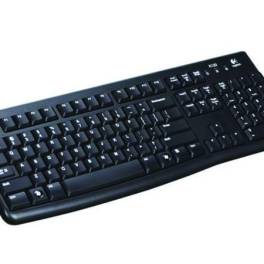
Keyboard Logitech K120 adalah salah satu keyboard dengan kabel yang bisa menjadi pilihan karena menawarkan berbagai kelebihan tersendiri. Nah, berikut... selengkapnya

31%
AIPEL COMPUTER – Pusat Grosir dan Eceran – Belanja Hebat dan Hemat – Harga Murah Garansi Prima * GARANSI –… selengkapnya
Rp 22.000 Rp 32.000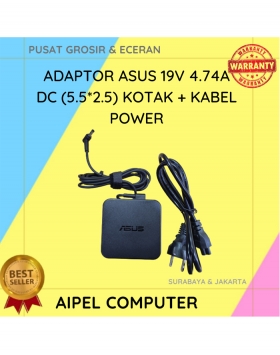
14%
A. DESKRIPSI (DESCRIPTION) Adaptor Laptop ASUS 19V 4.74A DC dengan desain kotak adalah solusi andal untuk menjaga performa perangkat Anda… selengkapnya
Rp 95.000 Rp 110.000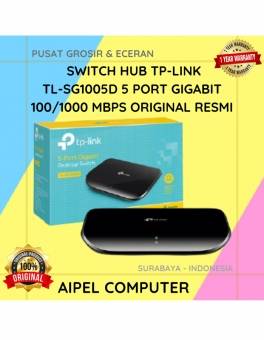
13%
A. DESKRIPSI (DESCRIPTION) Switch Hub TP-LINK 5 Port Gigabit 1000 MBPS adalah perangkat jaringan yang dirancang untuk memberikan koneksi internet… selengkapnya
Rp 175.000 Rp 200.000
33%
A. DESKRIPSI (DESCRIPTION) Connector RJ45 F To F CENTROO Single / Barrel (Brown) adalah solusi ideal untuk kebutuhan koneksi jaringan… selengkapnya
Rp 1.000 Rp 1.500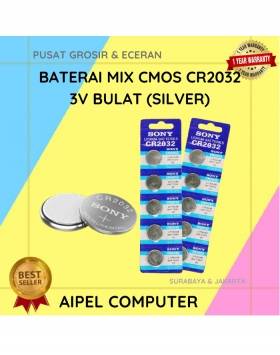
28%
A. DESKRIPSI (DESCRIPTION) Battery SONY Cmos Mix CR2032 3V Bulat (Silver) adalah solusi andal untuk menopang kebutuhan daya perangkat komputer… selengkapnya
Rp 1.800 Rp 2.500
29%
AIPEL COMPUTER Kabel USB 3.0 M to F CENTROO adalah solusi ideal untuk memperpanjang koneksi USB tanpa menurunkan kecepatan transfer… selengkapnya
Rp 20.000 Rp 28.000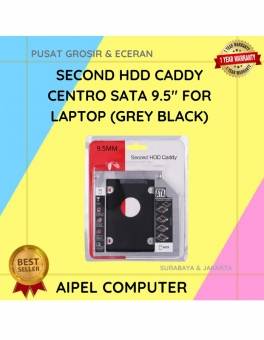
25%
A. DESKRIPSI (DESCRIPTION) Second HDD Caddy CENTROO SATA 9.5″ For Laptop adalah perangkat tambahan praktis yang memungkinkan Anda menambahkan hard… selengkapnya
Rp 13.500 Rp 18.000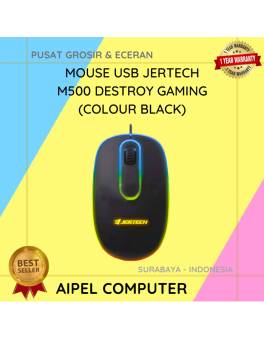
30%
A. DESKRIPSI (DESCRIPTION) Mouse USB JERTECH M500 DESTROY Gaming adalah mouse gaming berkabel yang dirancang khusus bagi pengguna yang menginginkan… selengkapnya
Rp 26.000 Rp 37.000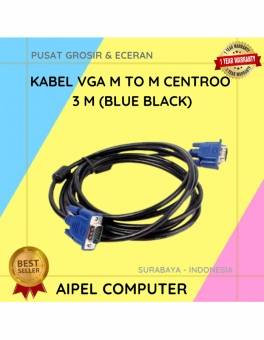
20%
A. DESKRIPSI (DESCRIPTION) Kabel VGA M to M CENTROO 3M adalah perangkat andal untuk menghubungkan monitor dan proyektor dengan PC… selengkapnya
Rp 16.000 Rp 20.000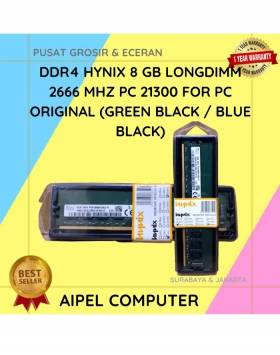
10%
A. DESKRIPSI (DESCRIPTION) DDR4 HYNIX 8 GB Longdimm 2666 MHz PC21300 For PC Original adalah RAM pilihan terbaik bagi pengguna… selengkapnya
Rp 885.000 Rp 980.000



Saat ini belum tersedia komentar.