- Orderan dibawah 500.00 via Goshop / Offline / Marketplace
Why Is My Printer Offline on WiFi? Here Are Easy Solutions
Wireless printers are an absolute lifesaver for daily productivity, helping you easily print out university assignments or handle busy office paperwork without messy cables. However, it can trigger a massive headache when the screen suddenly displays an offline status, even though the WiFi indicator light on the machine is glowing perfectly normal.
If you are in a rush and need an instant answer to resolve this issue, here is a quick summary of the emergency troubleshooting steps.
Featured Snippet (Instant Answer):
The main reasons a printer shows as offline while connected to WiFi include network communication drops due to automatic IP address changes by the router (DHCP), frequency mismatch on dual-band routers, or the “Use Printer Offline” setting being enabled in Windows. Quick fixes include disabling the offline status via Control Panel, configuring a Static IP, and switching your laptop connection to the 2.4 GHz frequency band.
Wireless connectivity issues usually stem from operating system software misconfigurations or router data path glitches rather than physical hardware failures. Before you decide to take your machine to a repair shop, let us dive into this in-depth troubleshooting guide prepared by experienced computer technicians.
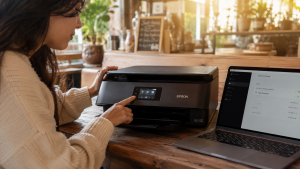
Understanding Why Your Printer Loses Connection
Wireless data communication relies heavily on a stable and constant internet protocol handshake between devices. According to troubleshooting documentation from Microsoft Support, there are several core factors that cause a computer to suddenly fail to detect a printer within the local network:
-
Constantly Changing IP Addresses (Dynamic DHCP): Every time a router reboots, it reassigns new internet protocol addresses to surrounding devices. If the printer receives a new IP address while the computer is still searching for the old one, the status automatically switches to offline.
-
Dual-Band Router Frequency Conflict: Modern laptops often automatically connect to the high-speed 5 GHz frequency band for faster internet. Meanwhile, most wireless cards inside standard printers only support the traditional 2.4 GHz band. This wavelength difference leaves both devices unable to detect each other.
-
Sleep Mode Power Glitches: To conserve energy, certain printer models will automatically shut down their internal network adapter after sitting idle for a long time, abruptly breaking the connection with your computer.
Summary Table: Network Indicators vs. Corrective Actions
To help you identify the right solution quickly, you can match your device network symptoms with this technical reference table:
| Main Device Symptom | Communication Root Cause | Instant Corrective Action |
|---|---|---|
| Windows status shows Offline | Operating system setting is locked | Uncheck the Use Printer Offline option |
| Invalid IP Address allocation | Router DHCP address conflict | Configure a Static IP via the web GUI admin |
| WiFi light blinks slowly | Loss of security encryption handshake | Re-enter the SSID password on the printer panel |
| Documents stuck in queue | Windows print spooler system error | Clear the document cache files manually |
Step-by-Step Guide to Fix a Printer Offline on a WiFi Network
Please follow these technical repair steps in order to restore your wireless machine back to an online status:
1. Disable the Offline Status Manually in Windows
Open the Control Panel on your computer, then navigate to Devices and Printers. Right-click on your wireless printer icon and select See What’s Printing. Click the Printer tab at the top left corner of the new window, and make sure to uncheck the Use Printer Offline option. This simple tweak frequently re-establishes the sleeping data path instantly.
2. Match the WiFi Frequency of Your Computer and Printer
Check the wireless network settings on your laptop or PC. Ensure that the SSID name you are connected to is identical to the network picked up by your printer. If your router broadcasts two separate bands, switch your laptop from the 5 GHz network over to the standard 2.4 GHz network so both devices are running on the same radio wavelength.
3. Assign a Permanent Static IP Address
To prevent your computer from constantly losing track of the printing device, you need to lock its digital address. Print a Network Configuration Page directly using the printer physical maintenance button to find its current IP address. Open a web browser on your computer, type that IP address into the search bar to access the manufacturer internal dashboard, and change the network configuration from dynamic (DHCP) to manual (Static).
4. Check the Print Spooler Queue
If the connection is secure but the machine still refuses to respond, a corrupted document might be clogging up the queue. For this particular issue, you will need to temporarily stop the Print Spooler service on your computer and manually clear out the temporary print cache files to clean up the Windows queue.
Common Troubleshooting Mistakes to Avoid
When a printer suddenly stops responding, panic often leads users to take unnecessary actions that prolong the downtime. Avoid these frequent mistakes:
-
Rebooting the Router Repeatedly: This wastes time because it triggers the router to randomize the IP addresses of every other device in the room instead of fixing the printer communication path.
-
Rushing to Fully Uninstall the Driver: Many users immediately delete their drivers, even though the glitch can often be fixed by simply unchecking the offline status box in the Control Panel.
-
Prematurely Assuming the Hardware is Broken: Do not rush into buying a replacement device, as 90 percent of wireless printing issues are purely caused by software conflicts and data path drops.
When Should You Consider a Long-Term Solution?
Handling software troubleshooting on your own works wonders for temporary network drops. However, if these connection glitches keep happening almost every week despite setting up a Static IP and updating your software, it might be an indicator that the internal wireless receiver card is degrading due to old age.
For office spaces or small businesses relying on rapid daily workflows, the time wasted dealing with repetitive technical hitches can severely disrupt operations. When software workarounds become inefficient, replacing the aging hardware with a unit that boasts robust network management is a wise long-term investment.
To ensure your workplace digital ecosystem runs smoothly, always make sure to use original, high-quality network components and computer accessories — widely available at Aipel Computer — to keep your printing performance stable for years to come.
As a quick budgetary guideline, professional network module repairs or printer servicing in the Surabaya area typically range from Rp150.000 to Rp350.000, depending on the severity of the damage and the brand of your machine. If a repair quote approaches the price of a brand-new unit, upgrading to a fresh device is a much better financial decision.
Conclusion
An offline status on a wireless printer almost always tracks back to three main culprits: automatic IP address changes, WiFi frequency mismatches, or the manual offline status being left on in Windows rather than actual physical damage. The four methods explained above, such as turning off the offline setting, matching the WiFi band, setting up a Static IP, and clearing the print queue, are more than enough to fix nearly all cases without needing a technician.
However, it is time to consider professional service or a hardware upgrade if you face the following conditions:
-
The offline error keeps returning even though a Static IP configuration has been properly applied.
-
The WiFi signal drops randomly despite the printer being placed close to the router.
-
The internal network interface card of the printer is more than 5 years old.
If these standard troubleshooting steps fail to fix the issue, there is likely a deeper hardware issue within your printer internal network module. The technician team at Aipel Computer is fully ready to help inspect your device and provide the best solution for your tech setup.
FAQ (Frequently Asked Questions)
-
Why does my printer suddenly go offline when it was working fine before?
This usually happens after a router reboots or a brief power outage. Once the router powers back up, it reassigns new IP addresses to all connected devices, including the printer. The telltale sign is that the printer displays a normal green WiFi light, but the computer status stays “offline” until the IP addresses are manually synced again.
-
Can being too far from the router cause an offline status?
Yes, absolutely. A long distance or thick concrete walls will degrade the wireless signal quality, causing the printer to drop the network connection unexpectedly to save power.
-
How do I find out my printer current IP address?
You can find the address by holding down the network report button combination on the physical printer panel, or by checking the active client list inside your router admin page.
-
Why is my printer unable to connect to a 5 GHz WiFi network?
Most standard printer network cards are built to read the 2.4 GHz frequency band to achieve a wider coverage radius, meaning they will not detect or connect to a 5 GHz broadcast.
-
Can a laptop battery saver mode affect the wireless connection status?
It is possible. Some laptop power management systems tend to slow down background network synchronization processes when the battery runs low, which can occasionally disrupt the detection of wireless devices.
Additional Tips for Stable Wireless Printing
-
Regularly update your printer controller software (drivers) directly from the official manufacturer website to maintain full compatibility with recent Windows security updates.
-
Position the printer within an ideal router coverage radius, maintaining a signal strength above 70 percent so large document files do not time out mid-transfer.
-
Avoid sending dozens of heavy print commands at the exact same time when the local network is heavily congested by multiple users.
Relevant Cluster Tautan (Descriptive Internal Linking)
If you have successfully fixed your wireless connection network but are encountering core mechanical printing failures instead, please check out our comprehensive guide on how to fix a printer that is not printing to diagnose other common system hardware glitches.
Tags: dual band router printer, printer offline wifi, printer troubleshooting, setup static ip printer, why is my printer offline, wireless printer fix

Why Is My Printer Offline on WiFi? Here Are Easy Solutions

Membeli komputer di pusat penjualan komputer, memang tidak bisa dibilang mudah, apalagi jika budget yang Anda miliki terbatas, atau tidak... selengkapnya
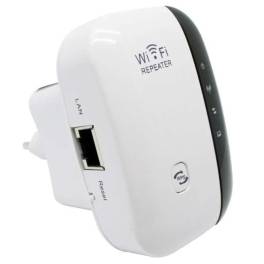
Sudah banyak tersedia di toko atau grosir komputer, WiFi repeater ternyata punya peran penting sekarang ini. Bekerja atau mengoperasikan komputer,... selengkapnya
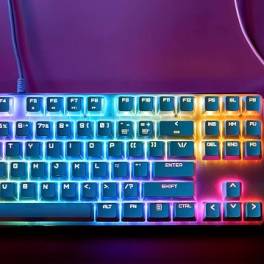
Keyboard komputer tidak berfungsi tentu akan mengganggu serta menghambat kenyamanan saat kita menggunakan perangkat tersebut. Meskipun harga komputer terbilang tinggi,... selengkapnya

Toko komputer grosir, Kecanggihan teknologi saat ini berkembang dengan pesat, terlebih lagi kebutuhan akan teknologi tersebut sangat dibutuhkan oleh setiap... selengkapnya

Laptop SSD adalah jenis komputer yang tidak mengandalkan Hard Disk Drive (HDD) sebagai media penyimpanan data, melainkan menggunakan Solid State... selengkapnya


Cara memperbaiki laptop tidak bisa connect WiFi belum banyak diketahui oleh sebagian orang. Padahal, mengetahui cara ini sangat penting agar... selengkapnya

Sebagian dari Anda mungkin bertanya-tanya, bagaimana cara mengatasi masalah penyimpanan komputer penuh dengan mudah dan aman? Kapasitas penyimpanan komputer yang... selengkapnya

Fungsi CPU komputer menjadi penting untuk diketahui bagi para pengguna komputer dalam berbagai bidang kehidupan. Zaman sekarang ini perangkat komputer... selengkapnya

Hard disk laptop merupakan salah satu komponen penting dalam laptop. Bagi yang sudah sering menggunakan komputer atau laptop pasti sudah... selengkapnya
26%
AIPEL COMPUTER – Pusat Grosir dan Eceran – Belanja Hebat dan Hemat – Harga Murah Garansi Prima * GARANSI –… selengkapnya
Rp 35.000 Rp 47.000
25%
A. DESKRIPSI (DESCRIPTION) Mouse Pad CENTROO Logo None 26 x 21 CM adalah pilihan sempurna untuk pengguna komputer dan laptop… selengkapnya
Rp 9.000 Rp 12.000
29%
A. DESKRIPSI (DESCRIPTION) Earphone GENAI GM-T18 adalah earphone berteknologi konektor Type-C yang praktis dan efisien. 🤍 Cocok digunakan untuk perangkat… selengkapnya
Rp 37.000 Rp 52.000
22%
A. DESKRIPSI (DESCRIPTION) GENAI GM-T08 adalah earphone dengan port Type-C yang hadir dengan desain putih bersih, cocok untuk Anda yang… selengkapnya
Rp 49.000 Rp 63.000
8%
A. DESKRIPSI (DESCRIPTION) Adaptor Laptop ASUS 19V 6.32A DC dengan konektor 4.5mm x 3.0mm adalah pilihan ideal bagi pengguna yang… selengkapnya
Rp 185.000 Rp 200.000
31%
A. DESKRIPSI (DESCRIPTION) Kabel Audio 3.5 M-2 To F BEST adalah kabel splitter audio praktis yang dirancang untuk membagi satu… selengkapnya
Rp 5.500 Rp 8.000
8%
A. DESKRIPSI (DESCRIPTION) Refill Ink 1 Liter Black CENTROO adalah tinta hitam tinta isi ulang berkualitas tinggi, didesain untuk cetakan dokumen… selengkapnya
Rp 78.000 Rp 85.000
17%
A. DESKRIPSI (DESCRIPTION) Mouse USB BANDA B100 adalah perangkat yang dirancang untuk memberikan kenyamanan serta keakuratan dalam setiap klik dan… selengkapnya
Rp 10.000 Rp 12.000
8%
A. DESKRIPSI (DESCRIPTION) Keyboard + Mouse Wireless LOGITECH MK220 adalah kombinasi keyboard dan mouse wireless dari LOGITECH yang dirancang untuk… selengkapnya
Rp 303.000 Rp 330.000
7%
GARANSI * AIPEL COMPUTER – Pusat Grosir dan Eceran – Belanja Hebat dan Hemat – Harga Murah Garansi Prima *… selengkapnya
Rp 195.000 Rp 210.000



Saat ini belum tersedia komentar.