- Orderan dibawah 500.00 via Goshop / Offline / Marketplace
Print Spooler Keeps Stopping on Windows? 4 Ways to Fix It
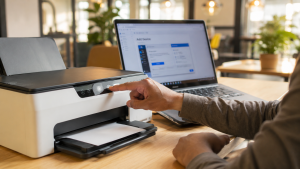
Have you ever clicked the print button on your computer only to receive absolutely no response from your printing machine, even though the hardware power light is glowing perfectly normal? When checking your document queue, you might be greeted by frustrating error messages such as The local print spooler service is not running or the system might suddenly freeze.
If you are in a rush and need an instant solution to re-enable your printing functions, here is a quick summary of the emergency steps.
Featured Snippet (Instant Answer):
To fix a Print Spooler service that keeps stopping unexpectedly, open the Windows Services dashboard (
services.msc), temporarily stop the Print Spooler service, and delete all temporary document cache files inside theC:\Windows\System32\spool\PRINTERSfolder directory. Once cleared, restart the service by clicking Start and set its Startup type to Automatic.
The Print Spooler service is a core background component of the Windows operating system that handles the data communication between your software applications and printing hardware, managing the line of documents waiting to be printed. When this service crashes repeatedly, the problem usually stems from corrupted print jobs clogging the queue or damaged device drivers.
Let us look at the following safe, technical recovery methods to restore your system performance back to normal.
Understanding Why Your Print Spooler Crashes
Before diving into technical fixes, it is essential to understand what causes this print management system to halt unexpectedly. Based on official technical documentation, there are a few primary culprits behind this issue on Windows 10 and Windows 11 systems:
-
Corrupted Print Job Cache Files: Documents that fail to transfer due to sudden cable disconnections or network drops can leave behind corrupted temporary files in the computer internal memory, blocking any subsequent printing commands.
-
Conflicting or Damaged Device Drivers: Automatic operating system updates can sometimes render older printer controller files incompatible, triggering an unexpected crash within the main subsystem.
-
Corrupted Windows System Components: Deeper internal operating system corruption that abruptly halts necessary background processes.
Reference Table: Spooler Issue Indicators vs. Solutions
Use this quick technical reference table to determine the most efficient troubleshooting path based on the specific symptoms showing on your computer:
| Main Device Symptom | Communication Root Cause | Instant Corrective Action |
|---|---|---|
| Windows status shows Offline | Operating system setting is locked | Uncheck the Use Printer Offline option |
| Invalid IP Address allocation | Router DHCP address conflict | Configure a Static IP via the web GUI admin |
| WiFi light blinks slowly | Loss of security encryption handshake | Re-enter the SSID password on the printer panel |
| Documents stuck in queue | Windows print spooler system error | Clear the document cache files manually |
4 Ways to Fix a Print Spooler That Keeps Stopping
Please follow these step-by-step technical instructions in order to restore your daily workplace printing workflow:
1. Flush the Print Cache and Reset the Spooler Service
This initial step remains the most reliable way to clear a jammed print queue. Press the Windows + R keys on your keyboard, type services.msc, and hit enter. Scroll down to find the service named Print Spooler, right-click it, and select Stop.
Next, open File Explorer by pressing Windows + E and navigate to this exact folder path: C:\Windows\System32\spool\PRINTERS. Delete all temporary files located inside this folder until it is completely empty, ensuring you do not delete the main folder itself. Return to the Services window, right-click Print Spooler again, select Start, and ensure that the Startup type dropdown menu is set to Automatic.
2. Configure the Built-In Recovery Settings
To force Windows to automatically restart this process whenever a system failure occurs, you can tweak its recovery preferences. In the Print Spooler Properties window within the Services menu, click over to the Recovery tab. Change the settings for First failure to Restart the Service, change Second failure to Restart the Service, and set the Reset fail count after option to 1 minute. Click Apply to save your changes.
3. Uninstall Conflicting Printer Drivers
If your connectivity issues began right after a recent Windows update, an outdated driver file might be causing software conflicts. Right-click on the Windows Start button and open Device Manager. Expand the section labeled Print queues or Printers, right-click your specific printing device name, and choose Uninstall device. Once finished, restart your PC and install the latest driver version downloaded directly from the official manufacturer support page.
4. Repair Corrupted System Files via Command Prompt
If the Print Spooler service is completely missing from your system list or refuses to initiate, you might be dealing with corrupted operating system files. Type cmd into your Windows search bar, right-click on Command Prompt, and select Run as administrator. Type the repair code sfc /scannow and press enter. Allow the verification process to reach 100 percent, then reboot your machine to load the freshly repaired system files.
Common Troubleshooting Mistakes to Avoid
When your documents get stuck mid-transfer, rushing into complex software modifications without proper care can result in wider operating system errors. Avoid these common missteps:
-
Deleting the Main Spool or PRINTERS Folders: This is a critical mistake made by many users. You should only wipe out the temporary files resting inside the folder, as deleting the parent directory will break the Windows default print path.
-
Downloading Driver Files from Unverified Third-Party Websites: Always utilize the hardware manufacturer official repository. Unofficial drivers are frequently unstable and prone to carrying software bugs that crash background Windows services.
-
Rushing to Factory Reset Your Computer: Do not run a full system restore or an operating system reinstallation before attempting basic system file checks like the SFC command, as most spooler anomalies are easily remedied with minor configuration updates.
When Do You Need a Long-Term Solution?
Handling background software configurations manually works brilliantly to patch up temporary operating system bugs. However, if these system operational hitches continue to pop up almost every week even after re-registering system files and refreshing your drivers, it could point toward a more complex hardware compatibility conflict or deeply corrupted registry keys.
For fast-paced office environments or retail businesses dependent on quick document output, the time wasted managing recurring technical drops can slow down your entire team workflow. When quick software workarounds lose their efficacy, a professional checkup is the best way forward.
To keep your office hardware ecosystem running smoothly, make sure to purchase original tech gear from trusted suppliers. You can explore a wide array of premium computer accessories and authentic IT equipment at Aipel Computer to ensure stable, long-term operational performance.
As a general budgeting guide, professional system optimization or advanced printer driver restructuring in the Surabaya area generally ranges between Rp150.000 to Rp300.000, depending on the complexity of your computer setup.
Conclusion
A Print Spooler service that stops abruptly is typically caused by a buildup of corrupted document cache files, post-update driver conflicts, or damaged internal system files. The majority of these cases can be taken care of independently by clearing out the document storage folders and ensuring the service status is locked to automatic.
However, you should look into professional maintenance or hardware upgrades if you experience the following conditions:
-
The spooler process continues to crash constantly even after the cache directory is emptied and the PC is restarted.
-
The Print Spooler name disappears entirely from the Windows services management console and fails to launch via the command line.
-
The computer screen freezes or triggers a blue screen error every time the printer data cable is plugged in.
If standard software solutions fail to bring back your device functionality, you might be looking at deeper registry complications or motherboard driver mismatches. The technician team at Aipel Computer is fully prepared to run a thorough diagnostic to bring your device back to peak condition.
FAQ (Frequently Asked Questions)
-
Will I lose my original documents if I empty the PRINTERS folder?
No, your original Word or PDF files saved on your hard drive will remain perfectly safe. Deleting those files only clears the temporary, corrupted print queue data that was already jammed inside the Windows queue.
-
Why do I need to switch the Spooler Startup Type to Automatic?
Setting the startup value to Automatic ensures that the printing subsystem activates right when your computer boots up, meaning you will not have to turn it on manually every time you need to print a file.
-
What should I do if the Print Spooler service is missing from services.msc?
This points to missing Windows system files. You will need to open the Command Prompt as an administrator, enter the command
net start spooler, or execute thesfc /scannowprocess to restore the file paths. -
Can a print spooler error cause physical damage to my printer hardware?
Not at all. This error is strictly a software configuration issue located within the Windows operating system and will not impact the mechanical parts or electronic components of your printer.
-
Why does the default Windows Printer Troubleshooter tool sometimes fail to fix this error?
The automated troubleshooting tool only scans for basic system configurations. If your driver files are deeply corrupted from an incomplete update, manual uninstallation and cache deletion are required.
Additional Tips for a Smooth Printing Queue
-
Always limit the number of documents you send to the print queue at once, avoiding stacking new commands while the printer is still processing large data streams from a previous job.
-
Form a habit of deleting or canceling stuck, error-marked print jobs inside the Windows print status box before turning off your computer hardware.
-
Ensure the physical USB data cable linking your computer to the printer is seated securely and free from wear to avoid data dropouts mid-transfer.
Relevant Cluster Tautan (Descriptive Internal Linking)
If your background document queue is completely clear but your computer still displays an unexpected network status error over your wireless setup, check out our comprehensive guide on why is my printer offline on wifi to adjust your router settings and bring your connection back online.
Tags: computer accessories, how to fix print spooler keeps stopping, print spooler error windows, printer driver crash, reset printer spooler, stuck print queue

Print Spooler Keeps Stopping on Windows? 4 Ways to Fix It
TP LINK 150mbps atau TP LINK TL-WN722N merupakan perangkat wireless yang berfungsi sebagai pengganti wireless internal laptop atau PC. Perangkat... selengkapnya

Spesifikasi dan harga komputer untuk desain grafis tentunya berbeda dengan komputer yang digunakan untuk kebutuhan lainnya. Untuk kebutuhan desain grafis,... selengkapnya

Memilih Distributor Komputer Terbaik Keberadaan distributor komputer di kota-kota besar kini semakin menjamur. Fenomena ini membuat daftar distributor komputer semakin... selengkapnya
Fan processor atau kipas processor merupakan salah satu bagian dari komputer yang memiliki peran atau fungsi sangat penting. Bahkan dengan... selengkapnya
Seiring dengan berkembangnya teknologi, semakin banyak pula berbagai jenis kabel komputer. Kabel-kabel tersebut mempunyai kegunaan yang berbeda-beda. Walaupun setiap bentuknya... selengkapnya

Perangkat output komputer merupakan piranti keluaran yang memiliki fungsi untuk menampilkan data dari PC. Data tersebut dapat berupa teks, gambar,... selengkapnya

Layar laptop bergaris bisa disebabkan oleh berbagai faktor, dan mengetahui penyebabnya akan memudahkan Anda dalam mengatasinya. Mengingat laptop adalah perangkat... selengkapnya
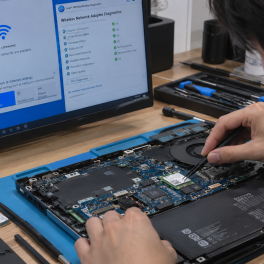
Pernahkah kamu menyalakan laptop untuk bersiap bekerja, tetapi ikon internet di sudut kanan bawah Windows mendadak menampilkan tanda silang merah... selengkapnya

Salah satu perangkat yang harus ada sebagai pelengkap alat elektronik adalah earphone. Earphone menjadi kebutuhan hampir semua masyarakat, terutama di... selengkapnya

Setelah membeli monitor dari grosir komputer berkualitas, penting untuk mengetahui cara membersihkan layar monitor dengan benar. Tanpa monitor yang bersih,... selengkapnya
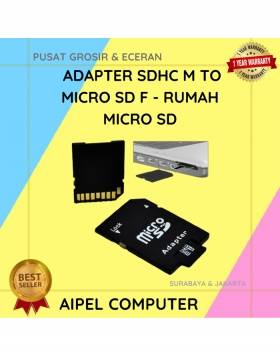
33%
A. DESKRIPSI (DESCRIPTION) RUMAH Micro SD (Black) adalah adaptor micro SD yang dirancang untuk memberikan konektivitas fleksibel dan efisien dalam… selengkapnya
Rp 1.000 Rp 1.500
23%
AIPEL COMPUTER Kabel Switch HDTV Pigtail HOBOO 1-3 HQ Manual 45 CM 4K adalah solusi cerdas bagi kamu yang membutuhkan… selengkapnya
Rp 46.500 Rp 60.000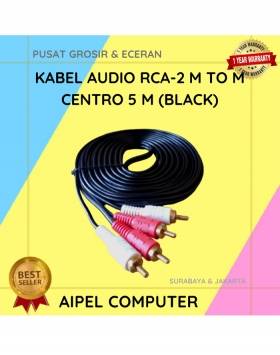
22%
A. DESKRIPSI (DESCRIPTION) Kabel Audio RCA-2 M To M CENTROO 5 M adalah pilihan ideal untuk koneksi suara berkualitas antara… selengkapnya
Rp 25.000 Rp 32.000
31%
A. DESKRIPSI (DESCRIPTION) Kabel HDTV Standart M To M CENTROO 3 M 4K adalah solusi sempurna untuk Anda yang menginginkan… selengkapnya
Rp 24.000 Rp 35.000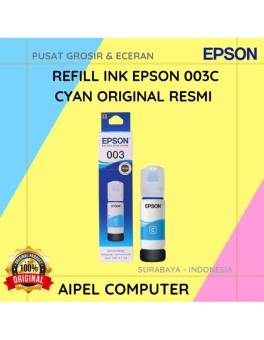
15%
A. DESKRIPSI (DESCRIPTION) Refill Ink EPSON 003 Cyan Original 100 % adalah tinta isi ulang berkualitas tinggi yang dirancang untuk… selengkapnya
Rp 85.000 Rp 100.000
23%
A. DESKRIPSI (DESCRIPTION) Kabel power bukan cuma soal sambung-menyambung arus listrik, tapi juga tentang kenyamanan, efisiensi, dan keamanan saat digunakan…. selengkapnya
Rp 27.000 Rp 35.000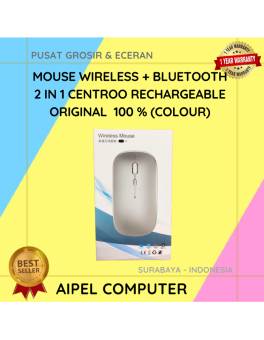
26%
A. DESKRIPSI (DESCRIPTION) Mouse Wireless + Bluetooth 2 in 1 CENTROO Rechargeable adalah perangkat pintar dua koneksi yang memadukan kenyamanan… selengkapnya
Rp 35.000 Rp 47.000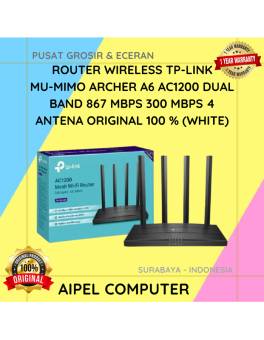
20%
AIPEL COMPUTER – Pusat Grosir dan Eceran – Belanja Hebat dan Hemat – Harga Murah Garansi Prima * GARANSI –… selengkapnya
Rp 478.000 Rp 600.000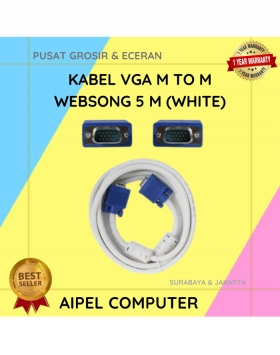
21%
A. DESKRIPSI (DESCRIPTION) Kabel VGA M To M WEBSONG 5 M (White) merupakan solusi andalan buat kamu yang butuh koneksi… selengkapnya
Rp 62.000 Rp 78.000
25%
A. DESKRIPSI (DESCRIPTION) Adaptor Universal CENTROO 9V 0.6A DC 3.5 x 1.35 adalah adaptor berkualitas tinggi yang dirancang untuk berbagai… selengkapnya
Rp 15.000 Rp 20.000



Saat ini belum tersedia komentar.