- Orderan dibawah 500.00 via Goshop / Offline / Marketplace
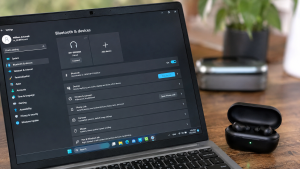
Laptop Bluetooth Not Connecting or Missing? Here is How to Fix It
Trying to connect your TWS, wireless headset, Bluetooth mouse, or transfer files from your phone to your laptop, only to find the Bluetooth icon suddenly missing from the taskbar? Or perhaps your device is detected, but you constantly get a “Connection Failed” error when attempting to pair?
A laptop Bluetooth that won’t connect or completely disappears from the operating system is a frustrating daily tech issue. Many users immediately suspect that the internal Bluetooth module on their motherboard has suffered hardware damage. However, in most cases, this glitch is simply triggered by a crashed driver after a Windows update, a stopped Bluetooth Support Service, or accumulated wireless connection cache. Just as when troubleshooting laptop sound not working, you can perform a few quick DIY fixes right at home.
Featured Snippet (Quick Answer):
The fastest way to fix a missing or non-connecting laptop Bluetooth is by running the built-in Windows Bluetooth Troubleshooter, restarting the Bluetooth Support Service via Services (
services.msc), or reinstalling the Bluetooth driver in Device Manager.
Checklist: Why Is Your Laptop Bluetooth Not Connecting?
Check the boxes below if any of these symptoms match your laptop’s current condition:
-
[ ] The Bluetooth On/Off toggle button is missing from the Windows Action Center (Quick Settings).
-
[ ] The Bluetooth icon has completely disappeared from Device Manager or appears under Unknown Devices.
-
[ ] Your Bluetooth device (headset/mouse) shows as “Paired”, but refuses to connect (Not Connected).
-
[ ] The laptop continuously displays a searching animation without finding nearby wireless devices.
-
[ ] An error message stating “Bluetooth is not available on this device” appears when opening Settings.
Practical Recommendation: If you are using audio devices like Bluetooth earphones or speakers and no sound plays after connecting, make sure you have changed the Default Audio Output in Windows to your Bluetooth device rather than the laptop’s internal speakers.
Comparison Table: Laptop Bluetooth Error Causes
To help map out the root cause of your wireless connectivity issue, here is a quick comparison based on system symptoms:
| Bluetooth Symptom | Likely Cause | Primary Fix | Real Device Impact |
|---|---|---|---|
| Bluetooth Icon & Toggle Missing | Bluetooth Support Service stopped | Restart Service & set to Automatic | Toggle button & feature restored |
| “Paired” status but won’t connect | Corrupted connection cache | Remove Device and re-pair | Connection becomes stable and smooth |
| Yellow exclamation mark in Device Manager | Corrupted or outdated driver | Reinstall driver via Device Manager | Bluetooth module recognized again |
| Not detected by the OS at all | Damaged hardware module | Use an external USB Bluetooth Adapter | Laptop connects to Bluetooth again |
4 Ways to Fix Laptop Bluetooth Not Connecting or Missing
Try these step-by-step DIY recovery methods before deciding to buy a new USB dongle:
-
Re-enable the Bluetooth Support Service. Press
Win + R, typeservices.msc, and hit Enter. Locate Bluetooth Support Service, right-click it, and select Properties. Change the Startup type to Automatic. If the status shows Stopped, click Start, then click Apply and OK. -
Reinstall Bluetooth Driver via Device Manager. Right-click the Start button and open Device Manager. Expand the Bluetooth category, right-click your main Bluetooth adapter (e.g., Intel Wireless Bluetooth or Realtek Bluetooth Adapter), and select Uninstall device. Once completed, restart your laptop. Windows will automatically reinstall a clean default driver.
-
Run Windows Bluetooth Troubleshooter. Go to Settings (
Win + I) > Update & Security (or System in Windows 11) > Troubleshoot > Other troubleshooters. Find Bluetooth and click Run the troubleshooter to let Windows automatically detect and resolve system issues. -
Remove Device and Re-pair. If the issue occurs with one specific peripheral, open Settings > Devices > Bluetooth & other devices. Select the problematic device, click Remove device, turn Bluetooth off and on again on both devices, and restart the pairing process.
When Should You Use an External USB Bluetooth Adapter?
If all software solutions fail and the Bluetooth option remains missing, your laptop’s internal Bluetooth module (which in most modern laptops is integrated into a single chip with the Wi-Fi card) may have suffered hardware failure.
The most practical, fast, and cost-effective workaround without opening your laptop casing is using an external USB Bluetooth Adapter (Dongle). Simply plug this compact adapter into an open USB port, and your Bluetooth functionality will be restored instantly via plug-and-play.
FAQ (Frequently Asked Questions)
Why does Bluetooth suddenly disappear in Windows 10 / Windows 11?
This is most commonly caused by incomplete Windows Updates, which can lead to corrupted registry entries or driver conflicts with the old Bluetooth software.
Are USB Bluetooth Adapters compatible with all Windows versions?
Generally, modern USB Bluetooth Adapters feature plug-and-play functionality for Windows 10 and Windows 11 without requiring manual driver installations.
Why is the audio lagging or stuttering on my Bluetooth headset?
Audio stuttering is usually caused by 2.4 GHz Wi-Fi frequency interference, physical obstacles between the laptop and headset, or a low battery level on the audio device itself.
Conclusion
Most instances of a laptop Bluetooth missing or failing to connect stem from corrupted drivers, halted system background services, or old connection cache conflicts. By restarting the Bluetooth Support Service or reinstalling the driver in Device Manager, your laptop’s wireless capability can usually be restored quickly.
Shop USB Bluetooth Adapters, Accessories & Hardware at Aipel Computer
Looking for genuine USB Bluetooth Adapters, wireless headsets, Bluetooth mice, Wi-Fi card replacements, or other computer components? Explore our wide selection of laptop accessories and hardware at competitive wholesale prices directly in our store.
To check our hardware catalog, spare part stock availability, or store location details, visit the official Aipel Computer website today!
Tags: bluetooth driver windows 10, how to enable bluetooth on laptop, laptop bluetooth missing, laptop bluetooth not connecting, usb bluetooth adapter surabaya

Laptop Bluetooth Not Connecting or Missing? Here is How to Fix It

Grosir Hardware Komputer bisa Anda incar untuk mendapatkan aneka produk yang bisa dijual kembali buat Anda yang ingin membuka bisnis... selengkapnya
Tombol Esc pada keyboard memiliki berbagai fungsi yang berbeda. Berikut adalah beberapa kegunaan dari tombol Esc atau Escape pada keyboard... selengkapnya
Kabel LAN atau kabel UTP memiliki fungsi penting untuk kebutuhan dalam komputer Anda. Kabel ini sangat bermanfaat bagi para pengguna... selengkapnya

Fan casing PC atau kipas casing adalah komponen vital dalam menjaga suhu komputer tetap optimal selama penggunaan. Terpasang di sisi... selengkapnya
Flashdisk tidak terbaca merupakan masalah umum yang sering dihadapi oleh pengguna laptop atau PC. Flashdisk adalah perangkat penyimpanan data portable... selengkapnya
Sudah banyak supplier ataupun grosir aksesoris laptop yang bisa anda temukan. Meningkatkan jumlah grosir aksesoris untuk komputer tersebut seiring dengan... selengkapnya
Pernahkah kamu merasa kesal karena colokan charger laptop atau PC di rumah mudah terlepas sendiri, atau bahkan mengeluarkan percikan api... selengkapnya

Jenis-jenis jaringan komputer beserta fungsinya memang cukup vital. Sebuah jaringan pada perangkat komputer merupakan komponen dengan tugas sebagai alat komunikasi... selengkapnya
Pernahkah kamu sedang fokus bekerja atau menonton video, lalu layar laptop milikmu mendadak berkedip-kedip cepat (flickering), muncul garis-garis horizontal halus... selengkapnya
Rushing to finish an important task or join an online class, only to power on your laptop and find it... selengkapnya
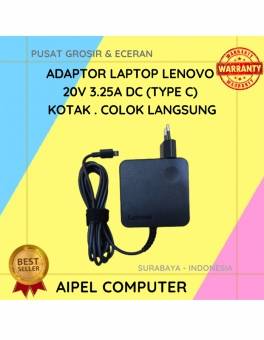
10%
A. DESKRIPSI (DESCRIPTION) Adaptor Laptop LENOVO 20V 3.25A Type C Kotak Colok Langsung adalah perangkat power supply dengan desain kotak… selengkapnya
Rp 135.000 Rp 150.000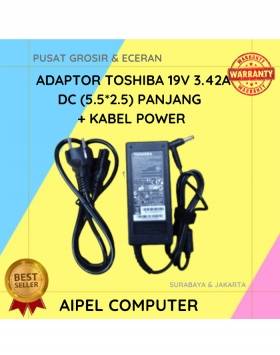
17%
A. DESKRIPSI (DESCRIPTION) Adaptor Laptop 19V 3.42A DC (5.5*2.5) dengan kabel panjang adalah perangkat daya yang dirancang untuk menggantikan atau… selengkapnya
Rp 58.000 Rp 70.000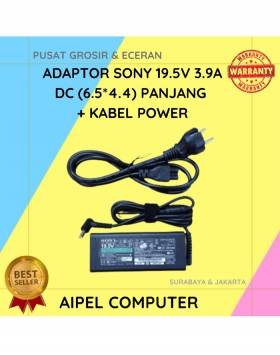
15%
A. DESKRIPSI (DESCRIPTION) Adaptor Laptop SONY 19.5V 3.9A DC (6.5*4.4) Panjang Kabel Power adalah solusi daya terbaik untuk memastikan laptop… selengkapnya
Rp 85.000 Rp 100.000
31%
AIPEL COMPUTER – Pusat Grosir dan Eceran – Belanja Hebat dan Hemat – Harga Murah Garansi Prima * GARANSI –… selengkapnya
Rp 22.000 Rp 32.000
20%
A. DESKRIPSI (DESCRIPTION) Kabel LAN WEBSONG 3 meter adalah solusi praktis dan handal untuk menunjang koneksi internet stabil dan cepat… selengkapnya
Rp 18.500 Rp 23.000
11%
AIPEL COMPUTER – Pusat Grosir dan Eceran – Belanja Hebat dan Hemat – Harga Murah Garansi Prima * GARANSI –… selengkapnya
Rp 104.500 Rp 117.000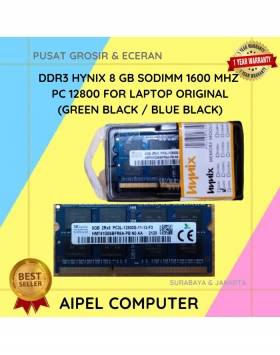
25%
A. DESKRIPSI (DESCRIPTION) DDR3 HYNIX 8 GB Sodimm 1600 MHz PC 12800 for Laptop Original adalah pilihan tepat untuk Anda… selengkapnya
Rp 345.000 Rp 460.000
21%
GARANSI * AIPEL COMPUTER – Pusat Grosir dan Eceran – Belanja Hebat dan Hemat – Harga Murah Garansi Prima *… selengkapnya
Rp 55.000 Rp 70.000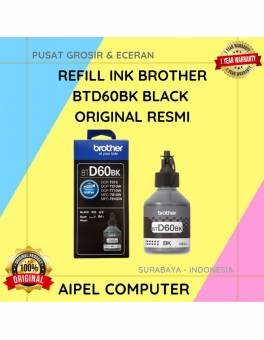
6%
A. DESKRIPSI (DESCRIPTION) Refill Ink Brother BTD60BK Black Original adalah tinta isi ulang berkualitas tinggi yang dirancang khusus untuk memenuhi… selengkapnya
Rp 108.000 Rp 115.000
29%
A. DESKRIPSI (DESCRIPTION) Kabel VGA CENTROO 10 Meter adalah kabel display berkualitas tinggi yang digunakan untuk menghubungkan monitor, proyektor, atau… selengkapnya
Rp 25.000 Rp 35.000



Saat ini belum tersedia komentar.