- Orderan dibawah 500.00 via Goshop / Offline / Marketplace
Laptop Stuck on Boot Screen? How to Fix It Safely
Rushing to finish an important task or join an online class, only to power on your laptop and find it completely frozen on the Windows logo with a spinning loading circle that never ends? Experiencing a laptop stuck on the boot screen (bootloop or hanging) is one of the most frustrating system glitches a user can encounter.
Many people immediately assume that their computer has been hit by a severe virus or that the internal hardware has suddenly died. In reality, most boot failures are caused by corrupted operating system files following an incomplete update, failing storage drives (HDD/SSD), or driver conflicts. Understanding proper maintenance practices like those in our guide on slow laptop causes upgrade costs and how to fix it can help prevent performance bottlenecks before they turn into boot errors.
Featured Snippet (Instant Answer):
To fix a laptop stuck on the boot screen, perform a Force Restart (press and hold the power button for 10 seconds), trigger Automatic Repair Mode to run Startup Repair, enter Safe Mode to uninstall recent Windows updates, or fix corrupted system files via Command Prompt using the “sfc /scannow” command.
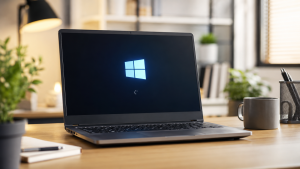
Checklist: Why Is Your Laptop Freezing on Startup?
Tick the boxes below if any of these symptoms match your current situation:
-
[ ] The laptop froze or shut down unexpectedly right while a system update was processing.
-
[ ] The spinning loading dots circle continuously for more than 15 to 30 minutes.
-
[ ] The laptop was recently bumped, dropped, or force-shut down while still active.
-
[ ] A Blue Screen (BSOD) briefly flashes right before the laptop restarts and freezes again.
-
[ ] Clicking or grinding noises are coming from inside the laptop chassis during startup.
Our Recommendation: If the spinning dots circle indefinitely or the laptop loops repeatedly, do not leave it running for hours. Excessive booting loops generate unnecessary heat that can degrade aging SSD or HDD components.
Comparison Table: Booting Glitches Breakdown by Symptom
To help you diagnose the root cause behind your system’s refusal to boot, here is a comparison of common startup behaviors:
| Boot Screen Symptom | Likely Root Cause | Required Action | Real-World Impact on Device |
|---|---|---|---|
| Endless spinning dots | Corrupted Windows Update files | Startup Repair / Rollback Update | Personal files stay safe, Windows restores |
| Frozen screen + frozen dots | Damaged master boot system files | Repair via CMD / Reinstall OS | Restores clean system state without new parts |
| Loud clicking before freezing | Damaged storage drive sectors | Replace storage drive & reinstall OS | Requires new SSD hardware to boot properly |
4 Safe Ways to Fix a Laptop Stuck on the Boot Screen
You do not need to panic right away. Try these step-by-step troubleshooting methods to restore your operating system:
-
Perform a Hard Reset. Press and hold the power button for 10 to 15 seconds until the laptop shuts off completely. Unplug all external accessories such as USB flash drives, printers, or wireless mouse dongles. Wait one full minute, then power the laptop back on. Sometimes clearing residual static charge from the RAM resolves temporary boot freezes.
-
Run Windows Automatic Startup Repair. Force-restart the laptop 2 to 3 times in a row as soon as the Windows logo appears to trigger the Preparing Automatic Repair screen. Go to Advanced options > Troubleshoot > Advanced options > Startup Repair. Let Windows scan and repair boot file corruption automatically.
-
Boot into Safe Mode and Uninstall Recent Updates. From the Advanced options menu, navigate to Startup Settings > click Restart, then press F4 or 4 to enter Safe Mode. Once on the minimalist desktop, open Control Panel or Settings to uninstall recent Windows updates that may have introduced software bugs.
-
Repair System Files via Command Prompt (CMD). On the Advanced options screen, launch Command Prompt. Type
sfc /scannowand press Enter. Wait for the 100% verification check to complete to fix corrupted system files, then runchkdsk C: /f /rto verify the health of your primary storage partition.
Signs of Hardware-Related Boot Failure
If all software recovery methods fail and your laptop remains frozen on the boot screen, the underlying cause is likely physical hardware degradation:
-
Failing SSD/HDD Health (Bad Sectors): The storage drive can no longer read critical system boot files accurately.
-
Dirty or Faulty RAM Modules: Oxide buildup on RAM pins interrupts data transfers to the processor mid-boot.
-
Processor Overheating: Dried-up thermal paste causes the CPU to overheat instantly upon powering up, triggering a system freeze to prevent permanent heat damage.
FAQ (Frequently Asked Questions)
-
Does a laptop stuck on the boot screen mean my files are lost?
Not necessarily. As long as the internal drive is not physically damaged, your personal files remain intact and can be backed up using bootable media before reinstalling Windows.
-
How long should I wait at the Windows boot screen before assuming it is stuck?
Under normal conditions, booting from an SSD takes 5 to 15 seconds, while a standard HDD takes 30 to 60 seconds. If your screen remains unchanged for more than 5 to 10 minutes, the system is officially stuck.
-
Do I always need to reinstall Windows if my laptop is stuck on the boot logo?
No. A full reinstallation is only necessary if built-in tools like Startup Repair, System Restore, or Command Prompt commands fail to recover damaged operating system files.
Conclusion
Most instances of a laptop stuck on the boot screen can be resolved without replacing hardware by leveraging built-in diagnostic tools like Startup Repair or Safe Mode. However, if physical storage degradation is the cause, upgrading to a fresh SSD module is the best long-term investment to ensure smooth and reliable system performance.
Visit the Aipel Computer Physical Store
If your laptop remains frozen on the boot logo, cannot access automatic repair menus, or requires safe data recovery and OS installation, let our technical team evaluate your system safely.
For step-by-step driving routes, opening hours, or to consult on system recovery options, feel free to visit our main website at Aipel Computer in Surabaya for prompt and reliable service!
Tags: fix bootloop laptop, fix windows loading loop, laptop frozen on startup, laptop stuck on boot screen how to fix, startup repair windows

Laptop Stuck on Boot Screen? How to Fix It Safely
TP-Link SIM card seri TL-MR6400 ini mungkin menjadi pilihan yang tepat untuk Anda yang membutuhkan internet portabel tetapi tidak ingin... selengkapnya
While you are busy typing a document, editing an image, or browsing the web on your laptop, the mouse pointer... selengkapnya

Layar komputer blank hitam tapi hidup tiba-tiba bisa menjadi masalah yang membingungkan. Indikasi umum dari kondisi ini adalah lampu indikator... selengkapnya

Dunia gaming yang semakin berkembang pesat membuat pemilihan keyboard gaming menjadi kunci untuk meraih pengalaman bermain optimal. Dari para pemain... selengkapnya
Have you ever plugged your headset or earphones into your laptop’s 3.5mm audio jack to listen to music, watch a... selengkapnya

Berikut adalah beberapa tips dan tricks yang dapat membantu Anda memaksimalkan penggunaan WhatsApp: 1. Membuat Pesan Tertunda: Anda dapat... selengkapnya
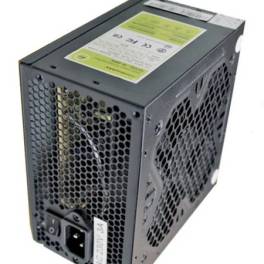
Tips memilih power supply di grosir komputer berikut ini cukup penting karena membantu menemukan power supply terbaik untuk PC atau... selengkapnya

CPU komputer biasanya menjadi bagian komputer yang jarang dibersihkan. Letak perangkat pendingin yang menutupi CPU mengharuskan pemilik untuk membongkarnya terlebih... selengkapnya
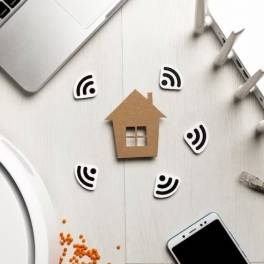
Router Access Point memiliki kegunaan untuk membantu untuk menyebarkan sinyal dengan efektif. Biasanya orang akan membelinya di grosir komputer yang... selengkapnya
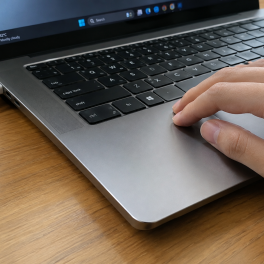
Pernahkah kamu sedang mengetik di laptop berbahan aluminium, lalu bagian pergelangan tangan atau ujung jarimu mendadak merasakan sengatan listrik halus... selengkapnya
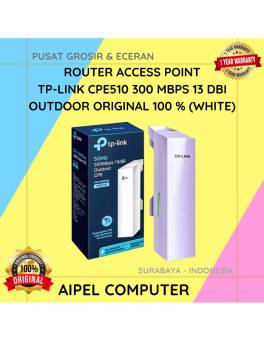
14%
A. DESKRIPSI (DESCRIPTION) TP-LINK CPE510 adalah access point outdoor yang dirancang khusus untuk solusi jaringan wireless jarak jauh dengan performa… selengkapnya
Rp 605.000 Rp 700.000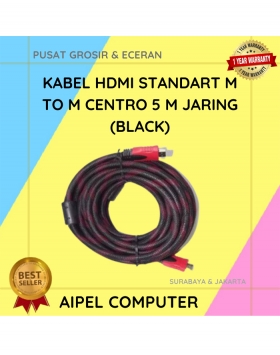
33%
A. DESKRIPSI (DESCRIPTION) Cable HDTV M to M CENTROO 5M Braid Cable adalah kabel berkualitas tinggi yang mendukung tampilan gambar… selengkapnya
Rp 20.000 Rp 30.000
4%
A. DESKRIPSI (DESCRIPTION) Printer EPSON L1250 WiFi Print Original 100 % (Black – 003 CMYK) adalah printer nirkabel yang menggabungkan… selengkapnya
Rp 2.110.000 Rp 2.200.000
15%
AIPEL COMPUTER – Pusat Grosir dan Eceran – Belanja Hebat dan Hemat – Harga Murah Garansi Prima * GARANSI –… selengkapnya
Rp 55.000 Rp 65.000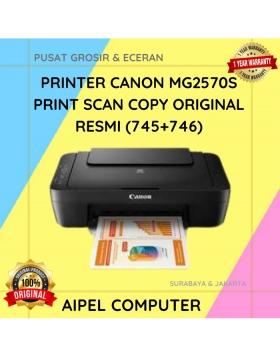
12%
A. DESKRIPSI (DESCRIPTION) Canon MG2570S merupakan printer all-in-one yang dirancang untuk mempermudah kebutuhan cetak, scan, dan copy dokumen dalam satu… selengkapnya
Rp 750.000 Rp 850.000
23%
A. DESKRIPSI (DESCRIPTION) Kabel power bukan cuma soal sambung-menyambung arus listrik, tapi juga tentang kenyamanan, efisiensi, dan keamanan saat digunakan…. selengkapnya
Rp 27.000 Rp 35.000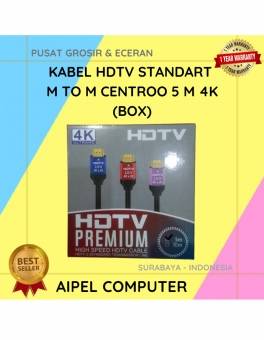
26%
A. DESKRIPSI (DESCRIPTION) Kabel HDTV Standart M To M CENTROO 5 M 4K adalah pilihan tepat bagi Anda yang menginginkan… selengkapnya
Rp 40.000 Rp 54.000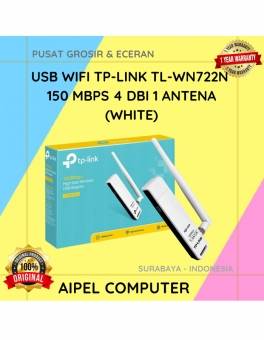
15%
A. DESKRIPSI (DESCRIPTION) USB Wifi TP-LINK TL-WN722N 150 MBPS 4dBi 1 Antenna (White) adalah perangkat nirkabel yang dirancang untuk memberikan… selengkapnya
Rp 127.000 Rp 150.000
16%
A. DESKRIPSI (DESCRIPTION) GENAI Car Charger USB + Type-C GC-C16 Mini PD 100W Fast Charge adalah charger mobil berdesain mini… selengkapnya
Rp 70.000 Rp 83.000
23%
A. DESKRIPSI (DESCRIPTION) Keyboard JERTECH K358 METEOR Gaming adalah keyboard gaming yang dirancang untuk meningkatkan kenyamanan dan performa bermain maupun… selengkapnya
Rp 61.710 Rp 80.000



Saat ini belum tersedia komentar.