- Orderan dibawah 500.00 via Goshop / Offline / Marketplace
Laptop Headset Working on One Side Only? Causes and Fixes
Have you ever plugged your headset or earphones into your laptop’s 3.5mm audio jack to listen to music, watch a movie, or join an online meeting, only to find that sound comes out of one side only (left or right ear)? Or perhaps the audio sounds tinny with missing vocal tracks?
Dealing with single-sided audio output is a frustrating “minor” issue faced constantly by laptop users. However, much like troubleshooting physical connectivity hurdles in laptop headset working on one side only causes fixes, unbalanced headset audio is rarely caused by a completely ruined audio driver. It is usually triggered by trapped lint/dust inside the 3.5mm port, misaligned Windows Audio Balance levels, or loose internal contact pins.
Featured Snippet (Quick Answer):
Primary causes of a laptop headset working on one side only include compressed lint/dust inside the 3.5mm audio port, unbalanced L/R Audio Balance sliders in Windows Sound Settings, a plug that isn’t fully seated, or bent internal copper clips inside the audio jack module.
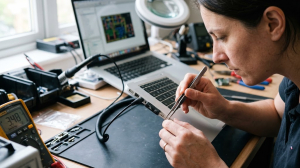
Checklist: Evaluating Laptop Headset Audio Issues
Check the boxes below if these audio symptoms match your current experience:
-
[ ] Sound restores to both ears briefly when the audio plug is bent, twisted, or pressed firmly.
-
[ ] Headset functions completely normally in both ears when tested on a smartphone or another laptop.
-
[ ] Vocal tracks disappear or sound faint while background instrumental music remains loud.
-
[ ] Enabling Mono Audio in Windows forces sound through both sides, but degrades overall stereo separation.
-
[ ] 3.5mm audio plug feels noticeably loose or wobbly when inserted into the laptop’s jack port.
Practical Recommendation: Before assuming your headset is broken, test it on a smartphone or another device. If it plays balanced stereo sound on another device, the issue lies strictly within your laptop’s 3.5mm audio port or Windows audio software settings.
Comparison Table: Audio Symptoms and Recommended Actions
| Audio Symptom | Underlying Cause | Device Damage Risk | Recommended Action |
|---|---|---|---|
| One-Sided Sound (Plays Fine Elsewhere) | Compressed lint/dust inside 3.5mm port | Ground/channel pin connection blocked | Clean out port opening gently with wooden toothpick |
| Normal Sound Only When Bent | Loose internal copper clip inside port | Mechanical jack port failure | Replace laptop Audio Jack Board module |
| Missing Vocals / Tinny Sound | Plug not fully seated in port | Ground signal connection interrupted | Push plug firmly until seated flush (“click”) |
| Permanently One-Sided in All Apps | L/R Audio Balance slider set to 0 | Software audio misconfiguration | Reset Level Balance in Windows Sound Settings |
4 Ways to Fix a Laptop Headset Working on One Side Only
-
Clear Compressed Dust from 3.5mm Audio Port. Power off the laptop. Use a flashlight to inspect inside the 3.5mm audio port. Wrap a tiny piece of cotton around a wooden toothpick (or use a fine wooden probe) to carefully extract lint and pocket dust packed at the bottom of the jack.
-
Reset L/R Audio Balance in Windows Settings. Press Windows + R > type
mmsys.cpland press Enter. On the Playback tab, right-click Headphones / Realtek Audio > select Properties. Go to the Levels tab > click Balance. Ensure both L (Left) and R (Right) channels are set to identical values (e.g., both at 50 or 100). -
Ensure Audio Plug is Fully Seated (Flush). On laptops with thicker chassis or brand-new headsets, internal clips require firm pressure. Ensure you push the 3.5mm jack straight in until it seats flush without any metal gap and snaps into place with a subtle “click”.
-
Disable Audio Enhancements & Spatial Sound. Reopen Sound Properties (
mmsys.cpl). Go to the Enhancements tab > check Disable all enhancements (or disable Spatial Sound/Windows Sonic under the Spatial sound tab). Conflicting virtual audio drivers frequently mute single channels.
When to Seek Professional Repair Services
If you have disabled virtual audio effects and reset channel balance yet sound remains one-sided across all headsets, the internal copper contact clips inside your laptop’s 3.5mm audio jack are likely broken, corroded, or unseated from the motherboard circuit board.
This condition requires installing a new original Audio Jack Board module by a qualified repair technician to restore crisp stereo transmission to both ears.
FAQ (Frequently Asked Questions)
Why do smartphone headsets (TRRS 4-pin) sound weird on older laptops?
Older laptops often feature separate jack ports for audio output and microphone input. Plugging a combo 4-pin (TRRS) smartphone headset into an older single-purpose jack misaligns the ground pin, causing tinny or single-sided audio. Use an Audio Splitter Adapter.
Is it safe to spray lubricant (like WD-40) into the laptop audio jack?
Never spray liquid directly into port openings. Use electrical Contact Cleaner spray instead, applied lightly onto a male plug tip and inserted/removed several times while the laptop is completely powered off.
Conclusion
A laptop headset working on one side only is usually caused by compressed lint blocking port contacts, an incompletely inserted plug, or misaligned L/R Audio Balance levels in Windows. Cleaning out the audio jack and resetting volume balance will bring full stereo sound back to your headphones.
Shop OEM Headsets, Audio Splitters & Repairs at Aipel Computer
Looking for high-quality laptop headsets, precision audio splitter cables, or official warranty-backed audio jack port repair services? Find trusted hardware replacement parts and expert repair services directly at Aipel Computer.
For audio accessories, splitters, or technical repair consultations, visit the official Aipel Computer website today.
Tags: aipel komputer, computer store surabaya, fix earphone sound only on one side laptop, laptop audio jack loose fix, laptop headset working on one side only, laptop repair surabaya, replace laptop audio port surabaya

Laptop Headset Working on One Side Only? Causes and Fixes
Power supply 500w menjadi pilihan terbaik sebagai pendukung aliran listrik. Setiap alat elektronik pastinya memerlukan aliran listrik supaya bisa berjalan.... selengkapnya
Pernahkah kamu sedang mengetik di ruangan remang-remang atau malam hari, tetapi lampu latar (backlight) di bawah tombol-tombol keyboard laptopmu mendadak... selengkapnya

Mousepad adalah aksesoris yang biasa digunakan sebagai alas mouse atau juga bisa disebut sebagai bantalan mouse yang biasanya diletakan di... selengkapnya
Trying to save photos, transfer important documents, or open files on your smartphone or laptop, only to find that your... selengkapnya
Seiring perkembangan teknologi, peran komputer kini semakin diperlukan. Tak mengherankan karena ada banyak kebutuhan yang bisa dipenuhi dengan bantuan komputer.... selengkapnya

Belanja aksesoris komputer secara online memang terbilang lebih praktis dan efisien. Apalagi ketika Anda berbelanja di grosir aksesoris komputer, sudah... selengkapnya
Pernahkah kamu sedang mengetik santai di meja, lalu setiap kali tuts keyboard ditekan, layar laptop ikut bergoyang maju-mundur tanpa henti?... selengkapnya
Salah satu komponen pada komputer Anda, ada yang rusak atau mungkin sudah tidak support lagi. Maka yang harus Anda lakukan... selengkapnya
Komputer menjadi salah satu peralatan yang memiliki cukup banyak manfaat, apalagi beberapa pekerjaan bahkan beberapa kantor sendiri juga menggunakan komputer.... selengkapnya
Pernahkah kamu menekan tombol power laptop, mendengar hembusan suara kipas pendingin, melihat lampu indikator daya menyala normal, namun layar monitor... selengkapnya

24%
AIPEL COMPUTER – Pusat Grosir dan Eceran – Belanja Hebat dan Hemat – Harga Murah Garansi Prima * GARANSI –… selengkapnya
Rp 38.000 Rp 50.000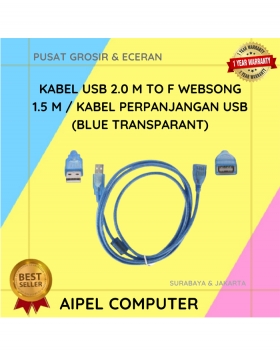
17%
A. DESKRIPSI (DESCRIPTION) Kabel perpanjangan USB dari Websong adalah solusi simpel buat kamu yang sering butuh akses port USB tambahan… selengkapnya
Rp 12.500 Rp 15.000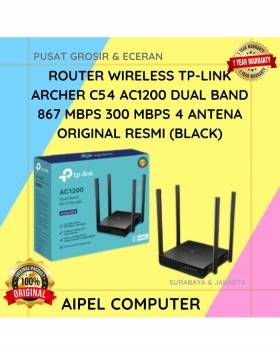
15%
A. DESKRIPSI (DESCRIPTION) Router TP-LINK ARCHER C54 adalah router dual band yang menghadirkan kombinasi kecepatan, jangkauan luas, dan desain modern…. selengkapnya
Rp 299.000 Rp 350.000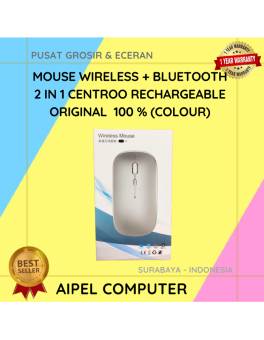
26%
A. DESKRIPSI (DESCRIPTION) Mouse Wireless + Bluetooth 2 in 1 CENTROO Rechargeable adalah perangkat pintar dua koneksi yang memadukan kenyamanan… selengkapnya
Rp 35.000 Rp 47.000
33%
A. DESKRIPSI (DESCRIPTION) Mouse Pad CENTROO Logo Office adalah pilihan ideal untuk meningkatkan produktivitas dan kenyamanan Anda saat bekerja. Dengan… selengkapnya
Rp 8.000 Rp 12.000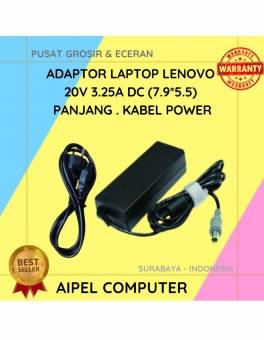
19%
A. DESKRIPSI (DESCRIPTION) Adaptor Laptop 20V 3.25A DC (7.9*5.5) Kabel Panjang adalah solusi pengisian daya yang stabil dan efisien untuk… selengkapnya
Rp 65.000 Rp 80.000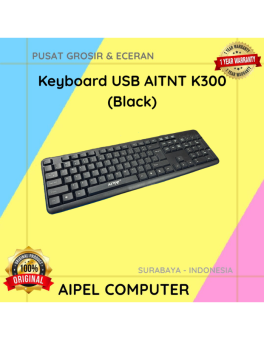
28%
A. DESKRIPSI (DESCRIPTION) Keyboard USB AITNT K300 (Black) adalah keyboard dengan desain simpel dan praktis untuk menunjang berbagai aktivitas komputer… selengkapnya
Rp 26.000 Rp 36.000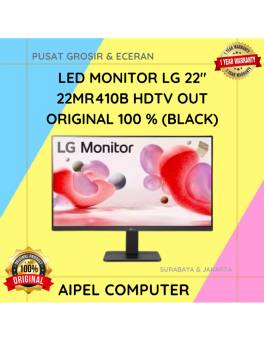
3%
A. DESKRIPSI (DESCRIPTION) LED Monitor LG 22″ HDTV + VGA Out (Black) adalah monitor modern yang menggabungkan visual tajam dan… selengkapnya
Rp 1.070.000 Rp 1.100.000
11%
A. DESKRIPSI (DESCRIPTION) Charger 5V 1 Port Type-C + Cable Type-C M to Lightning M GENAI ZC045 Fast Charger PD… selengkapnya
Rp 71.000 Rp 80.000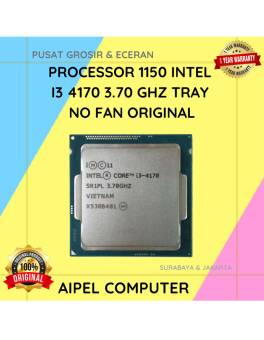
12%
A. DESKRIPSI (DESCRIPTION) Processor INTEL I3 4170 3.70 GHz Tray No Fan Original adalah salah satu prosesor tercepat di kelasnya… selengkapnya
Rp 88.000 Rp 100.000



Saat ini belum tersedia komentar.