- Orderan dibawah 500.00 via Goshop / Offline / Marketplace
Laptop Screen Flickering and Lines on Display? Causes and Fixes
Have you ever been working or watching a movie on your laptop when the screen suddenly starts flickering, blinking intermittently, or showing distorted horizontal or vertical lines across the display?
Visual glitches on a laptop monitor often lead users to worry that their display panel is completely broken. However, much like troubleshooting display signal issues on laptop hdmi cable not connecting to tv causes fixes, screen lines and flickering are not always caused by a damaged LED panel. They can also be triggered by loose internal ribbon cables, refresh rate mismatches, or corrupted graphics drivers.
Featured Snippet (Quick Answer):
Common causes of laptop screen flickering and lines include a loose or pinched display ribbon cable (EDP/LVDS cable) inside the hinge, corrupted graphics drivers, incompatible refresh rate settings, or physical damage to the LCD/LED panel circuitry.
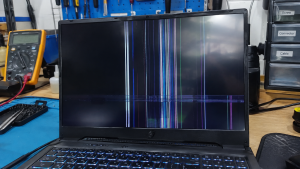
Checklist: Diagnosing Laptop Screen Display Issues
Check the boxes below if these screen symptoms match your current situation:
-
[ ] Screen blinks or flickers specifically when you tilt or adjust the laptop lid angle.
-
[ ] Horizontal or vertical lines multiply when the laptop runs hot or handles heavy graphics applications.
-
[ ] Lines briefly disappear when gently pressing around the edges of the screen bezel.
-
[ ] Display output appears completely clear and normal when connected to an external monitor or TV via HDMI.
-
[ ] Screen flickering worsened immediately after a recent Windows update or GPU driver installation.
Practical Recommendation: Avoid pressing firmly against a line-damaged screen panel with your fingers. Perform a quick diagnostic test by plugging your laptop into an external TV or monitor using an HDMI cable. If the external display shows a clean picture without lines, your laptop’s GPU is healthy, and the issue lies strictly within the display panel or internal video cable.
Comparison Table: Screen Symptoms and Recommended Actions
| Display Symptom | Underlying Cause | Impact on System | Recommended Action |
|---|---|---|---|
| Lines / Flickering When Lid Moves | Loose or pinched EDP ribbon cable | Display signal may cut out entirely | Inspect hinge & reseat EDP cable socket |
| Random Screen Flickering | Corrupted GPU driver / wrong refresh rate | Eye strain & visual discomfort | Update/rollback VGA driver & adjust refresh rate |
| Permanent Lines Multiplying | Failed LED panel gate driver circuit | Lines cannot be fixed via software | Replace laptop LCD/LED display panel |
| Dark Screen / Solid White Lines | Dirty video connector / bad panel power | Unusable visual display | Clean EDP video connector with contact cleaner |
4 Ways to Fix Laptop Screen Flickering and Lines
-
Adjust Display Refresh Rate Settings. Go to Settings > System > Display > Advanced display. Under Choose a refresh rate, change the value (e.g., from 144Hz down to 60Hz or vice versa). Re-aligning refresh rates often stops subtle LED panel flickering immediately.
-
Roll Back or Reinstall Graphics Drivers (GPU). Open Device Manager > expand Display adapters > right-click your graphics card (Intel UHD, AMD Radeon, or NVIDIA) > select Update driver. If flickering began after an update, select Properties > Driver tab > click Roll Back Driver.
-
Gently Move the Lid to Test the Video Cable. Slowly adjust the laptop lid angle back and forth while watching the lines. If the lines flicker or vanish as the hinge moves, the video ribbon cable (EDP cable) running through the hinge is either pinched or unseated.
-
Run an External Monitor Test. Connect an HDMI cable from your laptop to an external TV or monitor. If the external display renders a clear image without any lines, your motherboard’s GPU is functioning normally, confirming the issue is isolated to the laptop screen or ribbon cable.
When to Seek Professional Repair Services
If you have updated your graphics drivers and the lines remain permanently visible (even on the BIOS setup screen before Windows boots), the LCD/LED panel has suffered physical circuit failure within its pixel matrix.
This condition requires installing a new original replacement LCD/LED screen panel or repairing the internal display ribbon cable by a qualified repair technician to restore crisp, flicker-free visuals.
FAQ (Frequently Asked Questions)
Can a line-damaged laptop screen fix itself via software?
No, if the lines are caused by physical circuit failure inside the LED panel matrix. Software tweaks can only resolve flickering caused by driver errors or refresh rate mismatches.
How long does it take to replace a damaged laptop screen?
Replacing a laptop LCD/LED screen panel typically takes about 30 to 60 minutes if a compatible replacement screen with matching size and pin configuration is in stock.
Conclusion
Laptop screen flickering and display lines can stem from software issues like corrupted GPU drivers or hardware faults like pinched display ribbon cables. Using an external monitor test will help you determine whether the issue is driven by your graphics card or a damaged screen panel.
Shop OEM Laptop Screens, Video Cables & Repairs at Aipel Computer
Need an original LCD/LED replacement screen, EDP video ribbon cables, or expert laptop display repair services with an official warranty? Find genuine replacement parts and reliable repair services directly at Aipel Computer.
For replacement screen availability or technical inquiries, visit the official Aipel Computer website today.
Tags: causes of lines on laptop screen, fix laptop screen blinking, laptop screen flickering and lines on display

Laptop Screen Flickering and Lines on Display? Causes and Fixes
Harga printer Epson L3210 spesifikasi lengkap seringkali menjadi sejumlah pertimbangan yang penting sebelum memutuskan untuk membelinya. Printer tipe ini, merupakan... selengkapnya
Komputer merupakan sebuah peralatan yang memiliki banyak manfaat. Kini banyak pekerjaan yang dikerjakan menggunakan sebuah komputer. Terutama pekerjaan yang berkaitan... selengkapnya

Lagi mengetik dokumen, mengedit tugas, atau bermain gim, tapi tiba-tiba di layar muncul deretan huruf berulang seperti ada yang menekan... selengkapnya

Laptop saat ini telah menjadi kebutuhan utama atau primer untuk banyak orang. Namun, penggunaan laptop yang berkelanjutan dalam waktu lama... selengkapnya
Cara melihat spesifikasi PC sebenarnya sangat mudah. Ini menjadi salah satu tips komputer yang wajib dipahami. Sebab, bisa saja bermanfaat.... selengkapnya

Memilih toko grosir sparepart komputer murah tidak boleh asal-asalan. Sebab, pemilihan toko akan mempengaruhi kualitas barang yang Anda beli. Jangan... selengkapnya
TL MR100 menjadi salah satu router terbaik yang bisa Anda pilih sebab menawarkan kualitas serta penggunaan yang sangat praktis dan... selengkapnya
Lagi asyik nonton film, mendengarkan musik, atau sedang online meeting penting, tapi suara di laptop mendadak hilang total? Situasi seperti... selengkapnya
Menghadapi jaringan internet nirkabel yang mendadak hilang dan terhubung kembali secara berulang kali tentu sangat mengganggu konsentrasi kerja maupun kenyamanan... selengkapnya
Sama seperti kebanyakan flashdisk yang ada, USB flash drive atau flashdisk 64 GB memiliki kegunaan untuk menyimpan data flash bertipe... selengkapnya
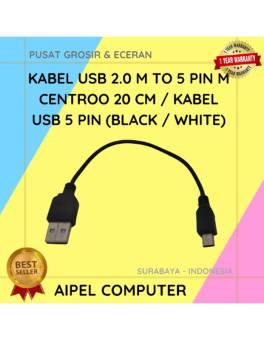
50%
AIPEL COMPUTER – Pusat Grosir dan Eceran – Belanja Hebat dan Hemat – Harga Murah Garansi Prima * GARANSI –… selengkapnya
Rp 1.500 Rp 3.000
30%
AIPEL COMPUTER – Pusat Grosir dan Eceran – Belanja Hebat dan Hemat – Harga Murah Garansi Prima * GARANSI –… selengkapnya
Rp 42.000 Rp 60.000
20%
A. DESKRIPSI (DESCRIPTION) Kabel Power Laptop CENTROO KPL3C15 adalah solusi ideal untuk kebutuhan daya laptop Anda. Dengan panjang 1.5 meter,… selengkapnya
Rp 8.000 Rp 10.000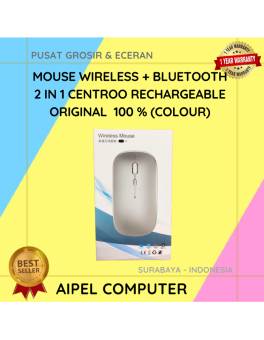
26%
A. DESKRIPSI (DESCRIPTION) Mouse Wireless + Bluetooth 2 in 1 CENTROO Rechargeable adalah perangkat pintar dua koneksi yang memadukan kenyamanan… selengkapnya
Rp 35.000 Rp 47.000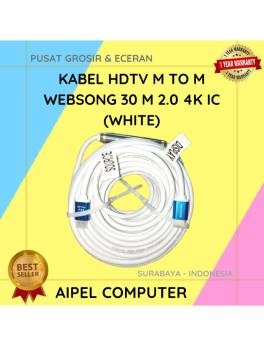
4%
AIPEL COMPUTER – Pusat Grosir dan Eceran – Belanja Hebat dan Hemat – Harga Murah Garansi Prima * GARANSI –… selengkapnya
Rp 720.000 Rp 750.000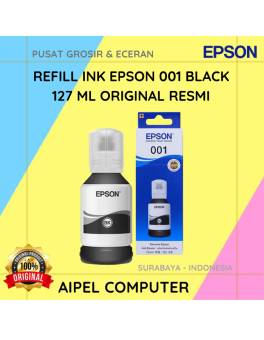
5%
A. DESKRIPSI (DESCRIPTION) Refill Ink EPSON 001 Black 127 ML Original 100 % adalah tinta isi ulang berkualitas tinggi yang… selengkapnya
Rp 180.000 Rp 190.000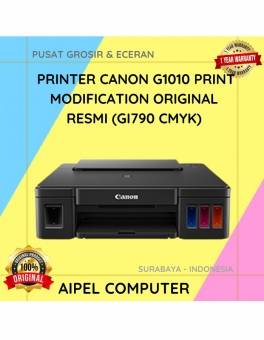
13%
A. DESKRIPSI (DESCRIPTION) Canon G1010 merupakan printer andalan yang dirancang khusus untuk memenuhi kebutuhan cetak dokumen dan foto berkualitas tinggi… selengkapnya
Rp 1.040.000 Rp 1.200.000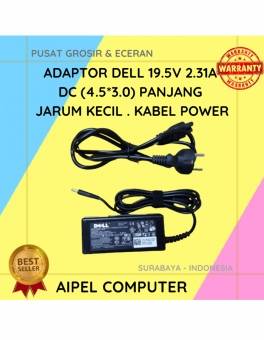
18%
A. DESKRIPSI (DESCRIPTION) Adaptor ini cocok bagi laptop yang memerlukan daya lebih rendah, sekitar 45 W (19.5 V, 2.31 A). Menggunakan konektor 4.5×3.0 mm… selengkapnya
Rp 70.000 Rp 85.000
11%
GARANSI * AIPEL COMPUTER – Pusat Grosir dan Eceran – Belanja Hebat dan Hemat – Harga Murah Garansi Prima *… selengkapnya
Rp 125.000 Rp 140.000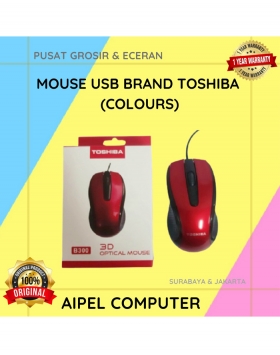
40%
A. DESKRIPSI (DESCRIPTION) Mouse USB Brand Premium TOSHIBA (Black) adalah perangkat input modern yang dirancang untuk mendukung aktivitas komputasi Anda… selengkapnya
Rp 15.000 Rp 25.000



Saat ini belum tersedia komentar.