- Orderan dibawah 500.00 via Goshop / Offline / Marketplace
Laptop USB Ports Not Working or Unresponsive? Here is How to Fix It
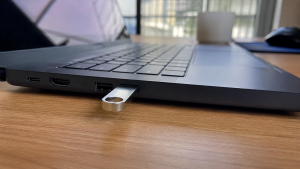
When you try to transfer important files via a flash drive, plug in an external mouse, or connect a keyboard to your laptop, the device is suddenly not detected at all. The indicator light on the flash drive fails to turn on, or an annoying error notification appears stating USB Device Not Recognized.
Having laptop USB ports that refuse to work is a frustrating daily disruption that halts your productivity. Many users immediately assume that the USB socket is physically broken or that a motherboard circuit has burned out. However, in most cases, an unresponsive USB port is simply caused by the Windows USB Selective Suspend power saving feature cutting off electrical current, dust buildup on internal copper pins, or a crashed Universal Serial Bus Controller driver. Just as when troubleshooting laptop bluetooth not connecting to restore your wireless connectivity, you can perform several quick DIY fixes directly on your laptop.
Featured Snippet (Quick Answer):
The fastest way to fix unresponsive laptop USB ports is by disabling the USB Selective Suspend setting in Power Options, reinstalling the USB Host Controller drivers in Device Manager, cleaning out dirt from the USB port contact pins, and performing a Hard Reset to clear static electricity from the USB power rail.
Checklist: Why Are Your Laptop USB Ports Not Responding?
Check the boxes below if any of these symptoms match your laptop’s current condition:
-
[ ] A flash drive or mouse does not power on when plugged into a specific USB port.
-
[ ] You receive a USB Device Not Recognized or Power Surge on the USB Port error message.
-
[ ] The USB port feels loose and the connection disconnects if the cable is nudged slightly.
-
[ ] The exact same USB peripheral works perfectly when plugged into another port or a different laptop.
-
[ ] All USB ports on the laptop stop working simultaneously after waking up from Sleep mode.
Practical Recommendation: If only a single USB port is dead while the others function normally, the cause is likely trapped lint or loose physical solder joints. If all USB ports stop working at the same time, the issue is almost certainly tied to Windows driver or power management settings.
Comparison Table: Causes of Laptop USB Port Errors and Fixes
To help identify the root cause of your USB connection problem, here is a quick comparison based on physical and system symptoms:
4 Ways to Fix Laptop USB Ports Not WorkingTry these step by step DIY recovery methods to restore your laptop USB functionality:
When Should You Use an External USB Type C Hub?If one of the standard USB Type A ports on your laptop has sustained permanent physical damage to its motherboard solder pins, you do not need to rush into disassembling the laptop. Most modern laptops feature a versatile USB Type C port that remains fully functional and offers significantly faster data transfer speeds. You can simply connect a USB Type C Multiport Hub to expand a single Type C port into multiple extra USB 3.0 ports, SD card slots, and HDMI outputs instantly. FAQ (Frequently Asked Questions)Why does a Power Surge on the USB Port warning appear?This warning appears when a connected USB device draws more electrical current than the laptop port can safely handle, or when there is a short circuit inside the USB socket. Disconnect the device immediately to protect the motherboard. Can using a USB Hub damage my laptop ports?No, as long as you use a quality USB Hub. However, if you plan to connect several high power peripherals simultaneously (such as multiple external hard drives), it is recommended to use a Powered USB Hub that comes with its own dedicated AC power adapter. ConclusionLaptop USB ports that are not working or unresponsive are most commonly caused by aggressive power saving modes cutting current, corrupted Universal Serial Bus Controller drivers, or dust blocking contact pins. By turning off USB Selective Suspend and refreshing drivers in Device Manager, your USB data and power functions will typically be restored right away. Shop USB Hubs, Converters & Computer Accessories at Aipel ComputerLooking for high speed multiport USB Hubs, Type C to USB 3.0 converters, original USB flash drives, data cables, or other laptop accessories? Explore our full range of computer peripherals at competitive wholesale prices directly in our store. To check our hardware catalog, spare part stock availability, or store location details, visit the official Aipel Computer website today! |
Tags: fix usb device not recognized, laptop usb ports not working, loose laptop usb port, usb driver windows 10

Laptop USB Ports Not Working or Unresponsive? Here is How to Fix It

Dalam era globalisasi dan persaingan kerja yang semakin ketat, semangat belajar dan mengembangkan diri menjadi kunci sukses bagi setiap individu.... selengkapnya
Pernahkah kamu sedang mengetik di laptop berbahan aluminium, lalu bagian pergelangan tangan atau ujung jarimu mendadak merasakan sengatan listrik halus... selengkapnya
Lagi asyik nonton film, mendengarkan musik, atau sedang online meeting penting, tapi suara di laptop mendadak hilang total? Situasi seperti... selengkapnya
Perkembangan teknologi komunikasi semakin hari semakin meningkat. Hal ini tidak hanya dialami satu atau dua negara saja, namun merata. Begitu... selengkapnya

CPU nyala monitor mati, kira-kira apa yang menyebabkan hal tersebut bisa terjadi? Ketika kita menyalakan PC dan CPU berfungsi dengan... selengkapnya

Seiring dengan perkembangan teknologi yang semakin maju kita juga akan semakin membutuhkan yang namanya perangkat komputer. Oleh sebab itu, kebutuhan... selengkapnya
Mouse Logitech M170 banyak diminati oleh kalangan pengguna komputer sebab memiliki berbagai keunggulan untuk para penggunanya. Belum lagi karena harganya... selengkapnya
Mengalami laptop yang tiba-tiba cepat panas disertai suara kipas yang berisik tentu sangat mengganggu, apalagi saat sedang mengerjakan tugas penting.... selengkapnya
Pernahkah kamu harus memutar, menahan, atau menumpuk ujung kabel charger laptop dengan buku hanya supaya indikator pengisian daya tetap menyala?... selengkapnya
Do you find yourself constantly wiggling, bending, or propping up your laptop charger cable with heavy objects just to keep... selengkapnya
12%
A. DESKRIPSI (DESCRIPTION) Microphone JERTECH T20 Original 100 % adalah microphone stylish yang menggabungkan desain minimalis dengan kualitas audio premium…. selengkapnya
Rp 64.362 Rp 73.000
31%
A. DESKRIPSI (DESCRIPTION) Printer EPSON L121 Print Original (Black 664 CMYK) adalah printer ekonomis yang didesain khusus untuk mencetak dalam… selengkapnya
Rp 1.475.000 Rp 2.150.000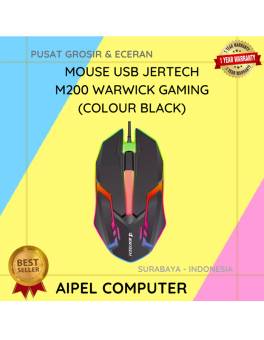
18%
A. DESKRIPSI (DESCRIPTION) Mouse USB JERTECH M200 WARWICK Gaming adalah mouse kabel yang dirancang khusus untuk memberikan performa maksimal dalam… selengkapnya
Rp 23.000 Rp 28.000
25%
A. DESKRIPSI (DESCRIPTION) Bicycle Phone Holder GENAI GN-Z04 (Black) adalah pilihan tepat untuk pencinta sepeda yang membutuhkan akses mudah ke… selengkapnya
Rp 51.000 Rp 68.000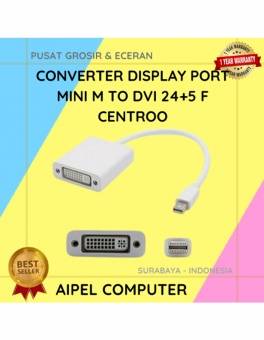
20%
A. DESKRIPSI (DESCRIPTION) Converter Display Port Mini M To DVI 24+5 F CENTROO (Black / White) adalah converter elegan dan… selengkapnya
Rp 20.000 Rp 25.000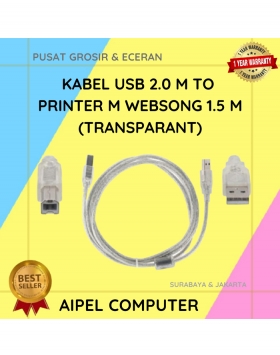
22%
A. DESKRIPSI (DESCRIPTION) Kabel USB 2.0 M to Printer dari WEBSONG adalah solusi praktis dan modern buat kamu yang butuh… selengkapnya
Rp 12.500 Rp 16.000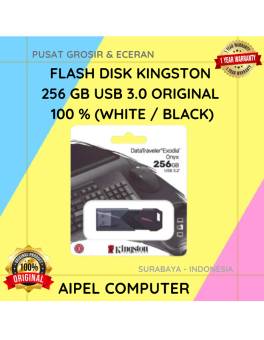
10%
A. DESKRIPSI (DESCRIPTION) Flash Disk KINGSTON 256 GB USB 3.0 Original 100 % (White / Black) adalah flash drive berkapasitas… selengkapnya
Rp 450.000 Rp 500.000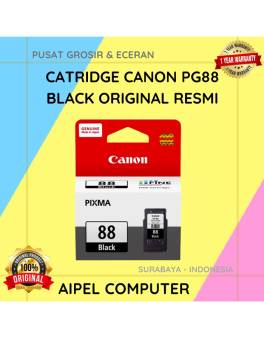
10%
A. DESKRIPSI (DESCRIPTION) Temui PG88 Canon, tinta hitam asli yang dirancang khusus untuk memenuhi kebutuhan cetak Anda dengan kualitas terbaik!… selengkapnya
Rp 181.000 Rp 200.000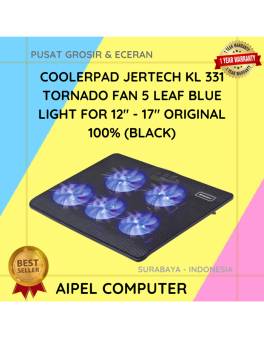
12%
A. DESKRIPSI (DESCRIPTION) KL331 TORNADO adalah cooler pad laptop dari JERTECH yang dirancang untuk menjaga suhu perangkat tetap optimal. ❄️💻… selengkapnya
Rp 131.648 Rp 150.000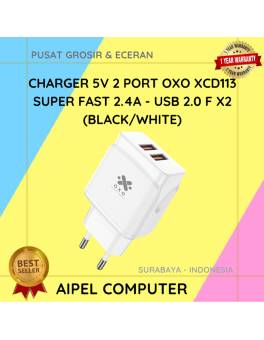
25%
A. DESKRIPSI (DESCRIPTION) Charger 5V 2 Port Super Fast 2.4A USB adalah adaptor pengisian daya ganda yang dirancang untuk memberikan… selengkapnya
Rp 24.000 Rp 32.000



Saat ini belum tersedia komentar.