- Orderan dibawah 500.00 via Goshop / Offline / Marketplace
Laptop Can’t Connect to Wi-Fi or Hotspot? 4 Proven Fixes
Trying to connect your laptop to home Wi-Fi or tethering off your mobile hotspot only for Windows to stall and throw a “Can’t connect to this network” error is deeply frustrating. Meanwhile, your mobile phone connects to the exact same Wi-Fi network effortlessly.
A laptop suddenly failing to join a Wi-Fi network usually points to corrupted network credential caches, frequency band mismatches (2.4 GHz vs 5 GHz), or a confused network adapter driver (IP/DNS conflicts). Much like troubleshooting wifi keeps disconnecting on laptop causes and fixes to stabilize internet connectivity, you can resolve connection failures yourself in a few quick steps.
Featured Snippet (Quick Answer):
To fix a laptop that can’t connect to Wi-Fi or mobile hotspots, forget the old Wi-Fi network profile in Windows Settings, change your smartphone’s hotspot AP Band to 2.4 GHz, toggle Airplane Mode on and off, or perform a full Network Reset.
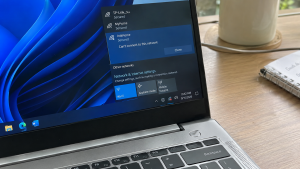
Checklist: Diagnosing Laptop Wi-Fi Connection Errors
Check the boxes below if these conditions match your laptop’s behavior:
-
[ ] The SSID name of your Wi-Fi or mobile hotspot appears clearly in the network list.
-
[ ] Windows displays “Can’t connect to this network” every time you click Connect.
-
[ ] Other devices (like smartphones or tablets) join the Wi-Fi network without issues.
-
[ ] Ethernet LAN cables provide internet access, but wireless Wi-Fi connections fail.
-
[ ] The error started after changing your Wi-Fi router password or hotspot name.
Practical Recommendation: Avoid reinstalling Windows. Forget the saved Wi-Fi network profile in Windows Settings and re-enter your password from scratch.
Comparison Table: Causes of Laptop Wi-Fi Connection Failures and Fixes
Here is an overview of why laptops fail to connect to wireless networks and recommended fixes:
| Connection Symptom | Underlying Cause | Device Impact | Recommended Action |
|---|---|---|---|
| Fails on mobile hotspot | Phone hotspot set strictly to 5 GHz | Older Wi-Fi cards miss 5 GHz signal | Change phone AP Band to 2.4 GHz |
| Can’t connect to network | Corrupted cached password credentials | Router rejects connection request | Perform Forget on Wi-Fi network |
| Wi-Fi icon missing / red X | Internal Wi-Fi card driver locked up | No wireless networks detected | Reset Wi-Fi card in Device Manager |
| Connected, No Internet | Conflicting IP address or DNS routing | Network locked in local loop | Run netsh winsock reset command |
4 Ways to Fix a Laptop That Can’t Connect to Wi-Fi or Hotspot
Follow these troubleshooting steps in order:
-
Forget the Stale Network Profile. Open Settings (
Win + I) > Network & internet > Wi-Fi, and click Manage known networks. Locate the problematic Wi-Fi or mobile hotspot SSID, and click Forget. Reopen your taskbar Wi-Fi menu, select your network, type the fresh password, and reconnect. -
Switch Mobile Hotspot AP Band to 2.4 GHz. If tethering from a smartphone fails, open your phone’s Personal Hotspot Settings. Find the AP Band (or Preferred Band) option, and switch it from 5 GHz Band down to 2.4 GHz Band. Many laptop network cards lack dual-band hardware support for 5 GHz broadcasting.
-
Restart the Wi-Fi Adapter via Device Manager. Search for and launch Device Manager. Expand Network adapters, right-click your laptop’s wireless card (e.g., Intel Wi-Fi 6, Realtek, or Qualcomm Atheros), and choose Disable device. Wait 10 seconds, then right-click and select Enable device to refresh the wireless receiver.
-
Perform a Full Network Reset in Windows. If connectivity issues persist, reset all network configurations. Navigate to Settings > Network & internet > Advanced network settings, select Network reset, and click Reset now. Windows will purge IP leases and reload network stacks upon rebooting.
When to Replace the Internal Wi-Fi Card
If you execute a full Network Reset yet the Wi-Fi icon remains marked with a red X or the wireless card vanishes from Device Manager entirely after re-installing drivers, the physical Wi-Fi module on your motherboard has failed.
Upgrading to an OEM PCIe/M.2 Wi-Fi Card or plugging in a budget External USB Wi-Fi Dongle provides an instant, affordable hardware fix to restore wireless connectivity.
FAQ (Frequently Asked Questions)
Why does my laptop connect to other hotspots but fails on my phone?
This is almost always caused by your smartphone’s hotspot broadcasting on the 5 GHz AP Band, while your laptop’s internal network card only supports the standard 2.4 GHz frequency.
Does performing a Network Reset delete my personal files?
No. A Network Reset strictly purges and reloads network adapter drivers, IP leases, DNS caches, and saved Wi-Fi passwords without modifying your personal documents or files.
Conclusion
A laptop failing to connect to Wi-Fi or mobile hotspots is generally triggered by stale credential caches or frequency mismatches on mobile hotspots. By forgetting the network profile and switching hotspot broadcasts to 2.4 GHz, your laptop will reconnect to the internet smoothly.
Shop OEM Wi-Fi Cards, USB Wi-Fi Dongles & Service at Aipel Computer
Struggling with a dead laptop Wi-Fi card, weak wireless signal reception, looking for high-gain external USB Wi-Fi adapters, or guaranteed network repairs? Find reliable computer networking hardware at wholesale prices directly in our store.
To check networking hardware availability or get directions to our retail store, visit the official Aipel Computer website in Surabaya today.

Laptop Can’t Connect to Wi-Fi or Hotspot? 4 Proven Fixes
Stabilizer atau stavolt memiliki peran penting yang perlu dipahami oleh individu yang berurusan dengan perangkat elektronik dan listrik dalam kehidupan... selengkapnya
Banyak pengguna mendadak cemas saat mendapati persentase pengisian baterai laptop tertahan di angka 60% atau 80% dan menolak naik ke... selengkapnya

Penyimpanan laptop yang benar perlu dipahami. Dengan cara penyimpanan yang tepat, maka perangkat laptop akan jauh lebih awet. Harga komputer... selengkapnya
Cartridge tinta merupakan salah satu bagian dalam printer yang memiliki fungsi sebagai penampung atau tempat isi ulang tinta printer. Melalui... selengkapnya
Hard disk merupakan hardware atau perangkat keras yang berfungsi untuk menyimpan data pada sebuah komputer maupun laptop. Setiap komputer telah... selengkapnya

Cara mengecek spek komputer penting untuk konsumen pahami sebelum membeli perangkat PC atau laptop di toko komputer. Spesifikasi komputer meliputi... selengkapnya
Agar anda bisa memperoleh pengalaman dan juga manfaat terbaik dari komputer atau laptop. Kadang anda dituntut agar bisa melengkapinya dengan... selengkapnya

Perangkat komputer atau laptop pastinya dibekali fitur port USB sebagai tempat menghubungkan kedua perangkat. Mulai dari smartphone atau kamera dihubungkan... selengkapnya
Mengalami laptop yang tiba-tiba cepat panas disertai suara kipas yang berisik tentu sangat mengganggu, apalagi saat sedang mengerjakan tugas penting.... selengkapnya

Komputer lengkap murah generasi pertama dibuat pada tahun 1937 ditemukan oleh Charles Babbage. Ketika itu Ia bisa menciptakan sebuah mesin... selengkapnya
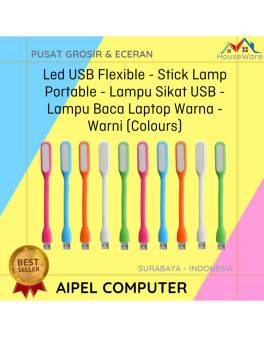
60%
A. DESKRIPSI (DESCRIPTION) Lampu Sikat USB Warna Warni adalah lampu baca fleksibel yang bisa kamu colok langsung ke port USB… selengkapnya
Rp 2.000 Rp 5.000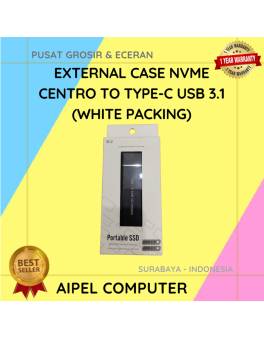
11%
A. DESKRIPSI (DESCRIPTION) External Case NVME CENTROO to Type-C USB 3.1 (White Packing) adalah enclosure modern yang memudahkan Anda untuk… selengkapnya
Rp 93.000 Rp 105.000
47%
A. DESKRIPSI (DESCRIPTION) Kabel CENTROO USB 2.0 M to M sepanjang 1.5 meter ini dirancang untuk memberikan koneksi yang cepat… selengkapnya
Rp 8.000 Rp 15.000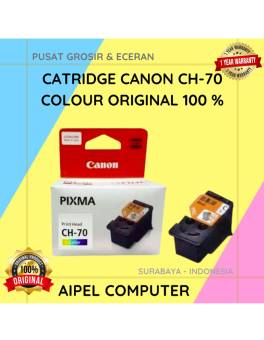
5%
A. DESKRIPSI (DESCRIPTION) Catridge CANON CH-70 merupakan tinta warna original yang dirancang khusus untuk memberikan kualitas cetakan foto dan dokumen… selengkapnya
Rp 412.000 Rp 435.000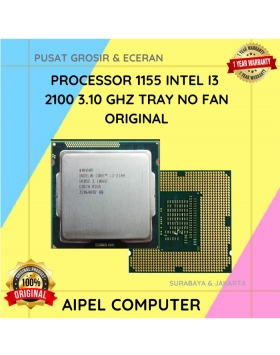
20%
A. DESKRIPSI (DESCRIPTION) Processor INTEL I3 2100 3.10 GHz Tray No Fan Original adalah prosesor dual-core dengan teknologi hyper-threading yang… selengkapnya
Rp 60.000 Rp 75.000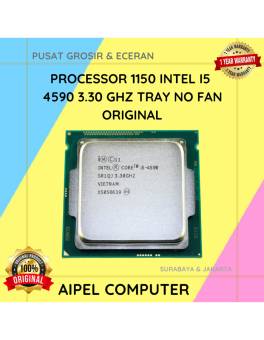
9%
A. DESKRIPSI (DESCRIPTION) Processor I5 4590 3.30 GHz Tray No Fan Original adalah unit prosesor performa menengah yang cocok untuk… selengkapnya
Rp 290.000 Rp 320.000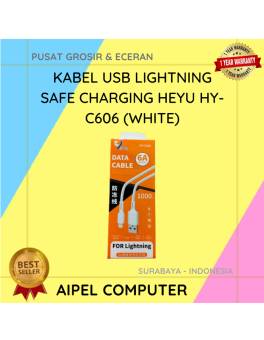
61%
A. DESKRIPSI (DESCRIPTION) Kabel USB Lightning HEYU HY-C606 Safe Charging (White) adalah kabel berkualitas tinggi yang dirancang khusus untuk perangkat… selengkapnya
Rp 7.000 Rp 18.000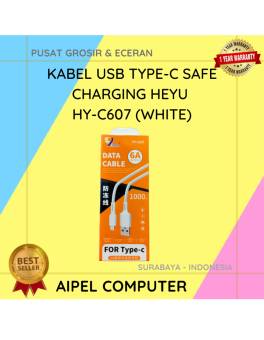
38%
A. DESKRIPSI (DESCRIPTION) Kabel USB Type-C HEYU HY-C607 Safe Charging (White) adalah solusi terbaik bagi Anda yang mencari kabel pengisian… selengkapnya
Rp 8.000 Rp 13.000
23%
A. DESKRIPSI (DESCRIPTION) Kabel power bukan cuma soal sambung-menyambung arus listrik, tapi juga tentang kenyamanan, efisiensi, dan keamanan saat digunakan…. selengkapnya
Rp 27.000 Rp 35.000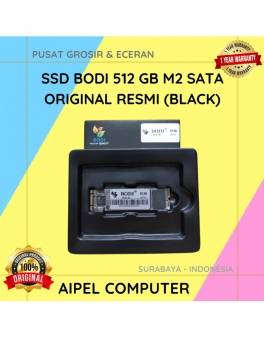
6%
A. DESKRIPSI (DESCRIPTION) Upgrade perangkat Anda dengan BODI512M, solid-state drive (SSD) BODI berkapasitas 512 GB yang dirancang untuk memberikan performa… selengkapnya
Rp 310.000 Rp 330.000



Saat ini belum tersedia komentar.