- Orderan dibawah 500.00 via Goshop / Offline / Marketplace
Laptop Plugged In Not Charging? Causes and Easy Fixes
Have you ever plugged your laptop charger into a wall outlet, seen the charging indicator light turn on, but noticed the battery icon in the taskbar displaying a “Plugged In, Not Charging” status or refusing to increase in percentage altogether? Dealing with a laptop that will not charge despite being connected to power is a common yet frustrating issue.
Many users assume that their charger cable is severed or that the internal battery has completely failed. In reality, a stagnated battery percentage is often triggered by Windows power management glitches, active manufacturer battery charge thresholds, or an underpowered power adapter. Similar to cases where a laptop shuts down suddenly with full battery, performing a systematic step-by-step diagnosis will help you locate the root cause without prematurely purchasing replacement parts.
Featured Snippet (Instant Answer):
To fix a laptop that is plugged in but not charging, disable the Battery Health Threshold feature in your laptop manufacturer’s management software, perform a Power Reset to clear residual static electricity, or reinstall the “Microsoft ACPI-Compliant Control Method Battery” driver via Device Manager to reset system charging controls.
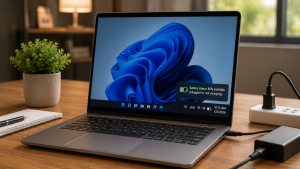
Checklist: Why Is Your Laptop Battery Not Charging?
Tick the boxes below if any of these symptoms match your current situation:
-
[ ] The battery icon displays a “Plugged In, Not Charging” or “Connected, Not Charging” notification.
-
[ ] Battery charging halts consistently at a specific percentage (e.g., stopping exactly at 60% or 80%).
-
[ ] The charger adapter brick feels unusually hot or remains completely cold to the touch while plugged in.
-
[ ] The laptop’s power indicator light blinks steadily in orange or red.
-
[ ] The battery percentage only increases when the laptop is completely powered off (shut down).
Our Recommendation: If your charging stops consistently at 60% or 80%, your laptop is likely utilizing a built-in Conservation Mode or Battery Health Care feature designed to prolong overall battery lifespan.
Comparison Table: Charging Issue Breakdown by Symptom
To help you diagnose the power delivery issue on your system, here is a comparison based on system behavior:
| Charging Symptom on Screen | Likely Root Cause | Required Action | Real-World Impact on Device |
|---|---|---|---|
| Stuck at 60% or 80% | Active Battery Limit Threshold | Disable Conservation Mode in vendor software | Restores full 100% charging capacity |
| “Plugged In, Not Charging” status | Windows ACPI battery driver glitch | Reinstall ACPI driver via Device Manager | Restores normal charging controller function |
| Blinking indicator light | Insufficient adapter wattage / loose cable | Replace charger adapter to proper specs | Ensures steady voltage and current flow |
4 Easy Ways to Fix a Laptop That Is Plugged In But Not Charging
Try these practical troubleshooting steps before bringing your machine to a repair center:
-
Disable Battery Health Threshold Features. Open your laptop’s proprietary management application (such as Lenovo Vantage, ASUS MyASUS, Dell Power Manager, or HP Smart Support). Locate the battery settings tab and turn off Conservation Mode, Battery Health Charging, or Primary AC Use so your battery can charge to 100%.
-
Uninstall and Reinstall the ACPI Battery Driver. Right-click the Start button, launch Device Manager, and expand the Batteries category. Right-click Microsoft ACPI-Compliant Control Method Battery, select Uninstall device, and restart your laptop. Upon rebooting, Windows will automatically download a clean charging driver.
-
Perform a Power Reset (Clear Static Charge). Shut down the laptop, disconnect the charger, and unplug all USB accessories. Press and hold the power button for 30 to 60 seconds to drain lingering static charge from the motherboard. Plug the charger back in, then power on the laptop.
-
Verify Charger Wattage and Port Connectivity. Ensure you are using an original power adapter matched to your laptop’s specifications. If you charge via USB Type-C, verify that your wall adapter supports the correct Power Delivery (PD) wattage required by your laptop model (typically 45W to 65W minimum).
When Should You Replace the Battery or Charger?
If software troubleshooting yields no results and your battery percentage remains stuck, internal hardware components may be worn out or damaged, such as:
-
Loose DC-Jack Power Port: The internal power jack soldering has cracked or loosened from the motherboard socket.
-
Weak Power IC Circuit: The power distribution chip on the motherboard fails to route current from the adapter to the battery cells.
-
Permanent Cell Lockout: The internal Battery Management System (BMS Lock) has permanently tripped for safety reasons due to critically low cell voltage.
FAQ (Frequently Asked Questions)
-
Why does Windows display “Plugged In, Not Charging”?
This notification appears when Windows or vendor firmware detects excessive battery temperatures, an active charge threshold limit, or an ACPI power control driver conflict.
-
Is it safe to use a laptop while it says “Plugged In, Not Charging”?
Yes, it is temporarily safe because the laptop runs directly on AC power from the wall adapter. However, if the power cord accidentally detaches while the battery is depleted, the laptop will shut off instantly.
-
How long does it take to repair a broken laptop DC power jack?
Replacing or resoldering a laptop DC-Jack port at a service station typically takes around 1 to 2 hours.
Conclusion
A laptop displaying “Plugged In, Not Charging” is often caused by enabled manufacturer battery conservation thresholds or a temporary software driver glitch. By reviewing vendor app settings, reinstalling the ACPI battery driver, and verifying charger wattage compatibility, most charging issues can be safely resolved at home.
Visit the Aipel Computer Physical Store
If your laptop battery still refuses to charge, the power jack feels loose, or you require genuine replacement chargers and batteries with official warranty coverage, let our technical team inspect your device safely.
For step-by-step driving routes, opening hours, or to check charger and battery stock availability for your laptop model, feel free to visit our main website at Aipel Computer in Surabaya for prompt and reliable service!

Laptop Plugged In Not Charging? Causes and Easy Fixes

Di pusat grosir komputer biasanya menyediakan berbagai produk dalam memenuhi setiap kebutuhan komputer calon pembelinya. Mulai dari segi hardware sampai... selengkapnya

Cara setting WiFi repeater lewat HP cukup mudah. Selama ini tak sedikit pengguna yang beranggapan bahwa setting WiFi repeater hanya... selengkapnya
Connecting an HDMI cable from your laptop to an LED TV or external monitor for movies or work presentations, only... selengkapnya
Instant frustration kicks in the moment your smooth laptop suddenly stutters, locks up, and grinds to a total freeze as... selengkapnya
Saat ini sudah banyak toko komputer murah terdekat. Namun bagi Anda yang juga ingin membuka usaha dalam bidang toko komputer... selengkapnya
Enjoying a movie, listening to your favorite playlist, or attending an important online meeting when your laptop audio suddenly cuts... selengkapnya

Working on an important document or playing a game when suddenly a stream of repeated letters appears across your screen... selengkapnya
Sedang terburu-buru ingin menyelesaikan pekerjaan atau tugas kuliah, tapi saat dinyalakan, laptop malah macet total di layar logo Windows dengan... selengkapnya
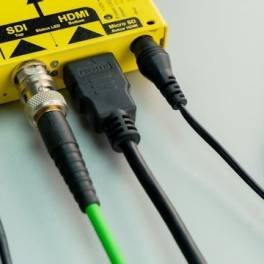
HDMI extender dapat membantu memperpanjang jarak kabel HDMI dengan efektif. Biasanya, extender ini dihubungkan ke ujung kabel HDMI dan dapat... selengkapnya
Sedang asyik bekerja, menonton video, atau menghadiri online meeting, tapi tiba-tiba layar laptop berkedip-kedip kilat (flickering) tanpa henti? Masalah layar... selengkapnya

22%
A. DESKRIPSI (DESCRIPTION) Kabel HDTV STANDART M To M WEBSONG 5 M (White) adalah solusi sempurna untuk Anda yang mencari… selengkapnya
Rp 62.000 Rp 79.000
7%
AIPEL COMPUTER – Pusat Grosir dan Eceran – Belanja Hebat dan Hemat – Harga Murah Garansi Prima * GARANSI –… selengkapnya
Rp 185.500 Rp 200.000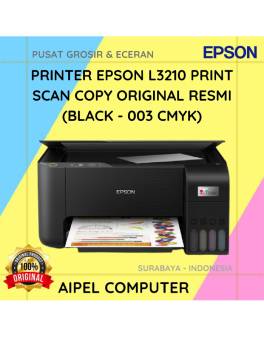
17%
A. DESKRIPSI (DESCRIPTION) EPSON L3210 Print Scan Copy Original 100 % (Black – 003 CMYK) adalah solusi cetak multifungsi yang… selengkapnya
Rp 2.110.000 Rp 2.548.000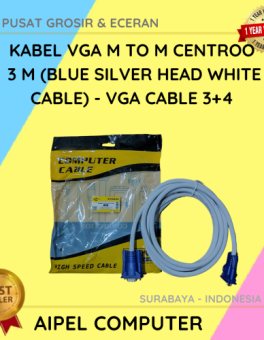
28%
AIPEL COMPUTER – Pusat Grosir dan Eceran – Belanja Hebat dan Hemat – Harga Murah Garansi Prima * GARANSI –… selengkapnya
Rp 18.000 Rp 25.000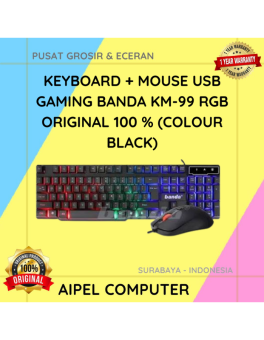
17%
A. DESKRIPSI (DESCRIPTION) Keyboard + Mouse USB Gaming Banda KM-99 RGB adalah set keyboard dan mouse gaming yang hadir dengan… selengkapnya
Rp 75.000 Rp 90.000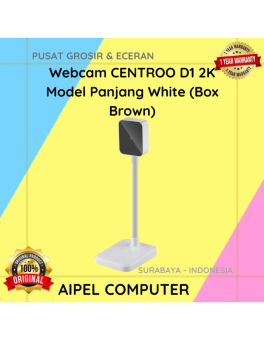
9%
A. DESKRIPSI (DESCRIPTION) Webcam D1 2K Model Panjang White (Box Brown) adalah webcam dengan resolusi 2K dan desain model panjang… selengkapnya
Rp 149.500 Rp 165.000
1%
A. DESKRIPSI (DESCRIPTION) Router Wireless TP-LINK TL-WR840N adalah solusi jaringan untuk kebutuhan internet Anda sehari-hari. 🌐📶 Dengan kecepatan hingga 300… selengkapnya
Rp 188.000 Rp 190.000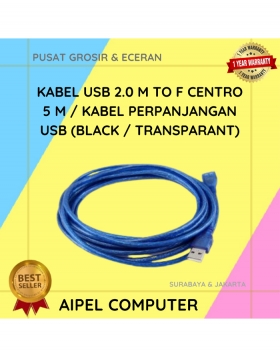
16%
A. DESKRIPSI (DESCRIPTION) Kabel USB 2.0 M To F CENTROO 5 M / Kabel Perpanjangan USB (Black / Transparant) adalah… selengkapnya
Rp 21.000 Rp 25.000
12%
A. DESKRIPSI (DESCRIPTION) Kabel HDTV Standard M to M CENTROO 30 M Jaring (Red Black) adalah kabel HDMI berkualitas tinggi… selengkapnya
Rp 110.000 Rp 125.000
31%
A. DESKRIPSI (DESCRIPTION) Cable USB M To Micro M GENAI GL-Q31 adalah kabel USB ke Micro dari GENAI yang mendukung… selengkapnya
Rp 20.000 Rp 29.000



Saat ini belum tersedia komentar.