- Orderan dibawah 500.00 via Goshop / Offline / Marketplace
Laptop Overheating & Shutting Down? Causes and 4 Easy Fixes
Enjoying your favorite game or rendering a heavy video project, only for your laptop chassis to feel scorching hot, cooling fans to roar at full speed, and the screen to turn off completely (blackout) is alarming. Attempting to power it back on immediately often fails until internal components cool down.
A laptop overheating and shutting down unexpectedly is a protective failsafe built into modern hardware called a Thermal Shutdown. This safety feature trips automatically when processor (CPU) or graphics card (GPU) temperatures breach critical thresholds (typically between 95°C and 100°C) to prevent silicone chips from melting. Much like diagnosing laptop overheating and noisy fan causes how to fix to maintain device health, you can lower laptop temperatures effectively with a few maintenance steps.
Featured Snippet (Quick Answer):
To fix a laptop overheating and shutting down, clear lint buildup out of the cooling fans and heatsink fins, re-apply fresh thermal paste onto the processor, use an elevated laptop stand or cooling pad, and cap the Maximum Processor State setting in Windows Power Options.
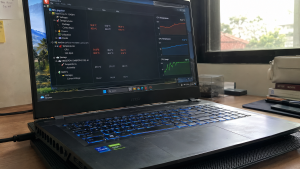
Checklist: Diagnosing Laptop Overheating Symptoms
Check the boxes below if these conditions describe your laptop:
-
[ ] The top chassis area above the keyboard feels burning hot to the touch.
-
[ ] Internal cooling fans spin continuously at high, whining RPM speeds.
-
[ ] Game performance stutters severely (FPS drops) moments before the laptop shuts off.
-
[ ] The laptop stays powered on for only 10–20 minutes when running heavy software.
-
[ ] The underside chassis gets uncomfortably warm even shortly after a cold boot.
Practical Recommendation: Never operate an overheating laptop on beds, blankets, or directly on your lap. Fabric surfaces block underside intake vents, trapping extreme heat inside the chassis.
Comparison Table: Causes of Overheating Laptops and Fixes
Here is an overview of why laptops overheat and recommended troubleshooting actions:
| Heat Symptom | Underlying Cause | Device Damage Risk | Recommended Action |
|---|---|---|---|
| Loud fans, cold exhaust | Exhaust fins clogged with thick dust | Traps heat inside chassis | Blow out vents using compressed air |
| 90°C temperatures at idle | Dried & hardened thermal paste | Permanent CPU/GPU degradation | Clean & apply fresh thermal paste |
| Sudden shutdown in games | Critical limit (Thermal Shutdown) | Unexpected power loss | Use cooling pads & lower graphics |
| Scorching underside chassis | Underside intake vents blocked | Accelerates battery swelling | Elevate laptop using a laptop stand |
4 Ways to Fix a Laptop Overheating and Shutting Down
Follow these maintenance steps in order:
-
Operate Your Laptop on Elevated, Hard Surfaces. Always place your laptop on flat wood or glass desks. Use an elevated laptop stand or prop up the rear corners by 1–2 cm to ensure adequate clearance for intake fans underneath the chassis.
-
Clear Dust Out of Fans and Heatsink Fins. Dust accumulating over years forms carpet-like mats blocking copper heatsink fins. Remove the bottom chassis cover and clear fan blades and exhaust vents using a soft brush or canned compressed air.
-
Re-apply Processor Thermal Paste Periodically. Thermal paste is a heat-conductive compound bridging CPU/GPU dies to copper heatsink plates. This compound hardens and loses effectiveness after 1 to 2 years of use. Clean off old paste and apply a fresh high-performance carbon-based compound to drop temperatures by up to 15°C.
-
Cap Maximum Processor State in Windows. Open Control Panel > Power Options > Change plan settings > Change advanced power settings. Expand Processor power management > Maximum processor state. Adjust the Plugged in value from 100% down to 95% or 90%. This disables aggressive CPU Turbo Boost states that drive temperature spikes.
When to Seek Professional Hardware Service
If you have replaced thermal paste and cleared dust yet internal cooling fans fail to spin completely (fan failure), or copper heatpipes have leaked their thermal fluid, passive cooling will not suffice.
This requires replacing the internal cooling fan unit or installing a new OEM heatsink assembly to restore active heat dissipation.
FAQ (Frequently Asked Questions)
What is a normal operating temperature for laptops?
Normal idle temperatures (typing/browsing) range between 40°C and 55°C. Under heavy gaming or video rendering loads, temperatures between 75°C and 88°C are acceptable. Temperatures exceeding 95°C represent dangerous thermal ranges.
Do laptop cooling pads actually work?
Yes, particularly sealed vacuum cooling pads (IETS/Llano) or high-CFM cooling stands blowing directly into underside intake vents, which can lower internal temperatures by 5°C to 10°C.
Conclusion
A laptop overheating and shutting down is usually caused by dust blockage in exhaust vents, dried thermal paste, or operating on soft fabric surfaces. By cleaning heatsink fins, re-applying thermal paste, and adjusting Windows power state limits, your laptop will run cool and stay stable during demanding tasks.
Shop Laptop Cooling Accessories, Thermal Paste & Repair at Aipel Computer
Struggling with an overheating laptop, dead cooling fans, or needing professional cleaning and thermal paste repasting services with warranty? Find complete laptop maintenance services and hardware accessories at wholesale prices directly in our store.
To check product availability or get store directions, visit the official Aipel Computer website in Surabaya today.
Tags: fix laptop thermal shutdown, laptop cooling pad effective, laptop overheating and shutting down, laptop turns off while gaming, replace laptop thermal paste surabaya

Laptop Overheating & Shutting Down? Causes and 4 Easy Fixes

Di pusat grosir komputer biasanya menyediakan berbagai produk dalam memenuhi setiap kebutuhan komputer calon pembelinya. Mulai dari segi hardware sampai... selengkapnya
Plugging a USB Type-C cable into your laptop to charge, only to find the battery icon showing zero progress, is... selengkapnya
Hardisk eksternal case merupakan salah satu aksesoris komputer terutama untuk hardisk eksternal. Banyak orang mungkin masih mengabaikan aksesoris ini, padahal... selengkapnya

Mematikan laptop dengan keyboard sangatlah mudah. Berikut beberapa cara yang dapat Anda coba untuk mematikan laptop hanya dengan menggunakan keyboard.... selengkapnya

Saat ini, webcam laptop menjadi salah satu alat penting untuk komunikasi secara virtual. Baik untuk video konferensi, pembelajaran daring, atau... selengkapnya

Splitter RCA merupakan konektor listrik yang biasa dipakai pada komponen audio. Jenis splitter ini juga bisa disebut dengan nama AV.... selengkapnya
Sebelum Anda memutuskan untuk mengunjungi pusat aksesoris komputer untuk membeli aksesoris komputer yang diinginkan, misalnya saja fask disk, mouse, headset,... selengkapnya

Ada berbagai cara untuk mengatasi keyboard laptop terkunci. Berikut ini akan kita bahas beberapa metode yang bisa Anda coba untuk... selengkapnya
Belanja aksesoris komputer secara online memang terbilang lebih praktis dan efisien. Apalagi ketika Anda berbelanja di grosir aksesoris komputer, sudah... selengkapnya
Kinerja processor adalah syarat komputer Anda untuk berfungsi secara optimal. Processor yang bekerja optimal dapat mempercepat berbagai tugas dan meningkatkan... selengkapnya

27%
A. DESKRIPSI (DESCRIPTION) Cable USB M To Type-C M GENAI GL-Q31 adalah solusi ideal bagi Anda yang memerlukan pengisian daya… selengkapnya
Rp 27.000 Rp 37.000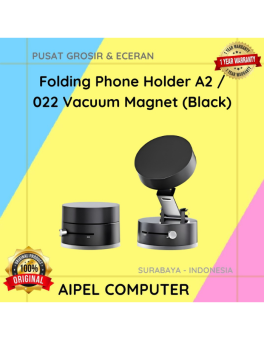
29%
A. DESKRIPSI (DESCRIPTION) Folding Phone Holder A2 / 022 Vacuum Magnet (Black) adalah dudukan ponsel praktis dengan desain lipat dan… selengkapnya
Rp 20.000 Rp 28.000
23%
A. DESKRIPSI (DESCRIPTION) Refill Ink EPSON 057 Light Cyan Original 100 % adalah tinta isi ulang berkualitas tinggi dari EPSON… selengkapnya
Rp 198.000 Rp 257.000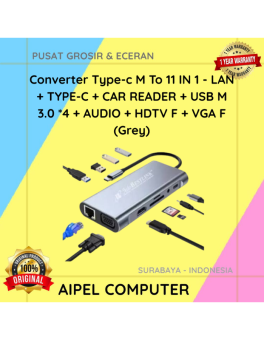
11%
A. DESKRIPSI (DESCRIPTION) Converter Type-C M To 11 IN 1 (Grey) adalah converter multifungsi yang menyediakan berbagai pilihan koneksi dalam… selengkapnya
Rp 120.000 Rp 135.000
12%
A. DESKRIPSI (DESCRIPTION) KM100 Wireless Mini adalah kombinasi keyboard dan mouse dari JERTECH yang dirancang untuk memberikan kemudahan dan efisiensi… selengkapnya
Rp 117.249 Rp 133.000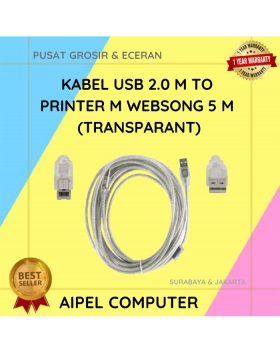
21%
A. DESKRIPSI (DESCRIPTION) Kabel USB 2.0 M to Printer WEBSONG 5 Meter (Transparant) adalah pilihan tepat bagi Anda yang mendambakan… selengkapnya
Rp 27.500 Rp 35.000
4%
AIPEL COMPUTER – Pusat Grosir dan Eceran – Belanja Hebat dan Hemat – Harga Murah Garansi Prima * GARANSI –… selengkapnya
Rp 720.000 Rp 750.000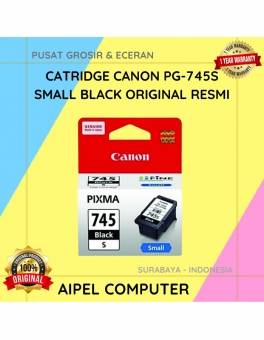
26%
A. DESKRIPSI (DESCRIPTION) Canon PG-745S adalah kartrid tinta hitam asli yang dirancang khusus untuk memberikan kualitas cetakan terbaik pada dokumen… selengkapnya
Rp 111.000 Rp 150.000
10%
A. DESKRIPSI (DESCRIPTION) Barcode Scanner 1D Non Stand CENTROO adalah alat pemindai barcode yang akurat dan praktis, dirancang untuk memudahkan… selengkapnya
Rp 140.000 Rp 155.000
25%
A. DESKRIPSI (DESCRIPTION) Mouse Pad CENTROO Logo None 26 x 21 CM adalah pilihan sempurna untuk pengguna komputer dan laptop… selengkapnya
Rp 9.000 Rp 12.000



Saat ini belum tersedia komentar.