- Orderan dibawah 500.00 via Goshop / Offline / Marketplace
Laptop Screen Flickering? Causes and Easy Fixes
Working on a project, watching a video, or attending a virtual meeting when suddenly your display starts blinking continuously (flickering) can be extremely distracting. Display flickering is not only an annoying visual glitch, but it also causes eye strain and headaches during prolonged use.
Many users assume that their laptop LCD panel is permanently broken and requires an expensive replacement. In reality, display flickering is frequently triggered by mismatched display refresh rates, graphics card driver conflicts following a Windows update, or internal heat buildup. Similar to dealing with a laptop overheating and noisy fan causes how to fix issue, performing a systematic self-diagnosis will help you identify whether the root cause is software-related or a physical hardware fault.
Featured Snippet (Instant Answer):
To fix a flickering laptop screen, use Task Manager to check for app or driver conflicts, adjust the Display Refresh Rate back to standard 60Hz, update or reinstall your GPU driver via Device Manager, and disable graphics hardware acceleration in web browsers.
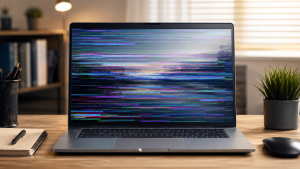
Checklist: Why Is Your Laptop Screen Flickering?
Tick the boxes below if any of these symptoms match your current situation:
-
[ ] The display flickers only when using specific applications (such as Google Chrome or video players).
-
[ ] Flickering worsens when running on battery power (unplugged) compared to AC power.
-
[ ] The screen stabilizes or stops flickering when you adjust the laptop lid hinge angle.
-
[ ] The flickering stops completely when connected to an external monitor or TV via HDMI.
-
[ ] The bottom chassis feels excessively hot before the screen begins to blink or show horizontal lines.
Our Recommendation: If the display flickers on an external monitor as well, the issue stems 100% from software or GPU driver conflicts. However, if the external monitor stays clean, the fault lies within your laptop’s internal panel or ribbon cable.
Comparison Table: Screen Flickering Root Cause Breakdown
To help you diagnose visual glitches on your system, here is a breakdown based on screen behavior:
| Visual Symptom on Screen | Likely Root Cause | Required Action | Real-World Impact on Device |
|---|---|---|---|
| Random blinking in specific apps | GPU driver conflict / Hardware Acceleration | Update GPU driver & disable acceleration | Restores visual stability at zero cost |
| Flickers when moving lid hinge | Loose or pinched display ribbon cable | Disassemble & reposition display cable | Restores normal display without new LCD |
| Constant blinking + flashing lines | Physical LCD panel or backlight damage | Replace internal LCD display module | Requires physical screen replacement |
4 Easy Ways to Fix a Laptop Screen Flickering
Try these practical troubleshooting steps before bringing your machine to a repair center:
-
Test Using Windows Task Manager. Press
Ctrl + Shift + Escsimultaneously to open Task Manager. Observe the screen: if everything flickers except the Task Manager window, an installed app is causing the glitch. If Task Manager flickers along with the rest of the screen, a graphics driver or display hardware issue is at fault. -
Adjust Display Refresh Rate. Right-click an empty space on your desktop, select Display settings, and open Advanced display. Under Choose a refresh rate, switch the frequency down to standard (e.g., from 120Hz/144Hz down to 60Hz) to stabilize signal processing.
-
Update or Reinstall Graphics Drivers. Open Device Manager by right-clicking the Start button. Expand Display adapters, right-click your GPU (Intel, AMD, or NVIDIA), and select Update driver. If that fails, select Uninstall device, then restart your laptop so Windows downloads a clean driver automatically.
-
Disable Browser Hardware Acceleration. If screen flickering only happens while browsing the web, open your browser settings (e.g., Google Chrome), navigate to System, and toggle off Use graphics acceleration when available.
Signs of Hardware-Related Screen Damage
If software troubleshooting fails and your display continues to flicker, internal components may be degraded, such as:
-
The LCD panel backlight has weakened or short-circuited due to moisture exposure.
-
The flexible ribbon cable connecting the display to the motherboard through the hinge is loose, pinched, or frayed.
-
The display inverter module is suffering from voltage drop.
FAQ (Frequently Asked Questions)
-
Can a flickering laptop screen damage your eyesight?
Yes. Continuous screen flickering forces eye muscles to strain repeatedly, leading to eye fatigue, dryness, and severe headaches.
-
Why does my laptop screen flicker when unplugged from the charger?
This is often caused by graphics power-saving features (Intel Display Power Saving Technology or AMD Vari-Bright) that lower display signal quality automatically to conserve battery life.
-
How long does it take to repair a loose laptop screen ribbon cable?
Disassembling the chassis, cleaning connectors, and reseating the display ribbon cable usually takes about 30 to 45 minutes at a service center.
Conclusion
Most screen flickering issues can be safely resolved at home by tweaking refresh rates, disabling hardware acceleration, or updating graphics drivers. However, if software fixes do not resolve the issue and there are signs of a loose ribbon cable or damaged backlight, having a professional technician inspect your hardware is the safest solution.
Visit the Aipel Computer Physical Store
If your laptop screen keeps flickering, displaying lines, or requires a physical ribbon cable check, let our technical team inspect your hardware safely.
For step-by-step driving routes, opening hours, or to check original LCD panel stock availability for your laptop model, feel free to visit our main website at Aipel Computer in Surabaya for prompt and reliable service!
Tags: fix laptop display blinking, laptop screen flickering causes and how to fix, laptop screen flickers when unplugged, replace laptop lcd surabaya

Laptop Screen Flickering? Causes and Easy Fixes

Salah satu perangkat yang harus ada sebagai pelengkap alat elektronik adalah earphone. Earphone menjadi kebutuhan hampir semua masyarakat, terutama di... selengkapnya
Epson L121 merupakan salah satu printer yang banyak digunakan. Printer ini memberikan hasil cetak yang cepat, banyak, dan berkualitas. Supaya... selengkapnya

Saat kita memutuskan untuk cari komputer murah, ada beberapa hal yang harus dijadikan pertimbangan untuk mengantisipasi supaya terhindar dari kesalahan... selengkapnya
Komputer atau laptop adalah barang elektronik yang tidak boleh asal memilih ketika Anda akan membelinya. Itulah mengapa, Anda perlu mengetahui... selengkapnya
Router WiFi adalah perangkat yang tidak terpisahkan dari jaringan internet. Adanya router memungkinkan beberapa perangkat bisa terkoneksi ke internet. Di... selengkapnya

Laptop sudah menjadi kebutuhan bagi masyarakat dan tak lagi menjadi barang Langkah dan mewah. Bahkan sudah banyak berdiri berbagai tempat... selengkapnya

Membersihkan keyboard komputer atau laptop secara teratur merupakan tindakan yang penting. Meskipun terlihat bersih, keyboard yang sering digunakan setiap hari... selengkapnya
Have you been in the middle of typing a document or editing photos when suddenly your screen cursor starts jumping... selengkapnya
Terkadang, masalah keyboard mengetik sendiri pada komputer menjadi salah satu kendala umum bagi pengguna. Hal ini tentu bisa sangat mengganggu,... selengkapnya
Membeli komputer di tempat grosir bisa lebih hemat budget karena harganya miring. Namun sebelum membeli komputer, pastikan Anda tahu apa... selengkapnya
25%
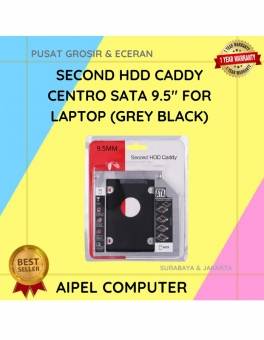
A. DESKRIPSI (DESCRIPTION) Second HDD Caddy CENTROO SATA 9.5″ For Laptop adalah perangkat tambahan praktis yang memungkinkan Anda menambahkan hard… selengkapnya
Rp 13.500 Rp 18.000
14%
AIPEL COMPUTER – Pusat Grosir dan Eceran – Belanja Hebat dan Hemat – Harga Murah Garansi Prima * GARANSI –… selengkapnya
Rp 90.000 Rp 105.000
33%
AIPEL COMPUTER Kabel USB 3 in 1 adalah kabel multifungsi serbaguna yang dirancang untuk menjawab tantangan perangkat dengan berbagai port… selengkapnya
Rp 1.000 Rp 1.500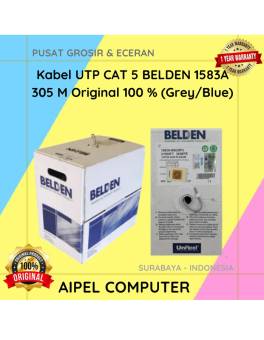
19%
A. DESKRIPSI (DESCRIPTION) AP700007 adalah konektor RJ45 kategori 5 dari Belden yang dirancang untuk memberikan kualitas koneksi yang optimal. Dengan… selengkapnya
Rp 2.355.000 Rp 2.894.000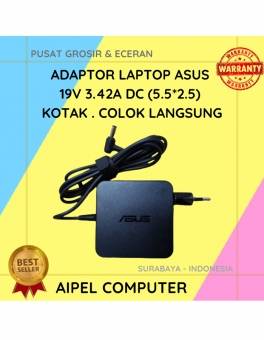
17%
A. DESKRIPSI (DESCRIPTION) Adaptor Laptop ASUS 19V 3.42A Kotak adalah solusi daya yang dirancang khusus untuk mendukung kinerja berbagai model… selengkapnya
Rp 75.000 Rp 90.000
19%
A. DESKRIPSI (DESCRIPTION) Converter Type-C M To 5 IN 1 HOBOO adalah solusi lengkap untuk Anda yang membutuhkan koneksi maksimal… selengkapnya
Rp 77.280 Rp 95.000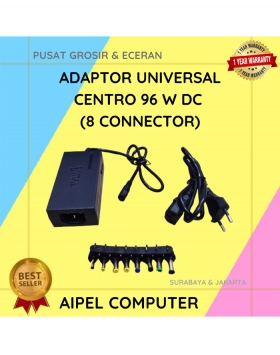
16%
A. DESKRIPSI (DESCRIPTION) Adaptor Universal CENTROO 96 W adalah solusi hemat tempat dan praktis untuk Anda yang butuh fleksibilitas dalam satu… selengkapnya
Rp 63.000 Rp 75.000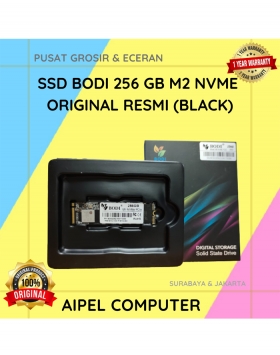
8%
A. DESKRIPSI (DESCRIPTION) Memperkenalkan BODI256N, sebuah solid-state drive (SSD) berkapasitas 256 GB yang dirancang untuk memberikan performa maksimal bagi sistem… selengkapnya
Rp 280.000 Rp 305.000
27%
A. DESKRIPSI (DESCRIPTION) Cable USB M To Type-C M GENAI GL-Q23 adalah kabel pengisian cepat yang dirancang untuk memberikan efisiensi… selengkapnya
Rp 35.000 Rp 48.000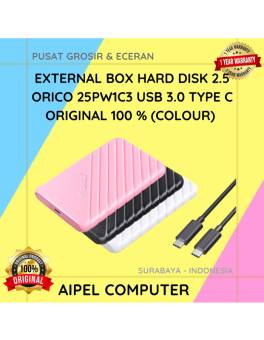
17%
A. DESKRIPSI (DESCRIPTION) ORICO 25PW1C3 USB 3.0 Type C Original adalah solusi penyimpanan data eksternal modern yang didesain khusus untuk… selengkapnya
Rp 73.000 Rp 88.000



Saat ini belum tersedia komentar.