- Orderan dibawah 500.00 via Goshop / Offline / Marketplace
WiFi Keeps Disconnecting on Laptop? Causes and How to Fix It
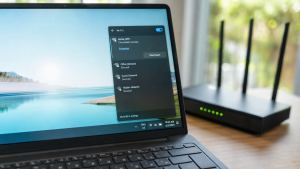
You are working, attending an online meeting, or streaming a video on your laptop, and suddenly your internet connection drops out. The WiFi icon on your taskbar changes to a yellow exclamation mark or shows No Internet Connection, only to reconnect automatically a few seconds later.
An unstable WiFi connection is a frustrating daily annoyance. Many people assume the issue always stems from their internet service provider or a broken router. However, in most cases, random WiFi disconnects are triggered by aggressive Windows power saving settings, corrupted network adapter drivers, or wireless signal interference. Just like when troubleshooting how to fix slow wifi at home, you can perform a few quick DIY fixes directly on your laptop.
Featured Snippet (Quick Answer):
The fastest way to fix a laptop WiFi that keeps disconnecting is by disabling the Power Saver feature on the Wireless Adapter in Device Manager, performing a TCP/IP reset and DNS flush via Command Prompt, and reinstalling the Wireless Network Adapter driver.
Checklist: Why Does Your Laptop WiFi Keep Disconnecting?
Check the boxes below if any of these symptoms match your laptop’s current condition:
-
[ ] WiFi disconnects randomly while running on battery power without the charger.
-
[ ] Internet disconnects every time the laptop wakes up from Sleep or Hibernate mode.
-
[ ] WiFi signal appears full, but displays a No Internet, Secured notification.
-
[ ] Other devices like smartphones stay connected smoothly to the same WiFi network.
-
[ ] The laptop must be restarted to detect WiFi signals again.
Practical Recommendation: If only your laptop disconnects while other devices work fine on the same WiFi network, the issue almost certainly lies within your laptop operating system settings or wireless hardware receiver.
Comparison Table: Causes of Unstable Laptop WiFi
To help map out the root cause of your internet connection issue, here is a quick comparison based on system symptoms:
| WiFi Connection Symptom | Likely Cause | Primary Fix | Real Device Impact |
|---|---|---|---|
| Disconnects on battery power | Windows turns off WiFi adapter to save battery | Uncheck Allow computer to turn off this device | WiFi connection stays stably powered on |
| Full signal but No Internet | Stale IP cache or DNS crash | Flush DNS & Netsh Reset via CMD | Data connection path cleared |
| Frequent drops in crowded areas | 2.4 GHz frequency interference | Switch to 5 GHz frequency on router | Cleaner signal with less interference |
| Completely missing from Device Manager | Internal WiFi card module worn out or damaged | Use an external USB WiFi Adapter | Laptop regains wireless signal reception |
4 Ways to Fix Laptop WiFi That Keeps Disconnecting
Try these step by step DIY recovery methods to stabilize your laptop internet connection:
-
Disable WiFi Adapter Power Saving. Right click the Start button, select Device Manager. Expand Network adapters, right click your Wireless adapter (e.g., Intel Wi-Fi or Realtek Wireless), and select Properties. Open the Power Management tab, uncheck Allow the computer to turn off this device to save power, then click OK.
-
Flush DNS and Reset TCP/IP. Open Command Prompt (CMD) as Administrator. Type
netsh winsock resetand press Enter. Next, typeipconfig /flushdnsand press Enter. This clears stuck network cache files. -
Change Network Profile to Private. Open Settings > Network & Internet > Wi-Fi. Click your connected WiFi network name and switch the profile from Public to Private. Public profiles carry strict Windows security restrictions that can unexpectedly drop connections.
-
Reinstall Wireless Adapter Driver. In Device Manager, right click your Wireless Network Adapter and select Uninstall device. Check the box to delete the driver software if prompted, then restart your laptop. Windows will automatically reinstall a fresh default driver upon startup.
When Should You Use an External USB WiFi Adapter?
If all software troubleshooting steps fail and your laptop WiFi keeps disconnecting, your internal Wi-Fi card module on the motherboard might be failing physically or weakening in signal reception.
A practical and cost effective workaround without opening your laptop casing is using an external USB WiFi Adapter (Dongle). Simply plug this compact adapter into an open USB port, and you can enjoy a stable, high speed wireless internet connection again.
FAQ (Frequently Asked Questions)
Why does laptop WiFi disconnect when running on battery mode?
By default, Windows has a power management feature that temporarily cuts power to the wireless adapter when unplugged from the charger to conserve battery life.
Is 5 GHz WiFi more stable than 2.4 GHz?
Yes, 5 GHz offers faster speeds and significantly less interference from other household devices like Bluetooth, although its physical range is slightly shorter than 2.4 GHz.
Conclusion
Most cases of laptop WiFi disconnecting randomly are caused by active Windows power saving features, corrupted network drivers, or IP cache buildup. By disabling power saving on the adapter and performing a DNS flush, your laptop internet connection will usually run smoothly again without interruptions.
Shop USB WiFi Adapters & Networking Accessories at Aipel Computer
Need a high speed original USB WiFi Adapter, WiFi router, LAN cable, or other computer and networking equipment? Explore our full range of products at competitive wholesale prices directly in our store.
To check our hardware catalog, spare part stock availability, or store location details, visit the official Aipel Computer website today!
Tags: fix laptop wifi disconnecting randomly, laptop wifi no internet secured, usb wifi adapter surabaya, wifi driver windows 10, wifi keeps disconnecting on laptop

WiFi Keeps Disconnecting on Laptop? Causes and How to Fix It
Have you ever been busy typing an important assignment, only to discover that several letter or number keys on your... selengkapnya
Trying to print an important document only to have your printer suddenly refuse to work is one of the most... selengkapnya
Port USB laptop tidak berfungsi adalah masalah yang cukup umum dan bisa mengganggu produktivitas Anda. Ketika port USB tidak dapat... selengkapnya
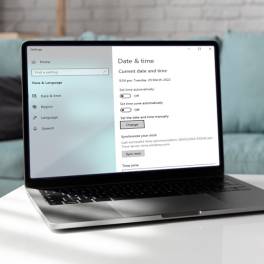
Jam di laptop tidak sesuai tentu bisa mengganggu aktivitas kita. Oleh karena itu, penting untuk segera memperbaiki jam yang tidak... selengkapnya
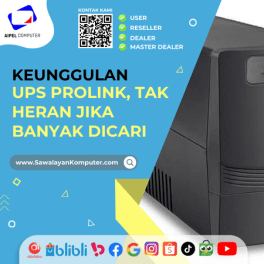
Perlu kamu ketahui, UPS Prolink ini menjadi sebuah produk yang cukup populer dan dinilai mempunyai banyak keunggulan. Sehingga, tak heran... selengkapnya
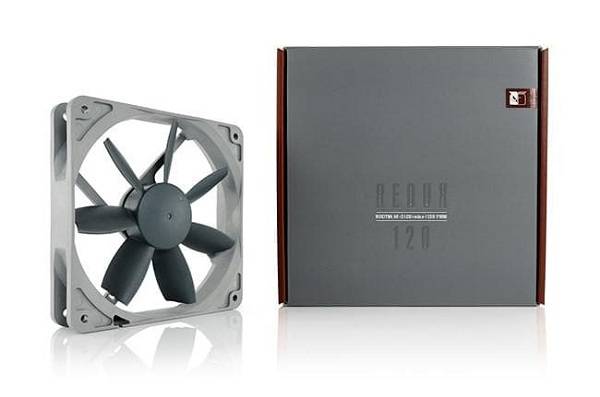
Fan atau kipas dalam komputer merupakan salah satu hardware yang justru jarang diperhatikan. Justru hal itu memiliki pengaruh terhadap sirkulasi... selengkapnya
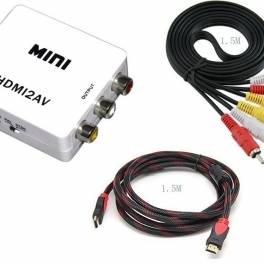
Mini HDMI2AV merupakan sebuah alat yang dapat Anda pergunakan untuk mentransfer atau mengkonversi perangkat HDMI, baik itu laptop, komputer, media... selengkapnya

Ketika hendak membeli monitor LG penting untuk memilih monitor yang paling tepat dan sesuai dengan kebutuhan sehingga pengguna tidak akan... selengkapnya
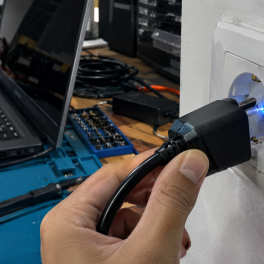
Pernahkah kamu kaget ketika mencolokkan steker charger laptop ke stop kontak dinding lalu mendadak muncul letupan kecil bercahaya biru (sparking)... selengkapnya
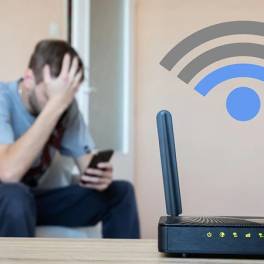
Cara mempercepat jaringan WiFi bisa dilakukan dengan beberapa langkah sederhana. Koneksi WiFi yang lemot sangat menghambat aktivitas sehari-hari. Terlebih sekarang... selengkapnya

27%
A. DESKRIPSI (DESCRIPTION) Cable USB M to Type-C M GENAI GL-Q26 100CM 6A 120W (White) adalah pilihan cerdas untuk kamu… selengkapnya
Rp 32.000 Rp 44.000
5%
A. DESKRIPSI (DESCRIPTION) Docking Hard Disk FIDECO USB 3.0 + RGB LED (Black) adalah docking berdesain stylish dengan lampu RGB… selengkapnya
Rp 372.000 Rp 390.000
6%
A. DESKRIPSI (DESCRIPTION) P3U adalah External Box Hard Disk dari FIDECO yang didesain khusus untuk kebutuhan transfer dan backup data… selengkapnya
Rp 300.000 Rp 320.000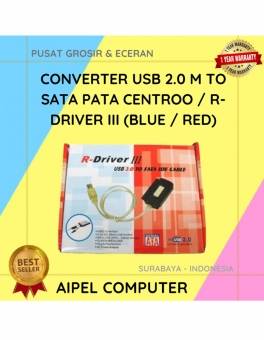
17%
A. DESKRIPSI (DESCRIPTION) Converter USB‑SATA/PATA R‑Driver III CENTROO adalah perangkat konektor praktis yang memungkinkan pengguna untuk mengakses hard drive SATA… selengkapnya
Rp 75.000 Rp 90.000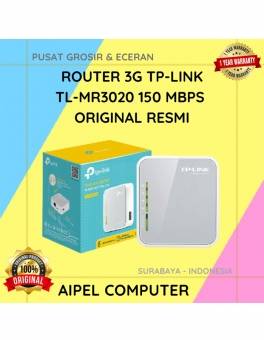
12%
A. DESKRIPSI (DESCRIPTION) Router 4G TP-LINK TL-MR3020 150 MBPS (White Grey) adalah perangkat jaringan serbaguna yang memungkinkan Anda terhubung ke… selengkapnya
Rp 265.000 Rp 300.000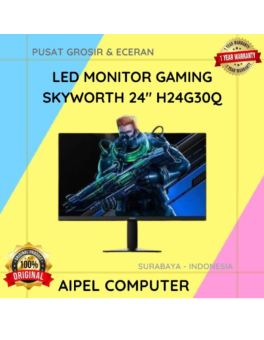
4%
A. DESKRIPSI (DESCRIPTION) LED Monitor Gaming SKYWORTH 24” H24G30Q merupakan monitor yang dirancang untuk mendukung kebutuhan gaming maupun aktivitas komputer… selengkapnya
Rp 2.020.000 Rp 2.100.000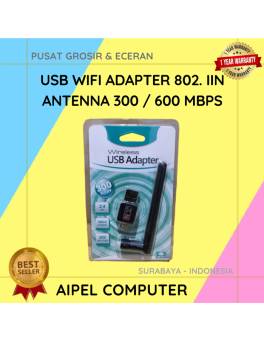
23%
A. DESKRIPSI (DESCRIPTION) USB Wifi Adapter Antenna CENTROO adalah adaptor jaringan eksternal yang dibekali antena penguat sinyal untuk hasil koneksi… selengkapnya
Rp 30.000 Rp 39.000
31%
AIPEL COMPUTER – Pusat Grosir dan Eceran – Belanja Hebat dan Hemat – Harga Murah Garansi Prima * GARANSI –… selengkapnya
Rp 22.000 Rp 32.000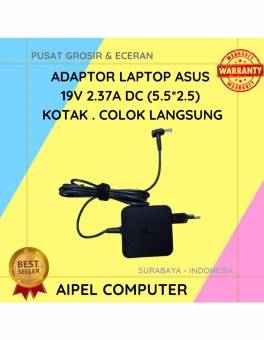
17%
A. DESKRIPSI (DESCRIPTION) Adaptor Laptop ASUS 19V 2.37A Kotak adalah perangkat pengisi daya yang dirancang khusus untuk memberikan performa optimal… selengkapnya
Rp 75.000 Rp 90.000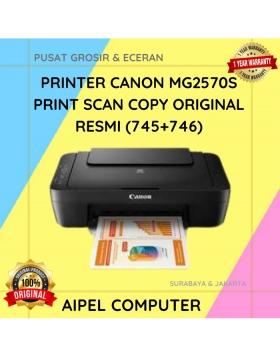
12%
A. DESKRIPSI (DESCRIPTION) Canon MG2570S merupakan printer all-in-one yang dirancang untuk mempermudah kebutuhan cetak, scan, dan copy dokumen dalam satu… selengkapnya
Rp 750.000 Rp 850.000



Saat ini belum tersedia komentar.