- Orderan dibawah 500.00 via Goshop / Offline / Marketplace
Laptop Touchpad Not Working? Here Is How to Fix It Easily
Experiencing a situation where the cursor on your laptop screen suddenly freezes and refuses to move will instantly halt your entire work productivity. The issue of a laptop touchpad not working is one of the most common hardware input problems that frequently cause users to panic. Many people immediately assume that their touch sensor component is completely broken and must be replaced with a new one. Yet in many simple cases, this issue is often just triggered by accidentally pressing a lock key or a temporary glitch within the operating system.
If you previously experienced internet connection issues while working, you can read the helpful guide on how to fix a dropping wifi connection to make sure the trouble is not part of a wider system malfunction. However, if the main trouble you are facing is strictly related to screen navigation, let us check a few basic settings first so you can find the right solution independently.
Featured Snippet (Instant Answer):
To fix a laptop touchpad that is not working, press the hardware activation shortcut key (usually Fn + F-key with a touchpad icon), ensure Touchpad is toggled ON in Windows Settings, or update the pointing device driver via Device Manager if a recent system update caused an incompatibility glitch.
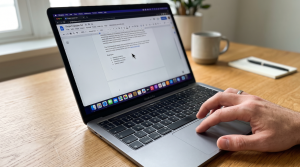
Checklist: Why Is Your Laptop Touch Sensor Suddenly Frozen?
Tick the boxes below if you are experiencing any of these common software, environmental, or hardware factors:
-
[ ] The touchpad toggle shortcut key was accidentally pressed on your keyboard row while typing fast.
-
[ ] The touchpad feature was automatically turned off by the operating system following a Windows update.
-
[ ] The pointing device driver file is outdated, corrupted, or missing altogether in Device Manager.
-
[ ] The touch sensor surface appears dirty, greasy, or damp due to accidental liquid exposure.
-
[ ] Your laptop recently suffered a physical bump that might have loosened the internal ribbon connector cable.
Our Recommendation: If your cursor moves smoothly when you plug in an external USB mouse, your operating system is running fine. The issue is strictly isolated to your touchpad hardware lock or internal driver communication.
Data Benchmark: Identifying Cursor Glitches by System Behavior
To help you identify the exact source of your navigation issues, here is a comparison of common cursor behaviors and their solutions:
| Cursor Symptom on Screen | Likely Root Cause | Required Action | Real-World Impact on Device |
|---|---|---|---|
| Completely frozen from boot | Feature disabled via Fn key or Settings | Minor software tweak | Cursor reactivates immediately once toggled back ON |
| Jumps around or responds erratically | Outdated driver or dirty surface sensor | Surface cleaning & driver update | Restores smooth and accurate tracking sensitivity |
| Remains dead even when mouse is unplugged | Loose internal cable or swelling battery | Hardware physical inspection | Requires technician evaluation to inspect internal wiring |
How to Fix a Laptop Touchpad That Is Not Working
Do not worry, you do not need to panic and rush into dismantling your laptop chassis by yourself. Here are a few ways to fix a broken laptop touchpad that you can try right away:
-
Check the Function Activation Key on the Keyboard. Most laptop manufacturers provide a dedicated shortcut key to disable the touch panel for convenience when typing long documents so the cursor does not shift. This key is usually located on the F1 through F12 row and is marked with a small square icon. Try pressing that specific key along with the Fn key to activate the touch sensor that was accidentally locked.
-
Enable the Component Through Windows Settings. If the hardware shortcut key does not yield any results, you can check the device status through the internal system. Use the help of an external mouse to go into the Windows settings menu, select the devices option, and look for the touchpad section. Make sure the main toggle switch is set to the active position, because sometimes automatic operating system updates can turn this setting off unexpectedly.
-
Update the Touchpad Driver on the Laptop. An outdated or corrupted device driver file is very often the main culprit behind a cursor that jumps around wildly or freezes completely. Open the Device Manager on your computer, then look for the mice and other pointing devices category. Right-click on your touchpad component name and select the update driver option to download the latest software version from the internet.
How to Recognize Signs of Physical Hardware Damage?
If you have applied all the alternative system fixes above but the cursor still remains completely motionless, there is a high probability that the issue lies within the hardware itself.
You should start suspecting physical damage if the touch panel area feels unusually hot while the laptop is turned on. Another common physical indicator is when the touchpad surface looks slightly lifted or warped due to pressure from an internal battery that has started to swell. If the outer body structure has undergone this kind of shape distortion, the internal sensor will automatically become jammed and lose its ability to detect your finger movements normally.
FAQ (Frequently Asked Questions)
-
Why does my laptop touchpad stop working right after a system update?
This situation usually happens because the new operating system files are incompatible with the older driver version of the touch panel, causing the system to fail when sending operational commands to the hardware.
-
Does a frozen cursor always mean the touch panel is physically broken?
Not necessarily, because a frozen cursor can also be triggered by a complete operating system crash or a heavy RAM workload that makes the laptop respond to commands very slowly.
-
What is the safest way to clean a laptop touch panel?
You can use a slightly damp microfiber cloth without any harsh chemical liquids to wipe the surface gently while the laptop device is completely turned off.
Conclusion
With the right troubleshooting steps, most touchpad issues can be resolved quickly without professional help. However, ignoring physical damage indicators like a swollen battery can lead to severe damage to your keyboard or motherboard. Seeking expert assistance is always the safest choice to ensure an accurate diagnosis without guessing.
Visit the Aipel Computer Physical Store
If your touchpad issues turn out to be caused by a loose ribbon cable or swelling internal battery, let our technical team inspect your device safely. We offer quick hardware diagnostics and reliable component replacements.
For step-by-step driving routes, opening hours, or to consult with our technician team, feel free to visit our main website at Aipel Computer in Surabaya for prompt and reliable service!
Tags: computer store surabaya, fix broken touchpad, frozen laptop cursor, laptop navigation tips, laptop service surabaya, laptop touchpad not working

Laptop Touchpad Not Working? Here Is How to Fix It Easily
Jantung serasa berhenti berdetak saat cangkir kopi, teh manis, atau segelas air mineral di samping mejamu tersenggol dan cairannya langsung... selengkapnya
Having your laptop fan suddenly roar at maximum speed can be unsettling. Hot air rushes from the exhaust vents, the... selengkapnya

Spesifikasi switch mungkin masih banyak yang belum mengetahui. Pada dunia informatika, komponen dan jaringan adalah sesuatu yang tidak bisa terlepas... selengkapnya
Cara mempercepat jaringan WiFi bisa dilakukan dengan beberapa langkah sederhana. Koneksi WiFi yang lemot sangat menghambat aktivitas sehari-hari. Terlebih sekarang... selengkapnya

Masalah mouse double klik secara tidak sengaja seringkali menjadi kendala saat menggunakan komputer atau laptop, terutama ketika fungsi double klik... selengkapnya
Tips memilih processor yang tepat tidaklah sulit. Semua bisa Anda dapatkan sesuai kebutuhan. Sama seperti memilih komponen pada komputer atau... selengkapnya
Keyboard komputer tidak berfungsi tentu akan mengganggu serta menghambat kenyamanan saat kita menggunakan perangkat tersebut. Meskipun harga komputer terbilang tinggi,... selengkapnya
Printer ribbon cartridge tetap menjadi pilihan yang unggul dalam berbagai aplikasi spesifik meskipun teknologi inkjet dan laserjet mendominasi pasar. Di... selengkapnya
Fungsi LAN Tester tentu wajib diketahui setiap pengguna perangkat seperti komputer. Anda bisa mendapatkanya dengan mudah melalui toko komputer terdekat.... selengkapnya
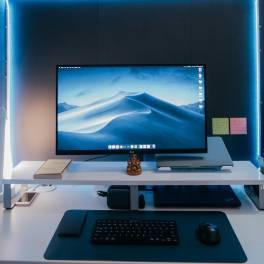
Monitor PC murah tidak selamanya murahan atau menawarkan spesifikasi yang buruk. Apalagi mengingat monitor adalah perangkat output yang menampilkan informasi... selengkapnya
8%
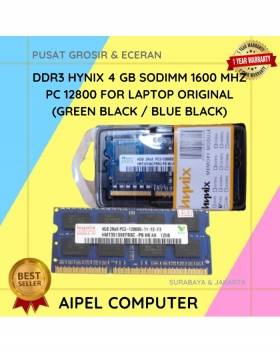
A. DESKRIPSI (DESCRIPTION) DDR3 HYNIX 4GB Sodimm 1600 MHz PC 12800 adalah pilihan tepat untuk meningkatkan performa laptop Anda secara… selengkapnya
Rp 175.000 Rp 190.000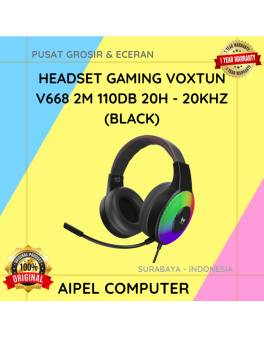
17%
A. DESKRIPSI (DESCRIPTION) Headset VOXTUN V668 adalah kombinasi sempurna antara teknologi modern dan gaya minimalis 🎧🖤. Cocok buat kamu yang… selengkapnya
Rp 125.000 Rp 150.000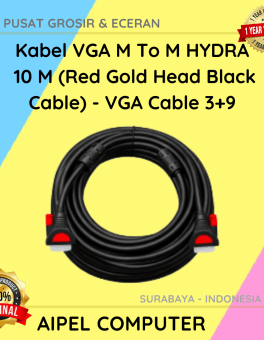
14%
AIPEL COMPUTER ADDRESS (Offline Store) Ruko Manyar Mas 27 Blok C3 – C4 Jalan Raya Manyar 63C Kelurahan Menur Pumpungan… selengkapnya
Rp 69.000 Rp 80.000
7%
A. DESKRIPSI (DESCRIPTION) Kabel HDTV Standart M To M CENTROO 30 M 4K (Box) adalah solusi kabel HDMI panjang dari… selengkapnya
Rp 250.000 Rp 270.000
18%
A. DESKRIPSI (DESCRIPTION) Kabel LAN WEBSONG 10 M (Blue) hadir sebagai solusi sempurna untuk menunjang aktivitas digital Anda, baik di… selengkapnya
Rp 44.500 Rp 54.000
8%
A. DESKRIPSI (DESCRIPTION) TP-LINK DECO E4 1-PACK adalah solusi mesh WiFi pintar dari TP-LINK yang dirancang untuk memberikan koneksi internet… selengkapnya
Rp 367.000 Rp 400.000
4%
A. DESKRIPSI (DESCRIPTION) Refill Ink BROTHER BT5000C Cyan Original adalah tinta isi ulang berkualitas tinggi yang didesain khusus untuk mencetak… selengkapnya
Rp 110.000 Rp 115.000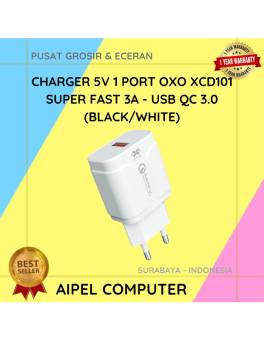
25%
A. DESKRIPSI (DESCRIPTION) Charger 5V 3A Super Fast QC 3.0 adalah adaptor pengisian daya tunggal yang powerful dan efisien. Cocok… selengkapnya
Rp 24.000 Rp 32.000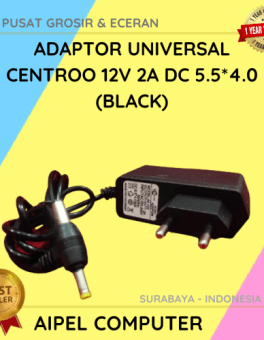
28%
A. DESKRIPSI (DESCRIPTION) Adaptor Universal CENTROO 12V 2A DC 5.5*4.0 adalah pilihan ideal untuk Anda yang membutuhkan suplai daya stabil… selengkapnya
Rp 18.000 Rp 25.000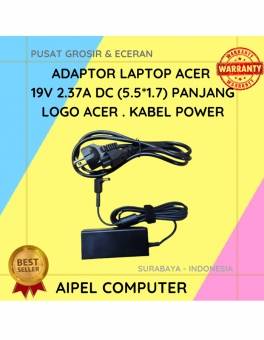
14%
A. DESKRIPSI (DESCRIPTION) Adaptor Laptop ACER 19V 2.37A DC (5.5*1.7) Panjang Logo ACER . Kabel Power, adaptor ini dirancang khusus… selengkapnya
Rp 95.000 Rp 110.000



Saat ini belum tersedia komentar.