- Orderan dibawah 500.00 via Goshop / Offline / Marketplace
Laptop Fan Suddenly Running Loud? Fix High CPU Usage in Task Manager
Having your laptop fan suddenly roar at maximum speed can be unsettling. Hot air rushes from the exhaust vents, the chassis warms up quickly, and your cursor starts stuttering even though you only have a single browser tab open or left the computer sitting idle.
A laptop fan suddenly revving at top speed is rarely caused by broken hardware bearings; it usually signals a severe processor spike (100% CPU usage). This happens when a background Windows service, a hung driver, or rogue third-party software enters a loop and demands continuous processing power. Just like diagnosing noisy laptop fan making grinding noise how to fix to distinguish physical dust from system glitches, you can quickly shut down runaway tasks yourself inside Task Manager.
Featured Snippet (Quick Answer):
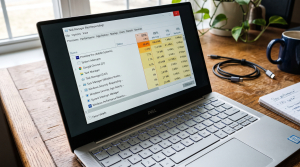
To quiet a laptop fan suddenly running loud, open Task Manager (
Ctrl + Shift + Esc), sort processes by CPU usage to identify tasks consuming over 80–90% capacity, select the runaway program and click End Task, then disable unnecessary startup applications.
Checklist: Signs of Software-Induced Fan Noise
Check the boxes below if your laptop exhibits these conditions:
-
[ ] The cooling fan suddenly spins up to top speed without running gaming software.
-
[ ] Exhaust air coming from the side vents feels uncomfortably hot.
-
[ ] Typing or moving windows starts lagging noticeably.
-
[ ] The fan quiets down immediately after restarting the laptop or closing hung programs.
-
[ ] The noise is purely high-velocity rushing air, not rattling or scraping metal.
Practical Recommendation: Avoid force-shutting down your laptop when the fan roars. Use Task Manager to kill high-CPU tasks instead.
Comparison Table: Common High-CPU Processes and Solutions
Here is an overview of common background processes that cause fans to spin at top speed:
| Process Name in Task Manager | System Role | Reason for Fan Spikes | Recommended Action |
|---|---|---|---|
| Antimalware Service Executable | Windows Defender Security | Active background file scanning | Let it finish / schedule scan |
| Windows Modules Installer (TiWorker) | Windows Update | Downloading or staging patches | Allow update to finalize |
| Google Chrome / Edge (Sub-process) | Web Browser | Glitched video tab or extension | Select process and hit End Task |
| WmiPrvSE.exe (WMI Provider Host) | Hardware Interface Query | Caught in software query loop | Restart WMI service in services.msc |
4 Steps to Stop Loud Fan Noise via Task Manager
Follow these troubleshooting steps in order:
-
Open Task Manager Using Shortcut Keys. Press Ctrl + Shift + Esc simultaneously to launch Windows Task Manager directly without going through the Windows lock screen.
-
Sort the CPU Column in Descending Order. Click the Processes tab, then click the CPU column header. This organizes all running applications from highest resource consumption down to lowest. Look at the top processes consuming between 70% and 100% of processing power.
-
Terminate Hung Programs (End Task). Select the process showing the highest CPU percentage and highlighted in dark orange or red, then click End Task in the top right corner. The moment the hung task closes, processor load drops and fan speed will slow down within seconds.
-
Disable High-Impact Startup Programs. To prevent fans from revving immediately after booting, click the Startup apps icon on the left sidebar. Look for apps like Spotify, Discord, or game updaters labeled Enabled, right-click them, and choose Disable.
When Fan Noise Indicates Hardware Problems
If you inspect Task Manager and find normal CPU usage (consistently below 10–15%) yet the fan continues spinning at maximum speed or produces scraping noises, the issue is physical.
This indicates that your processor’s thermal paste has completely dried out or thick dust blankets the copper heatsink fins, blocking airflow and trapping heat inside.
FAQ (Frequently Asked Questions)
Is a fan spinning fast dangerous for a laptop?
High fan speed is a normal safety mechanism designed to protect your processor from overheating. However, running at top speed continuously accelerates bearing wear and drains your battery rapidly.
Why is System Idle Process showing high percentages in Task Manager?
System Idle Process measures available, unused processor capacity. A reading of 85% to 90% simply means your laptop is resting comfortably at low temperatures.
Conclusion
A laptop fan suddenly running loud is generally caused by sudden processor spikes from hung background software or Windows update routines. By tracking CPU resource usage in Task Manager and ending hung tasks with End Task, temperatures quickly normalize and your fans will return to quiet operation.
Shop Laptop Fans, Thermal Paste & Repair Service at Aipel Computer
Struggling with a noisy laptop fan, rattling bearings, or overheating caused by old thermal paste? Find guaranteed heatsink cleaning services, high-performance thermal paste, and replacement fans at competitive wholesale prices directly in our store.
To check part compatibility or get store directions, visit the official Aipel Computer website in Surabaya today.
Tags: end task high cpu process, fix high cpu usage task manager, laptop fan suddenly running loud, quiet noisy laptop fan, replace laptop thermal paste surabaya

Laptop Fan Suddenly Running Loud? Fix High CPU Usage in Task Manager

Mouse komputer menjadi aksesoris pendukung yang penting dimiliki. Meskipun demikian, seringkali orang-orang cenderung tidak memperhatikan dalam memilih mouse tersebut dengan... selengkapnya

Mengatasi masalah WiFi laptop hilang bisa menjadi hal yang cukup membingungkan. Jangan khawatir, karena ada berbagai metode yang bisa digunakan... selengkapnya
Pilihan yang tepat untuk berbagai aktivitas saat menggunakan komputer adalah mouse wireless terbaik. Sebagaimana diketahui, mouse merupakan salah satu komponen... selengkapnya
Trying to connect your TWS, wireless headset, Bluetooth mouse, or transfer files from your phone to your laptop, only to... selengkapnya

Instant annoyance kicks in when you click Shut down in the Windows menu and your laptop screen goes completely black,... selengkapnya
Komputer menjadi salah satu peralatan yang memiliki cukup banyak manfaat, apalagi beberapa pekerjaan bahkan beberapa kantor sendiri juga menggunakan komputer.... selengkapnya
Memilih toko grosir sparepart komputer murah tidak boleh asal-asalan. Sebab, pemilihan toko akan mempengaruhi kualitas barang yang Anda beli. Jangan... selengkapnya
Komputer atau laptop adalah barang elektronik yang tidak boleh asal memilih ketika Anda akan membelinya. Itulah mengapa, Anda perlu mengetahui... selengkapnya
Waktu booting lama pada sistem operasi Windows bisa menjadi masalah yang mengganggu. Proses booting yang lambat tidak hanya menghambat produktivitas.... selengkapnya
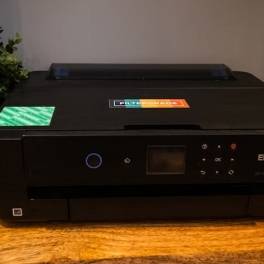
Printer Epson L121 bisa menjadi pilihan untuk Anda yang sedang mencari printer dengan kualitas terbaik dan menawarkan banyak keunggulan. Printer... selengkapnya
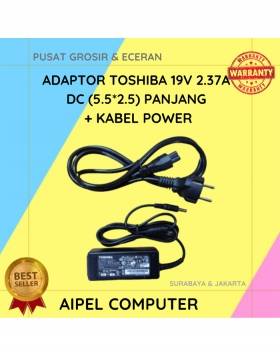
20%
A. DESKRIPSI (DESCRIPTION) Adaptor Laptop 19V 2.37A DC (5.5*2.5) adalah solusi pengisian daya yang stabil dan aman untuk laptop kesayangan… selengkapnya
Rp 60.000 Rp 75.000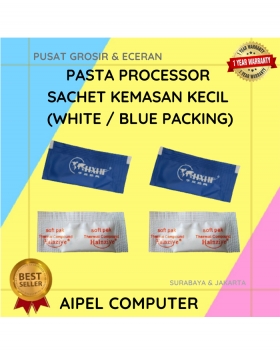
50%
A. DESKRIPSI (DESCRIPTION) Pasta Processor Sachet Kemasan Kecil (White/Blue Packing) adalah solusi praktis untuk Anda yang ingin menciptakan hidangan pasta… selengkapnya
Rp 250 Rp 500
22%
A. DESKRIPSI (DESCRIPTION) Laser Pointer CENTROO PP1000 adalah alat bantu presentasi yang elegan dan powerful dengan cahaya laser merah terang… selengkapnya
Rp 52.000 Rp 67.000
23%
A. DESKRIPSI (DESCRIPTION) Kabel USB 2.0 M To F CENTROO 1.5 M adalah kabel perpanjangan USB yang dirancang untuk memberikan… selengkapnya
Rp 10.000 Rp 13.000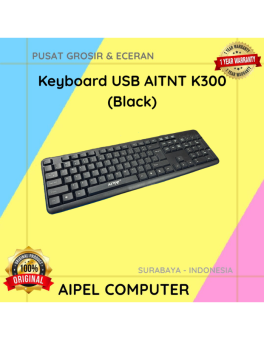
28%
A. DESKRIPSI (DESCRIPTION) Keyboard USB AITNT K300 (Black) adalah keyboard dengan desain simpel dan praktis untuk menunjang berbagai aktivitas komputer… selengkapnya
Rp 26.000 Rp 36.000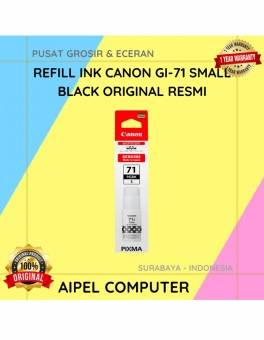
6%
A. DESKRIPSI (DESCRIPTION) Dapatkan hasil cetak yang tajam dan jelas dengan Refill Ink CANON GI-71 Black Small Original! Dirancang khusus… selengkapnya
Rp 80.000 Rp 85.000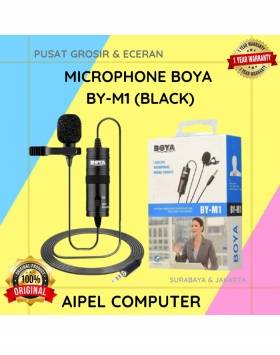
30%
A. DESKRIPSI (DESCRIPTION) Microphone BOYA BY-M1 Original Design adalah mikrofon clip-on berkualitas tinggi yang dirancang untuk kebutuhan perekaman audio yang… selengkapnya
Rp 70.000 Rp 100.000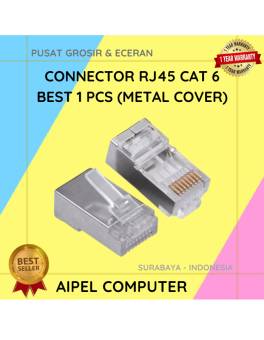
33%
A. DESKRIPSI (DESCRIPTION) Connector RJ45 CAT 6 BEST 1 PCS dengan penutup metal adalah konektor jaringan yang dirancang untuk memberikan… selengkapnya
Rp 1.000 Rp 1.500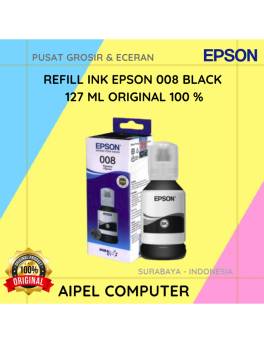
4%
A. DESKRIPSI (DESCRIPTION) Refill Ink EPSON 008 Black 127 ML Original adalah tinta hitam berkualitas tinggi yang diformulasikan secara khusus… selengkapnya
Rp 275.000 Rp 285.000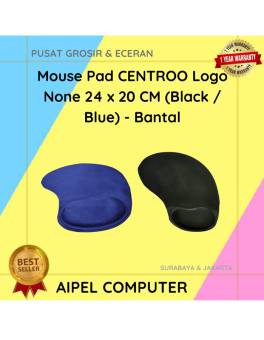
25%
A. DESKRIPSI (DESCRIPTION) Mouse Pad CENTROO Logo None hadir dengan desain minimalis namun elegan, tersedia dalam dua pilihan warna hitam… selengkapnya
Rp 5.250 Rp 7.000



Saat ini belum tersedia komentar.