- Orderan dibawah 500.00 via Goshop / Offline / Marketplace
Laptop Sound Not Working? Here Is How to Fix It Easily
Enjoying a movie, listening to your favorite playlist, or attending an important online meeting when your laptop audio suddenly cuts out completely can be extremely frustrating. Many users instantly panic, assuming their internal speakers are blown or permanently broken and need an expensive hardware replacement.
In reality, sudden audio failures are often caused by simple accidental mute toggles, conflicting audio drivers following a Windows update, or the system outputting sound to an unexpected device. Much like other built-in hardware glitches such as a laptop touchpad not working properly, you can perform a few basic software checks yourself before taking your device to a repair shop.
Featured Snippet (Instant Answer):
To fix a laptop sound that is not working, check the volume Mute toggle in the taskbar, ensure the active Playback Device is set to built-in Speakers/Headphones, run the Windows Audio Troubleshooter, or update/reinstall the audio driver (e.g., Realtek High Definition Audio) via Device Manager.
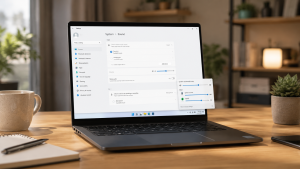
Checklist: Why Is Your Laptop Audio Suddenly Muted?
Tick the boxes below if you are experiencing any of these common system factors:
-
[ ] The speaker icon on the bottom-right taskbar shows a red “X” or is toggled to Mute.
-
[ ] Your laptop is unknowingly still connected to an external Bluetooth headset or wireless speaker.
-
[ ] Audio stopped working immediately after completing a recent operating system update.
-
[ ] Sound is missing only in specific applications (like Google Chrome), while other system alerts play normally.
-
[ ] Crackling or distorted static sounds occurred right before the audio went completely silent.
Our Recommendation: If the audio icon shows normal volume levels but no sound comes out, the culprit is almost always an incorrect playback device selection or a crashed audio service driver.
Data Benchmark: Audio Issue Diagnosis by System Behavior
To help you identify the exact source of your sound problems, here is a comparison of common audio symptoms and their fixes:
| Audio Symptom on Screen | Likely Root Cause | Required Action | Real-World Impact on Device |
|---|---|---|---|
| No sound across all apps | System mute, wrong device, or driver crash | Software & driver adjustments | System stays cool, clear audio restores instantly |
| Silent in one app only | Isolated application Volume Mixer setting | App-specific volume adjustment | Restores sound output to the targeted program |
| Crackling before dying | Physical speaker membrane tear or decay | Hardware component replacement | Requires chassis disassembly to replace speaker unit |
4 Easy Ways to Fix Laptop Sound Not Working
You do not need to panic right away. Try these practical troubleshooting steps to restore your laptop audio:
-
Check Mute Settings and Volume Mixer. Click the speaker icon in the bottom-right corner of your taskbar. Make sure the volume slider is not at zero and the Mute button is inactive. Right-click the speaker icon, open Volume Mixer, and verify that individual apps are not muted separately.
-
Select the Correct Playback Device. Click the speaker icon on the taskbar, then click the arrow next to the volume slider to open your output device list. Ensure you have selected your internal Realtek Audio or Speakers (High Definition Audio Device) rather than a disconnected Bluetooth device or external monitor.
-
Run the Windows Audio Troubleshooter. Windows includes a built-in utility designed to detect and resolve system glitches automatically. Go to Settings, select System, and click Troubleshoot. Select Other troubleshooters and run the Playing Audio tool to let the operating system repair audio service conflicts on its own.
-
Update or Reinstall Audio Drivers. Open Device Manager by right-clicking the Start button. Expand the Sound, video and game controllers category, right-click your audio driver (typically Realtek Audio), and select Update driver. If that fails, select Uninstall device, then restart your laptop so Windows automatically reinstalls a clean driver file upon reboot.
Signs of Physical Hardware Damage
If you have tried all the software fixes above but your laptop still refuses to produce any sound, the issue likely resides within internal hardware components:
-
The internal speaker membrane is torn, punctured, or corroded from moisture exposure.
-
The flexible speaker cable connecting the speaker module to the motherboard has come loose.
-
The audio processing chip (Audio IC) on the motherboard has suffered power surge damage.
If sound remains absent even when plugging in wired headphones or external earbuds, there is a high probability that the issue lies within the motherboard’s internal audio circuitry.
FAQ (Frequently Asked Questions)
-
Why does my laptop sound stop working right after a system update?
This situation usually happens because older audio driver files become incompatible with new operating system updates, breaking the communication bridge between the OS and the speaker hardware.
-
Can plugging in headphones too often break the internal laptop speakers?
Not directly, but a worn-out 3.5mm audio jack can mechanically jam, causing the operating system to incorrectly detect headphones as plugged in even when the jack is empty.
-
How long does it take to replace internal laptop speakers?
Replacing an internal laptop speaker module usually takes only thirty to sixty minutes if the replacement part matches your specific laptop chassis model.
Conclusion
Most laptop sound issues can be resolved quickly through basic software adjustments or driver updates. However, if software fixes yield no results and there are signs of physical hardware failure, seeking a professional technical evaluation is the safest choice to get your audio working again.
Visit the Aipel Computer Physical Store
If your internal laptop speakers are crackling, silent, or in need of physical hardware inspection, let our expert technical team test your machine safely.
For step-by-step driving routes, opening hours, or to consult with our technician team, feel free to visit our main website at Aipel Computer in Surabaya for prompt and reliable service!
Tags: computer store surabaya, fix crackling laptop speaker, fix no audio laptop, laptop sound muted fix, laptop sound not working how to fix, realtek audio driver update

Laptop Sound Not Working? Here Is How to Fix It Easily

Di pusat grosir komputer biasanya menyediakan berbagai produk dalam memenuhi setiap kebutuhan komputer calon pembelinya. Mulai dari segi hardware sampai... selengkapnya
Cara screenshot di komputer merupakan salah satu tindakan yang penting untuk diketahui oleh pengguna. Screenshot adalah cara untuk merekam objek... selengkapnya

Spesifikasi LAN Tester perlu untuk Anda cek sebelum membeli di Toko Komputer Grosir langganan. Alat ini membantu untuk beberapa kebutuhan... selengkapnya
When you open Zoom, Google Meet, or the built in Windows Camera app, an error message suddenly pops up stating... selengkapnya
Komputer menjadi salah satu peralatan yang memiliki cukup banyak manfaat, apalagi beberapa pekerjaan bahkan beberapa kantor sendiri juga menggunakan komputer.... selengkapnya

Rekomendasi printer terbaik dan murah bisa Anda temukan di toko komputer kesayangan. Beberapa printer berkualitas terbaik juga dijual dengan harga... selengkapnya
Menghadapi masalah aplikasi not responding pada laptop bisa sangat mengganggu produktivitas Anda. Masalah ini sering kali muncul saat Anda sedang... selengkapnya
Mengetahui cara mengatasi komputer no signal pada komputer sangatlah penting. Ketika kondisi ini terjadi, penggunaan komputer menjadi kurang optimal, dan... selengkapnya
Laser pointer memiliki peranan penting tersendiri untuk menunjang keperluan presentasi. Baik presentasi di lingkup pekerjaan maupun pendidikan. Kendati demikian, masih... selengkapnya
Perlu kamu ketahui, UPS Prolink ini menjadi sebuah produk yang cukup populer dan dinilai mempunyai banyak keunggulan. Sehingga, tak heran... selengkapnya

9%
A. DESKRIPSI (DESCRIPTION) Paket combo Keyboard + Mouse USB JERTECH KM170 STARS Gaming Black menawarkan kenyamanan dan performa dalam satu… selengkapnya
Rp 82.280 Rp 90.000
23%
A. DESKRIPSI (DESCRIPTION) Refill Ink EPSON 057 Cyan Original 100 % adalah tinta isi ulang warna biru terang dari EPSON… selengkapnya
Rp 198.000 Rp 257.000
40%
A. DESKRIPSI (DESCRIPTION) Cable USB M To Micro M GENAI GL-Q12 adalah kabel data dan charger cepat dari GENAI dengan… selengkapnya
Rp 12.000 Rp 20.000
18%
AIPEL COMPUTER Canon G2010 – Solusi Praktis untuk Cetak, Pindai, dan Salin! 🖨️✨ Canon G2010 adalah printer multifungsi yang dirancang… selengkapnya
Rp 1.605.000 Rp 1.950.000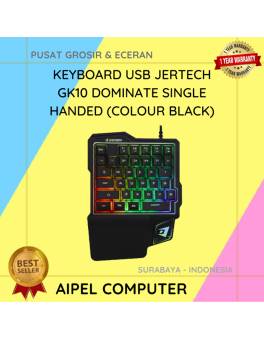
18%
A. DESKRIPSI (DESCRIPTION) Keyboard USB JERTECH GK10 DOMINATE Single Handed adalah solusi ideal bagi para gamer yang membutuhkan respons cepat… selengkapnya
Rp 94.000 Rp 115.000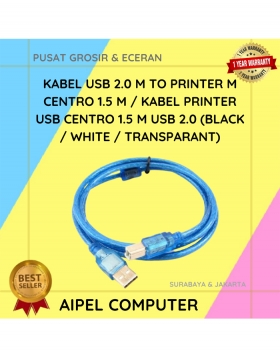
17%
A. DESKRIPSI (DESCRIPTION) Kabel USB 2.0 M To Printer M CENTROO 1.5 M adalah kabel yang dirancang untuk menghubungkan perangkat… selengkapnya
Rp 10.000 Rp 12.000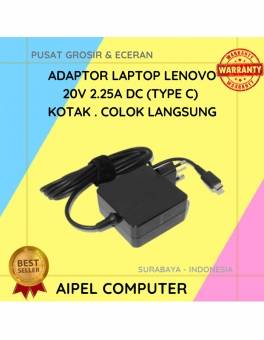
10%
A. DESKRIPSI (DESCRIPTION) Adaptor Laptop LENOVO 20V 2.25A Type C Kotak Colok Langsung adalah pilihan ideal untuk pengguna laptop yang… selengkapnya
Rp 135.000 Rp 150.000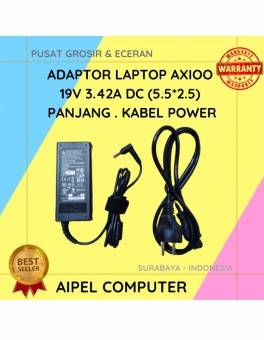
19%
A. DESKRIPSI (DESCRIPTION) Temukan kenyamanan dan kehandalan dengan Adaptor Laptop AXIOO 19V 3.42A DC (5.52.5). Alat ini dirancang khusus untuk… selengkapnya
Rp 65.000 Rp 80.000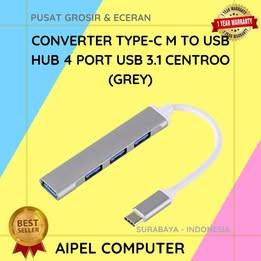
28%
A. DESKRIPSI (DESCRIPTION) Converter Type-C M to 4 Port USB 3.1 HOBOO (Grey) adalah solusi multifungsi untuk pengguna yang membutuhkan… selengkapnya
Rp 27.500 Rp 38.000
17%
A. DESKRIPSI (DESCRIPTION) Adaptor ini memiliki output 65 W (19.5 V, 3.34 A) tapi dengan bodi konektor bulat besar 7.4×5.0 mm—mirip seperti pada… selengkapnya
Rp 75.000 Rp 90.000



Saat ini belum tersedia komentar.