- Orderan dibawah 500.00 via Goshop / Offline / Marketplace
Laptop Microphone Not Working? Causes and Easy Fixes
Attending an important work meeting, presentation, or online lecture via Zoom or Google Meet, only to find out that no one can hear you speak when it is your turn? Dealing with a laptop microphone that drops out or captures no input is one of the most frustrating technical glitches during virtual calls.
Many people immediately assume that their laptop’s internal microphone hardware is broken or that its ribbon cable has snapped. In reality, most microphone input failures are caused by restricted Windows privacy permissions (Microphone Privacy Settings), an accidental key press on a hardware mute button, or a temporary Realtek High Definition Audio driver conflict. Similar to troubleshooting when your laptop sound is not working, you can perform a quick self-diagnosis before considering buying external hardware.
Featured Snippet (Instant Answer):
To fix a laptop microphone that is not working, check the physical keyboard mute key, enable microphone permissions in Windows Privacy Settings, set the default recording device in Sound Settings, and reinstall your audio controller driver via Device Manager.
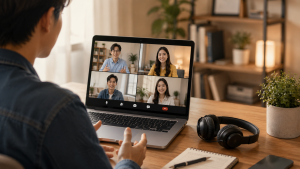
Checklist: Why Is Your Laptop Microphone Not Capturing Sound?
Tick the boxes below if any of these symptoms match your current situation:
-
[ ] The green audio wave indicator in Zoom or Google Meet does not move at all when you speak.
-
[ ] The microphone icon in the system tray shows a red cross or a Muted status.
-
[ ] Microphone audio works only when using an external headset, but stays silent on the built-in mic.
-
[ ] Your meeting app displays a “No Microphone Detected” warning under its audio settings.
-
[ ] Your voice sounds muffled, quiet, or filled with heavy static noise.
Our Recommendation: If the audio wave moves under Windows Sound Settings but participants on Zoom still cannot hear you, the issue lies within the app’s Input Device selection rather than a hardware fault.
Comparison Table: Microphone Issues Breakdown by Symptom
To help you diagnose the root cause behind your recording audio issue, here is a breakdown based on system behavior:
| Microphone Symptom | Likely Root Cause | Required Action | Real-World Impact on Device |
|---|---|---|---|
| Not detected in Zoom | Windows app privacy permissions blocked | Turn on Allow apps to access mic in Settings | Audio input restores instantly in Zoom/Meet |
| Microphone icon muted / red X | Audio Controller driver glitch | Reinstall Realtek driver via Device Manager | Restores normal system audio recording |
| Very quiet / muffled voice | Low Microphone Boost / dust buildup | Increase audio gain & clean mic opening | Clarifies voice pickup quality |
4 Easy Ways to Fix a Laptop Microphone
Try these step-by-step troubleshooting methods to restore your microphone input:
-
Check the Keyboard Hardware Mute Key. Certain laptop brands (such as Lenovo, HP, or ThinkPad) feature a dedicated shortcut key with a microphone icon (usually on F4, F8, or Esc). Press this key (or the
Fn + Mic keycombination) to toggle off the manufacturer’s hardware mute lock. -
Enable Windows Microphone Privacy Settings. Open Settings (
Win + I), navigate to Privacy & Security, and click Microphone. Ensure that both Microphone access and Let apps access your microphone are toggled On. Scroll down and make sure Let desktop apps access your microphone is enabled as well. -
Configure Default Input Device and Volume Gain. Open Control Panel > Sound, and click the Recording tab. Right-click your built-in Microphone, select Set as Default Device. Right-click it again, choose Properties > Levels tab, increase Microphone Volume to 80–100%, and adjust Microphone Boost so your voice is captured clearly.
-
Reinstall Audio Drivers via Device Manager. Right-click the Start button, select Device Manager, and expand Sound, video and game controllers. Right-click Realtek High Definition Audio or Intel Display Audio, click Uninstall device, and restart your laptop so Windows refreshes the audio driver automatically.
Signs of Physical Microphone Damage
If software fixes fail and your built-in microphone remains completely unresponsive, physical hardware issues may be present:
-
Blocked Mic Port: Dust or debris is physically clogging the pinhole microphone opening near the webcam bezel.
-
Pitched Webcam/Mic Cable: The ribbon cable routed through the display hinge has worn out or frayed over time.
-
Faulty Condenser Module: The internal microphone hardware has degraded due to moisture or minor short circuits.
FAQ (Frequently Asked Questions)
-
Why is my external headset mic not working when plugged in?
Most laptops use a single 3.5mm combo audio jack (TRRS). If your headset has two separate cables (one for mic, one for headphone), you need a 2-to-1 audio splitter adapter for the microphone to register.
-
Is it safe to use an external USB microphone if my built-in mic is broken?
Yes, absolutely. Using a USB headset, USB clip-on microphone, or external USB webcams with built-in mics is a quick plug-and-play solution without needing hardware disassembly.
-
Does disabling hardware audio enhancements fix microphone distortion?
In many cases, yes. Disabling “Audio Enhancements” under Microphone Properties stops third-party audio software from distorting voice signals during calls.
Conclusion
Most laptop microphone input issues during online meetings are caused by Windows privacy blocks, incorrect input device selections, or temporary audio driver glitches. By checking keyboard hardware shortcuts, toggling privacy permissions, and verifying audio levels, you can usually restore your microphone without hassle.
Visit the Aipel Computer Store in Surabaya
Looking for external USB microphones, headsets, audio adapters, or genuine computer accessories to complete your work-from-home setup? Find a wide range of original computer hardware and peripherals at competitive prices directly at our store.
For product catalogs, stock availability, or directions to our physical store, feel free to visit our main website at Aipel Computer in Surabaya to get your tech essential needs today!
Tags: fix laptop mic zoom, laptop microphone not detected, laptop microphone not working how to fix, realtek audio driver fix, usb headset microphone surabaya

Laptop Microphone Not Working? Causes and Easy Fixes
Cara mengosongkan ruang penyimpanan Windows 10 bisa diatasi dengan mudah. Bahkan Anda tidak perlu membawanya ke tukang service. Namun Anda... selengkapnya

Instant annoyance kicks in when you click Shut down in the Windows menu and your laptop screen goes completely black,... selengkapnya
TP Link antena merupakan salah satu pilihan router yang kualitasnya bisa bisa diandalkan. Ya, jika Anda ingin memasang router di... selengkapnya
Kipas laptop berisik merupakan kerusakan yang wajib diketahui. Sebab, hal ini akan sangat mengganggu pemilik dan orang lain di sekitarnya.... selengkapnya
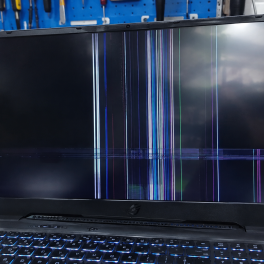
Pernahkah kamu sedang asyik menggunakan laptop untuk bekerja atau menonton film, tiba-tiba tampilan di layar bergetar (flickering), berkedip-kedip (blinking), atau... selengkapnya

Touchpad laptop adalah perangkat penting yang memungkinkan pengguna mengendalikan kursor dengan sentuhan. Namun, masalah sering muncul ketika touchpad tidak berfungsi... selengkapnya
Baterai CMOS berfungsi untuk memberikan daya ke CPU yang masih erat kaitannya dengan data dari sebuah perangkat lunak. Nah, mari... selengkapnya
Have you ever prepared to join an important Zoom meeting, Google Meet session, or video call, only to discover a... selengkapnya
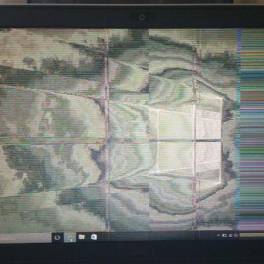
Masalah monitor berkedip pada Windows 10 adalah salah satu masalah yang sering dialami oleh pengguna. Monitor yang berkedip-kedip tidak hanya... selengkapnya
Spesifikasi kabel UTP hadir dengan berbagai keunggulan. Kabel ini memiliki pelindung pelapis pada bagian internalnya. Fungsi dari kabel UTP itu... selengkapnya
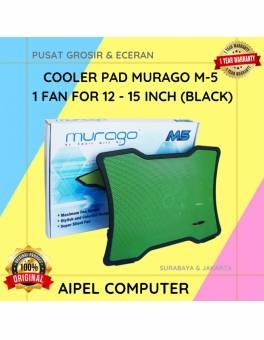
20%
A. DESKRIPSI (DESCRIPTION) Cooler Pad MURAGO M5 1 Fan For 12 – 15 Inch (Black) adalah pilihan tepat untuk menjaga… selengkapnya
Rp 60.000 Rp 75.000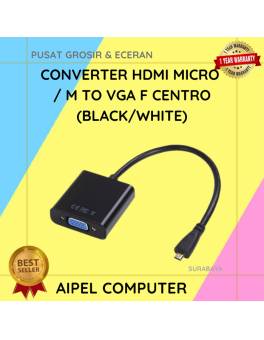
22%
A. DESKRIPSI (DESCRIPTION) Converter HDTV Micro M To VGA CENTROO adalah perangkat konversi praktis yang memungkinkan Anda menghubungkan perangkat dengan… selengkapnya
Rp 39.000 Rp 50.000
13%
A. DESKRIPSI (DESCRIPTION) GENAI QC-Q27 Charger Type-C + Kabel Type-C to Lightning PD adalah charger bertipe QC-Q27 dengan output Power… selengkapnya
Rp 78.000 Rp 90.000
40%
A. DESKRIPSI (DESCRIPTION) Kabel Data SATA BEST Iron Clip adalah kabel transfer data berkecepatan tinggi yang dilengkapi dengan klip besi… selengkapnya
Rp 3.000 Rp 5.000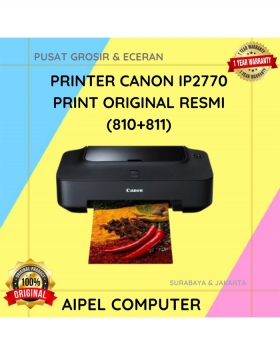
9%
SPESIFIKASI Pencetakan inkjet warna Media: A4, Letter dan lebih Mencetak foto tanpa batas tepi 4 x 6″ dalam 55 detik…. selengkapnya
Rp 910.000 Rp 1.005.000
11%
GARANSI * AIPEL COMPUTER – Pusat Grosir dan Eceran – Belanja Hebat dan Hemat – Harga Murah Garansi Prima *… selengkapnya
Rp 125.000 Rp 140.000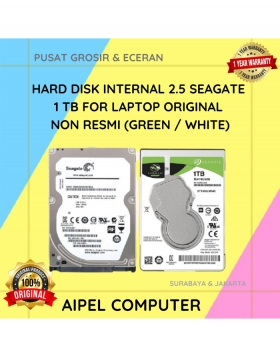
3%
A. DESKRIPSI (DESCRIPTION) Hard Disk Internal 2.5 SEAGATE 1 TB for Laptop Original (Green / White) adalah solusi penyimpanan ringkas… selengkapnya
Rp 730.000 Rp 755.000
7%
A. DESKRIPSI (DESCRIPTION) Canon CL-811 adalah kartrid tinta warna original yang dirancang khusus untuk memberikan hasil cetakan yang tajam dan… selengkapnya
Rp 280.000 Rp 300.000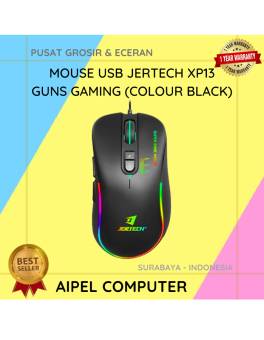
23%
A. DESKRIPSI (DESCRIPTION) Mouse USB Jertech XP13 GUNS Gaming adalah perangkat gaming berkabel dengan performa responsif tinggi yang dirancang khusus… selengkapnya
Rp 51.500 Rp 67.000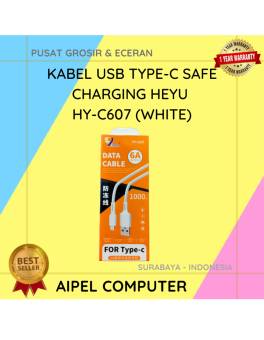
38%
A. DESKRIPSI (DESCRIPTION) Kabel USB Type-C HEYU HY-C607 Safe Charging (White) adalah solusi terbaik bagi Anda yang mencari kabel pengisian… selengkapnya
Rp 8.000 Rp 13.000



Saat ini belum tersedia komentar.