- Orderan dibawah 500.00 via Goshop / Offline / Marketplace
Laptop Screen Lines Horizontal or Vertical? Here is How to Fix It
While you are working or watching a video on your laptop, a thin white, green, pink, or black line suddenly appears across the display. Sometimes it starts as a single static line, but often more lines gradually emerge until they obstruct a significant part of your visual workspace.
Seeing horizontal or vertical lines on your laptop screen is an alarming hardware and software issue. Many users immediately assume that their LCD panel is permanently ruined and requires an expensive replacement. However, in several cases, screen lines are triggered by simple issues such as a pinched display ribbon cable in the hinge cavity, a crashed graphics card driver, or system refresh rate conflicts. Just as checking whether a laptop hinge loose broken repair replace guide can prevent internal wire damage, performing a few diagnostic tests first helps pinpoint the exact source of the defect.
Featured Snippet (Quick Answer):
The fastest way to diagnose and fix lines on a laptop screen is by connecting the laptop to an external monitor or TV via HDMI, slowly moving the screen hinge back and forth, checking the display in the BIOS menu, and reinstalling the graphics display driver in Device Manager.
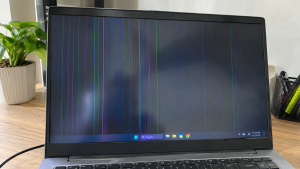
Checklist: Why Are Lines Appearing on Your Laptop Screen?
Check the boxes below if any of these symptoms match your laptop’s current condition:
-
[ ] Screen lines flicker, change position, or disappear when moving the lid angle.
-
[ ] Lines remain visible in the exact same spot inside the BIOS menu before Windows loads.
-
[ ] The display looks completely clean and line-free when connected to an external monitor via HDMI.
-
[ ] The laptop was recently dropped, bumped, or had heavy objects placed on top of it.
-
[ ] The lines appear as scattered colorful visual artifacts during heavy gaming sessions.
Practical Recommendation: If the display on an external monitor is completely clean while your laptop screen shows lines, the problem is strictly isolated to your laptop LCD panel or internal video ribbon cable, not your motherboard or GPU.
Comparison Table: Causes of Laptop Screen Lines and Solutions
To help identify the root cause of your display issue, here is a quick comparison based on physical and system symptoms:
| Screen Line Symptom | Likely Cause | Primary Fix | Real Device Impact |
|---|---|---|---|
| Lines change when moving lid | LCD ribbon cable pinched in hinge | Repair or replace LVDS/eDP cable | Restores normal video transmission |
| Static line in one exact spot | Damaged LCD pixel column or cracked glass | Replace with a new LCD panel | Screen restored to a flawless display |
| No lines on external monitor | Pure internal screen hardware failure | Replace ribbon cable or LCD panel | Confirms motherboard GPU is healthy |
| Random colorful screen artifacts | Corrupted GPU driver or overheating chip | Reinstall GPU driver or clean cooling | Graphics stability fully restored |
4 Ways to Fix Lines on a Laptop Screen
Try these step by step diagnostic and recovery methods to evaluate your laptop display:
-
Connect to an External Monitor via HDMI. Plug your laptop into an external computer monitor or TV using an HDMI cable. Press
Win + Pand select Duplicate. If the external screen shows a clear image without any lines, your graphics processing unit (GPU) is fully functional, meaning the defect lies within the laptop ribbon cable or LCD panel. -
Perform a Screen Hinge Motion Test. Gently open and close your laptop lid from a 45 degree angle to 120 degrees while watching the lines closely. If the lines flicker, vanish at specific angles, or distort during movement, the internal video cable routed through the hinge is likely pinched, frayed, or loose.
-
Check the Screen Inside the BIOS Menu. Shut down your laptop completely, then turn it back on while repeatedly pressing your BIOS key (such as
F2,Del, orF10depending on your brand). If the lines are still present in BIOS, you are dealing with a physical screen hardware defect. If the BIOS screen is completely clean and lines only appear inside Windows, the issue is caused by your display software or drivers. -
Reinstall Display Adapter Drivers. Right click the Start button and open Device Manager. Expand the Display adapters category, right click your graphics card (Intel UHD Graphics, AMD Radeon, or NVIDIA GeForce), and select Uninstall device. Restart your laptop to allow Windows to automatically reinstall a clean default display driver.
When Should You Replace the LCD Panel?
If the lines on your laptop screen are rigid, permanent vertical or horizontal bands that never change when moving the hinge and stay visible in the BIOS screen, the microscopic transistor traces inside the LCD glass have failed.
Replacing the laptop LCD panel with a fresh display module is the best and most permanent solution to restore crystal clear visual quality without distracting line artifacts.
FAQ (Frequently Asked Questions)
Can horizontal or vertical screen lines fix themselves?
Unfortunately no. If the lines are caused by cracked internal glass layers or failed pixel circuit ribbons, the damage is permanent and may expand across the screen over time under physical pressure.
How long does it take to replace a laptop screen panel?
Replacing a laptop LCD screen is typically a fast process that takes around 30 to 60 minutes, provided the replacement panel matches the exact size, resolution, and connector pin count of your laptop model.
Conclusion
Horizontal or vertical lines on a laptop screen can originate from a pinched hinge ribbon cable, internal LCD panel cracks, or corrupted graphics drivers. By running an external HDMI monitor test and checking the BIOS display, you can pinpoint whether your laptop needs a software fix or a screen hardware replacement.
Shop HDMI Cables, External Monitors & Screen Parts at Aipel Computer
Need genuine HDMI cables, external desktop monitors, replacement LCD ribbon cables, laptop display panels of all sizes, or other computer components? Discover our extensive inventory of laptop hardware and accessories at competitive wholesale prices directly in our store.
To browse our hardware catalog, check spare part availability, or get directions to our physical store, visit the official Aipel Computer website today!
Tags: causes of laptop screen lines, damaged laptop lcd cable, fix lines on laptop screen, laptop screen horizontal vertical lines, replace laptop screen surabaya

Laptop Screen Lines Horizontal or Vertical? Here is How to Fix It

Tang crimping berfungsi untuk banyak hal dalam bidang instalasi listrik dan jaringan. Seperti menggunting, mengupas, hingga menjepit kabel berjenis Unshielded... selengkapnya
Have you noticed your laptop screen becoming increasingly heavy to lift, or heard an uncomfortable creaking noise near the bottom... selengkapnya
Layar laptop blank putih bisa menjadi masalah yang mengganggu bagi pengguna. Masalah ini dapat disebabkan oleh berbagai faktor. Namun, Anda... selengkapnya

Keyboard wireless adalah salah satu perangkat yang memiliki peran penting dalam mendukung aktivitas penggunaan komputer atau laptop. Kehadiran perangkat ini... selengkapnya
Tips memilih power supply di grosir komputer berikut ini cukup penting karena membantu menemukan power supply terbaik untuk PC atau... selengkapnya
DDR5 merupakan generasi RAM terbaru yang telah diperkenalkan ke pasaran setelah melalui proses penelitian dan pengembangan yang cukup panjang. Para... selengkapnya
Sudah menekan tombol power berkali kali, tapi laptop tetap gelap total tanpa reaksi apa pun. Tidak ada lampu indikator menyala,... selengkapnya

Mungkin sebagian pengguna mengalami masalah saat menginstal aplikasi di komputer, yang bisa sangat merugikan, terutama jika aplikasi tersebut sangat dibutuhkan.... selengkapnya

Seiring dengan berkembangnya teknologi saat ini, komputer desktop atau PC pun juga mengalami banyak perkembangan. Di toko komputer banyak tersedia... selengkapnya
Menghadapi jaringan internet nirkabel yang mendadak hilang dan terhubung kembali secara berulang kali tentu sangat mengganggu konsentrasi kerja maupun kenyamanan... selengkapnya
13%
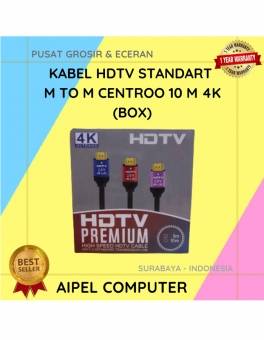
A. DESKRIPSI (DESCRIPTION) Kabel HDTV CENTROO 10 Meter adalah solusi kabel modern untuk pengalaman visual maksimal. 📺⚡ Didesain dengan dukungan… selengkapnya
Rp 78.000 Rp 90.000
18%
A. DESKRIPSI (DESCRIPTION) Adaptor Universal CENTROO 5V 1A DC 3.5 * 1.35 adalah solusi pengisian dan daya yang andal untuk… selengkapnya
Rp 23.000 Rp 28.000
17%
A. DESKRIPSI (DESCRIPTION) GENAI Charger USB + Kabel Type-C GC-Q28 Fast Charging adalah paket lengkap pengisian daya yang menggabungkan adaptor… selengkapnya
Rp 73.000 Rp 88.000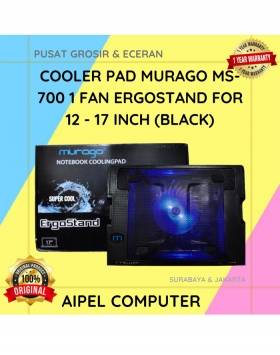
19%
A. DESKRIPSI (DESCRIPTION) Cooler Pad MURAGO MS-700 adalah penopang laptop yang tidak hanya memberikan kenyamanan saat mengetik, tapi juga menjaga… selengkapnya
Rp 65.000 Rp 80.000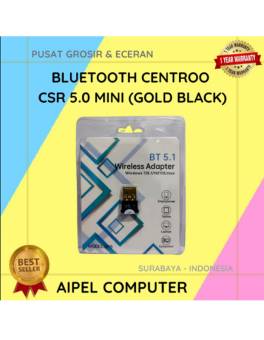
25%
A. DESKRIPSI (DESCRIPTION) Bluetooth CENTROO CSR 5.0 Mini adalah perangkat kecil dengan fungsi besar. 🛰️ Dirancang untuk Anda yang ingin… selengkapnya
Rp 15.000 Rp 20.000
11%
A. DESKRIPSI (DESCRIPTION) Charger 5V 1 Port Type-C + Cable Type-C M to Lightning M GENAI ZC045 Fast Charger PD… selengkapnya
Rp 71.000 Rp 80.000
31%
A. DESKRIPSI (DESCRIPTION) Kabel Audio 3.5 M-2 To F BEST adalah kabel splitter audio praktis yang dirancang untuk membagi satu… selengkapnya
Rp 5.500 Rp 8.000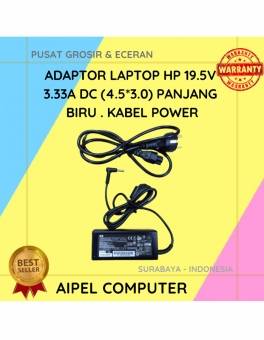
19%
A. DESKRIPSI (DESCRIPTION) Adaptor Laptop HP 19.5V 3.33A DC (4.5*3.0) Panjang Biru Kabel Power adalah perangkat pengisian daya yang dirancang… selengkapnya
Rp 65.000 Rp 80.000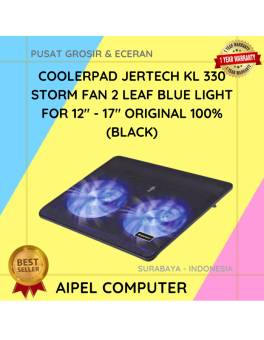
9%
A. DESKRIPSI (DESCRIPTION) Cooler Pad JERTECH KL 330 STORM Black adalah solusi cooling stylish dengan dua kipas dan lampu biru…. selengkapnya
Rp 86.020 Rp 95.000
17%
A. DESKRIPSI (DESCRIPTION) Keyboard + Mouse USB Gaming Banda KM-99 RGB adalah set keyboard dan mouse gaming yang hadir dengan… selengkapnya
Rp 75.000 Rp 90.000



Saat ini belum tersedia komentar.