- Orderan dibawah 500.00 via Goshop / Offline / Marketplace
Laptop Battery Stuck at 60% or 80%? Causes and Easy Fixes
Many users worry when their laptop battery percentage stops charging at exactly 60% or 80% and refuses to reach 100% despite staying plugged in for hours. The battery icon status often displays “Plugged in, not charging” or “Charging paused”, prompting people to assume their battery has failed or the power adapter is defective.
A battery percentage stuck at a fixed number is rarely a hardware fault; it is an intentional manufacturer safeguard called Battery Health Charging or Conservation Mode. This feature limits maximum charge capacity to protect internal lithium-ion cells from chemical wear when laptops stay plugged into wall power continuously. Much like identifying issues when your laptop plugged in not charging to secure reliable power flow, you can restore maximum 100% charging capacity through your laptop’s control software.
Featured Snippet (Quick Answer):
To fix a laptop battery stuck at 60% or 80%, open your laptop’s official management software (such as Lenovo Vantage, MyASUS, Acer Care Center, or Dell Power Manager), locate the Battery Health or Conservation Mode setting, and change the charging profile to Full Capacity Mode (100%).
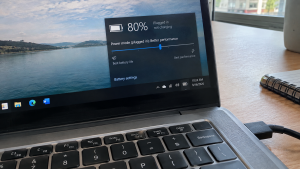
Checklist: Signs Your Battery Is Limited by Software Safeguards
Check the boxes below if these conditions describe your laptop:
-
[ ] Battery charging consistently halts at exactly 60%, 75%, or 80%.
-
[ ] The taskbar battery icon reports “Plugged in, not charging”.
-
[ ] The laptop operates reliably on AC power without unexpected shutdowns.
-
[ ] The battery holds a steady charge without sudden drops when unplugged.
-
[ ] Your machine runs factory utility software like MyASUS or Lenovo Vantage.
Practical Recommendation: Do not buy replacement batteries. Open your manufacturer’s utility app and switch off battery conservation modes to charge up to 100%.
Comparison Table: Battery Limiter Features by Laptop Brand
Here is an overview of manufacturer software and battery threshold settings across major brands:
| Laptop Brand | Official Utility Software | Battery Threshold Feature Name | How to Restore 100% |
|---|---|---|---|
| ASUS | MyASUS | Battery Health Charging | Select Full Capacity Mode |
| Lenovo | Lenovo Vantage | Conservation Mode | Toggle the switch to Off |
| Acer | Acer Care Center | Battery Charge Limit | Disable the 80% limit toggle |
| HP | HP Command Center / BIOS | Battery Care Function | Configure to 100% Maximum |
| Dell | Dell Command / Dell Power Manager | Custom / Primary AC Use | Set charging profile to Standard |
4 Steps to Restore Laptop Battery Charging to 100%
Follow these system adjustments on your machine:
-
Open Your Laptop’s Official Management Utility. Search for your manufacturer’s companion application via Windows search. Launch MyASUS on Asus machines, Lenovo Vantage on Lenovo devices, Acer Care Center on Acer laptops, or Dell Optimizer on Dell hardware.
-
Turn Off Conservation or Battery Threshold Modes. Navigate to the Power or Hardware Settings section. Locate battery health preferences. If set to Maximum Lifespan Mode or Conservation Mode, switch the option to Full Capacity Mode. Windows will instantly resume charging up to 100%.
-
Inspect Hardware Battery Thresholds in BIOS. On business laptops (such as HP ProBook or ThinkPad models), charge limits can be configured inside the BIOS. Reboot your laptop, press
F2orF10to enter BIOS setup, locate Power Management, and verify Battery Care is configured for full capacity. -
Recalibrate Windows Battery Sensors. If utility toggles are disabled yet the percentage remains stuck, recalibrate the battery gauge. Discharge the laptop down to 5% on battery, shut it down completely, and leave it charging uninterrupted on wall power for at least 3 hours so sensors accurately map full capacity.
When You Should Keep This Feature Enabled
If you use your laptop primarily as a desktop replacement that stays connected to wall power at your desk, leaving the 60% or 80% threshold active is recommended.
Restricting lithium cell voltage to the 60–80% range reduces chemical stress and helps prevent battery swelling caused by continuous heat exposure.
FAQ (Frequently Asked Questions)
Does a battery stopping at 80% mean it is defective?
No. Halting at exact round numbers like 60% or 80% indicates deliberate software safeguards configured to extend battery lifespan.
Why does Windows say Plugged in, not charging?
Windows displays this notification because the operating system intentionally pauses current flow once the predetermined battery health threshold is reached.
Conclusion
A laptop battery stuck at 60% or 80% is typically caused by active Conservation Mode or Battery Health Charging safeguards rather than hardware failure. By selecting full capacity mode within your manufacturer’s companion software, you can safely charge your battery back to 100%.
Shop OEM Batteries, Laptop Chargers & Service at Aipel Computer
Looking for genuine replacement laptop batteries, power calibration services, or original manufacturer chargers with official warranty? Discover reliable computer hardware at wholesale prices directly in our store.
To check product availability or get store directions, visit the official Aipel Computer website in Surabaya today.
Tags: disable conservation mode lenovo vantage, laptop battery stops charging at 80, laptop battery stuck at 60 or 80 percent, myasus battery health charging full capacity, plugged in not charging fix

Laptop Battery Stuck at 60% or 80%? Causes and Easy Fixes

Printer bluetooth adalah printer mini yang berguna untuk mencetak struk pembayaran dengan mudah dan simpel. Printer ini bisa terhubung ke... selengkapnya
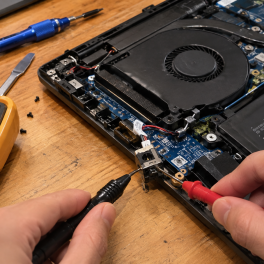
Do you find yourself constantly wiggling, bending, or propping up your laptop charger cable with heavy objects just to keep... selengkapnya
Harga printer Epson L3210 spesifikasi lengkap seringkali menjadi sejumlah pertimbangan yang penting sebelum memutuskan untuk membelinya. Printer tipe ini, merupakan... selengkapnya
Saat browsing internet menggunakan WiFi laptop dan tiba-tiba mati sendiri, tentu akan memberikan pengalaman yang kurang menyenangkan. WiFi laptop sering... selengkapnya

Di pusat grosir komputer biasanya menyediakan berbagai produk dalam memenuhi setiap kebutuhan komputer calon pembelinya. Mulai dari segi hardware sampai... selengkapnya

HDD caddy adalah casing khusus untuk hard drive atau SSD yang terbuat dari bahan alumunium. Dalam casing ini ada bingkai... selengkapnya
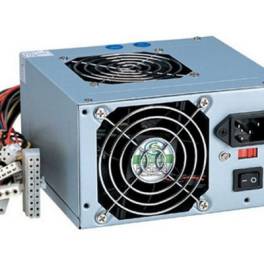
Power supply komputer adalah komponen vital yang menyuplai listrik ke semua bagian komputer, memastikan perangkat berfungsi dengan baik. Selain memberikan... selengkapnya
Memiliki gadget terutama komputer dan laptop merupakan kebutuhan yang tidak bisa diabaikan. Apalagi saat ini hampir semua pekerjaan membutuhkan komputer... selengkapnya
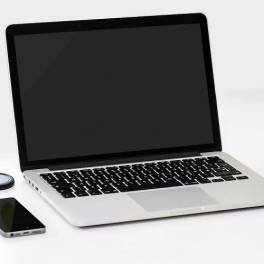
Membeli komputer di tempat grosir bisa lebih hemat budget karena harganya miring. Namun sebelum membeli komputer, pastikan Anda tahu apa... selengkapnya
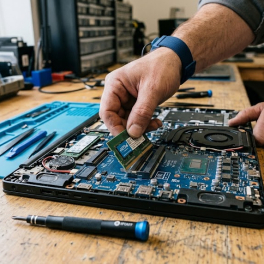
Pernahkah kamu membeli kepingan RAM baru untuk melakukan upgrade memori laptop (misalnya dari 8GB ke 16GB), tetapi saat diperiksa di... selengkapnya
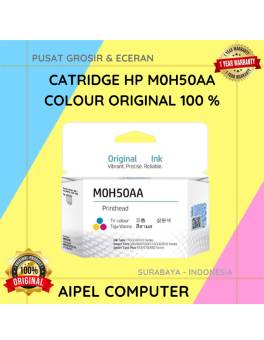
-3%
AIPEL COMPUTER – Pusat Grosir dan Eceran – Belanja Hebat dan Hemat – Harga Murah Garansi Prima * GARANSI –… selengkapnya
Rp 175.000 Rp 170.000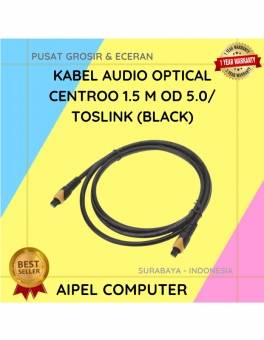
40%
A. DESKRIPSI (DESCRIPTION) Kabel Audio Optical CENTROO adalah kabel digital berkualitas tinggi yang dirancang untuk mengalirkan suara jernih dari perangkat… selengkapnya
Rp 30.000 Rp 50.000
19%
A. DESKRIPSI (DESCRIPTION) ACER192375517PLNKP adalah adaptor laptop yang dirancang khusus untuk perangkat Acer, dengan spesifikasi daya 19V dan arus 2.37A…. selengkapnya
Rp 65.000 Rp 80.000
24%
A. DESKRIPSI (DESCRIPTION) Cable Type-C M To M GENAI GL-Q30 adalah kabel modern berdesain elegan yang dilengkapi lampu LED sebagai… selengkapnya
Rp 42.000 Rp 55.000
Идеальное вечернее платье в Киеве то, в котором чувствуешь себя красивой. Вечерние платья в Киеве надевают преимущественно на свадьбы, торжественные банкеты, выпускные вечера. Скидки и… selengkapnya
Call Us !!
8%
A. DESKRIPSI (DESCRIPTION) Adaptor Laptop ASUS 19V 6.32A DC dengan konektor 4.5mm x 3.0mm adalah pilihan ideal bagi pengguna yang… selengkapnya
Rp 185.000 Rp 200.000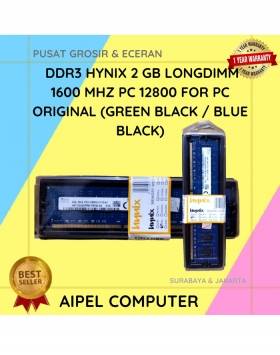
19%
A. DESKRIPSI (DESCRIPTION) DDR3 HYNIX 2GB Longdimm 1600 MHz PC 12800 adalah memori RAM yang dirancang untuk menghadirkan performa stabil… selengkapnya
Rp 65.000 Rp 80.000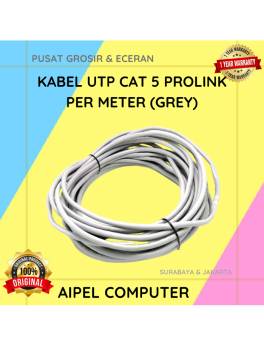
33%
A. DESKRIPSI (DESCRIPTION) Kabel UTP CAT 5 PROLINK Per Meter (Grey) adalah solusi jaringan berkualitas tinggi yang dirancang untuk memberikan… selengkapnya
Rp 4.000 Rp 6.000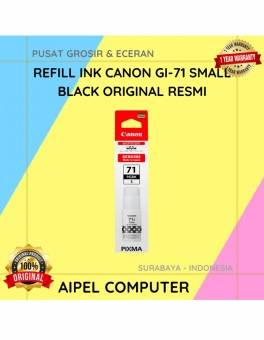
6%
A. DESKRIPSI (DESCRIPTION) Dapatkan hasil cetak yang tajam dan jelas dengan Refill Ink CANON GI-71 Black Small Original! Dirancang khusus… selengkapnya
Rp 80.000 Rp 85.000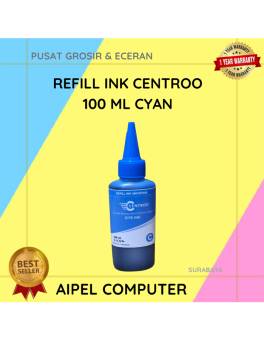
18%
A. DESKRIPSI (DESCRIPTION) Refill Ink CENTROO 100 ML Cyan adalah tinta isi ulang dengan warna biru muda terang yang menghadirkan… selengkapnya
Rp 14.000 Rp 17.000



Saat ini belum tersedia komentar.