- Orderan dibawah 500.00 via Goshop / Offline / Marketplace
Laptop Cursor Moving on Its Own or Jumping? Here is How to Fix It
While you are busy typing a document, editing an image, or browsing the web on your laptop, the mouse pointer suddenly drifts across the screen on its own. At times the cursor stutters wildly, jumps erratically across open windows, or triggers phantom clicks without anyone touching the surface.
This erratic behavior, often described as ghost touch, frequently alarms users into thinking their device has been hacked or infected with malicious software. In the vast majority of situations, however, this navigation glitch is purely caused by stray electrical current and poor grounding from an AC power adapter, greasy residue coating the capacitive touchpad sensors, or conflicting pointing device drivers. Just as when troubleshooting a laptop touchpad not working to restore control, you can apply several straightforward DIY fixes directly at home.
Featured Snippet (Quick Answer):
The fastest way to fix a laptop cursor moving on its own is to disconnect the charger cable to test for electrical grounding leakage, thoroughly wipe down the touchpad surface with a dry microfiber cloth, adjust touchpad sensitivity settings in Windows, and reinstall the touchpad driver in Device Manager.
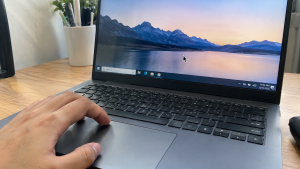
Checklist: Why Does Your Laptop Cursor Drift or Jump?
Check the boxes below if any of these symptoms match your laptop’s current condition:
-
[ ] The cursor acts erratically only while the laptop is connected to an electrical wall outlet via the charger.
-
[ ] The pointer immediately calms down and behaves normally the moment the charger is unplugged.
-
[ ] The trackpad surface feels damp, oily, or coated with sweat residue from your fingertips.
-
[ ] The pointer still jitters even when using an external mouse without touching the trackpad.
-
[ ] Noticeable dirt particles or crumbs are trapped along the recessed edges of the touchpad plate.
Practical Recommendation: If your cursor only wanders while plugged into power and instantly behaves normally on battery power, the issue is entirely caused by an ungrounded wall outlet or a low quality replacement charger leaking stray static current.
Comparison Table: Causes of Errant Laptop Cursor Movement
To help determine the origin of your navigation issues, review this quick comparison based on physical and system indicators:
| Cursor Symptom | Likely Cause | Primary Fix | Real Device Impact |
|---|---|---|---|
| Erratic only while plugged in | Stray static voltage / poor charger grounding | Switch wall outlet or use original charger | Current stabilizes, cursor remains steady |
| Slow phantom drifting | Oil buildup / moisture on trackpad sensor | Wipe clean with dry microfiber cloth | Capacitive sensors detect touch accurately |
| Jumps while typing | Palm rejection sensitivity misconfigured | Set trackpad to disable when mouse connects | Typing remains smooth without accidental taps |
| Continuous phantom clicking | Corrupted Precision Touchpad driver | Reinstall driver via Device Manager | Software communication operates properly |
4 Ways to Fix a Laptop Cursor Moving on Its Own
Follow these step by step recovery methods to restore steady cursor control on your laptop:
-
Disconnect the Power Adapter to Verify Grounding. Unplug the charging cable from your laptop and run the device strictly on battery power. If the erratic jumping stops immediately, the wall socket lacks an earth ground connection or the charger is leaking static electricity. Try plugging into a grounded three prong electrical outlet or switch to an authentic manufacturer power adapter.
-
Clean the Touchpad Surface Thoroughly. Power down your laptop completely. Take a clean microfiber cloth lightly dampened with a specialized screen cleaner or 70 percent isopropyl alcohol. Gently wipe away accumulated finger oils, grease, and dust along the edges that might trick capacitive sensors into registering phantom touches.
-
Disable the Touchpad When Using an External Mouse. Open Settings (
Win + I) > Bluetooth & devices > Touchpad. Uncheck the option marked Leave touchpad on when a mouse is connected. This automatically turns off the built in pad when an external mouse is detected, eliminating accidental palm bumps while typing. -
Reinstall Pointing Device Drivers in Device Manager. Right click the Start button and select Device Manager. Expand Mice and other pointing devices or Human Interface Devices. Right click your trackpad hardware (such as Synaptics Pointing Device, ELAN Touchpad, or HID-compliant touch pad), and choose Uninstall device. Restart your laptop to let Windows automatically reinstall a clean default driver upon boot.
When Should You Switch to an External Wireless Mouse?
If the physical touchpad module has deteriorated from heavy wear, suffered internal liquid damage, or experienced pressure from a swollen battery beneath the chassis, relying on the built in pad can become impractical.
Disabling the internal trackpad in favor of an external wireless mouse is the most reliable workaround. A wireless mouse delivers precise pointing tracking, eliminates phantom clicks, and allows you to continue working comfortably without disruption.
FAQ (Frequently Asked Questions)
Can an expanding laptop battery cause the cursor to jump?
Yes. On many modern laptops, the lithium battery sits directly underneath the trackpad assembly. If the battery cells begin to swell, physical pressure pushes upward against the sensor plate, triggering continuous phantom input.
Why does an optical mouse drift across clear glass desks?
Optical mice rely on surface texture reflections to track movement. Clear glass or high gloss surfaces refract the sensor beam erratically. Always use a dark cloth mousepad to maintain smooth, predictable tracking.
Conclusion
A laptop cursor that drifts or jumps on its own is typically triggered by ungrounded charger current, oily residue on the trackpad plate, or improper palm rejection settings. Checking your power source and cleaning the surface area will usually eliminate erratic movements and restore accurate pointing control.
Shop Wireless Mice, Original Chargers & Mousepads at Aipel Computer
Looking for high precision wireless mice, anti slip gaming mousepads, genuine laptop power adapters for various brands, or electronic cleaning kits? Browse our complete selection of computer accessories at competitive wholesale prices directly in our store.
To review our hardware catalog, check current stock levels, or find directions to our store location, visit the official Aipel Computer website today!
Tags: fix jumping mouse pointer, laptop cursor moving on its own, laptop ghost touch when charging, touchpad driver windows 10, wireless mouse surabaya

Laptop Cursor Moving on Its Own or Jumping? Here is How to Fix It
Lenovo dengan ciri khasnya hadir bersama produknya yakni Lenovo g450. Ya, pasar elektronik yang terus semakin berkembang pesat membuat berbagai... selengkapnya
Perlu untuk Anda ketahui, grosir komputer tidak hanya tersedia secara offline saja, melainkan juga online. Tentu hal ini tak mengejutkan... selengkapnya
Tips memilih charger USB tidak boleh sembarangan. Charger USB ini bisa pengguna dapatkan di berbagai toko komputer terpercaya. Dengan berbagai... selengkapnya
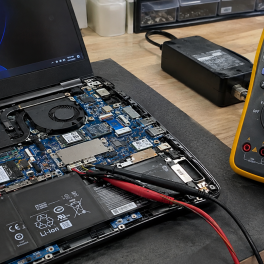
Have you plugged your power adapter into your laptop, noticed the charging indicator active on the taskbar, but hovered over... selengkapnya
Waktu booting lama pada sistem operasi Windows bisa menjadi masalah yang mengganggu. Proses booting yang lambat tidak hanya menghambat produktivitas.... selengkapnya

Manfaat belanja di grosir komputer penting untuk Anda pertimbangkan. Sebagaimana yang kita tahu, grosir menyediakan produk secara lengkap dengan harga... selengkapnya
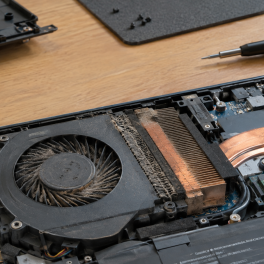
Pernahkah kamu merasakan bodi laptop semakin panas menyengat, tetapi saat kamu memeriksa lubang pembuangan (exhaust), hembusan angin dari kipas internal... selengkapnya

Instant annoyance kicks in when you click Shut down in the Windows menu and your laptop screen goes completely black,... selengkapnya
Komputer Anda tak akan lengkap dengan aksesoris. Meskipun bukan merupakan hal yang wajib namun dalam kenyataannya terdapat fungsi dari komputer... selengkapnya

Perangkat PC atau komputer memiliki banyak manfaat mulai dari mengolah data, dokumen, sampai dengan bermain game. Di dalam beberapa tahun... selengkapnya

27%
A. DESKRIPSI (DESCRIPTION) Mouse Wireless JERTECH JR-11 FIORA adalah mouse elegan berteknologi tinggi yang dirancang untuk menghadirkan kenyamanan maksimal dalam… selengkapnya
Rp 36.500 Rp 50.000
14%
A. DESKRIPSI (DESCRIPTION) Kabel HDTV Standart M To M CENTROO 25 M 4K (Box) adalah kabel berkualitas tinggi yang dirancang… selengkapnya
Rp 180.000 Rp 210.000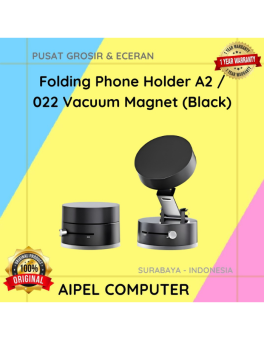
29%
A. DESKRIPSI (DESCRIPTION) Folding Phone Holder A2 / 022 Vacuum Magnet (Black) adalah dudukan ponsel praktis dengan desain lipat dan… selengkapnya
Rp 20.000 Rp 28.000
Идеальное вечернее платье в Киеве то, в котором чувствуешь себя красивой. Вечерние платья в Киеве надевают преимущественно на свадьбы, торжественные банкеты, выпускные вечера. Скидки и… selengkapnya
Call Us !!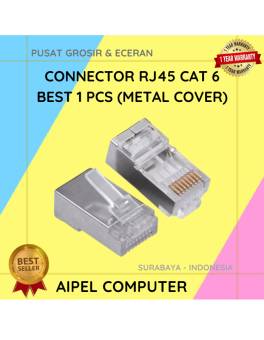
33%
A. DESKRIPSI (DESCRIPTION) Connector RJ45 CAT 6 BEST 1 PCS dengan penutup metal adalah konektor jaringan yang dirancang untuk memberikan… selengkapnya
Rp 1.000 Rp 1.500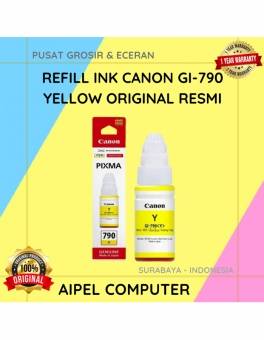
7%
A. DESKRIPSI (DESCRIPTION) Canon GI-790Y Refill Ink Kuning adalah tinta asli yang dirancang khusus untuk printer Canon Anda. Dengan kualitas… selengkapnya
Rp 102.000 Rp 110.000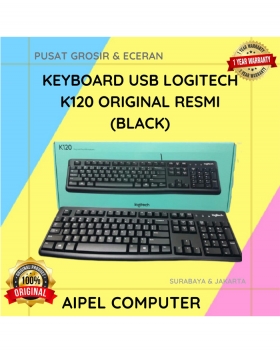
25%
A. DESKRIPSI (DESCRIPTION) Keyboard LOGITECH K120 adalah solusi keyboard full-size yang dirancang untuk kenyamanan mengetik optimal sepanjang hari. ⌨️💼 Terbuat… selengkapnya
Rp 109.000 Rp 146.000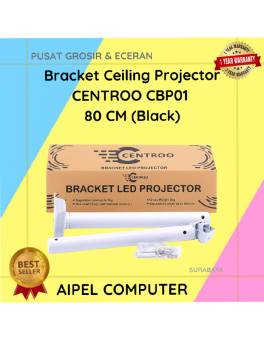
11%
A. DESKRIPSI (DESCRIPTION) Bracket Ceiling Projector 80 cm CENTROO adalah dudukan gantung yang dirancang khusus untuk proyektor, memberikan posisi tampilan optimal… selengkapnya
Rp 80.000 Rp 90.000
16%
GARANSI * AIPEL COMPUTER – Pusat Grosir & Eceran – Belanja Hebat & Hemat – Grosir Konsep Swalayan – Harga… selengkapnya
Rp 63.000 Rp 75.000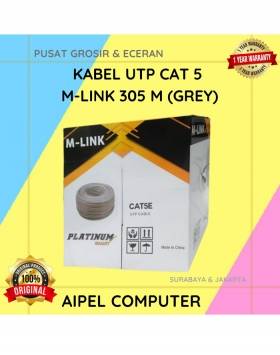
7%
GARANSI * AIPEL COMPUTER – Pusat Grosir & Eceran – Belanja Hebat & Hemat – Grosir Konsep Swalayan – Harga… selengkapnya
Rp 315.000 Rp 340.000



Saat ini belum tersedia komentar.