- Orderan dibawah 500.00 via Goshop / Offline / Marketplace
Laptop Overheating and Shutting Down? Causes and Fixes
Have you ever been deeply engaged in gaming, video editing, or multitasking across multiple browser tabs, only to find the bottom laptop casing turning scorching hot like an iron, cooling fans roaring loudly, and the display abruptly blacking out (thermal shutdown) before saving your progress?
Excessive temperature buildup (overheating) represents one of the most frightening nightmares for laptop users. This trouble is typically triggered by thick dust blankets obstructing heatsink exhaust vents, completely dried-out thermal paste across CPU and GPU chips resulting from age, or weakening cooling fan performance.
Furthermore, much like troubleshooting performance throttling induced by extreme thermal stress in laptop overheating and lagging causes fixes, routine cooling system maintenance is vital to preventing processor chips from suffering permanent thermal throttling damage. Additionally, electrical stability can be maintained by reviewing insights from laptop battery plugged in not charging causes fixes to ensure continuous cooling power delivery.
Featured Snippet (Quick Answer):
Primary causes of a laptop overheating and shutting down include dust blockages choking heatsink copper fins, dried-out processor thermal paste losing heat conduction efficiency, and operating laptops on soft surfaces (like beds or pillows) that block bottom airflow intake vents.
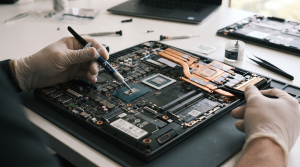
Checklist: Evaluating Laptop Overheating Severity
Check the boxes below if these overheating symptoms match your current situation:
-
[ ] Upper keyboard areas and bottom casing regions feel intensely burning hot to the touch.
-
[ ] Cooling fans spin at roaring speeds continuously even when running light applications.
-
[ ] Laptop performance stutters and experiences severe lagging after running for 30 minutes.
-
[ ] The system shuts down abruptly mid-game or during video rendering tasks.
Practical Recommendation: Never operate laptops directly on top of beds, blankets, or your lap! Soft surfaces block bottom air ventilation grilles, trapping hot exhaust air inside the plastic chassis.
Comparison Table: Overheating Failure Types & Actions
| Overheating Failure Symptom | Underlying Cause | Damage Risk | Recommended Action |
|---|---|---|---|
| Hot Casing & Noisy Fans | Dust obstructing heatsink exhaust fins | Exhaust airflow circulation stalls completely | Teardown chassis & clean fans using soft brushes |
| Frequent Lag & BSOD Crashes | Dried-out or unevenly spread thermal paste | CPU-to-copper heat transfer failure | Apply premium high-performance thermal paste |
| Weakly Spinning / Dead Fans | Grimy fan motors or loose power cables | Component temperatures surge uncontrollably | Clean fan spindle bearings / replace new fans |
| Total Shutdown During Gaming | Active thermal shutdown safety protections | CPU/GPU chips melting / permanent hardware failure | Install cooling pads & service cooling systems |
4 Ways to Fix an Overheating Laptop That Shuts Down
-
Clean Dust from Fans and Heatsinks Regularly.
Open the bottom laptop casing using precision screwdrivers, then use fine brushes and compressed air blowers to clear away dust mats trapped between copper heatsink fins. Dust blankets choking airflow represent the primary enemy of cooling efficiency. Additionally, if you face related fan operation anomalies, review correct management procedures in laptop fan spinning weak not maxing out causes fixes.
-
Replace CPU and GPU Thermal Paste.
Wipe away old hardened paste residue using alcohol-dampened cotton swabs, then apply fresh, high-conductivity thermal paste across processor and graphics chips before resecuring copper heatpipes.
-
Use Hard Flat Surfaces or Auxiliary Cooling Pads.
Always position laptops on flat wooden or glass desks. When running heavy workloads, deploy external cooling pads to assist airflow intake delivery toward bottom chassis vents.
-
Cap Processor Performance via Power Plans.
If your laptop runs hot in emergency scenarios awaiting service, open Control Panel > Power Options > Change plan settings > Change advanced power settings > Processor power management, and restrict Maximum processor state to 99% to prevent processors from running at peak turbo boost limits.
When to Seek Professional Repair Services
If you have cleaned out dust, replaced thermal paste, yet processor temperatures continue breaching 90°C during idle states, issues have escalated into physical cooling module failures.
This condition requires replacing leaking heatpipes, swapping out failing fan motors, or repairing motherboard fan circuit traces executed by experienced technicians at trusted service centers.
FAQ (Pertanyaan yang Sering Diajukan)
Are cooling pads genuinely effective in lowering laptop overheating temperatures?
External cooling pads effectively supply supplementary fresh airflow toward bottom chassis surfaces, dropping ambient temperatures by roughly 2°C to 5°C. However, they prove entirely ineffective if the root problem stems from internal heatsink dust blockages or completely dried thermal paste.
Shop OEM Cooling Parts & Professional Repairs at Aipel Computer
Discover original replacement cooling fans, premium thermal pastes, and professional warranted laptop overheating cleaning and repair services in Surabaya directly through Aipel Computer.

Laptop Overheating and Shutting Down? Causes and Fixes
Masalah monitor berkedip pada Windows 10 adalah salah satu masalah yang sering dialami oleh pengguna. Monitor yang berkedip-kedip tidak hanya... selengkapnya

Laptop menjadi perangkat yang penting untuk beberapa orang untuk menunjang aktivitas sehari-hari, baik untuk belajar, bekerja, maupun hiburan. Namun, terkadang... selengkapnya
Power supply komputer adalah komponen vital yang menyuplai listrik ke semua bagian komputer, memastikan perangkat berfungsi dengan baik. Selain memberikan... selengkapnya
Pernahkah kamu hendak menyambungkan laptop ke jaringan Wi-Fi rumah atau tethering hotspot dari HP, tetapi begitu kata sandi dimasukkan, sistem... selengkapnya
Contoh hardware input tentunya sangat beragam. Berikut akan kita bahas beberapa contohnya beserta fungsinya masing-masing. Komponen utama komputer terdiri atas... selengkapnya

Di era digital seperti sekarang, laptop telah menjadi perangkat penting bagi banyak orang, baik untuk pekerjaan, studi, maupun hiburan. Untuk... selengkapnya

Saat ini, sudah banyak orang yang memiliki laptop. Penggunaan perangkat yang satu ini sangat membantu untuk kegiatan sehari-hari. Baik untuk... selengkapnya
Have you ever prepared to join an online class or vital meeting, only to find that your Zoom or Google... selengkapnya

Reaching down to touch your laptop charger power brick while charging, only to find the plastic surface burning hot to... selengkapnya
Printer ribbon cartridge tetap menjadi pilihan yang unggul dalam berbagai aplikasi spesifik meskipun teknologi inkjet dan laserjet mendominasi pasar. Di... selengkapnya
8%
A. DESKRIPSI (DESCRIPTION) Kabel LAN CAT 6 WEBSONG (Blue) merupakan salah satu inovasi terkini dari brand WEBSONG yang siap menunjang… selengkapnya
Rp 110.000 Rp 120.000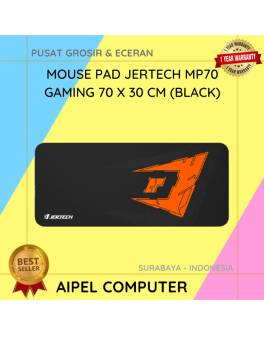
23%
A. DESKRIPSI (DESCRIPTION) Mouse Pad JERTECH MP70 Gaming adalah alas mouse dengan ukuran luas dan permukaan premium yang dirancang khusus… selengkapnya
Rp 41.500 Rp 54.000
32%
A. DESKRIPSI (DESCRIPTION) Cable Type-C to Type-C GENAI GL-Q23 adalah kabel pengisian cepat dan transfer data berdaya tinggi yang dirancang… selengkapnya
Rp 34.000 Rp 50.000
20%
A. DESKRIPSI (DESCRIPTION) Kabel Power Laptop CENTROO KPL3C15 adalah solusi ideal untuk kebutuhan daya laptop Anda. Dengan panjang 1.5 meter,… selengkapnya
Rp 8.000 Rp 10.000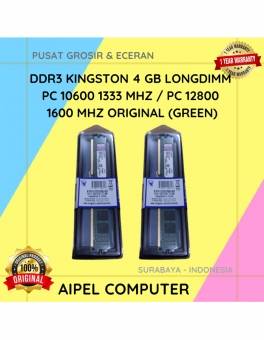
18%
A. DESKRIPSI (DESCRIPTION) DDR3 KINGSTON 4 GB adalah solusi tepat bagi Anda yang mendambakan performa sistem lebih tinggi untuk menjalankan… selengkapnya
Rp 70.000 Rp 85.000
1%
A. DESKRIPSI (DESCRIPTION) Refill Ink EPSON T6735 Light Cyan Original 100 % adalah tinta isi ulang berkualitas dari EPSON yang… selengkapnya
Rp 138.000 Rp 140.000
60%
GARANSI * AIPEL COMPUTER – Pusat Grosir dan Eceran – Belanja Hebat dan Hemat – Harga Murah Garansi Prima *… selengkapnya
Rp 2.000 Rp 5.000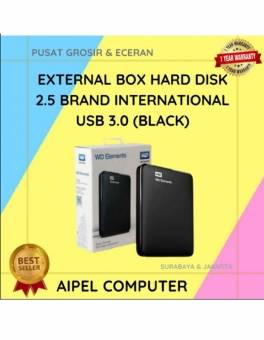
21%
A. DESKRIPSI (DESCRIPTION) External Box Hard Disk 2.5 WD Elements USB 3.0 (Black) adalah solusi ideal untuk menyimpan dan memindahkan… selengkapnya
Rp 55.000 Rp 70.000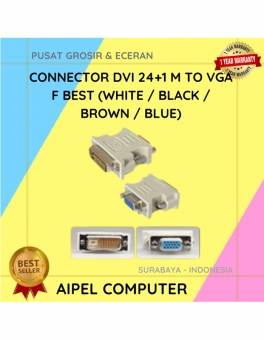
32%
A. DESKRIPSI (DESCRIPTION) DVI 24+1 M To VGA F Adapter adalah solusi ideal bagi Anda yang ingin menghubungkan perangkat dengan… selengkapnya
Rp 6.500 Rp 9.500
7%
A. DESKRIPSI (DESCRIPTION) Kabel HDTV Standart M To M CENTROO 30 M 4K (Box) adalah solusi kabel HDMI panjang dari… selengkapnya
Rp 250.000 Rp 270.000



Saat ini belum tersedia komentar.