- Orderan dibawah 500.00 via Goshop / Offline / Marketplace
fixes. Laptop Battery Status “Plugged In, Not Charging”? Causes and Fixes
Have you plugged your power adapter into your laptop, noticed the charging indicator active on the taskbar, but hovered over the icon only to see the status “Plugged In, Not Charging”?
This scenario frequently causes users to assume their battery or power brick has suffered complete hardware failure. However, much like troubleshooting power delivery hurdles on laptop usb c charging not working causes fixes, the root cause is not always physical hardware damage. It is often triggered by software protection limits, corrupted system drivers, or temporary firmware glitches within the Embedded Controller (EC).
Featured Snippet (Quick Answer):
Primary causes of a laptop battery reading Plugged In, Not Charging include active manufacturer battery care limits (Battery Threshold), corrupted Microsoft ACPI battery drivers, thermal throttling from overheating, or physical degradation of the lithium-ion cells and charging pin.
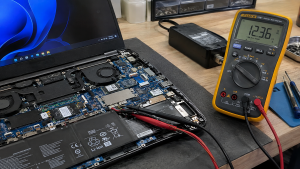
Checklist: Evaluating Laptop Battery Charging Behavior
Check the boxes below if these charging symptoms match your situation:
-
[ ] Battery percentage remains frozen at a specific level (e.g., 60%, 80%, or 85%).
-
[ ] Power LED indicator lights up, but the battery percentage does not increase.
-
[ ] Laptop turns off instantly the moment the charging cable is unplugged.
-
[ ] Underside chassis feels extremely hot while connected to the charger.
-
[ ] Red “X” or warning icon appears over the battery tray icon on the taskbar.
Practical Recommendation: Avoid buying a replacement battery immediately. First check your manufacturer’s bundled control software (OEM utility) to verify whether an automatic charging limit is preventing full power delivery.
Comparison Table: Charging Symptoms and Recommended Actions
| Indicator Condition | Underlying Cause | Impact on System | Recommended Action |
|---|---|---|---|
| Stuck at 60% / 80% | Battery Threshold feature active | Charging halted automatically | Change mode to Full Capacity in vendor app |
| Plugged In at 0% | Deeply discharged / dead cells | Laptop relies entirely on AC power | Perform power reset or replace battery module |
| Not Detected (Red X) | Corrupted ACPI driver | System-to-battery communication lost | Uninstall ACPI driver via Device Manager |
| Intermittent Charging | Loose connector pin / DC-Jack | Unstable voltage & power delivery | Repair charging port & test adapter voltage |
4 Ways to Fix “Plugged In, Not Charging” Battery Status
-
Disable Battery Limit in Vendor Utility. Open your laptop’s proprietary management software (such as MSI Center / Dragon Center, MyASUS, Lenovo Vantage, or Dell Power Manager). Switch the battery profile from Maximum Lifespan / Balanced Mode (60%–80%) to Full Capacity Mode (100%).
-
Reinstall Microsoft ACPI Battery Driver. Launch Device Manager > expand Batteries > right-click Microsoft ACPI-Compliant Control Method Battery > select Uninstall device. Afterward, restart your laptop so Windows automatically reinstalls a fresh driver copy.
-
Perform an Embedded Controller (EC) Power Reset. Turn off the laptop completely, disconnect the charging cable, then press and hold the Power button for 30–40 seconds. This drains residual static charge from the motherboard and resets internal power states.
-
Cool Down the Laptop & Inspect Adapter. If internal temperatures spike too high, thermal protection sensors halt charging to protect lithium cells from heat stress. Allow the laptop to cool down and verify that your charger matches required wattage ratings.
When to Replace the Laptop Battery
If you have reinstalled system drivers and disabled software charging limits, yet the battery remains stuck at 0% or the laptop shuts down immediately when unplugged, the internal lithium cells have likely hit severe wear levels or suffered cell death. Replacing the battery with a genuine new unit restores your laptop’s portable functionality.
FAQ (Frequently Asked Questions)
Is it safe to leave my laptop battery charging limit capped at 80%?
Yes, it is highly recommended. Manufacturers design the 80% limit specifically to reduce high-voltage stress on lithium-ion chemistry, significantly extending overall battery longevity.
Why does my laptop turn off instantly when unplugged even if it shows charged?
This indicates that either the power switching circuit on the motherboard has failed or the battery cells can no longer sustain operational voltage under load.
Conclusion
A laptop battery showing Plugged In, Not Charging does not automatically signify a dead battery. By auditing battery protection settings, reinstalling ACPI drivers, and performing an Embedded Controller reset, most charging glitches can be resolved without replacing hardware.
Shop Laptop Batteries, Genuine Chargers & Repairs at Aipel Computer
Looking for genuine replacement laptop batteries, reliable power adapters, or comprehensive motherboard power diagnostics? Find trusted hardware solutions directly at Aipel Computer.
Tags: how to fix plugged in not charging, laptop battery not charging fix, laptop battery plugged in not charging

fixes. Laptop Battery Status “Plugged In, Not Charging”? Causes and Fixes
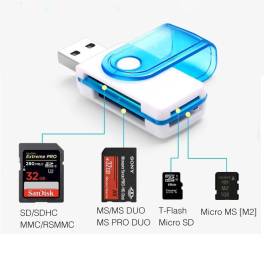
Salah satu elemen penting yang dapat mendukung kemudahan dalam membaca informasi adalah card reader. Seperti yang kita ketahui, perkembangan teknologi... selengkapnya
A laptop that’s sluggish or falling apart after just a year or two isn’t unusual — we see it constantly.... selengkapnya
Apabila Anda berada di kota Surabaya, toko mouse terdekat bisa ditemukan dengan sangat mudah. Mouse merupakan perangkat yang cukup penting... selengkapnya
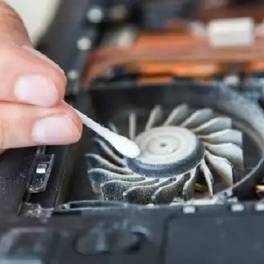
Kipas laptop berisik merupakan kerusakan yang wajib diketahui. Sebab, hal ini akan sangat mengganggu pemilik dan orang lain di sekitarnya.... selengkapnya

Salah satu produk yang akan Anda temukan di pusat komputer murah adalah PC Rakitan. Seperti namanya, maka jenis PC ini... selengkapnya

Pernahkah Anda mengalami charger laptop rusak secara tiba-tiba? Meskipun menggunakan charger asli dari pabrik, sayangnya, charger hanya bertahan beberapa tahun.... selengkapnya

Trying to connect your laptop to home Wi-Fi or tethering off your mobile hotspot only for Windows to stall and... selengkapnya
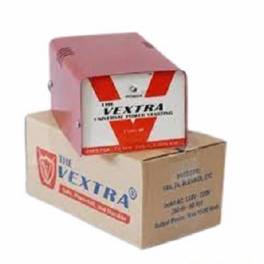
Apa itu stavolt memang perlu Anda ketahui sebelum memutuskan membeli. Fungsi stabilizer atau stavolt perlu diketahui, apalagi bagi yang berkecimpung... selengkapnya

Mengelola Pesan dan Grup di WhatsApp A. Organisasi dan Manajemen Pesan WhatsApp menjadi tempat utama bagi banyak orang dalam... selengkapnya
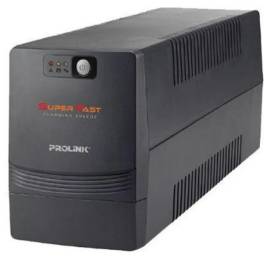
Baterai UPS atau Uninterruptible Power Supply, juga dikenal sebagai Suplai Daya Bebas Gangguan. Alat ini merupakan perangkat yang umumnya menggunakan... selengkapnya
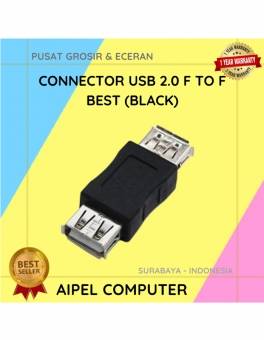
20%
A. DESKRIPSI (DESCRIPTION) Konektor USB 2.0 Female to Female adalah alat simpel yang memungkinkan Anda menyambungkan dua kabel USB Male… selengkapnya
Rp 4.000 Rp 5.000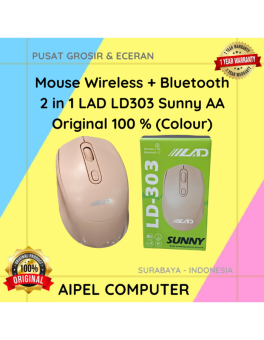
26%
A. DESKRIPSI (DESCRIPTION) Mouse Wireless + Bluetooth 2 in 1 LAD LD303 Sunny AA Original 100 % (Colour) merupakan mouse… selengkapnya
Rp 39.000 Rp 53.000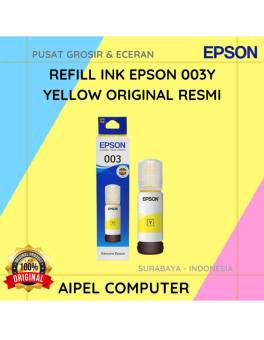
15%
A. DESKRIPSI (DESCRIPTION) Refill Ink EPSON 003Y Yellow Original 100% adalah tinta warna kuning dari EPSON yang digunakan untuk pengisian… selengkapnya
Rp 85.000 Rp 100.000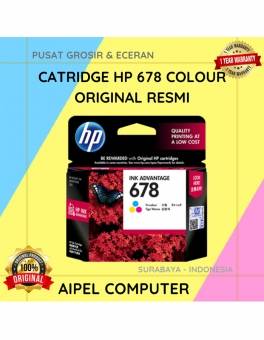
23%
A. DESKRIPSI (DESCRIPTION) Catridge HP 678 Colour Original 100 % adalah tinta warna berkualitas tinggi yang dirancang untuk menghasilkan cetakan… selengkapnya
Rp 155.000 Rp 200.000
6%
GARANSI * AIPEL COMPUTER – Pusat Grosir & Eceran – Belanja Hebat & Hemat – Grosir Konsep Swalayan – Harga… selengkapnya
Rp 1.590.000 Rp 1.700.000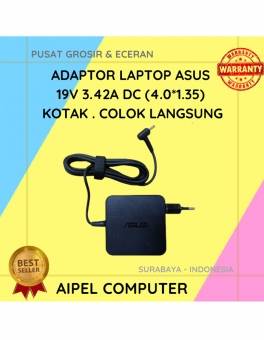
17%
A. DESKRIPSI (DESCRIPTION) Adaptor Laptop ASUS 19V 3.42A Kotak adalah solusi pengisian daya yang praktis dan efisien untuk berbagai model… selengkapnya
Rp 75.000 Rp 90.000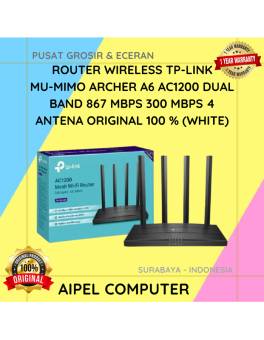
20%
AIPEL COMPUTER – Pusat Grosir dan Eceran – Belanja Hebat dan Hemat – Harga Murah Garansi Prima * GARANSI –… selengkapnya
Rp 478.000 Rp 600.000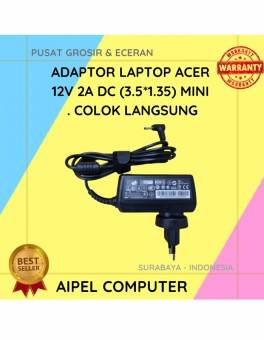
17%
A. DESKRIPSI (DESCRIPTION) Adaptor Laptop ACER 12V 2A DC (3.5 X 1.35) Mini adalah solusi yang ideal untuk pengguna laptop… selengkapnya
Rp 75.000 Rp 90.000
11%
A. DESKRIPSI (DESCRIPTION) GENAI TWS25 Earbuds adalah earphone wireless tipe TWS25 yang siap menemani setiap aktivitas Anda dengan kenyamanan maksimal… selengkapnya
Rp 151.000 Rp 169.000
9%
A. DESKRIPSI (DESCRIPTION) Paket combo Keyboard + Mouse USB JERTECH KM170 STARS Gaming Black menawarkan kenyamanan dan performa dalam satu… selengkapnya
Rp 82.280 Rp 90.000



Saat ini belum tersedia komentar.