- Orderan dibawah 500.00 via Goshop / Offline / Marketplace
Laptop Wi-Fi Yellow Exclamation Mark? Causes and Fixes
Connecting your laptop to an office or café Wi-Fi network only to see a full signal bar in the taskbar, yet opening your browser triggers a No Internet error or a yellow exclamation mark (Limited Access), is incredibly frustrating. Meanwhile, your friend’s smartphone sitting right next to you surfs the web without a hitch.
This classic networking headache often tricks users into blaming the router. In reality, the root cause usually stems from Windows failing to lease an IP address (IP Lease Failure) or corruption within operating system DNS local caches. Much like troubleshooting laptop can’t connect to wi fi or hotspot fixes to restore proper system behavior, you can refresh your networking stack safely on your own.
Featured Snippet (Quick Answer):
To fix laptop Wi-Fi showing a yellow exclamation mark (Limited Access), reset the networking stack via Command Prompt (
netsh winsock resetandipconfig /renew), flush DNS caches (ipconfig /flushdns), and restart the Windows WLAN AutoConfig service.
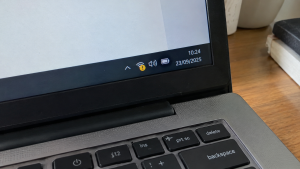
Checklist: Diagnosing Laptop Wi-Fi Network Issues
Check the boxes below if these network symptoms describe your current experience:
-
[ ] Network status displays “Connected, no internet” or a Wi-Fi icon with a yellow exclamation mark badge.
-
[ ] Laptop connects to the wireless router, but web pages and online messaging apps fail to load.
-
[ ] Secondary devices (such as smartphones or tablets) browse the internet on the same Wi-Fi without issues.
-
[ ] Pinging the default router gateway IP address returns a “Request timed out” response.
-
[ ] Automatic IP configuration (DHCP) assigns a fallback Autoconfiguration IPv4 Address (169.254.x.x).
Practical Recommendation: If your laptop Wi-Fi suddenly triggers a yellow exclamation mark, never power-cycle physical routers endlessly or toggle network switches rapidly, as this can corrupt device firmware. Clean your Windows network stack using Command Prompt (Run as Administrator) with DNS flushing and IP lease renewal commands instead.
Comparison Table: Causes of Yellow Exclamation Wi-Fi and Fixes
| Mechanical Symptom | Underlying Cause | Device Damage Risk | Recommended Action |
|---|---|---|---|
| Yellow Exclamation (Limited Access) | Failed DHCP IP lease renewal cycle | Connected to router but zero web access | Run command ipconfig /renew via CMD |
| DNS_PROBE_FINISHED_NXDOMAIN | Corrupted / outdated DNS lookup cache | Browser fails loading any website | Run command ipconfig /flushdns |
| IP Address Conflict | Two devices share identical local IP | Random disconnections and packet drops | Forget network profile & reconnect |
| Wi-Fi Adapter Disable / Error | Corrupted or freezing wireless driver | Wireless networks disappear from taskbar | Reset Winsock stack & update drivers |
4 Ways to Fix Laptop Wi-Fi Yellow Exclamation Mark & Limited Access
Follow these network maintenance steps in order:
-
Perform Full Winsock & IP Reset via CMD. Click Start, type
cmd, right-click and choose Run as administrator. Type the following commands one by one, pressing Enter after each:-
netsh winsock reset -
netsh int ip reset -
ipconfig /release -
ipconfig /renew -
ipconfig /flushdnsReboot your laptop afterward.
-
-
Reconfigure WLAN AutoConfig Service. Press
Win + R, typeservices.msc, and press Enter. Locate WLAN AutoConfig. Ensure its status reads Running and its Startup type is set to Automatic to keep wireless operations running smoothly. -
Switch to Public DNS Server Addresses (Google / Cloudflare). Open Control Panel > Network and Sharing Center > Change adapter settings. Right-click your Wi-Fi adapter, choose Properties, and double-click Internet Protocol Version 4 (TCP/IPv4). Select Use the following DNS server addresses, and input 8.8.8.8 (Preferred) alongside 8.8.4.4 (Alternate).
-
Forget Old Wi-Fi Profile & Reconnect. Open Settings > Network & internet > Wi-Fi > Manage known networks. Locate the problematic network, click Forget. Turn off your laptop Wi-Fi for 10 seconds, turn it back on, and enter the password again for a clean IP lease.
When to Seek Professional Repair Services
If you have executed Command Prompt network resets and changed DNS settings yet alternate Wi-Fi networks consistently trigger yellow exclamation marks, your laptop’s physical Wi-Fi card hardware has likely suffered signal processing failure.
This requires replacing the internal mATX/M.2 Wi-Fi card or plugging in an external USB Wi-Fi Adapter handled by a professional bench technician.
FAQ (Frequently Asked Questions)
Why does a smartphone work fine while a laptop shows limited access on the same Wi-Fi?
Because Windows operating systems handle DHCP IP address protocol management far more complexly than mobile operating systems, making Windows more vulnerable to cache corruption when routers cycle dynamic IP allocations.
Does forgetting the Wi-Fi network help resolve this issue?
Extremely helpful! The Forget Network feature forces Windows to strip away corrupted legacy credential histories and request a clean slate of security handshakes and IP allocations from the router.
Conclusion
Laptop Wi-Fi displaying yellow exclamation marks (Limited Access) is typically caused by local IP address conflicts or corrupted Windows DNS caches. By executing network flushing commands through Command Prompt and refreshing WLAN AutoConfig services, your laptop will reconnect to the web smoothly.
Shop OEM Laptop Keyboards, Cleaner Kits & Service at Aipel Computer
Looking for high-speed USB Wi-Fi adapters, quality patch cord LAN cables, or professional Wi-Fi module repair services with an official warranty? Find complete computer networking solutions at wholesale prices directly in our store.
To check product availability or get directions to our retail store, visit the official Aipel Computer website in Surabaya today.
Tags: fix ipconfig renew failed windows 11, netsh winsock reset command prompt guide, wifi connected but no internet yellow exclamation mark, wifi limited access windows error fix

Laptop Wi-Fi Yellow Exclamation Mark? Causes and Fixes

Komputer atau laptop adalah barang elektronik yang tidak boleh asal memilih ketika Anda akan membelinya. Itulah mengapa, Anda perlu mengetahui... selengkapnya
Slot RAM rusak pada laptop dapat menyebabkan berbagai masalah, mulai dari kinerja lambat hingga sistem yang tidak bisa booting. Masalah... selengkapnya

Cara mematikan laptop yang benar ternyata harus diperhatikan. Sayangnya, masih cukup banyak orang yang menyepelekan hal ini. Laptop adalah komputer... selengkapnya
Tips memilih processor yang tepat tidaklah sulit. Semua bisa Anda dapatkan sesuai kebutuhan. Sama seperti memilih komponen pada komputer atau... selengkapnya
Hearing your laptop cooling fan roar continuously at top speed makes any workspace distracting. Warm air pushes endlessly from side... selengkapnya

Cara aktifkan On Screen Keyboard menjadi penting untuk Anda ketahui, terutama jika pernah mengalami keyboard laptop tidak berfungsi. On Screen... selengkapnya

Toko elektronik laptop terdekat yang ada di Surabaya, dewasa ini cukup mudah untuk kita temukan. Hal ini tidak terlepas dari... selengkapnya
Meskipun sekarang sudah banyak laptop atau komputer portabel yang semakin canggih, namun penggunaan komputer konvensional atau biasa disebut dengan pc... selengkapnya
Opening a blank document or browsing clean web pages only to spot a distracting bright dot or faint white patch... selengkapnya

Cara merecord di laptop terbilang mudah dan tidak ribet. Pasalnya, pengguna perangkat bisa melakukannya tanpa harus mengunduh aplikasi tambahan apapun.... selengkapnya
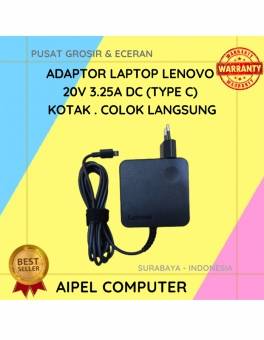
10%
A. DESKRIPSI (DESCRIPTION) Adaptor Laptop LENOVO 20V 3.25A Type C Kotak Colok Langsung adalah perangkat power supply dengan desain kotak… selengkapnya
Rp 135.000 Rp 150.000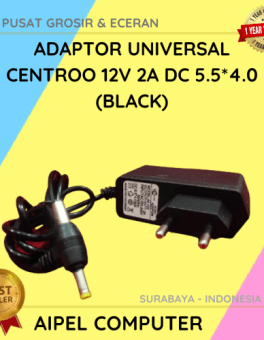
28%
A. DESKRIPSI (DESCRIPTION) Adaptor Universal CENTROO 12V 2A DC 5.5*4.0 adalah pilihan ideal untuk Anda yang membutuhkan suplai daya stabil… selengkapnya
Rp 18.000 Rp 25.000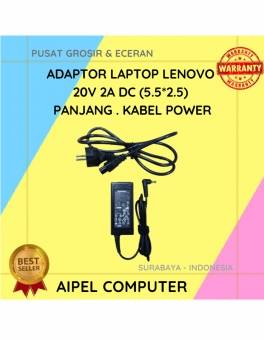
20%
A. DESKRIPSI (DESCRIPTION) LENOVO Adaptor Laptop 20V 2A DC (5.5*2.5) adalah perangkat daya yang dirancang untuk memberikan performa optimal bagi… selengkapnya
Rp 60.000 Rp 75.000
9%
GARANSI * AIPEL COMPUTER – Pusat Grosir & Eceran – Belanja Hebat & Hemat – Grosir Konsep Swalayan – Harga… selengkapnya
Rp 205.000 Rp 225.000
8%
AIPEL COMPUTER Adaptor Laptop APPLE MAC1 45 Watt L 🌟 Adaptor Laptop APPLE MAC1 45 Watt L adalah aksesori penting… selengkapnya
Rp 180.000 Rp 195.000
60%
AIPEL COMPUTER RJ45 CAT 5 BEST 1 PCS (Transparant) adalah konektor jaringan tipe RJ45 kategori 5 yang dirancang dengan bahan… selengkapnya
Rp 200 Rp 500
25%
A. DESKRIPSI (DESCRIPTION) Connector Serial DB9 M To M BEST / Mini Gender adalah konektor serial berkualitas tinggi yang dirancang… selengkapnya
Rp 6.000 Rp 8.000
14%
A. DESKRIPSI (DESCRIPTION) GENAI QC-Q32 Charger Type-C + Kabel Type-C to Type-C PD adalah charger bertipe QC-Q32 berdaya maksimal 30W… selengkapnya
Rp 86.000 Rp 100.000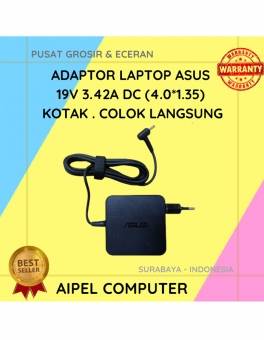
17%
A. DESKRIPSI (DESCRIPTION) Adaptor Laptop ASUS 19V 3.42A Kotak adalah solusi pengisian daya yang praktis dan efisien untuk berbagai model… selengkapnya
Rp 75.000 Rp 90.000
17%
A. DESKRIPSI (DESCRIPTION) Adaptor Laptop TOSHIBA 19V 4.74A DC (5.5*2.5) ini adalah solusi pengisian daya yang kuat dan stabil, cocok… selengkapnya
Rp 75.000 Rp 90.000



Saat ini belum tersedia komentar.