- Orderan dibawah 500.00 via Goshop / Offline / Marketplace
Laptop Headphone Jack Not Working? Sound Playing Through Speakers Fix
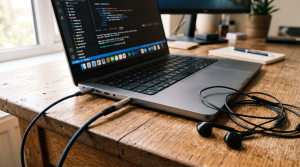
Connecting wired headphones to your laptop should route audio privately, but sometimes sound continues blasting from the internal speakers. Even when the 3.5mm connector is firmly plugged in, Windows may fail to switch the output device automatically.
A laptop headphone jack not working is usually caused by disabled jack detection prompts in your audio utility, misconfigured default playback settings, dust buildup around the port opening, or corrupted audio drivers. Much like troubleshooting laptop sound not working to restore missing output, you can diagnose and fix this headphone connection problem on your own through a few simple steps.
Featured Snippet (Quick Answer):
To fix a laptop headphone jack not working, enable automatic jack detection in your audio control software (such as Realtek Audio Console or Waves MaxxAudio), set Headphones as the Default Device in Sound Control Panel, clean the port opening safely, and reinstall the audio driver in Device Manager.
Checklist: Headphone Connection Symptoms
Check the boxes below if any of these match your laptop’s current issue:
-
[ ] The 3.5mm plug is fully inserted, but audio keeps playing through internal speakers.
-
[ ] No device selection prompt appears after plugging in your headset.
-
[ ] Sound Settings only lists Speakers without showing a Headphones option.
-
[ ] Audio cuts in and out or crackles when the plug is turned.
-
[ ] The headset works normally when tested on a phone or another PC.
Practical Recommendation: If your headset works fine on other devices, the issue is most likely related to Windows audio settings, drivers, or connector standard compatibility.
Comparison Table: Headphone Jack Issues and Solutions
Here is a breakdown of common causes for an unresponsive laptop audio port:
| Audio Symptom | Likely Cause | Recommended Fix | Real Device Impact |
|---|---|---|---|
| Sound stays on speakers | Automatic jack detection popup disabled | Enable detection in laptop audio utility | System detects headphones automatically |
| Headphones not listed | Output device set to Disabled or Hidden | Enable via Sound Control Panel (mmsys.cpl) | Headphones option appears and activates |
| Audio crackles / drops | Dust around the port opening or dirty plug | Clean port opening with gentle compressed air | Restores firm pin contact |
| Headset mic unresponsive | Mismatched TRS (stereo) vs TRRS plug | Connect through an Audio Splitter adapter | Audio output and mic work together |
4 Ways to Fix a Laptop Headphone Jack Not Working
Follow these troubleshooting steps in order:
-
Enable Jack Detection in Your Audio Software. Open the Start menu and search for your laptop’s audio management utility (such as Realtek Audio Console, Waves MaxxAudio Pro, Nahimic, or DTS Audio Control). If your software includes advanced connector settings, ensure the auto-popup dialog option is enabled. Select Headset or Headphones when prompted upon plugging in your cable.
-
Set Headphones as the Default Playback Device. Press
Win + R, typemmsys.cpl, and press Enter to launch the Sound Control Panel. On the Playback tab, right-click an empty space and check Show Disabled Devices. If Headphones appears in the list, right-click it, select Enable, and click Set as Default. -
Clean the Jack Port Opening Safely. Dust and lint around the port opening can prevent the plug from seating all the way in. Power down your laptop, then clear loose debris using a low-pressure can of compressed air or a soft antistatic brush. Avoid inserting sharp metal tools inside the jack to prevent bending internal contact pins.
-
Reinstall Audio Drivers in Device Manager. Right-click the Start button, select Device Manager, and expand Sound, video and game controllers. Right-click your main audio controller (such as Realtek(R) Audio or High Definition Audio Device), select Uninstall device, and restart your laptop. Windows will automatically reinstall a clean default driver.
When to Consider a USB Soundcard or Hardware Repair
If software adjustments do not resolve the issue and the 3.5mm jack remains mechanically loose or damaged internally from a pulled cable, the motherboard port may require hardware service.
A simple and affordable workaround without opening the laptop is using an External USB Audio Soundcard Adapter or switching to Bluetooth Wireless Headphones. USB soundcard adapters plug directly into standard USB ports and provide clean headphone and microphone outputs instantly.
FAQ (Frequently Asked Questions)
What is the difference between TRS and TRRS audio jacks?
A TRS plug features 2 black insulating rings on its shaft and typically carries stereo audio output only. A TRRS plug has 3 black insulating rings, allowing it to transmit stereo audio and microphone signals through a single connector.
Why won’t my audio control software open on Windows?
This often happens if the manufacturer’s audio driver package was incompletely installed after a Windows update. Reinstalling the official audio driver from your laptop brand’s support site will usually restore the application.
Conclusion
A laptop headphone jack not working is commonly caused by disabled software detection prompts, hidden playback devices in Windows, or dust around the 3.5mm port. By verifying your audio control panel settings and keeping drivers updated, you can ensure your headphones connect properly every time.
Shop Headsets, USB Soundcards & Accessories at Aipel Computer
Looking for clear headsets with microphones, original wired earphones, convenient USB soundcards, or audio splitter cables? Explore our wide selection of computer audio peripherals at affordable wholesale prices directly in our store.
To check product availability or get directions to our retail store, visit the official Aipel Computer website in Surabaya today.
Tags: fix realtek audio console headset popup, laptop headphone jack not working, laptop not detecting headphones, sound coming from speakers with headphones plugged in, usb soundcard surabaya

Laptop Headphone Jack Not Working? Sound Playing Through Speakers Fix

Fan casing PC atau kipas casing adalah komponen vital dalam menjaga suhu komputer tetap optimal selama penggunaan. Terpasang di sisi... selengkapnya
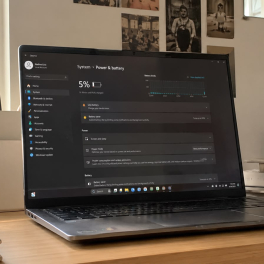
Running out of battery in the middle of work is frustrating, especially when you don’t have access to a charger.... selengkapnya

Grosir komputer bergaransi menyediakan berbagai peranti dan komponen PC dengan harga terjangkau, lengkap, dan berkualitas tinggi. Pengguna di era digital... selengkapnya
Hardisk eksternal case merupakan salah satu aksesoris komputer terutama untuk hardisk eksternal. Banyak orang mungkin masih mengabaikan aksesoris ini, padahal... selengkapnya

Printer thermal atau printer mini sekarang bukan merupakan barang yang asing bagi banyak orang, dengan alat ini, anda bisa mencetak... selengkapnya
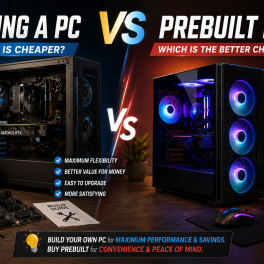
Having a high-performance desktop computer for work, video editing, or gaming is a goal for many tech enthusiasts. However, when... selengkapnya
Access Point WiFi memiliki peranan penting dalam memastikan koneksi internet agar stabil serta lancar. Pasalnya perangkat keras ini seringkali digunakan... selengkapnya
Have you noticed your laptop screen becoming increasingly heavy to lift, or heard an uncomfortable creaking noise near the bottom... selengkapnya

BNC Connector memiliki banyak jenisnya. Konektor adalah sebuah alat yang berguna untuk menghubungkan sebuah perangkat dengan kabel. Penggunaan konektor ini... selengkapnya
Powering on your laptop as usual, only for the screen to display the manufacturer logo followed by Windows spinning loading... selengkapnya

24%
A. DESKRIPSI (DESCRIPTION) GCQ35 Quick Charger PD 65W (White) adalah charger berkualitas tinggi dari GENAI yang dirancang untuk memberikan pengalaman… selengkapnya
Rp 48.000 Rp 63.000
33%
AIPEL COMPUTER Kabel USB 3 in 1 adalah kabel multifungsi serbaguna yang dirancang untuk menjawab tantangan perangkat dengan berbagai port… selengkapnya
Rp 1.000 Rp 1.500
25%
A. DESKRIPSI (DESCRIPTION) DDR3 HYNIX 8 GB Longdimm 1600 MHz PC 12800 for PC Original adalah RAM pilihan tepat untuk… selengkapnya
Rp 345.000 Rp 460.000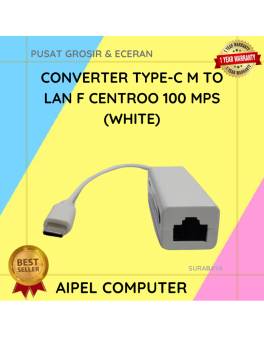
26%
A. DESKRIPSI (DESCRIPTION) Converter Type-C M to LAN F HOBOO 100 MPS (White) adalah converter jaringan yang memungkinkan Anda menghubungkan… selengkapnya
Rp 28.000 Rp 38.000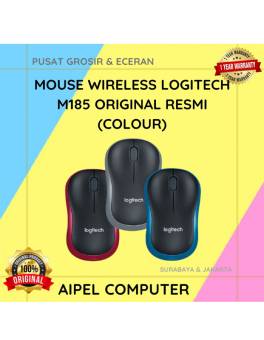
8%
AIPEL COMPUTER – Pusat Grosir dan Eceran – Belanja Hebat dan Hemat – Harga Murah Garansi Prima * GARANSI –… selengkapnya
Rp 138.500 Rp 150.000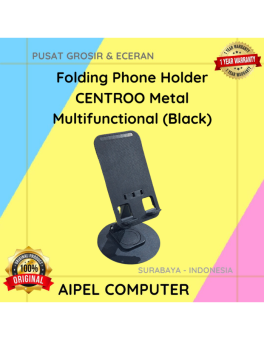
57%
A. DESKRIPSI (DESCRIPTION) Folding Phone Holder Metal Multifunctional (Black) adalah dudukan ponsel berbahan metal dengan desain multifungsi dan kokoh. 📱… selengkapnya
Rp 10.000 Rp 23.000
23%
A. DESKRIPSI (DESCRIPTION) Refill Ink EPSON 057 Cyan Original 100 % adalah tinta isi ulang warna biru terang dari EPSON… selengkapnya
Rp 198.000 Rp 257.000
15%
A. DESKRIPSI (DESCRIPTION) Headphone Wireless GENAI OPENBLUE 30 Air Conduction adalah headphone revolusioner dengan teknologi air conduction yang menghadirkan audio… selengkapnya
Rp 88.000 Rp 103.000
27%
A. DESKRIPSI (DESCRIPTION) Mouse Wireless JERTECH JR-12 CAMILLE adalah pilihan terbaik bagi Anda yang mencari perangkat navigasi modern, nyaman, dan… selengkapnya
Rp 36.500 Rp 50.000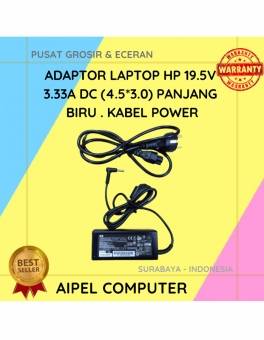
19%
A. DESKRIPSI (DESCRIPTION) Adaptor Laptop HP 19.5V 3.33A DC (4.5*3.0) Panjang Biru Kabel Power adalah perangkat pengisian daya yang dirancang… selengkapnya
Rp 65.000 Rp 80.000



Saat ini belum tersedia komentar.