- Orderan dibawah 500.00 via Goshop / Offline / Marketplace
Laptop Keyboard Backlight Not Working? Causes and Fixes
Have you ever been working in a dimly lit room or late at night, only to find that the backlight underneath your laptop keys is completely dark and refuses to turn on no matter how many times you press the hotkeys?
A dark keyboard backlight might seem like a minor annoyance, but it severely disrupts typing comfort in low-light environments. However, much like troubleshooting key input issues on laptop spacebar or enter key sticking causes fixes, a non-working keyboard backlight is rarely caused by burned-out LED bulbs. It is usually triggered by power-saving restrictions, locked hotkey functions, or crashed vendor control utilities.
Featured Snippet (Quick Answer):
Primary causes of a laptop keyboard backlight not working include brightness levels set to zero, active Battery Saver modes, crashed ATK Package / System Control Interface drivers, or an unseated internal backlight ribbon cable.
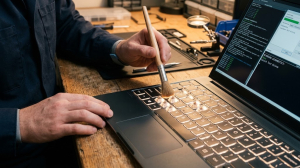
Checklist: Evaluating Keyboard Backlight Issues
Check the boxes below if these backlight symptoms match your current situation:
-
[ ] Backlight turns on briefly during system startup, then turns off immediately upon entering Windows.
-
[ ] Hotkey combinations (such as Fn + F3/F4, Fn + Spacebar, or Fn + F7) fail to display lighting OSD overlays on screen.
-
[ ] Keyboard backlight turns off only when running on battery power without AC charging.
-
[ ] All keyboard keys register input normally, but lighting beneath the keys remains entirely dark.
-
[ ] Backlight stopped working immediately following a recent Windows update or OS reinstallation.
Practical Recommendation: Do not assume your keyboard LEDs are burned out. Inspect your keyboard layout for a key icon depicting a glowing keyboard (commonly on F3/F4, F7, or Spacebar keys). Press that key repeatedly while holding the Fn key to increase brightness levels.
Comparison Table: Backlight Causes and Recommended Actions
| Backlight Symptom | Underlying Cause | Device Damage Risk | Recommended Action |
|---|---|---|---|
| Dark in OS but Lights Up on Boot | Corrupted System Control / ATK driver | Software driver glitch | Reinstall vendor management utility |
| Dark Only on Battery Power | Active Power Saving / Battery Saver mode | Power policy restricts LED draw | Turn off Battery Saver / adjust timeout |
| Unresponsive to Fn Hotkeys | Disabled Hotkey / Action Keys Mode | Fn key combos unread | Enable Action Keys in BIOS / Control App |
| Permanently Dark + Stuck Keys | Loose or damaged backlight ribbon cable | Internal power trace hardware damage | Clean ribbon cable socket / replace keyboard |
4 Ways to Fix a Laptop Keyboard Backlight Not Working
-
Use Proper Keyboard Hotkey Combinations. Press the designated backlight brightness combination for your laptop brand:
-
ASUS: Press
Fn + F7orFn + F3/F4(or Up Arrow). -
Lenovo: Press
Fn + Spacebar. -
HP: Press
F5,F9,F11, orFn + F5. -
Dell: Press
F10,F6, orFn + Right Arrow. -
Acer: Press
Fn + F9orFn + Page Up.
-
-
Adjust Lighting Settings in Vendor Control Apps. Open your laptop’s proprietary management app (such as Armoury Crate / MyASUS, Lenovo Vantage, HP OMEN Gaming Hub, or Dell Power Manager). Navigate to Keyboard Lighting or Backlight, and ensure the light mode is toggled ON or Static at maximum brightness.
-
Run Windows Keyboard Troubleshooter & Reinstall Drivers. Go to Settings > System > Troubleshoot > Other troubleshooters > click Run next to Keyboard. If unresolved, open Device Manager > expand Keyboards > right-click Standard PS/2 Keyboard > select Uninstall device, then restart your laptop.
-
Update / Reinstall System Control Interface & ATK Package. On laptops like ASUS or Lenovo, Fn key lighting functions rely on system drivers. Visit your manufacturer’s official support website, then download and reinstall the ASUS System Control Interface, Lenovo System Interface Foundation, or ATK Package driver.
When to Seek Professional Repair Services
If you have reinstalled system drivers and reset BIOS settings yet the backlight remains dark (even during initial boot startup before Windows loads), the internal backlight ribbon cable connected to the motherboard is likely unseated, dirty, or damaged.
This condition requires cleaning the internal ribbon cable socket or replacing the keyboard assembly by a qualified repair technician to restore bright key illumination.
FAQ (Frequently Asked Questions)
Do all laptop models have a backlit keyboard?
No. Backlit keyboards are typically featured on mid-to-high-end laptops, gaming series, or business models. If there is no keyboard lighting icon printed on the F1-F12 keys or Spacebar, your laptop model lacks hardware backlight support.
Why does my laptop keyboard backlight turn off automatically after a few seconds?
This is an automatic Backlight Timeout feature engineered to conserve battery life. You can change or disable the timeout delay to Never within your laptop manufacturer’s control app.
Conclusion
A laptop keyboard backlight that is not working is usually caused by zeroed brightness settings, active battery saver restrictions, or crashed Fn key utility drivers. By activating hotkey combinations and reinstalling system control drivers, your keyboard lighting can be restored smoothly.
Shop OEM Keyboards, Accessories & Repairs at Aipel Computer
Looking for genuine replacement backlit laptop keyboards, internal ribbon cable repairs, or warranty-backed computer accessories? Find trusted hardware replacement parts and expert repair services directly at Aipel Computer.
For replacement keyboards, spare parts inquiries, or technical repair consultations, visit the official Aipel Computer website today.
Tags: fix keyboard backlight turns off, how to turn on laptop keyboard light, laptop keyboard backlight not working, replace laptop keyboard surabaya

Laptop Keyboard Backlight Not Working? Causes and Fixes

Mungkin sebagian pengguna mengalami masalah saat menginstal aplikasi di komputer, yang bisa sangat merugikan, terutama jika aplikasi tersebut sangat dibutuhkan.... selengkapnya

Spesifikasi dan harga komputer kantor terbaik masih ramai diburu. Meski harga lebih mahal, tapi kinerja komputer jauh lebih baik untuk... selengkapnya
Sedang asyik mengetik laporan atau tugas, lalu mendadak tombol Spasi (Spacebar) atau Enter terasa keras saat ditekan, tenggelam tidak mau... selengkapnya
Pernahkah kamu hendak bergabung ke dalam rapat Zoom, Google Meet, atau panggilan video penting, tetapi saat kamera dinyalakan layarnya justru... selengkapnya

CPU komputer yang cepat panas merupakan masalah serius dan harus pengguna waspadai. Bagaimana tidak, kondisi panas pada CPU yang berlebihan... selengkapnya

Menjaga kinerja laptop tetap optimal penting untuk agar pengalaman pengguna tetap lancar. Cache adalah kumpulan data sementara yang digunakan untuk... selengkapnya

Laptop menjadi perangkat yang penting untuk beberapa orang untuk menunjang aktivitas sehari-hari, baik untuk belajar, bekerja, maupun hiburan. Namun, terkadang... selengkapnya

Peran komputer dalam dunia modern sangatlah besar. Hampir semua aktivitas saat ini sangat bergantung pada teknologi ini. Berkembangnya inovasi telah... selengkapnya

Driver Epson L121 menarik untuk kita ulas! Berbicara perihal spesifikasi printer yang irit dan berkualitas namun tetap terjangkau, maka Epson... selengkapnya
Cara mengatasi blue screen Windows 10 mungkin cukup membingungkan. Hal itu karena tidak semua orang memahami komputer dengan baik. Dengan... selengkapnya
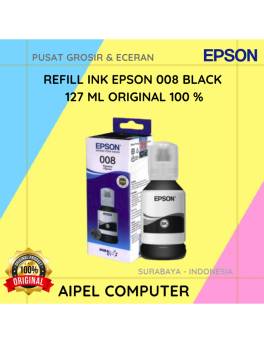
4%
A. DESKRIPSI (DESCRIPTION) Refill Ink EPSON 008 Black 127 ML Original adalah tinta hitam berkualitas tinggi yang diformulasikan secara khusus… selengkapnya
Rp 275.000 Rp 285.000
25%
A. DESKRIPSI (DESCRIPTION) Led Protector CENTROO 14″ adalah pelindung layar transparan yang dirancang khusus untuk layar komputer atau monitor berukuran… selengkapnya
Rp 7.500 Rp 10.000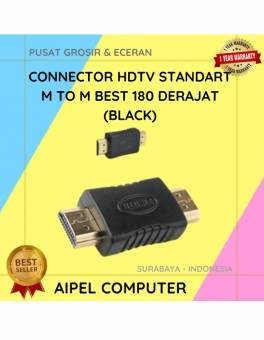
43%
A. DESKRIPSI (DESCRIPTION) Connector HDTV Standard Male to Male 180° adalah solusi ideal untuk koneksi perangkat visual Anda seperti TV,… selengkapnya
Rp 4.000 Rp 7.000
30%
A. DESKRIPSI (DESCRIPTION) Connector Type-C M to USB 3.0 F – OTG Type-C hadir dengan desain modern dan pilihan warna… selengkapnya
Rp 3.500 Rp 5.000
40%
A. DESKRIPSI (DESCRIPTION) Keyboard Protector 11″ adalah pelindung keyboard transparan yang dirancang khusus untuk melindungi keyboard berukuran 11 inci dari… selengkapnya
Rp 3.000 Rp 5.000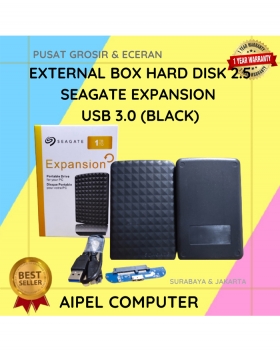
27%
A. DESKRIPSI (DESCRIPTION) External Box Hard Disk 2.5 SEAGATE Expansion USB 3.0 adalah perangkat penyimpanan eksternal yang elegan dan handal… selengkapnya
Rp 55.000 Rp 75.000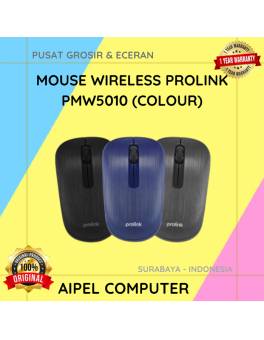
33%
A. DESKRIPSI (DESCRIPTION) Mouse Wireless PROLINK PMW5010 adalah mouse nirkabel modern dengan teknologi canggih yang siap mendukung produktivitas Anda. 💼… selengkapnya
Rp 50.000 Rp 75.000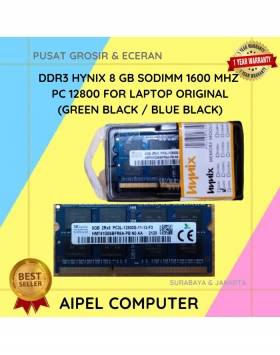
25%
A. DESKRIPSI (DESCRIPTION) DDR3 HYNIX 8 GB Sodimm 1600 MHz PC 12800 for Laptop Original adalah pilihan tepat untuk Anda… selengkapnya
Rp 345.000 Rp 460.000
22%
A. DESKRIPSI (DESCRIPTION) GENAI ZC045 Charger Type-C Fast Charger PD adalah charger bertipe ZC045 dengan 1 port Type-C dan dukungan… selengkapnya
Rp 51.000 Rp 65.000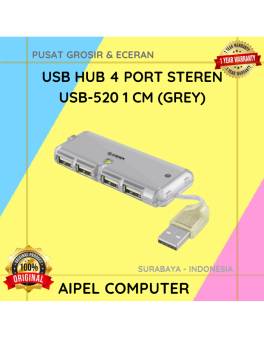
37%
A. DESKRIPSI (DESCRIPTION) USB Hub 4 Port STEREN USB-520 1 CM (Grey) adalah perangkat pendukung konektivitas yang mampu mengubah satu… selengkapnya
Rp 12.000 Rp 19.000



Saat ini belum tersedia komentar.