- Orderan dibawah 500.00 via Goshop / Offline / Marketplace
Laptop SSD Overheating and Freezing? Causes and Fixes
Have you noticed your laptop lagging severely, internal fans spinning loudly, or system applications freezing for several seconds whenever you transfer large files or render videos? Does the bottom chassis near the SSD slot feel uncomfortably hot to the touch?
An M.2 NVMe SSD running scalding hot (overheating) is an extremely common issue affecting modern high-speed laptops. However, much like troubleshooting speed degradation in laptop ssd slow read only mode causes fixes, an SSD exceeding safe operating temperatures (above 70°C) automatically engages thermal throttling—drastically cutting data transfer rates to shed heat and prevent permanent physical damage to memory chips.
Featured Snippet (Quick Answer):
Primary causes of a laptop SSD overheating and freezing include missing thermal pads / heatsinks on the M.2 module, clogged cooling ventilation, bugged controller firmware, or placing the M.2 slot too close to hot CPU/GPU heatpipes.
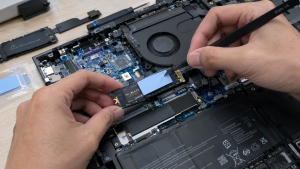
Checklist: Evaluating Laptop SSD Temperature Status
Check the boxes below if these overheating symptoms match your current situation:
-
[ ] Temperature monitoring tools (like HWMonitor or CrystalDiskInfo) display SSD temperatures above 70°C – 80°C.
-
[ ] Laptop freezes or triggers Blue Screen of Death (BSOD) crashes when copying multi-gigabyte files.
-
[ ] Transfer speeds start fast (e.g., 3000 MB/s) then plummet abruptly down to a few megabytes per second.
-
[ ] Laptop underside near the touchpad or exhaust vents feels scorching hot to the touch.
-
[ ] SSD drive health percentage drops rapidly over a short period of use.
Practical Recommendation: Avoid forcibly peeling off the original brand sticker attached to your M.2 NVMe SSD! On many modern SSDs, that sticker incorporates a thin layer of copper or graphene (graphene heat spreader) engineered to distribute heat across the module.
Comparison Table: SSD Overheating Causes and Recommended Actions
| SSD Heat Symptom | Underlying Cause | Device Damage Risk | Recommended Action |
|---|---|---|---|
| Temp >70°C + Speed Drop | Missing thermal pad / heatsink | Severe thermal throttling & lag | Install 1mm-1.5mm silicone thermal pad |
| Freezes During Large Copy | Clogged laptop fan / blocked vents | Data corruption & drive crash | Clean fan dust & clear heatsink fins |
| Scalding Hot at Idle | Malware / controller firmware bug | Rapid write endurance (TBW) degradation | Scan malware & update firmware via vendor app |
| Power State BSOD Crashes | Interrupted PCIe Power Management | OS boot failure | Disable Link State Power Management in Windows |
4 Ways to Fix an Overheating and Freezing Laptop SSD
-
Install Silicone Thermal Pads & M.2 Copper Heat Spreaders. Remove your laptop’s bottom cover and place a quality silicone thermal pad (1mm or 1.5mm thickness) directly over the NAND Flash and controller chips. The thermal pad transfers excess heat from the SSD directly to the bottom casing for passive dissipation.
-
Disable Link State Power Management in Windows. Open Control Panel > Power Options > click Change plan settings > Change advanced power settings. Expand PCI Express > Link State Power Management > change settings to Off for both On battery and Plugged in.
-
Use a Laptop Stand or Cooling Pad for Heavy Workloads. Never operate your laptop on beds, blankets, or pillows that block lower intake vents. Use a raised laptop stand to increase clearance under the chassis, allowing fresh air to flow freely.
-
Update SSD Firmware via Vendor Utility. Download official management software from your SSD manufacturer (such as Samsung Magician, Crucial Storage Executive, or Kingston SSD Manager). Check for firmware updates that optimize thermal throttling and power consumption.
When to Seek Professional Repair Services
If you have installed thermal pads and cleaned out cooling vents, yet your SSD continues to burn above 80°C even while idling without open apps, the controller chip on the SSD PCB likely has internal power trace damage (minor short circuit).
This condition requires inspecting motherboard M.2 power rail voltages or replacing the SSD with a new original unit by a qualified repair technician to protect other laptop components from excessive heat exposure.
FAQ (Frequently Asked Questions)
What is the normal operating temperature for a laptop M.2 NVMe SSD?
Ideal idle temperatures range between 35°C and 50°C. Under heavy workloads (gaming or rendering), maximum safe operating temperatures should not exceed 70°C.
Can any thick desktop M.2 heatsink fit inside a laptop?
No. Internal space inside laptop chassis is extremely restricted. Avoid thick multi-tiered aluminum desktop heatsinks. Use thin silicone thermal pads or 1mm–2mm copper sheets to prevent warping the bottom casing.
Conclusion
An overheating and freezing laptop SSD is usually caused by missing thermal dissipation pads, dust-clogged cooling vents, or misconfigured PCIe power settings. Keeping your SSD cool restores high-speed performance and extends drive longevity.
Shop OEM Thermal Pads, SSDs & Repairs at Aipel Computer
Looking for precision silicone thermal pads, genuine high-speed M.2 NVMe SSD upgrades with warranty, or professional motherboard repairs? Find trusted replacement parts and expert repair services directly at Aipel Computer.
Tags: fix nvme ssd running hot, laptop ssd overheating thermal throttling freeze, laptop ssd upgrade surabaya, ssd speed drop 0 kbps fix

Laptop SSD Overheating and Freezing? Causes and Fixes

Komputer Anda tak akan lengkap dengan aksesoris. Meskipun bukan merupakan hal yang wajib namun dalam kenyataannya terdapat fungsi dari komputer... selengkapnya
Hampir semua orang mungkin sudah pernah melihat atau menggunakan kertas thermal dalam beberapa waktu atau bahkan setiap hari. Kertas ini... selengkapnya
Motherboard merupakan salah satu komponen terpenting dalam komputer dan laptop. Saking pentingnya, motherboard yang mengalami kerusakan akan menyebabkan masalah fatal... selengkapnya
Kipas laptop berisik merupakan kerusakan yang wajib diketahui. Sebab, hal ini akan sangat mengganggu pemilik dan orang lain di sekitarnya.... selengkapnya
Komputer lengkap murah generasi pertama dibuat pada tahun 1937 ditemukan oleh Charles Babbage. Ketika itu Ia bisa menciptakan sebuah mesin... selengkapnya

Grosir komputer bergaransi menyediakan berbagai peranti dan komponen PC dengan harga terjangkau, lengkap, dan berkualitas tinggi. Pengguna di era digital... selengkapnya

Dalam era modern yang semakin canggih saat ini hampir semua kegiatan tidak dapat jauh dari komputer. Salah satu aksesoris komputer... selengkapnya

Memilih keyboard komputer yang tepat merupakan langkah penting dalam mendukung produktivitas saat bekerja atau menyelesaikan tugas. Terutama ketika menggunakan komputer... selengkapnya
Motherboard adalah sebuah komponen utama dalam komputer, telah ada sejak era 1970-an. Pada awalnya, desain motherboard tidak sekompleks seperti sekarang... selengkapnya
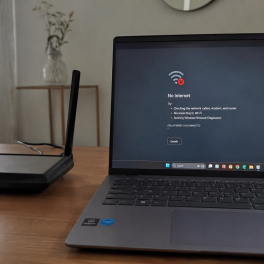
Menghadapi koneksi internet yang mendadak melambat saat sedang asyik menonton streaming atau mengejar tenggat waktu tugas tentu sangat menguji kesabaran.... selengkapnya

3%
A. DESKRIPSI (DESCRIPTION) Refill Ink EPSON T6736 Light Magenta Original 100 % adalah tinta yang dirancang untuk menciptakan gradasi warna… selengkapnya
Rp 136.000 Rp 140.000
23%
AIPEL COMPUTER – Pusat Grosir dan Eceran – Belanja Hebat dan Hemat – Harga Murah Garansi Prima * GARANSI –… selengkapnya
Rp 23.000 Rp 30.000
5%
A. DESKRIPSI (DESCRIPTION) Catridge HP 680 Black Original 100% adalah solusi cetak berkualitas tinggi yang dirancang untuk memberikan hasil maksimal… selengkapnya
Rp 147.000 Rp 155.000
18%
A. DESKRIPSI (DESCRIPTION) Adaptor Laptop ACER 19V 4.74A DC (5.5 X 1.7) adalah solusi ideal untuk mengisi daya laptop ACER… selengkapnya
Rp 70.000 Rp 85.000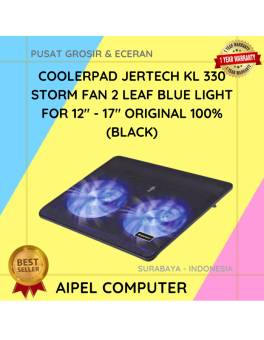
9%
A. DESKRIPSI (DESCRIPTION) Cooler Pad JERTECH KL 330 STORM Black adalah solusi cooling stylish dengan dua kipas dan lampu biru…. selengkapnya
Rp 86.020 Rp 95.000
26%
A. DESKRIPSI (DESCRIPTION) GENAI GM-T07 adalah earphone dengan koneksi Type-C yang dirancang untuk pengguna modern yang mengutamakan kualitas audio dan… selengkapnya
Rp 42.000 Rp 57.000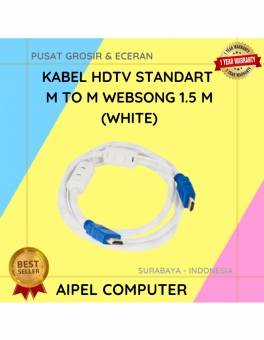
24%
A. DESKRIPSI (DESCRIPTION) Kabel HDTV Standart WEBSONG 1.5 M (White) hadir sebagai solusi tepat bagi Anda yang menginginkan kualitas tampilan… selengkapnya
Rp 28.000 Rp 37.000
21%
A. DESKRIPSI (DESCRIPTION) Earphone Wireless GENAI GB-T01 Earbuds adalah pilihan modern bagi Anda yang menginginkan kualitas audio tinggi dengan desain… selengkapnya
Rp 58.000 Rp 73.000
15%
AIPEL COMPUTER – Pusat Grosir dan Eceran – Belanja Hebat dan Hemat – Harga Murah Garansi Prima * GARANSI –… selengkapnya
Rp 81.000 Rp 95.000
32%
GARANSI * AIPEL COMPUTER – Pusat Grosir & Eceran – Belanja Hebat & Hemat – Grosir Konsep Swalayan – Harga… selengkapnya
Rp 17.000 Rp 25.000



Saat ini belum tersedia komentar.