- Orderan dibawah 500.00 via Goshop / Offline / Marketplace
Laptop Bluetooth Not Connecting or Missing? Here is How to Fix It
Trying to connect your TWS, wireless headset, Bluetooth mouse, or transfer files from your phone to your laptop, only to find the Bluetooth icon suddenly missing from the taskbar? Or perhaps your device is detected, but you constantly get a “Connection Failed” error when attempting to pair?
A laptop Bluetooth that won’t connect or completely disappears from the operating system is a frustrating daily tech issue. Many users immediately suspect that the internal Bluetooth module on their motherboard has suffered hardware damage. However, in most cases, this glitch is simply triggered by a crashed driver after a Windows update, a stopped Bluetooth Support Service, or accumulated wireless connection cache. Just as when troubleshooting laptop sound not working, you can perform a few quick DIY fixes right at home.
Featured Snippet (Quick Answer):
The fastest way to fix a missing or non-connecting laptop Bluetooth is by running the built-in Windows Bluetooth Troubleshooter, restarting the Bluetooth Support Service via Services (
services.msc), or reinstalling the Bluetooth driver in Device Manager.
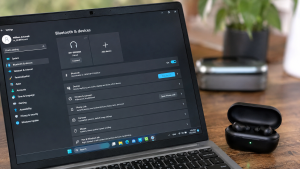
Checklist: Why Is Your Laptop Bluetooth Not Connecting?
Check the boxes below if any of these symptoms match your laptop’s current condition:
-
[ ] The Bluetooth On/Off toggle button is missing from the Windows Action Center (Quick Settings).
-
[ ] The Bluetooth icon has completely disappeared from Device Manager or appears under Unknown Devices.
-
[ ] Your Bluetooth device (headset/mouse) shows as “Paired”, but refuses to connect (Not Connected).
-
[ ] The laptop continuously displays a searching animation without finding nearby wireless devices.
-
[ ] An error message stating “Bluetooth is not available on this device” appears when opening Settings.
Practical Recommendation: If you are using audio devices like Bluetooth earphones or speakers and no sound plays after connecting, make sure you have changed the Default Audio Output in Windows to your Bluetooth device rather than the laptop’s internal speakers.
Comparison Table: Laptop Bluetooth Error Causes
To help map out the root cause of your wireless connectivity issue, here is a quick comparison based on system symptoms:
| Bluetooth Symptom | Likely Cause | Primary Fix | Real Device Impact |
|---|---|---|---|
| Bluetooth Icon & Toggle Missing | Bluetooth Support Service stopped | Restart Service & set to Automatic | Toggle button & feature restored |
| “Paired” status but won’t connect | Corrupted connection cache | Remove Device and re-pair | Connection becomes stable and smooth |
| Yellow exclamation mark in Device Manager | Corrupted or outdated driver | Reinstall driver via Device Manager | Bluetooth module recognized again |
| Not detected by the OS at all | Damaged hardware module | Use an external USB Bluetooth Adapter | Laptop connects to Bluetooth again |
4 Ways to Fix Laptop Bluetooth Not Connecting or Missing
Try these step-by-step DIY recovery methods before deciding to buy a new USB dongle:
-
Re-enable the Bluetooth Support Service. Press
Win + R, typeservices.msc, and hit Enter. Locate Bluetooth Support Service, right-click it, and select Properties. Change the Startup type to Automatic. If the status shows Stopped, click Start, then click Apply and OK. -
Reinstall Bluetooth Driver via Device Manager. Right-click the Start button and open Device Manager. Expand the Bluetooth category, right-click your main Bluetooth adapter (e.g., Intel Wireless Bluetooth or Realtek Bluetooth Adapter), and select Uninstall device. Once completed, restart your laptop. Windows will automatically reinstall a clean default driver.
-
Run Windows Bluetooth Troubleshooter. Go to Settings (
Win + I) > Update & Security (or System in Windows 11) > Troubleshoot > Other troubleshooters. Find Bluetooth and click Run the troubleshooter to let Windows automatically detect and resolve system issues. -
Remove Device and Re-pair. If the issue occurs with one specific peripheral, open Settings > Devices > Bluetooth & other devices. Select the problematic device, click Remove device, turn Bluetooth off and on again on both devices, and restart the pairing process.
When Should You Use an External USB Bluetooth Adapter?
If all software solutions fail and the Bluetooth option remains missing, your laptop’s internal Bluetooth module (which in most modern laptops is integrated into a single chip with the Wi-Fi card) may have suffered hardware failure.
The most practical, fast, and cost-effective workaround without opening your laptop casing is using an external USB Bluetooth Adapter (Dongle). Simply plug this compact adapter into an open USB port, and your Bluetooth functionality will be restored instantly via plug-and-play.
FAQ (Frequently Asked Questions)
Why does Bluetooth suddenly disappear in Windows 10 / Windows 11?
This is most commonly caused by incomplete Windows Updates, which can lead to corrupted registry entries or driver conflicts with the old Bluetooth software.
Are USB Bluetooth Adapters compatible with all Windows versions?
Generally, modern USB Bluetooth Adapters feature plug-and-play functionality for Windows 10 and Windows 11 without requiring manual driver installations.
Why is the audio lagging or stuttering on my Bluetooth headset?
Audio stuttering is usually caused by 2.4 GHz Wi-Fi frequency interference, physical obstacles between the laptop and headset, or a low battery level on the audio device itself.
Conclusion
Most instances of a laptop Bluetooth missing or failing to connect stem from corrupted drivers, halted system background services, or old connection cache conflicts. By restarting the Bluetooth Support Service or reinstalling the driver in Device Manager, your laptop’s wireless capability can usually be restored quickly.
Shop USB Bluetooth Adapters, Accessories & Hardware at Aipel Computer
Looking for genuine USB Bluetooth Adapters, wireless headsets, Bluetooth mice, Wi-Fi card replacements, or other computer components? Explore our wide selection of laptop accessories and hardware at competitive wholesale prices directly in our store.
To check our hardware catalog, spare part stock availability, or store location details, visit the official Aipel Computer website today!
Tags: bluetooth driver windows 10, how to enable bluetooth on laptop, laptop bluetooth missing, laptop bluetooth not connecting, usb bluetooth adapter surabaya

Laptop Bluetooth Not Connecting or Missing? Here is How to Fix It
It is completely normal for a portable device to lose its efficiency over time. However, many users fail to recognize... selengkapnya
Komputer merupakan sebuah peralatan yang memiliki banyak manfaat. Kini banyak pekerjaan yang dikerjakan menggunakan sebuah komputer. Terutama pekerjaan yang berkaitan... selengkapnya
Berikut adalah cara membersihkan keyboard komputer yang aman dan mudah dilakukan sendiri di rumah. Anda hanya memerlukan alat dan bahan... selengkapnya

Have you ever felt your laptop body turning uncomfortably hot like an iron, heard its cooling fans spinning at deafening... selengkapnya
Sedang asyik mengetik dokumen, mengedit gambar, atau browsing di laptop, tiba tiba kursor panah mouse bergerak melayang sendiri ke sudut... selengkapnya
Ketika hendak membeli monitor LG penting untuk memilih monitor yang paling tepat dan sesuai dengan kebutuhan sehingga pengguna tidak akan... selengkapnya
Pernahkah kamu menyadari bahwa laptop yang sudah menggunakan SSD mendadak terasa sangat lambat saat membuka aplikasi, proses transfer file sering... selengkapnya
Menghadapi masalah aplikasi not responding pada laptop bisa sangat mengganggu produktivitas Anda. Masalah ini sering kali muncul saat Anda sedang... selengkapnya
Mouse menjadi salah satu komponen penting untuk mempermudah kita menggunakan perangkat komputer. Penting diketahui, mouse pertama kali dirancang oleh Douglas... selengkapnya
Kipas laptop berisik merupakan kerusakan yang wajib diketahui. Sebab, hal ini akan sangat mengganggu pemilik dan orang lain di sekitarnya.... selengkapnya
33%
A. DESKRIPSI (DESCRIPTION) Flash Disk TOSHIBA 8 GB USB 2.0 (White) adalah perangkat penyimpanan portabel yang ringkas, praktis, dan cocok… selengkapnya
Rp 20.000 Rp 30.000
24%
A. DESKRIPSI (DESCRIPTION) USB HUB 7 Port 7 Switch CENTROO adalah perangkat multifungsi untuk memperluas konektivitas USB di komputer atau… selengkapnya
Rp 25.000 Rp 33.000
14%
A. DESKRIPSI (DESCRIPTION) Splitter VGA CENTROO 1-4 adalah perangkat praktis untuk membagi satu sinyal VGA ke empat tampilan sekaligus. 📊… selengkapnya
Rp 60.000 Rp 70.000
24%
AIPEL COMPUTER – Pusat Grosir dan Eceran – Belanja Hebat dan Hemat – Harga Murah Garansi Prima * GARANSI –… selengkapnya
Rp 47.000 Rp 62.000
20%
A. DESKRIPSI (DESCRIPTION) Refill Ink EPSON 008 Cyan 70 ML Original adalah tinta isi ulang berkualitas tinggi yang dirancang khusus… selengkapnya
Rp 225.000 Rp 280.000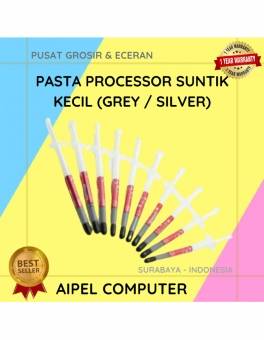
60%
A. DESKRIPSI (DESCRIPTION) Pasta Processor Suntik Kecil / Silicon Grease Small Injection (Grey / Silver) adalah solusi ideal untuk kebutuhan… selengkapnya
Rp 2.000 Rp 5.000
25%
A. DESKRIPSI (DESCRIPTION) GENAI GM-T10 adalah solusi audio modern dengan port Type-C, menyuguhkan pengalaman mendengarkan yang jernih dan memuaskan. 🎵… selengkapnya
Rp 51.000 Rp 68.000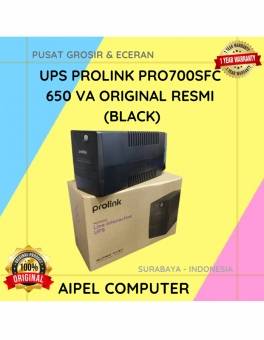
26%
A. DESKRIPSI (DESCRIPTION) PROLINK PRO700SFC 650 VA Original adalah UPS pintar yang siap menjaga perangkat elektronik Anda tetap aman dan… selengkapnya
Rp 670.000 Rp 905.000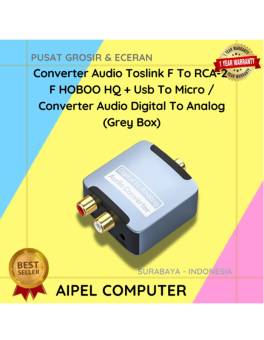
11%
AIPEL COMPUTER – Pusat Grosir dan Eceran – Belanja Hebat dan Hemat – Harga Murah Garansi Prima * GARANSI –… selengkapnya
Rp 85.000 Rp 95.000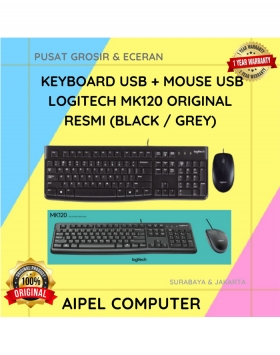
4%
A. DESKRIPSI (DESCRIPTION) Keyboard + Mouse LOGITECH MK120 adalah pilihan terbaik untuk pengguna yang membutuhkan kombinasi perangkat input yang solid… selengkapnya
Rp 163.500 Rp 170.000



Saat ini belum tersedia komentar.