- Orderan dibawah 500.00 via Goshop / Offline / Marketplace
Bluetooth Mouse Not Connecting? Causes and 4 Easy Fixes
Turning on your wireless Bluetooth mouse only to find the screen cursor completely frozen is a common headache. Checking your Windows Bluetooth menu reveals your device status stuck on “Connecting…” without establishing a link, or throwing a red “Driver error” notification.
A Bluetooth mouse struggling to connect or frequently disconnecting on its own is rarely caused by a broken optical sensor; it usually stems from power management settings and corrupted hardware pairing caches. The most frequent triggers are Windows Power Management turning off internal Bluetooth adapters during idle periods, low AA/AAA battery voltage, or corrupted connection profiles. Much like diagnosing laptop bluetooth not connecting or missing how to fix to restore wireless performance, you can resolve these connection issues yourself in a few quick steps.
Featured Snippet (Quick Answer):
To fix a Bluetooth mouse that is not connecting or keeps disconnecting, remove the device profile in Windows Settings and re-pair it, disable power saving for the Bluetooth adapter in Device Manager, replace depleted AA/AAA batteries, and restart the Bluetooth Support Service.
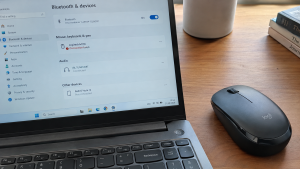
Checklist: Diagnosing Bluetooth Mouse Connection Failures
Check the boxes below if these physical symptoms describe your mouse:
-
[ ] The LED optical sensor underneath flashes rapidly (indicating active pairing mode).
-
[ ] The mouse name appears in Windows Bluetooth Settings but fails when clicking Connect.
-
[ ] The cursor stutters or delays for several seconds after leaving the laptop idle.
-
[ ] The Bluetooth mouse connects smoothly when tested on a phone or another laptop.
-
[ ] Connection issues started immediately after Windows installed system updates.
Practical Recommendation: Avoid disassembling your mouse. Remove the saved device profile in Windows Bluetooth Settings and put your mouse back into pairing mode to re-establish a fresh link.
Comparison Table: Causes of Bluetooth Mouse Connection Failures and Fixes
Here is an overview of why Bluetooth mice fail to connect and recommended troubleshooting actions:
|
4 Ways to Fix a Bluetooth Mouse Not Connecting
Follow these troubleshooting steps in order:
-
Remove and Re-Pair the Device. Open Settings (
Win + I) > Bluetooth & devices > Devices. Locate your problematic Bluetooth mouse, click the three-dots icon beside it, and select Remove device. Toggle your mouse power switch off and on, hold down the pairing button underneath until the LED flashes rapidly, then click Add device in Windows to re-pair. -
Disable Bluetooth Power Saving in Device Manager. Search for and open Device Manager. Expand the Bluetooth category, right-click your laptop’s main Bluetooth adapter (e.g., Intel Wireless Bluetooth or Realtek Adapter), and choose Properties. Switch to the Power Management tab, uncheck Allow the computer to turn off this device to save power, and click OK.
-
Restart the Bluetooth Support Service. Press
Win + R, typeservices.msc, and press Enter. Locate Bluetooth Support Service. Right-click and choose Restart. Double-click the service entry, change the Startup type dropdown from Manual to Automatic, and click Apply. -
Replace Mouse Batteries and Clean the Optical Lens. Most Bluetooth mice require stable voltage. AA or AAA batteries drained down to 20% can still light up sensor LEDs, but lack the power to maintain stable Bluetooth radio transmissions to your laptop. Install fresh batteries and wipe the optical sensor lens clean with a dry cloth.
When to Seek Professional Laptop Hardware Service
If you have tried all troubleshooting steps and tested another Bluetooth mouse without success, while your laptop’s Wi-Fi connection also drops frequently, the internal wireless card (Wi-Fi & Bluetooth Combo Card) on your motherboard has suffered physical failure.
This requires installing a replacement internal Bluetooth card or using an External 2.4GHz USB Dongle Adapter as an instant workaround to keep your wireless mouse working smoothly.
FAQ (Frequently Asked Questions)
Which is more reliable: Bluetooth mice or 2.4GHz USB Dongle mice?
2.4GHz USB Dongle mice offer superior connection stability and zero input latency because they operate over dedicated USB hardware receivers. However, Bluetooth mice preserve your laptop’s USB ports.
Why does my Bluetooth mouse cursor stutter (lag)?
Stuttering typically results from 2.4GHz frequency interference if you run a 2.4GHz Wi-Fi network simultaneously alongside Bluetooth peripherals in close proximity.
Conclusion
A Bluetooth mouse failing to connect or dropping connection is usually caused by corrupted pairing profiles, active Windows power saving settings, or depleted batteries. By removing stale device profiles and disabling power saving in Device Manager, your Bluetooth mouse will reconnect smoothly and responsively.
Shop OEM Bluetooth Mice, Batteries & Service at Aipel Computer
Struggling with a broken Bluetooth mouse, looking for silent-click wireless mice, long-lasting batteries, or guaranteed USB Bluetooth Dongles? Find dependable computer peripherals at wholesale prices directly in our store.
To check product availability or get store directions, visit the official Aipel Computer website in Surabaya today.

Bluetooth Mouse Not Connecting? Causes and 4 Easy Fixes
Toko komputer adalah tempat yang paling tepat untuk mencari berbagai perlengkapan dan aksesoris komputer. Tidak hanya itu, mereka juga bisa... selengkapnya

Fan casing PC atau kipas casing adalah komponen vital dalam menjaga suhu komputer tetap optimal selama penggunaan. Terpasang di sisi... selengkapnya
Kabel laptop ke proyektor sangat dibutuhkan. Dengan kabel ini, laptop bisa terhubung ke proyektor dengan layar yang lebih besar. Biasanya,... selengkapnya
Sudah banyak tersedia di toko atau grosir komputer, WiFi repeater ternyata punya peran penting sekarang ini. Bekerja atau mengoperasikan komputer,... selengkapnya

Kendala koneksi internet membuat sebagian besar masyarakat beralih menggunakan router wireless. Adapun salah satu merek router wireless yang banyak diminati... selengkapnya

Dewasa ini, membeli perangkat, komponen, maupun hardware komputer sudah semakin mudah. Kamu hanya perlu datang ke toko komputer kemudian melakukan... selengkapnya

Genius komputer memiliki berbagai produk terbaik yang bisa menjadi pelengkap kebutuhan. Terdapat berbagai produk keluaran Genius seperti mouse dan keyboard.... selengkapnya
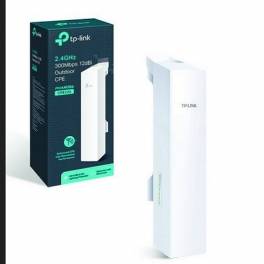
TPLINK CPE220 bisa menjadi pilihan untuk mendapatkan perangkat access point outdoor dengan harga yang cukup terjangkau dan berkualitas. Access point... selengkapnya

Harga komputer gaming tentunya akan tergantung dengan spesifikasi yang komputer tersebut miliki. Untuk para gamers, tentu saja membutuhkan komputer yang... selengkapnya

Meskipun sekarang sudah banyak laptop atau komputer portabel yang semakin canggih, namun penggunaan komputer konvensional atau biasa disebut dengan pc... selengkapnya
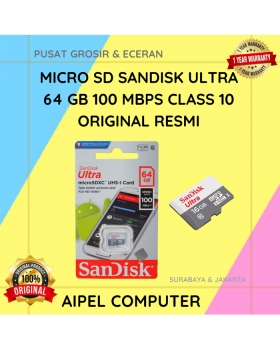
6%
A. DESKRIPSI (DESCRIPTION) Micro SD SANDISK Ultra 64 GB adalah kartu memori berkapasitas besar yang ideal untuk menyimpan foto, video,… selengkapnya
Rp 299.000 Rp 319.000
24%
A. DESKRIPSI (DESCRIPTION) Car Mount Holder GENAI GN-Z09 adalah solusi cerdas dan modern untuk Anda yang aktif di perjalanan namun… selengkapnya
Rp 48.000 Rp 63.000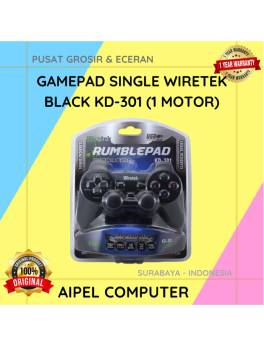
13%
AIPEL COMPUTER – Pusat Grosir dan Eceran – Belanja Hebat dan Hemat – Harga Murah Garansi Prima * GARANSI –… selengkapnya
Rp 39.000 Rp 45.000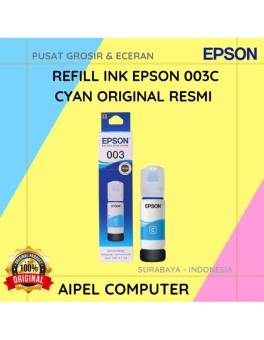
15%
A. DESKRIPSI (DESCRIPTION) Refill Ink EPSON 003 Cyan Original 100 % adalah tinta isi ulang berkualitas tinggi yang dirancang untuk… selengkapnya
Rp 85.000 Rp 100.000
26%
AIPEL COMPUTER Switch HDTV HOBOO 1-5 Manual 4K adalah alat pengalih sinyal berkualitas tinggi yang memungkinkan Anda menghubungkan lima perangkat… selengkapnya
Rp 78.000 Rp 105.000
25%
A. DESKRIPSI (DESCRIPTION) Bicycle Phone Holder GENAI GN-Z08 adalah pilihan tepat untuk Anda yang aktif bersepeda dan ingin tetap terhubung… selengkapnya
Rp 51.000 Rp 68.000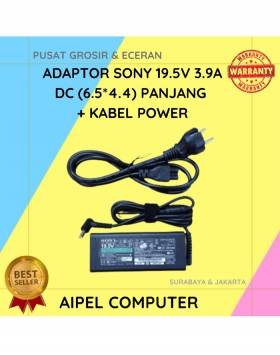
15%
A. DESKRIPSI (DESCRIPTION) Adaptor Laptop SONY 19.5V 3.9A DC (6.5*4.4) Panjang Kabel Power adalah solusi daya terbaik untuk memastikan laptop… selengkapnya
Rp 85.000 Rp 100.000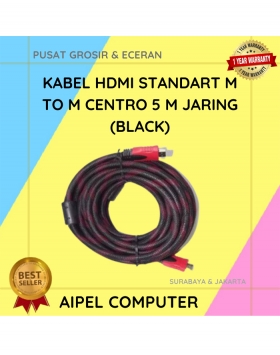
33%
A. DESKRIPSI (DESCRIPTION) Cable HDTV M to M CENTROO 5M Braid Cable adalah kabel berkualitas tinggi yang mendukung tampilan gambar… selengkapnya
Rp 20.000 Rp 30.000
20%
A. DESKRIPSI (DESCRIPTION) Tang Crimping CENTROO Double for Cat 6 adalah alat teknisi jaringan yang ideal untuk pemasangan kabel LAN… selengkapnya
Rp 165.000 Rp 205.000
20%
A. DESKRIPSI (DESCRIPTION) Adaptor Universal CENTROO 5V 1A DC 5.5 x 2.5 adalah adaptor serbaguna yang memberikan pasokan daya konstan… selengkapnya
Rp 16.000 Rp 20.000



Saat ini belum tersedia komentar.