- Orderan dibawah 500.00 via Goshop / Offline / Marketplace
Laptop Keyboard Backlight Not Working? Causes and Fixes
Have you ever been working in a dimly lit room or late at night, only to find that the backlight underneath your laptop keys is completely dark and refuses to turn on no matter how many times you press the hotkeys?
A dark keyboard backlight might seem like a minor annoyance, but it severely disrupts typing comfort in low-light environments. However, much like troubleshooting key input issues on laptop spacebar or enter key sticking causes fixes, a non-working keyboard backlight is rarely caused by burned-out LED bulbs. It is usually triggered by power-saving restrictions, locked hotkey functions, or crashed vendor control utilities.
Featured Snippet (Quick Answer):
Primary causes of a laptop keyboard backlight not working include brightness levels set to zero, active Battery Saver modes, crashed ATK Package / System Control Interface drivers, or an unseated internal backlight ribbon cable.
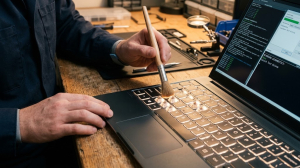
Checklist: Evaluating Keyboard Backlight Issues
Check the boxes below if these backlight symptoms match your current situation:
-
[ ] Backlight turns on briefly during system startup, then turns off immediately upon entering Windows.
-
[ ] Hotkey combinations (such as Fn + F3/F4, Fn + Spacebar, or Fn + F7) fail to display lighting OSD overlays on screen.
-
[ ] Keyboard backlight turns off only when running on battery power without AC charging.
-
[ ] All keyboard keys register input normally, but lighting beneath the keys remains entirely dark.
-
[ ] Backlight stopped working immediately following a recent Windows update or OS reinstallation.
Practical Recommendation: Do not assume your keyboard LEDs are burned out. Inspect your keyboard layout for a key icon depicting a glowing keyboard (commonly on F3/F4, F7, or Spacebar keys). Press that key repeatedly while holding the Fn key to increase brightness levels.
Comparison Table: Backlight Causes and Recommended Actions
| Backlight Symptom | Underlying Cause | Device Damage Risk | Recommended Action |
|---|---|---|---|
| Dark in OS but Lights Up on Boot | Corrupted System Control / ATK driver | Software driver glitch | Reinstall vendor management utility |
| Dark Only on Battery Power | Active Power Saving / Battery Saver mode | Power policy restricts LED draw | Turn off Battery Saver / adjust timeout |
| Unresponsive to Fn Hotkeys | Disabled Hotkey / Action Keys Mode | Fn key combos unread | Enable Action Keys in BIOS / Control App |
| Permanently Dark + Stuck Keys | Loose or damaged backlight ribbon cable | Internal power trace hardware damage | Clean ribbon cable socket / replace keyboard |
4 Ways to Fix a Laptop Keyboard Backlight Not Working
-
Use Proper Keyboard Hotkey Combinations. Press the designated backlight brightness combination for your laptop brand:
-
ASUS: Press
Fn + F7orFn + F3/F4(or Up Arrow). -
Lenovo: Press
Fn + Spacebar. -
HP: Press
F5,F9,F11, orFn + F5. -
Dell: Press
F10,F6, orFn + Right Arrow. -
Acer: Press
Fn + F9orFn + Page Up.
-
-
Adjust Lighting Settings in Vendor Control Apps. Open your laptop’s proprietary management app (such as Armoury Crate / MyASUS, Lenovo Vantage, HP OMEN Gaming Hub, or Dell Power Manager). Navigate to Keyboard Lighting or Backlight, and ensure the light mode is toggled ON or Static at maximum brightness.
-
Run Windows Keyboard Troubleshooter & Reinstall Drivers. Go to Settings > System > Troubleshoot > Other troubleshooters > click Run next to Keyboard. If unresolved, open Device Manager > expand Keyboards > right-click Standard PS/2 Keyboard > select Uninstall device, then restart your laptop.
-
Update / Reinstall System Control Interface & ATK Package. On laptops like ASUS or Lenovo, Fn key lighting functions rely on system drivers. Visit your manufacturer’s official support website, then download and reinstall the ASUS System Control Interface, Lenovo System Interface Foundation, or ATK Package driver.
When to Seek Professional Repair Services
If you have reinstalled system drivers and reset BIOS settings yet the backlight remains dark (even during initial boot startup before Windows loads), the internal backlight ribbon cable connected to the motherboard is likely unseated, dirty, or damaged.
This condition requires cleaning the internal ribbon cable socket or replacing the keyboard assembly by a qualified repair technician to restore bright key illumination.
FAQ (Frequently Asked Questions)
Do all laptop models have a backlit keyboard?
No. Backlit keyboards are typically featured on mid-to-high-end laptops, gaming series, or business models. If there is no keyboard lighting icon printed on the F1-F12 keys or Spacebar, your laptop model lacks hardware backlight support.
Why does my laptop keyboard backlight turn off automatically after a few seconds?
This is an automatic Backlight Timeout feature engineered to conserve battery life. You can change or disable the timeout delay to Never within your laptop manufacturer’s control app.
Conclusion
A laptop keyboard backlight that is not working is usually caused by zeroed brightness settings, active battery saver restrictions, or crashed Fn key utility drivers. By activating hotkey combinations and reinstalling system control drivers, your keyboard lighting can be restored smoothly.
Shop OEM Keyboards, Accessories & Repairs at Aipel Computer
Looking for genuine replacement backlit laptop keyboards, internal ribbon cable repairs, or warranty-backed computer accessories? Find trusted hardware replacement parts and expert repair services directly at Aipel Computer.
For replacement keyboards, spare parts inquiries, or technical repair consultations, visit the official Aipel Computer website today.
Tags: fix keyboard backlight turns off, how to turn on laptop keyboard light, laptop keyboard backlight not working, replace laptop keyboard surabaya

Laptop Keyboard Backlight Not Working? Causes and Fixes
Kriteria Distributor Peralatan Komputer Memilih distributor peralatan komputer yang tepat tidak hanya akan membuat Anda mendapatkan produk berkualitas. Bisa lebih... selengkapnya
Tips memilih processor yang tepat tidaklah sulit. Semua bisa Anda dapatkan sesuai kebutuhan. Sama seperti memilih komponen pada komputer atau... selengkapnya
Sistem operasi komputer merupakan bagian penting supaya pengguna bisa menjalankan atau mengoperasikan komputer. Bagi orang yang kerap bekerja dengan komputer,... selengkapnya

Sebagaimana yang kita tahu bahwa harga komputer bervariasi. Tak sedikit yang telah membuktikan bahwa kualitas mempengaruhi harganya. Semakin baik kualitasnya,... selengkapnya

Dalam membeli pc atau komputer baru tentunya tidak bisa dibilang mudah. Apalagi jika anda masih mempunyai budget yang terbatas, yang... selengkapnya
Saat laptop dinyalakan, tiba tiba terdengar suara dengungan tinggi, bunyi derik kasar, atau suara bergesekan yang sangat mengganggu dari dalam... selengkapnya
Desktop jarak jauh ternyata tetap bisa diakses. Para penggunanya bisa mengakses perangkat yang dibeli di toko komputer secara jarak jauh.... selengkapnya
Cara memasang pelindung layar laptop atau screen protector sebenarnya cukup mudah. Sehingga Anda bisa mencobanya sendiri tanpa harus meminta bantuan... selengkapnya
Kerusakan pada layar komputer bisa menjadi masalah besar bagi penggunanya. Beberapa faktor dapat menyebabkan layar komputer rusak, dan Anda bisa... selengkapnya

Saat akan membeli mouse, toko komputer adalah tempat yang tempat. Hal itu karena biasanya mereka menyediakan cukup banyak pilihan. Dari... selengkapnya
11%
AIPEL COMPUTER – Pusat Grosir dan Eceran – Belanja Hebat dan Hemat – Harga Murah Garansi Prima * GARANSI –… selengkapnya
Rp 85.000 Rp 95.000
27%
A. DESKRIPSI (DESCRIPTION) Cable USB to Type-C GENAI GL-Q30 5A 100W (White) adalah kabel pengisian berdaya besar yang siap mendukung… selengkapnya
Rp 38.000 Rp 52.000
12%
AIPEL COMPUTER – Pusat Grosir dan Eceran – Belanja Hebat dan Hemat – Harga Murah Garansi Prima * GARANSI –… selengkapnya
Rp 92.000 Rp 105.000
13%
A. DESKRIPSI (DESCRIPTION) Fan Casing CENTROO 8 CM Hitam adalah kipas pendingin berkualitas tinggi yang dirancang untuk menjaga suhu komputer… selengkapnya
Rp 13.000 Rp 15.000
16%
SPESIFIKASI Merk : TOSHIBA Jenis : Adaptor Output : 19V 2.37A Dimensi Colokan : 4.0*1.7 DESKRIPSI Toshiba Adaptor Charger Laptop… selengkapnya
Rp 80.000 Rp 95.000
23%
A. DESKRIPSI (DESCRIPTION) Mouse Pad JERTECH MP70 Gaming adalah alas mouse dengan ukuran luas dan permukaan premium yang dirancang khusus… selengkapnya
Rp 41.500 Rp 54.000
25%
A. DESKRIPSI (DESCRIPTION) Cable Type-C M To Lightning M GENAI GL-Q27 adalah kabel berkualitas tinggi dengan panjang ekstra 200 cm… selengkapnya
Rp 51.000 Rp 68.000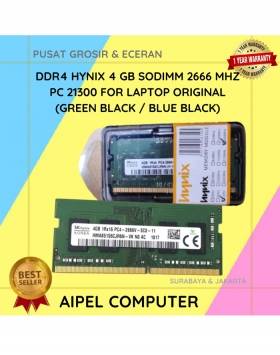
7%
A. DESKRIPSI (DESCRIPTION) DDR4 HYNIX 4 GB Sodimm 2666 MHz PC 21300 for Laptop Original adalah memori modern yang dirancang… selengkapnya
Rp 513.500 Rp 550.000
20%
A. DESKRIPSI (DESCRIPTION) Connector VGA M To F BEST / Mini Gender adalah konektor handal yang dirancang untuk menyambungkan perangkat… selengkapnya
Rp 6.000 Rp 7.500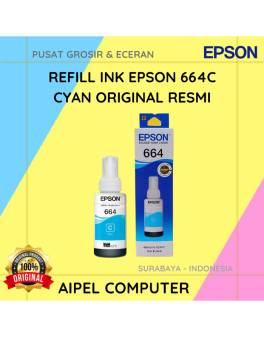
15%
A. DESKRIPSI (DESCRIPTION) Refill Ink EPSON 664C Cyan Original 100% adalah tinta isi ulang resmi dari EPSON dengan warna cyan… selengkapnya
Rp 85.000 Rp 100.000



Saat ini belum tersedia komentar.