- Orderan dibawah 500.00 via Goshop / Offline / Marketplace
High RAM Usage with Few Apps Open? Causes and Easy Fixes
Few computing issues are more frustrating than turning on your laptop, opening zero heavy programs, and finding Task Manager reporting memory usage locked between 85% and 95%. As a result, cursor tracking stutters, window animations lag, and web browsers crash unexpectedly (force close).
A laptop suffering from high memory usage while idle is rarely caused by insufficient physical RAM; it typically indicates a software memory leak. A memory leak occurs when buggy programs or background drivers refuse to release working memory back to the pool after completing tasks, when Windows SysMain aggressively caches files, or when virtual memory allocations are disabled. Much like troubleshooting when your laptop lagging or freezing when multitasking to regain snappy performance, you can reclaim working RAM yourself without immediately buying memory upgrades.
Featured Snippet (Quick Answer):
To fix high RAM usage with few apps open, disable the SysMain service in Windows Services (
services.msc), turn off Fast Startup in Power Options, close hidden startup programs via Task Manager, and configure Virtual Memory (Paging File) allocations manually.
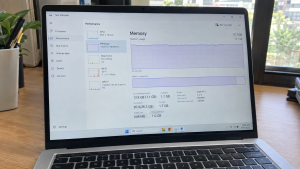
Checklist: Signs of Laptop Memory Leaks
Check the boxes below if your laptop exhibits these conditions:
-
[ ] Memory consumption hovers above 70% right after booting into the desktop.
-
[ ] RAM percentage steadily climbs upward while the laptop sits completely idle.
-
[ ] Windows displays “Your computer is low on memory” warnings.
-
[ ] Web browsers frequently crash or report Out of Memory status errors.
-
[ ] System responsiveness returns to normal only immediately after rebooting.
Practical Recommendation: Avoid installing third-party RAM cleaner software. Restart your laptop once and disable the SysMain service to clear memory bloat safely.
Comparison Table: Causes of High RAM Usage and Fixes
Here is an overview of why RAM consumption spikes and recommended troubleshooting actions:
| Memory Load Symptom | Underlying Cause | Performance Risk | Recommended Fix |
|---|---|---|---|
| High RAM upon cold boot | Fast Startup holds onto old session cache | Sluggish boots & clogged memory | Disable Fast Startup in Control Panel |
| RAM climbs continuously | Driver memory leak in network / GPU | System lockup (freeze) | Update drivers in Device Manager |
| Windows service hogs RAM | Overly aggressive SysMain service | Drives RAM and disk load to 100% | Set SysMain startup type to Disabled |
| Crashes running 2 apps | Paging file disabled or too small | Triggers forced application crashes | Configure Virtual Memory to Custom Size |
4 Steps to Reduce High RAM Usage on Your Laptop
Follow these system tuning steps in order:
-
Disable the SysMain Service in Windows. Press
Win + R, typeservices.msc, and press Enter. Scroll down to locate SysMain (labeled Superfetch on older Windows versions). Double-click the entry, click Stop, change the Startup type dropdown to Disabled, and click Apply. This service frequently overloads working RAM by preloading application caches aggressively. -
Turn Off Windows Fast Startup. The Fast Startup feature avoids complete kernel resets during shutdown, allowing corrupted memory cache remnants to accumulate over weeks. Open Control Panel > Power Options > Choose what the power buttons do. Click Change settings that are currently unavailable, uncheck Turn on fast startup, and save changes.
-
Trim High-Impact Startup Applications. Open Task Manager (
Ctrl + Shift + Esc) and switch to the Startup apps tab. Review the active list. Disable unnecessary background software—such as cloud sync tools, chat clients, or gaming updaters—by right-clicking each entry and choosing Disable. -
Reconfigure Virtual Memory (Paging File) Size. Search for View advanced system settings in Windows. On the Advanced tab, click Settings under Performance. Select the Advanced tab again and click Change under Virtual memory. Uncheck Automatically manage, select drive C:, check Custom size, enter an Initial size equal to 1.5 times physical RAM and a Maximum size equal to 3 times physical RAM, click Set, and restart your laptop.
When to Consider a Physical RAM Upgrade
If you have terminated non-essential background processes and disabled SysMain yet memory usage consistently hits 85% when launching your primary work application, your laptop’s installed hardware capacity has reached its ceiling.
Adding an extra RAM module (upgrading to 8GB or 16GB dual-channel) provides the physical memory headroom modern operating systems require for smooth multitasking.
FAQ (Frequently Asked Questions)
Are third-party RAM cleaners safe to use?
They are not recommended. These utilities aggressively flush active memory onto storage drives, which forces the processor to work harder and induces system stuttering.
What is normal idle RAM consumption on Windows?
On clean installations of Windows 10 or Windows 11, normal idle memory consumption typically sits between 25% and 45%, depending on total installed hardware capacity.
Conclusion
High RAM usage with few apps open is usually caused by excessive caching in the SysMain service, driver memory leaks, or active Fast Startup settings. By shutting down redundant background services and managing Virtual Memory properly, you can restore smooth system responsiveness.
Shop RAM Modules, SSDs & Upgrade Consultation at Aipel Computer
Struggling with sluggish multitasking due to limited factory memory, looking for guaranteed original DDR3L/DDR4/DDR5 RAM sticks, or wanting an SSD upgrade for faster performance? Explore our complete inventory of computer parts at wholesale prices directly in our store.
To check RAM slot compatibility or find store directions, visit the official Aipel Computer website in Surabaya today.
Tags: buy laptop ram surabaya, disable sysmain high memory, fix 90 percent memory usage windows 10, fix laptop memory leak, high ram usage with few apps open, laptop repair surabaya

High RAM Usage with Few Apps Open? Causes and Easy Fixes

Suara hembusan kipas pendingin yang terus meraung kencang tanpa jeda sering kali membuat suasana kerja menjadi bising dan tidak nyaman.... selengkapnya
Saat ini ada berbagai jenis kabel di grosir komputer dengan fungsi, kelebihan, dan kekurangan masing-masing. Adapun salah satunya yaitu kabel... selengkapnya
Komputer atau PC membutuhkan USB WiFi supaya terhubung dengan jaringan internet. Sudah menjadi hal lumrah jika sekarang ini kebutuhan internet... selengkapnya
Kita tentu mengetahui apa itu kabel USB micro. Pasalnya peralatan elektronik yang satu ini terbilang cukup penting dan wajib dimiliki... selengkapnya
Kehadiran printer nirkabel (wireless printer) berbasis jaringan WiFi tentu sangat membantu produktivitas harian, baik untuk menyelesaikan tugas kuliah maupun operasional... selengkapnya
Memiliki komputer desktop dengan performa kencang untuk kebutuhan kerja, editing video, hingga main gim adalah impian banyak orang. Namun saat... selengkapnya
Having a high-performance desktop computer for work, video editing, or gaming is a goal for many tech enthusiasts. However, when... selengkapnya
Cara masuk safe mode Windows 10 bisa dilakukan dengan beberapa cara. Safe Mode merupakan salah satu fitur pemecahan masalah yang... selengkapnya
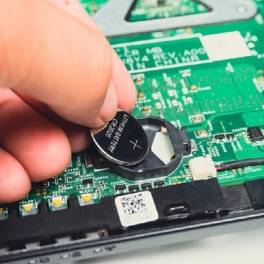
Apa itu CMOS? Kata CMOS sendiri mungkin saja masih terdengar asing di telinga pengguna biasa. Karena biasanya tidak terlalu mengenal... selengkapnya

Cara mengecek spek komputer penting untuk konsumen pahami sebelum membeli perangkat PC atau laptop di toko komputer. Spesifikasi komputer meliputi... selengkapnya
20%
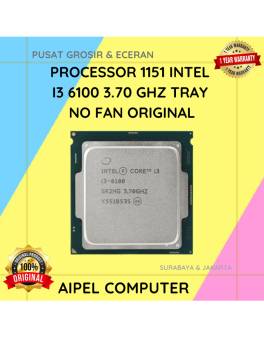
A. DESKRIPSI (DESCRIPTION) Processor 1151 I3 6100 3.70 GHz Tray No Fan Original 🚀 adalah pilihan solid bagi pengguna yang… selengkapnya
Rp 172.500 Rp 215.000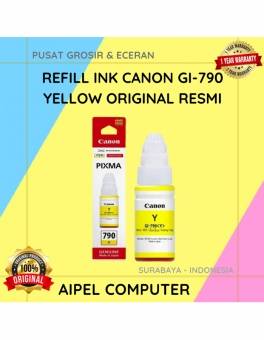
7%
A. DESKRIPSI (DESCRIPTION) Canon GI-790Y Refill Ink Kuning adalah tinta asli yang dirancang khusus untuk printer Canon Anda. Dengan kualitas… selengkapnya
Rp 102.000 Rp 110.000
25%
A. DESKRIPSI (DESCRIPTION) GENAI GM-T10 adalah solusi audio modern dengan port Type-C, menyuguhkan pengalaman mendengarkan yang jernih dan memuaskan. 🎵… selengkapnya
Rp 51.000 Rp 68.000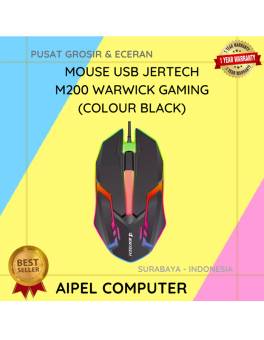
18%
A. DESKRIPSI (DESCRIPTION) Mouse USB JERTECH M200 WARWICK Gaming adalah mouse kabel yang dirancang khusus untuk memberikan performa maksimal dalam… selengkapnya
Rp 23.000 Rp 28.000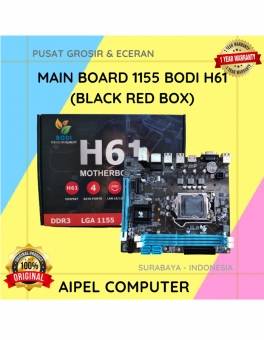
7%
A. DESKRIPSI (DESCRIPTION) BH61 Main Board 1155 BODI adalah solusi sempurna untuk Anda yang mencari motherboard yang komprehensif dan handal…. selengkapnya
Rp 325.000 Rp 350.000
29%
A. DESKRIPSI (DESCRIPTION) Splitter HDTV CENTROO 1-4 adalah perangkat pendukung multimedia yang memungkinkan satu sumber HDMI dibagi ke empat layar… selengkapnya
Rp 53.000 Rp 75.000
15%
A. DESKRIPSI (DESCRIPTION) Kabel HDTV CENTROO 25 Meter Jaring adalah pilihan sempurna bagi Anda yang memerlukan koneksi HDMI jarak jauh… selengkapnya
Rp 89.000 Rp 105.000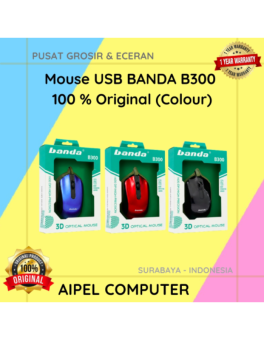
31%
DESKRIPSI (DESCRIPTION) Mouse USB BANDA B300 Original 100% (Colour) adalah perangkat yang dirancang untuk memberikan kenyamanan maksimal dengan tampilan yang… selengkapnya
Rp 20.000 Rp 29.000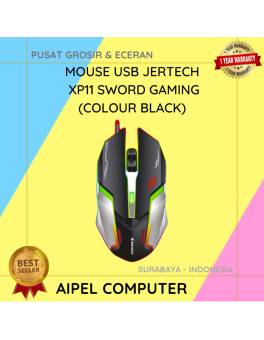
23%
A. DESKRIPSI (DESCRIPTION) Mouse USB Jertech XP11 SWORD Gaming adalah mouse berkabel yang dirancang untuk menghadirkan kontrol dan kenyamanan maksimal… selengkapnya
Rp 56.500 Rp 73.000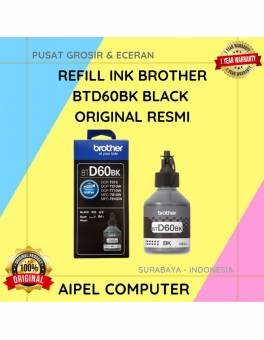
6%
A. DESKRIPSI (DESCRIPTION) Refill Ink Brother BTD60BK Black Original adalah tinta isi ulang berkualitas tinggi yang dirancang khusus untuk memenuhi… selengkapnya
Rp 108.000 Rp 115.000



Saat ini belum tersedia komentar.