- Orderan dibawah 500.00 via Goshop / Offline / Marketplace
Laptop Wi-Fi Cannot Detect Networks (No Networks Found)? Causes and Fixes
Have you ever turned on your laptop to get some work done, only to notice the internet icon in the Windows taskbar displaying a red cross or globe icon, and upon clicking it, zero Wi-Fi network names or mobile hotspots show up (No Networks Found)?
A completely paralyzed wireless network adapter is an extremely frustrating hurdle. However, much like troubleshooting intermittent wireless drops in wifi keeps disconnecting on laptop causes and fixes, a No Networks Found error is rarely caused by permanent physical Wi-Fi module failure. Most cases are triggered by corrupted wireless drivers, stuck airplane mode states, or deep power-saving sleep states disabling the Wi-Fi card.
Featured Snippet (Quick Answer):
Primary causes of a laptop Wi-Fi failing to detect networks include network adapter driver glitches, accidental physical or shortcut Airplane Mode locks, or Windows power management policies cutting power to the Wi-Fi card (Fast Startup bug).
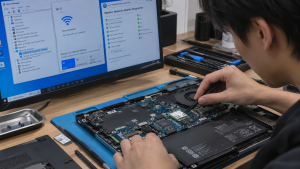
Checklist: Evaluating Laptop Wi-Fi Network Behavior
Check the boxes below if these wireless symptoms match your current situation:
-
[ ] A “No Networks Found” message appears when opening the Wi-Fi list, even though other devices detect multiple signals.
-
[ ] The Wi-Fi toggle switch option inside Windows Quick Settings suddenly disappears or is grayed out.
-
[ ] Inside Device Manager, the Wi-Fi card device (such as Intel Wireless-AC or Realtek PCIe) displays a yellow exclamation mark.
-
[ ] The issue started immediately following a Windows Update or operating system reinstallation.
-
[ ] Wi-Fi connectivity resumes normally after completely shutting down and restarting the laptop.
Practical Recommendation: Try running the built-in Windows Network Troubleshooter first. Right-click the internet icon in the taskbar > select Diagnose network problems. Let Windows automatically detect and reset adapter states.
Comparison Table: Wi-Fi Blank Causes and Recommended Actions
| Wi-Fi Symptom | Underlying Cause | Device Damage Risk | Recommended Action |
|---|---|---|---|
| Empty Wi-Fi List (No Networks) | Corrupted / glitched wireless network driver | Total loss of wireless connectivity | Uninstall / update driver via Device Manager |
| Wi-Fi Toggle Missing / Grayed Out | Stuck Airplane Mode state in BIOS/OS | Wireless radio module locked out | Perform Network Reset & Static Power Discharge |
| Yellow Exclamation in Device Manager | Windows Fast Startup system conflict | Hardware unresponsiveness | Disable Fast Startup & perform clean reboot |
| Wi-Fi Module Undetected in BIOS | Physical damage to M.2 Wi-Fi slot | Dead or loose Wi-Fi card module | Open chassis, tighten mounting screw & antennas |
4 Ways to Fix a Laptop Wi-Fi Failing to Detect Networks
-
Perform a Hard Reset (Static Power Discharge). Shut down the laptop completely. Unplug all AC charger cables and connected USB devices. Press and hold the Power Button continuously for 30 to 40 seconds. This drains residual motherboard capacitor charge and forces the BIOS to re-initialize wireless hardware detection.
-
Reinstall Wireless Adapter Drivers in Device Manager. Press Windows + X > select Device Manager. Expand Network adapters. Locate your wireless adapter (such as Intel Wi-Fi, Realtek, or Qualcomm). Right-click > select Uninstall device. Afterward, click the Scan for hardware changes icon at the top so Windows automatically detects and installs a clean driver.
-
Run Network Reset in Windows Settings. Open Settings > Network & internet > Advanced network settings > select Network reset. Click the Reset now button and confirm by clicking Yes. The laptop will automatically reboot, clearing all IP stack configurations, Winsock entries, and network adapters back to factory defaults.
-
Disable Fast Startup in Control Panel. Open Control Panel > Power Options > click Choose what the power buttons do on the left panel > click Change settings that are currently unavailable. Uncheck the box for Turn on fast startup (recommended), then click Save changes. Windows Fast Startup frequently causes Wi-Fi drivers to fail loading when waking from hibernation states.
When to Seek Professional Repair Services
If you have performed network resets, reinstalled official latest drivers, and even reinstalled the Windows operating system yet the Wi-Fi card remains undetected in Device Manager or throws Code 10 / Code 43 errors, the physical Wi-Fi hardware module has suffered permanent failure.
This condition requires inspecting M.2 slot antenna connections or installing a new original Wi-Fi Card module by a qualified repair technician to restore wireless connectivity.
FAQ (Frequently Asked Questions)
Why did my laptop Wi-Fi disappear immediately after reinstalling Windows?
This occurs because a fresh Windows installation lacks the appropriate wireless adapter drivers. You must download the official Wi-Fi driver from your laptop manufacturer’s support website using another device and transfer it via flash drive.
Can physical Airplane Mode shortcut keys on the keyboard break Wi-Fi?
Physical buttons or shortcut key combinations (like Fn + F2/F12) do not physically break Wi-Fi, but they can occasionally become trapped in a software glitch state within the operating system, permanently blocking radio signals.
Conclusion
A laptop Wi-Fi failing to detect networks (No Networks Found) is typically caused by wireless driver glitches, static motherboard charge, or Windows Fast Startup conflicts. Performing a hard reset and network reset will restore normal wireless signal discovery.
Shop OEM Wi-Fi Cards, Accessories & Repairs at Aipel Computer
Looking for genuine original replacement Wi-Fi Card modules with warranty, high-performance external USB Wi-Fi adapters, or professional laptop repair services? Find trusted replacement parts and expert repair services directly at Aipel Computer.
Tags: fix windows 11 wifi not showing networks, laptop repair surabaya, laptop wifi no networks found fix, replace laptop wifi card surabaya, wireless adapter missing device manager

Laptop Wi-Fi Cannot Detect Networks (No Networks Found)? Causes and Fixes

Tips memilih microphone wireless menjadi penting untuk Anda ketahui agar tidak salah beli nantinya. Microphone wireless merupakan salah satu jenis... selengkapnya
Salah satu barang yang ada di toko komputer adalah flashdisk. Untuk Anda yang sudah akrab dengan komputer pasti tidak asing... selengkapnya

Working on an important task, attending an online meeting, or playing a game when suddenly your laptop completely cuts power... selengkapnya
Connecting an HDMI cable from your laptop to an LED TV or external monitor for movies or work presentations, only... selengkapnya

Sebenarnya apa saja fungsi router itu? Router menjadi salah satu perangkat yang sudah banyak digunakan di zaman modern ini. Router... selengkapnya
Pernahkah kamu sedang asyik mengetik dokumen atau mengedit foto, lalu kursor di layar mendadak bergerak liar, loncat-loncat sendiri, atau justru... selengkapnya

Jenis baterai AA seringkali dijumpai di lingkungan sekitar. Pada era modern, barang elektronik sudah menjadi kebutuhan pokok hingga seluruh dunia.... selengkapnya
Untuk Anda yang kini tengah mencari adaptor monitor LG, sebaiknya tidak sembarangan membeli. Terkadang karena terburu-buru Anda bahkan jadi gegabah... selengkapnya

Para gamers sejati, wajib tahu beberapa perbedaan gamepad dan joystick agar pemakaiannya bisa sesuai dan semakin optimal. Dalam dunia game,... selengkapnya

Spesifikasi dan harga komputer untuk desain grafis tentunya berbeda dengan komputer yang digunakan untuk kebutuhan lainnya. Untuk kebutuhan desain grafis,... selengkapnya
15%
A. DESKRIPSI (DESCRIPTION) Mouse Wireless Jertech JR3 Rechargeable adalah mouse nirkabel modern dari Jertech yang dirancang khusus untuk menunjang produktivitas… selengkapnya
Rp 46.500 Rp 55.000
27%
A. DESKRIPSI (DESCRIPTION) Cable USB to Type-C GENAI GL-Q30 5A 100W (White) adalah kabel pengisian berdaya besar yang siap mendukung… selengkapnya
Rp 38.000 Rp 52.000
20%
AIPEL COMPUTER – Pusat Grosir dan Eceran – Belanja Hebat dan Hemat – Harga Murah Garansi Prima * GARANSI –… selengkapnya
Rp 478.000 Rp 600.000
13%
A. DESKRIPSI (DESCRIPTION) Mouse Wireless + Bluetooth 3 in 1 CENTROO Rechargeable Transparant adalah mouse modern dengan kemampuan koneksi ganda,… selengkapnya
Rp 135.000 Rp 155.000
19%
A. DESKRIPSI (DESCRIPTION) LENOVO Adaptor Laptop 20V 3.25A DC (USB) adalah adaptor original berkualitas yang dilengkapi konektor USB pin, memberikan… selengkapnya
Rp 65.000 Rp 80.000
21%
AIPEL COMPUTER – Pusat Grosir dan Eceran – Belanja Hebat dan Hemat – Harga Murah Garansi Prima * GARANSI –… selengkapnya
Rp 9.500 Rp 12.000
17%
A. DESKRIPSI (DESCRIPTION) Adaptor ini memiliki output 65 W (19.5 V, 3.34 A) tapi dengan bodi konektor bulat besar 7.4×5.0 mm—mirip seperti pada… selengkapnya
Rp 75.000 Rp 90.000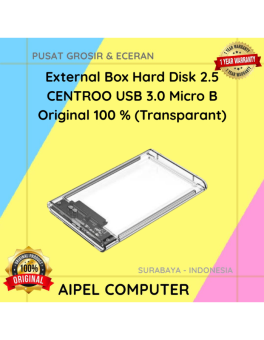
21%
A. DESKRIPSI (DESCRIPTION) External Box Hard Disk 2.5 USB 3.0 Micro B (Transparent) adalah casing hard disk eksternal yang dirancang… selengkapnya
Rp 44.000 Rp 56.000
29%
A. DESKRIPSI (DESCRIPTION) Earphone GENAI GM-T18 adalah earphone berteknologi konektor Type-C yang praktis dan efisien. 🤍 Cocok digunakan untuk perangkat… selengkapnya
Rp 37.000 Rp 52.000
23%
A. DESKRIPSI (DESCRIPTION) Kabel power laptop WEBSONG 1.8 M (Black) adalah pilihan ideal buat kamu yang butuh suplai daya stabil… selengkapnya
Rp 27.000 Rp 35.000



Saat ini belum tersedia komentar.