- Orderan dibawah 500.00 via Goshop / Offline / Marketplace
Laptop Won’t Sleep and Getting Hot in Bag? Causes and Easy Fixes
Have you ever closed your laptop lid, put it inside your backpack, and pulled it out a few hours later only to find your bag radiating intense heat? When you open the machine, the cooling fans are spinning at full speed, the chassis feels burning hot, and a full battery has plummeted down to critical levels.
A laptop failing to enter sleep mode is a serious concern. Trapped inside a cramped backpack without proper airflow, the heat cannot dissipate, risking long term battery degradation and processor stress. This issue is commonly triggered by Windows Modern Standby (S0 state) maintaining active background tasks, system wake timers, or connected wireless peripherals repeatedly waking the laptop. Just like taking the right steps to maintain laptop hardware for stable daily performance, you can resolve these sleep issues on your own with a few system adjustments.
Featured Snippet (Quick Answer):
To fix a laptop that won’t sleep and overheats in your bag, find programs preventing sleep via Command Prompt (
powercfg /requests), turn off wake timers in Power Options, disable wake permissions for USB devices in Device Manager, and set the close lid action to Hibernate.
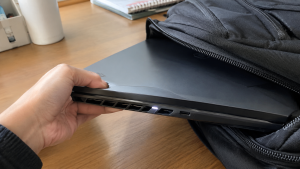
Checklist: Symptoms of Laptop Sleep Failures
Check the boxes below if any of these match your laptop’s current issue:
-
[ ] Power LEDs stay lit or cooling fans keep blowing even after closing the lid.
-
[ ] The laptop feels warm or hot when removed from your bag.
-
[ ] The battery drains substantially (over 15–30%) while left asleep overnight.
-
[ ] The laptop immediately wakes back up right after you press the sleep button.
-
[ ] Bumping a wireless mouse or keyboard accidentally powers the screen back on.
Practical Recommendation: When carrying your laptop inside an enclosed backpack, make it a habit to use Hibernate or Shut Down instead of basic Sleep. Hibernate cuts power completely to all internal components.
Comparison Table: Causes of Sleep Mode Bugs and Practical Fixes
Here is a breakdown of why laptops fail to enter deep sleep and how to resolve them:
|
4 Ways to Fix a Laptop That Won’t Sleep
Follow these troubleshooting steps in order:
-
Check What Is Keeping Your Laptop Awake via CMD. Open Command Prompt by selecting Run as Administrator. Type the command
powercfg /requestsand press Enter. Review the EXECUTION, SYSTEM, or AWAYMODE sections. If active audio processes or downloading tools are listed, close those programs so Windows can enter sleep. -
Disable Wake Timers in Power Options. Press
Win + R, typecontrol, and open Power Options. Click Change plan settings next to your active power plan, then click Change advanced power settings. Expand the Sleep > Allow wake timers branch, set both battery and plugged-in options to Disable, and click Apply. -
Turn Off Wake Permissions for Mouse and Network Devices. Open Device Manager, expand Mice and other pointing devices, right-click your mouse, and choose Properties. Under the Power Management tab, uncheck Allow this device to wake the computer. Apply the same check to your Wi-Fi card under Network adapters.
-
Change the Close Lid Action to Hibernate. Return to the Power Options window in Control Panel and click Choose what closing the lid does on the left menu. On the When I close the lid row, change both the battery and plugged-in settings to Hibernate, then click Save changes.
When to Consider a BIOS or Firmware Update
If you have adjusted all power settings in Windows and the fans still spin aggressively when closing the lid, your motherboard BIOS may have an unresolved power management bug.
Installing the latest official BIOS update from your laptop manufacturer’s support site will help synchronize power transitions between Windows and your hardware controllers.
FAQ (Frequently Asked Questions)
What is the difference between Sleep and Hibernate?
Sleep keeps your current session stored in RAM while using a tiny trickle of power so you can resume instantly. Hibernate writes all RAM data onto your storage drive and powers off the machine completely, making it ideal for travel inside bags.
Why does Modern Standby cause laptops to run hot?
Modern Standby keeps network connections active so laptops can receive incoming updates like smartphones. However, if background processes hang or misbehave, the CPU keeps running hot inside sealed bags without airflow.
Conclusion
A laptop failing to enter sleep mode and heating up inside a bag is typically caused by background processes blocking sleep, active wake timers, or Modern Standby behavior. By turning off wake permissions for external devices and setting your lid action to Hibernate, you can keep your laptop cool and preserve battery life on the move.
Shop Laptop Batteries, Cooling Pads & Service at Aipel Computer
Experiencing battery drain from sleep mode bugs, noisy fans, or needing fresh processor thermal paste? Find genuine replacement components, cooling accessories, and repair services at competitive wholesale prices directly in our store.
To check part availability or get directions to our retail store, visit the official Aipel Computer website in Surabaya today.
Tags: disable modern standby windows, fix windows 10 sleep mode bug, laptop battery replacement surabaya, laptop repair surabaya, laptop running hot in backpack, laptop wont sleep hot in bag

Laptop Won’t Sleep and Getting Hot in Bag? Causes and Easy Fixes
Perlu untuk Anda ketahui, grosir komputer tidak hanya tersedia secara offline saja, melainkan juga online. Tentu hal ini tak mengejutkan... selengkapnya
Spesifikasi kabel UTP hadir dengan berbagai keunggulan. Kabel ini memiliki pelindung pelapis pada bagian internalnya. Fungsi dari kabel UTP itu... selengkapnya

Have you noticed your laptop lagging severely, internal fans spinning loudly, or system applications freezing for several seconds whenever you... selengkapnya
Pernahkah kamu membuka dokumen berlatar putih bersih atau menjelajahi web, lalu mendadak pandangan matamu terganggu oleh noda titik terang atau... selengkapnya
Masalah WiFi tidak muncul di laptop bisa saja terjadi. Hal ini tentu akan sangat membingungkan para pengguna. Sebab, WiFi memang... selengkapnya
Sebenarnya ada banyak macam macam printer yang paling umum digunakan orang-orang serta terbilang berkualitas. Dari beberapa macam printer ini tentunya... selengkapnya
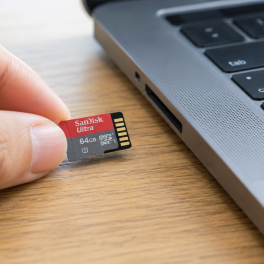
Trying to save photos, transfer important documents, or open files on your smartphone or laptop, only to find that your... selengkapnya
Perlu kamu ketahui, sparepart laptop ini tentunya sangat beragam dan mempunyai fungsi masing-masing. Nah, dari beberapa sparepart tersebut akan disatukan... selengkapnya
Mouse komputer menjadi aksesoris pendukung yang penting dimiliki. Meskipun demikian, seringkali orang-orang cenderung tidak memperhatikan dalam memilih mouse tersebut dengan... selengkapnya
Fan atau kipas dalam komputer merupakan salah satu hardware yang justru jarang diperhatikan. Justru hal itu memiliki pengaruh terhadap sirkulasi... selengkapnya

25%
A. DESKRIPSI (DESCRIPTION) Connector Audio 6.5 M To 3.5 F BEST (Gold) adalah solusi konektivitas audio premium yang dirancang untuk… selengkapnya
Rp 4.500 Rp 6.000
8%
A. DESKRIPSI (DESCRIPTION) Processor I7 4790 4.00 GHz Tray No Fan Original adalah pilihan pas untuk pengguna yang ingin komputasi… selengkapnya
Rp 740.000 Rp 800.000
7%
A. DESKRIPSI (DESCRIPTION) Kabel HDTV Standart M To M CENTROO 30 M 4K (Box) adalah solusi kabel HDMI panjang dari… selengkapnya
Rp 250.000 Rp 270.000
26%
A. DESKRIPSI (DESCRIPTION) Earphone HEYU K108 (Gold) adalah earphone elegan yang memadukan tampilan mewah dengan kualitas suara luar biasa. HEYU… selengkapnya
Rp 25.000 Rp 34.000
14%
A. DESKRIPSI (DESCRIPTION) Kabel LAN WEBSONG 30 meter (White / Grey) adalah pilihan tepat buat kamu yang butuh koneksi internet… selengkapnya
Rp 69.000 Rp 80.000
13%
A. DESKRIPSI (DESCRIPTION) Mouse USB JERTECH GP10 WARRIOR Gaming + Mousepad adalah perangkat andalan yang dirancang khusus untuk para gamer… selengkapnya
Rp 91.500 Rp 105.000
9%
A. DESKRIPSI (DESCRIPTION) Hard Disk Internal 3.5 SEAGATE 1 TB For PC Original Non 100 % (Green / White) adalah… selengkapnya
Rp 610.000 Rp 670.000
8%
A. DESKRIPSI (DESCRIPTION) Earphone Wireless GENAI TWS21 Earbuds Zinc Alloy adalah perangkat audio nirkabel bergaya premium dengan housing berbahan logam… selengkapnya
Rp 220.000 Rp 240.000
33%
GARANSI * AIPEL COMPUTER – Pusat Grosir & Eceran – Belanja Hebat & Hemat – Grosir Konsep Swalayan – Harga… selengkapnya
Rp 1.000 Rp 1.500
3%
A. DESKRIPSI (DESCRIPTION) Hard Disk Internal 2.5 SEAGATE 1 TB for Laptop Original (Green / White) adalah solusi penyimpanan ringkas… selengkapnya
Rp 730.000 Rp 755.000



Saat ini belum tersedia komentar.