- Orderan dibawah 500.00 via Goshop / Offline / Marketplace
Laptop Camera Not Working or Black Screen? Here is How to Fix It
When you open Zoom, Google Meet, or the built in Windows Camera app, an error message suddenly pops up stating We Can’t Find Your Camera with error code 0xA00F4244. Or perhaps your camera seems active, but the video preview displays nothing except a solid black screen or a crossed out camera icon.
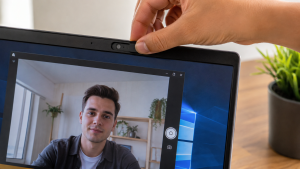
A laptop camera that refuses to work is a deeply frustrating issue, especially when you need to attend an online lecture or an important work meeting. Many users immediately assume that the webcam module above their screen is physically broken. However, in most cases, this glitch is caused by a closed physical privacy shutter, disabled Windows privacy permissions, or a corrupted webcam driver following a system update. Just as when troubleshooting laptop microphone not working, you can perform a few quick DIY checks directly on your laptop.
Featured Snippet (Quick Answer):
The fastest way to fix a laptop camera that is not working or showing a black screen is by opening the physical lens shutter, enabling camera privacy permissions in Windows Settings (
Win + I), pressing the Function hotkey combination on your keyboard (such asFn + F6orFn + F10), and reinstalling the Camera driver in Device Manager.
Checklist: Why Is Your Laptop Camera Not Turning On?
Check the boxes below if any of these symptoms match your laptop’s current condition:
-
[ ] Video preview displays a solid black screen or a disabled camera icon in meeting apps.
-
[ ] A No Camera Attached notification appears when launching the Windows Camera app.
-
[ ] The small LED indicator light next to the camera lens fails to light up at all.
-
[ ] The webcam works fine in one app (like Skype) but fails to load in browsers or Zoom.
-
[ ] The Cameras or Imaging Devices category is completely missing from Device Manager.
Practical Recommendation: If your video preview shows a black screen while the small LED indicator light beside the lens glows brightly, the issue is almost always tied to a closed physical shutter slider or software privacy locks.
Comparison Table: Causes of Laptop Camera Errors and Fixes
To help identify the root cause of your webcam issue, here is a quick comparison based on system symptoms:
| Laptop Camera Symptom | Likely Cause | Primary Fix | Real Device Impact |
|---|---|---|---|
| Black screen, LED indicator is ON | Physical shutter closed or Fn key muted | Open lens slider or press Fn key combo | Video preview restores to normal |
| “We Can’t Find Your Camera” error | Windows camera privacy access disabled | Open Privacy Settings and enable Camera | Apps regain permission to use webcam |
| Yellow exclamation mark in Device Manager | Corrupted or outdated camera driver | Reinstall or Roll Back driver in Device Manager | Webcam module recognized by system again |
| Completely missing from Device Manager | Broken hinge ribbon cable or dead sensor | Use an external USB Webcam | Laptop regains video call capability |
4 Ways to Fix a Laptop Camera Not Working or Black Screen
Try these step by step DIY recovery methods to restore your laptop webcam:
-
Check the Physical Shutter and Fn Key Combos. Look closely at the top of your laptop camera lens. Many modern laptops feature a tiny sliding switch (privacy shutter) that must be moved manually to uncover the lens. Additionally, try pressing keyboard combinations like
Fn + F6,Fn + F10, orFn + F11(depending on your laptop brand like Lenovo, MSI, or Asus) to toggle the electronic camera kill switch. -
Enable Camera Privacy Permissions in Windows. Open Settings (
Win + I) > Privacy & Security > Camera. Make sure the Camera access toggle is set to On. Scroll down and ensure the specific app you want to use (such as Zoom, Google Chrome, or Microsoft Teams) has permission to access the camera. -
Reinstall Camera Driver via Device Manager. Right click the Start button and select Device Manager. Expand Cameras or Imaging devices, right click your webcam (e.g., Integrated Camera or HD WebCam), and select Uninstall device. Once finished, restart your laptop. Windows will automatically reinstall a fresh default driver upon reboot.
-
Disable Camera Protection in Antivirus Software. Certain antivirus programs (such as Kaspersky, Bitdefender, or ESET) include a Webcam Protection feature that automatically blocks third party software from accessing your camera for security reasons. Try temporarily disabling this feature in your antivirus settings.
When Should You Use an External USB Webcam?
If all software troubleshooting steps fail and your camera remains undetected, the internal ribbon cable passing through your laptop hinge may have snapped from repeated bending, or the camera sensor itself may have failed.
The most practical, instant, and cost effective workaround without opening your laptop screen bezel is using an external USB Webcam. Simply plug the external camera into an open USB port, and you can instantly enjoy clear video quality that is often brighter and sharper than built in laptop webcams.
FAQ (Frequently Asked Questions)
Why does my laptop camera show a black screen in Zoom but work in other apps?
This is usually caused by in app privacy permissions within Zoom itself or because the Video Input Device setting in Zoom is directed toward a virtual camera (like OBS) rather than your physical laptop webcam.
Are external USB webcams compatible with all laptops?
Yes, almost all modern USB webcams feature plug and play functionality, meaning you can simply plug them into a USB port on Windows 10 or Windows 11 without installing extra drivers manually.
Conclusion
Most cases of a laptop camera not working or showing a black screen stem from a closed physical slider shutter, disabled Windows privacy permissions, or temporary driver conflicts. By sliding open the privacy cover and adjusting permission settings, your laptop webcam will usually function normally again.
Shop External USB Webcams & Accessories at Aipel Computer
Need a high definition HD or Full HD USB external webcam, camera privacy cover, microphone, or other computer peripherals? Explore our wide selection of laptop accessories at competitive wholesale prices directly in our store.
To check our hardware catalog, spare part stock availability, or store location details, visit the official Aipel Computer website today!
Tags: camera driver windows 10, fix laptop camera error, laptop camera not working, laptop webcam black screen, usb webcam surabaya

Laptop Camera Not Working or Black Screen? Here is How to Fix It
Keyboard merupakan salah satu piranti keras atau hardware. Keyboard tidak hanya digunakan pada komputer, namun juga bisa digunakan pada laptop.... selengkapnya

Layar komputer merupakan salah satu hal penting sehingga jangan sampai luput dari perhatian. Tak terkecuali pula memperhatikan tingkat kecerahannya. Akan... selengkapnya
Cara instal Windows di komputer jadi pertanyaan banyak pengguna. Padahal, menginstal Windows di komputer atau laptop cukup mudah. Bahkan, pengguna... selengkapnya

PC core i3 murah – Pada saat Anda ingin membeli sebuah PC, jangan lupa memilih yang menggunakan processor core i3... selengkapnya
Epson L3210 scanner bisa menjadi pilihan untuk Anda yang sedang mencari printer baru untuk kebutuhan mencetak berbagai dokumen. Ketika hendak... selengkapnya

Rekomendasi printer terbaik dan murah bisa Anda temukan di toko komputer kesayangan. Beberapa printer berkualitas terbaik juga dijual dengan harga... selengkapnya
Kabel power SATA termasuk dalam komponen komputer. Kabel SATA atau Serial Advanced Technology Attachment adalah sebuah kabel standar Internasional yang... selengkapnya
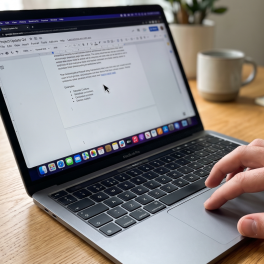
Mengalami situasi di mana kursor di layar laptop mendadak membeku dan tidak mau bergerak tentu akan langsung menghentikan seluruh produktivitas... selengkapnya

Susunan kabel HDMI menjadi salah satu informasi yang sangat penting, terutama bagi Anda yang seringkali menggunakannya. Melalui susunannya inilah, jenis... selengkapnya
Masalah monitor berkedip pada Windows 10 adalah salah satu masalah yang sering dialami oleh pengguna. Monitor yang berkedip-kedip tidak hanya... selengkapnya
9%
GARANSI * AIPEL COMPUTER – Pusat Grosir & Eceran – Belanja Hebat & Hemat – Grosir Konsep Swalayan – Harga… selengkapnya
Rp 205.000 Rp 225.000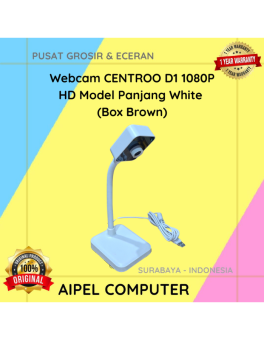
11%
A. DESKRIPSI (DESCRIPTION) Webcam D1 1080P HD Model Panjang White adalah webcam dengan resolusi HD dan desain model panjang yang… selengkapnya
Rp 120.000 Rp 135.000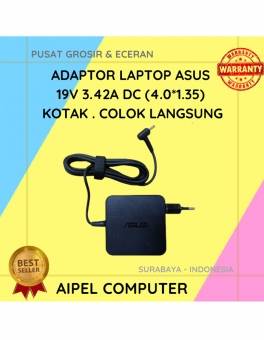
17%
A. DESKRIPSI (DESCRIPTION) Adaptor Laptop ASUS 19V 3.42A Kotak adalah solusi pengisian daya yang praktis dan efisien untuk berbagai model… selengkapnya
Rp 75.000 Rp 90.000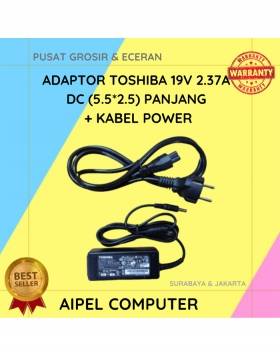
20%
A. DESKRIPSI (DESCRIPTION) Adaptor Laptop 19V 2.37A DC (5.5*2.5) adalah solusi pengisian daya yang stabil dan aman untuk laptop kesayangan… selengkapnya
Rp 60.000 Rp 75.000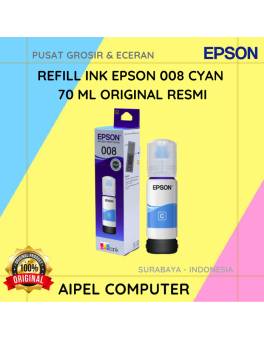
20%
A. DESKRIPSI (DESCRIPTION) Refill Ink EPSON 008 Cyan 70 ML Original adalah tinta isi ulang berkualitas tinggi yang dirancang khusus… selengkapnya
Rp 225.000 Rp 280.000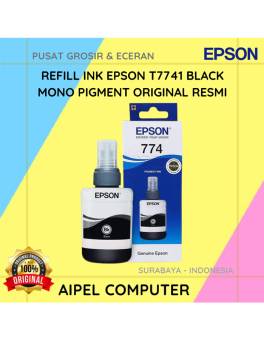
9%
A. DESKRIPSI (DESCRIPTION) Refill Ink EPSON T7741 Black Mono Pigment Original 100 % adalah solusi cetak monokrom yang andal dan… selengkapnya
Rp 183.000 Rp 200.000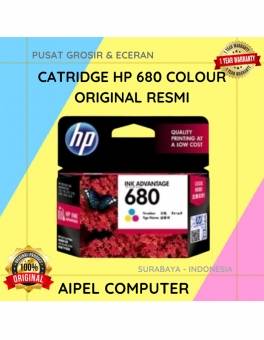
5%
A. DESKRIPSI (DESCRIPTION) Catridge HP 680 Colour Original 100% adalah tinta warna yang dirancang untuk menghasilkan cetakan berwarna cerah dan… selengkapnya
Rp 147.000 Rp 155.000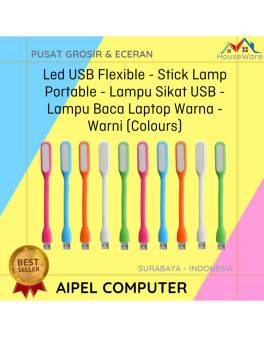
60%
A. DESKRIPSI (DESCRIPTION) Lampu Sikat USB Warna Warni adalah lampu baca fleksibel yang bisa kamu colok langsung ke port USB… selengkapnya
Rp 2.000 Rp 5.000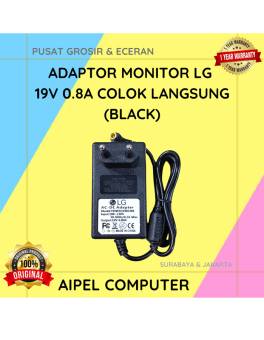
21%
A. DESKRIPSI (DESCRIPTION) Adaptor Monitor LG 19V 0.8A Colok Langsung (Black) adalah adaptor original berkualitas dari LG yang dirancang untuk… selengkapnya
Rp 75.000 Rp 95.000
9%
A. DESKRIPSI (DESCRIPTION) Kabel Lan Websong hadir untuk Anda yang mendambakan koneksi stabil, cepat, dan andal dalam setiap aktivitas digital…. selengkapnya
Rp 155.000 Rp 170.000



Saat ini belum tersedia komentar.