- Orderan dibawah 500.00 via Goshop / Offline / Marketplace
Laptop Overheating and Lagging? Causes and Fixes
Have you ever felt your laptop body turning uncomfortably hot like an iron, heard its cooling fans spinning at deafening jet-engine speeds, and noticed applications lagging severely even when performing basic word processing?
Overheating and sluggish performance represent the most common hardware frustrations that degrade user productivity. However, much like troubleshooting thermal performance drops in laptop ssd overheating thermal throttling freeze causes fixes, elevated temperatures on processors and graphics chips do not automatically mean permanent hardware failure. Most incidents are triggered by dense dust accumulation blocking heatsink exhaust fins, dried-out and hardened thermal paste, or blocked bottom air vents resting against soft surfaces.
Featured Snippet (Quick Answer):
Primary causes of a laptop overheating and lagging include dried thermal paste on CPU/GPU chips, thick dust clogs blocking cooling fan exhaust fins, operating laptops on soft beds/pillows that block airflow, or runaway background Windows processes.
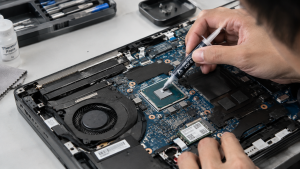
Checklist: Evaluating Laptop Temperature and Performance
Check the boxes below if these thermal symptoms match your current situation:
-
[ ] The upper keyboard deck or bottom chassis feels uncomfortably hot to the touch.
-
[ ] Cooling fans spin continuously at maximum speed even shortly after cold-booting the laptop.
-
[ ] Laptop performance stutters or lags drastically when opening multiple browser tabs or light apps.
-
[ ] The laptop abruptly powers down (thermal shutdown) during demanding workloads or gaming sessions.
-
[ ] Bottom rubber feet pads are missing or worn out, narrowing the clearance gap for airflow intake.
Practical Recommendation: Always use a hard, flat desk surface (such as a wooden table or aluminum laptop stand) when operating your laptop. Avoid placing laptops on beds, blankets, or your lap because fabric materials trap radiant heat and suck fine dust particles directly inside cooling fans.
Comparison Table: Overheating Causes and Recommended Actions
|
4 Ways to Fix an Overheating and Lagging Laptop
-
Clean Internal Dust and Replace Thermal Paste Regularly. Carefully remove the laptop chassis bottom cover, brush away dust clogging copper heatsink fins using a soft brush and compressed air. Clean old thermal paste residue off CPU/GPU dies, then apply fresh, high-performance thermal paste.
-
Use a Quality Laptop Stand or Cooling Pad. Elevate the rear portion of your laptop using a stand providing at least 2–3 cm of clearance, allowing unrestricted bottom airflow intake to naturally improve heat dissipation.
-
Limit Unnecessary Background Programs. Press Ctrl + Shift + Esc to open Task Manager > navigate to the Processes tab. Identify apps consuming excessive CPU or RAM resources, right-click, and select End task. Disable non-essential apps under the Startup apps tab as well.
-
Set Windows Power Plan to Balanced Mode. Open Control Panel > Power Options > ensure your power profile is set to Balanced or Power Saver during light tasks to prevent the processor from locking at maximum frequency continuously.
When to Seek Professional Repair Services
If you have regularly cleaned cooling fans, applied fresh thermal paste, yet laptop temperatures still soar above 90°C during idle states, the internal copper heat pipe has suffered a vapor leak.
This condition requires replacing an entire original heatsink and cooling fan module set by an experienced technician to restore normal, stable operating temperatures.
FAQ (Frequently Asked Questions)
What is a normal operating temperature for a laptop under use?
Normal operating temperatures during typing or light web browsing range from 40°C to 60°C. If temperatures reach 80°C – 95°C while idle, your cooling system has a mechanical issue.
Does cheap thermal paste affect laptop temperatures?
Significantly. Using low-quality budget thermal paste causes it to dry out within weeks, failing to transfer heat effectively from the chip die to the heatsink. Always use reputable brands like Arctic MX-4 or Thermal Grizzly.
Conclusion
Laptops overheating and lagging are typically caused by airflow obstructions from dust, dried thermal paste, or poor operating surfaces. Performing routine cooling maintenance will keep your laptop operating at peak performance.
Shop OEM Thermal Paste, Cooling Pads & Repairs at Aipel Computer
Looking for genuine original high-performance thermal paste with warranty, premium laptop cooling stands, or professional laptop overheat cleaning services in Surabaya? Find trusted replacement parts and expert repair services directly at Aipel Computer.
Tags: fix thermal throttling windows 11 laptop, laptop fan cleaning service surabaya, laptop overheating and lagging causes fixes, laptop repair surabaya, replace thermal paste laptop surabaya

Laptop Overheating and Lagging? Causes and Fixes
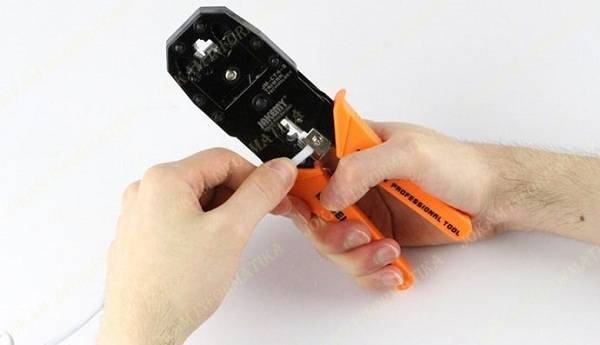
Tang crimping merupakan salah satu alat yang memiliki fungsi untuk membantu pemasangan konektor RJ45 ke kabel UTP. Alat ini memiliki... selengkapnya

Saat ini sudah banyak toko komputer murah terdekat. Namun bagi Anda yang juga ingin membuka usaha dalam bidang toko komputer... selengkapnya
Perlu kamu ketahui, sparepart laptop ini tentunya sangat beragam dan mempunyai fungsi masing-masing. Nah, dari beberapa sparepart tersebut akan disatukan... selengkapnya
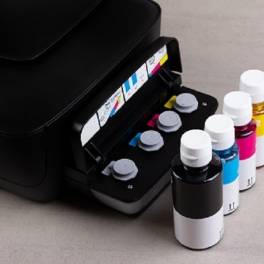
Refill ink menjadi salah satu pilihan kebanyakan orang dalam kebutuhan printer. Ink atau tinta merupakan barang terpenting untuk kebutuhan printer.... selengkapnya
Memilih toko grosir sparepart komputer murah tidak boleh asal-asalan. Sebab, pemilihan toko akan mempengaruhi kualitas barang yang Anda beli. Jangan... selengkapnya
Opening a blank document or browsing clean web pages only to spot a distracting bright dot or faint white patch... selengkapnya
Mencari toko komputer terdekat di sini mungkin bisa menjadi pilihan Anda yang paling mudah untuk mencari toko komputer. Karena jika... selengkapnya
Banyak pengguna mengeluhkan laptop mereka sudah mengalami penurunan performa secara drastis atau bahkan rusak parah padahal baru digunakan selama 1... selengkapnya
Printer adalah salah satu aksesori pelengkap komputer yang wajib Anda miliki. Anda dapat dengan mudah menemukan printer di toko komputer.... selengkapnya
Pointer komputer menjadi pilihan terbaik sebagai alat penunjuk. Tidak perlu menggunakan alat penunjuk seperti penggaris kayu panjang lagi. Saat ini... selengkapnya
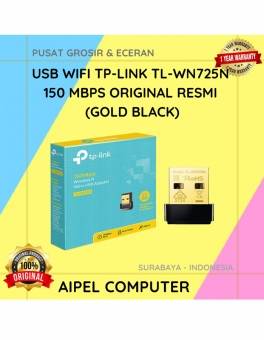
20%
A. DESKRIPSI (DESCRIPTION) USB Wifi TP-LINK TL-WN725N 150 MBPS (Gold Black) adalah perangkat mini yang dirancang untuk memberikan koneksi internet… selengkapnya
Rp 78.000 Rp 97.000
15%
A. DESKRIPSI (DESCRIPTION) Refill Ink EPSON 664K Black Original 100% adalah tinta hitam original dari EPSON yang cocok untuk berbagai… selengkapnya
Rp 85.000 Rp 100.000
13%
A. DESKRIPSI (DESCRIPTION) Fan Casing CENTROO 8 CM Hitam adalah kipas pendingin berkualitas tinggi yang dirancang untuk menjaga suhu komputer… selengkapnya
Rp 13.000 Rp 15.000
9%
A. DESKRIPSI (DESCRIPTION) Catridge CANON PG47 Black Original merupakan solusi cetak yang sempurna untuk memenuhi kebutuhan dokumen Anda dengan hasil… selengkapnya
Rp 128.000 Rp 140.000
22%
A. DESKRIPSI (DESCRIPTION) Cable USB M To Type-C 3 In 1 GENAI GL-Q20 PRO adalah kabel serbaguna dengan tiga ujung… selengkapnya
Rp 53.000 Rp 68.000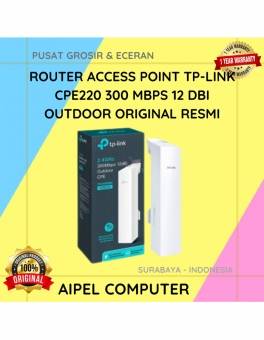
14%
A. DESKRIPSI (DESCRIPTION) TP-LINK CPE220 adalah perangkat jaringan outdoor dari TP-LINK yang menghadirkan koneksi cepat dan stabil dengan antena 12… selengkapnya
Rp 603.000 Rp 700.000
17%
A. DESKRIPSI (DESCRIPTION) Adaptor Laptop TOSHIBA 19V 4.74A DC (5.5*2.5) ini adalah solusi pengisian daya yang kuat dan stabil, cocok… selengkapnya
Rp 75.000 Rp 90.000
10%
A. DESKRIPSI (DESCRIPTION) Kabel HDTV Standart M To M WEBSONG 10 M adalah inovasi unggulan dari brand ternama WEBSONG yang… selengkapnya
Rp 112.500 Rp 125.000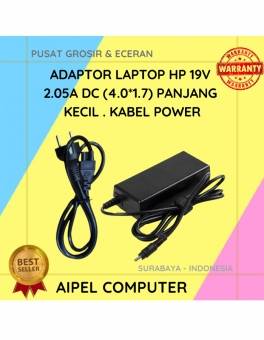
20%
A. DESKRIPSI (DESCRIPTION) Adaptor Laptop HP 19V 2.05A DC (4.0*1.7) Kabel Power Panjang Kecil adalah solusi daya yang praktis dan… selengkapnya
Rp 60.000 Rp 75.000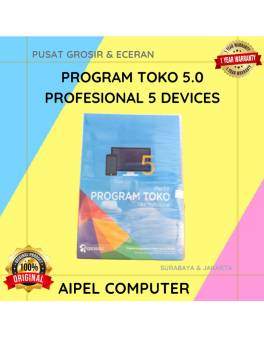
17%
A. DESKRIPSI (DESCRIPTION) IPOS5 adalah software toko profesional yang dirancang untuk mempermudah manajemen usaha retail Anda secara digital. 🌟 Dilengkapi… selengkapnya
Rp 750.000 Rp 900.000



Saat ini belum tersedia komentar.