- Orderan dibawah 500.00 via Goshop / Offline / Marketplace
Laptop Speaker Crackling or Buzzing? Causes and Easy Fixes
Instant panic kicks in the moment your bright and crisp laptop display suddenly turns into an ugly shade of warm yellow, dull orange, or dirty brown. Reading text feels tiring on your eyes, clean white backgrounds look discolored, and all your pictures and videos suffer from severe color distortion.
Many users immediately worry that their LCD backlight is burned out or their graphics card is permanently broken. In reality, a yellow screen is almost always caused by simple software glitches. Common culprits include a stuck Windows Night Light setting, a corrupted ICC color profile after a system update, or misconfigured display settings in your Intel, AMD, or NVIDIA graphics control panel. Just like troubleshooting laptop screen flickering causes to stabilize visual output, you can easily restore clean, natural colors on your own in just a few minutes.
Featured Snippet (Quick Answer):
The fastest way to fix a laptop screen turning yellow is to turn off the Night Light feature in Windows Settings, delete conflicting color profiles in Color Management, reset color temperature settings in your graphics control panel, and reinstall the display adapter driver.
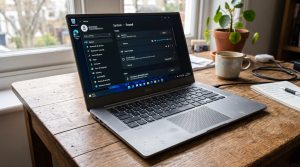
Checklist: Why Did Your Laptop Screen Turn Yellow?
Check the boxes below if any of these symptoms match your laptop’s current condition:
-
[ ] The entire screen displays a warm yellowish or orange tint evenly.
-
[ ] The yellow color turns on automatically every evening or late at night.
-
[ ] The display looks normal during the startup boot logo, then turns yellow upon loading Windows.
-
[ ] White backgrounds in Word or web browsers look like dull, old paper.
-
[ ] The color shifted right after connecting to an external monitor or projector.
Practical Recommendation: If the screen looks normal on the manufacturer boot logo and only turns yellow on the Windows desktop, the issue is 100% software related, not broken LCD hardware.
Comparison Table: Causes of Yellow Laptop Screens and Fixes
To identify what is causing the warm color shift on your screen, review this comparison:
| Yellow Screen Symptom | Likely Cause | Primary Fix | Real Device Impact |
|---|---|---|---|
| Even yellow tint at night | Active Night Light / Blue Light schedule | Turn off Night Light schedule in Settings | Restores clean, natural white screen |
| Stuck yellow all day | Corrupted third party ICC color profile | Reset profiles in Color Management | Returns to default monitor calibration |
| Heavy dark orange tint | GPU color temperature set too warm | Reset settings in Intel / AMD Software | Restores balanced RGB color levels |
| Yellow tint along edges | Aging LCD backlight layer | Replace the physical LCD screen panel | Delivers smooth, uniform brightness |
4 Ways to Fix a Laptop Screen Turning Yellow
Follow these step by step recovery methods to restore natural screen colors:
-
Turn Off Night Light in Windows Settings. Right click an empty space on your desktop and choose Display settings. Under the Night light section, toggle the switch to Off. Click the arrow next to Night light and make sure the Schedule option is also turned off so it does not reactivate automatically in the evening.
-
Reset Color Profiles in Color Management. Press
Win + R, typecolorcpl, and hit Enter. Select your primary laptop screen under the Device dropdown. If any profile appears in the lower list box, select it and click Remove. Next, click the Profiles button at the bottom right and select Reset my settings to the system defaults. -
Reset Color Settings in Your Graphics Control Panel. Open your laptop graphics utility (such as Intel Graphics Command Center, AMD Radeon Software, or NVIDIA Control Panel). Head over to Display > Color, find the Color Temperature or Saturation slider, and click Restore to Default to bring back factory color balance.
-
Reinstall Display Adapter Drivers. Right click the Start button and open Device Manager. Expand the Display adapters section. Right click your primary graphics card (Intel UHD, AMD Radeon, or NVIDIA GeForce), select Update driver or choose Uninstall device, and restart your laptop so Windows loads a fresh driver setup.
When Should You Check the Physical Screen Panel?
If you have disabled Night Light and cleared all color profiles but the screen stays noticeably yellow even inside the hardware BIOS menu, the backlight layers inside your LCD panel may have degraded over time.
Upgrading to a genuine IPS laptop LCD panel is the best solution to regain crisp color accuracy, wide viewing angles, and comfortable visuals for everyday work and entertainment.
FAQ (Frequently Asked Questions)
Does using Night Light drain more battery?
No. The Night Light feature simply shifts the pixel color spectrum to warmer tones to reduce blue light emissions and reduce eye strain in dark rooms.
Why did my screen turn yellow after a Windows update?
Windows updates sometimes automatically apply a new manufacturer color profile (ICC profile) that defaults to a warmer color temperature.
Conclusion
A laptop screen turning yellow or dull is usually caused by an active Night Light schedule, a conflicting color profile, or adjusted graphics temperature settings. By turning off blue light filters and resetting default Windows color profiles, you can easily restore a crisp, clean display.
Shop Laptop LCD Screens, Cables & Parts at Aipel Computer
Looking for genuine IPS laptop screen replacements, display flex cables, HDMI converters, or electronic maintenance tools? Explore our extensive inventory of computer components at competitive wholesale prices directly in our store.
To check screen stock, browse our hardware inventory, or get directions to our retail store, visit the official Aipel Computer website today!
Tags: dull orange laptop display fix, fix yellow screen windows 10, laptop screen replacement surabaya, laptop screen turning yellow, turn off night light laptop

Laptop Speaker Crackling or Buzzing? Causes and Easy Fixes
Cara ngeprint di komputer sendiri sangatlah mudah, simpel, dan tidak memakan waktu yang lama. Bisa mencetak berbagai dokumen sendiri baik... selengkapnya

Dalam era modern yang semakin canggih saat ini hampir semua kegiatan tidak dapat jauh dari komputer. Salah satu aksesoris komputer... selengkapnya
Spesifikasi kabel UTP hadir dengan berbagai keunggulan. Kabel ini memiliki pelindung pelapis pada bagian internalnya. Fungsi dari kabel UTP itu... selengkapnya
Kabel laptop ke proyektor sangat dibutuhkan. Dengan kabel ini, laptop bisa terhubung ke proyektor dengan layar yang lebih besar. Biasanya,... selengkapnya
Printer ribbon cartridge tetap menjadi pilihan yang unggul dalam berbagai aplikasi spesifik meskipun teknologi inkjet dan laserjet mendominasi pasar. Di... selengkapnya
Have you noticed your laptop screen becoming increasingly heavy to lift, or heard an uncomfortable creaking noise near the bottom... selengkapnya
Tidak perlu panik saat mengalami mouse komputer bergerak sendiri, karena kini ada sederet cara mudah untuk mengatasinya tanpa bantuan profesional.... selengkapnya

Saat ini, sudah banyak orang yang memiliki laptop. Penggunaan perangkat yang satu ini sangat membantu untuk kegiatan sehari-hari. Baik untuk... selengkapnya
While you are working or watching a video on your laptop, a thin white, green, pink, or black line suddenly... selengkapnya
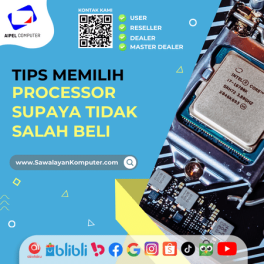
Ada beberapa tips memilih processor laptop yang perlu kamu perhatikan supaya nantinya tidak salah membelinya. Sebab, dalam memilih perangkat processor... selengkapnya
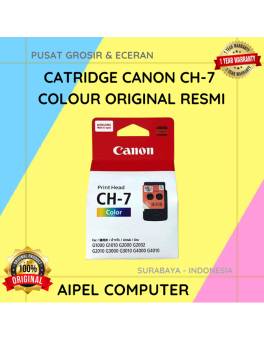
12%
A. DESKRIPSI (DESCRIPTION) Canon CH-7 Colour Original Ink Cartridge adalah solusi sempurna bagi Anda yang membutuhkan kualitas cetak tinggi dengan… selengkapnya
Rp 335.000 Rp 380.000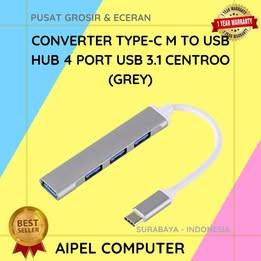
28%
A. DESKRIPSI (DESCRIPTION) Converter Type-C M to 4 Port USB 3.1 HOBOO (Grey) adalah solusi multifungsi untuk pengguna yang membutuhkan… selengkapnya
Rp 27.500 Rp 38.000
12%
A. DESKRIPSI (DESCRIPTION) Adaptor Laptop ACER 19V 3.42A DC (3.0 X 1.1), solusi terbaik untuk kebutuhan daya laptop Anda! Dirancang… selengkapnya
Rp 110.000 Rp 125.000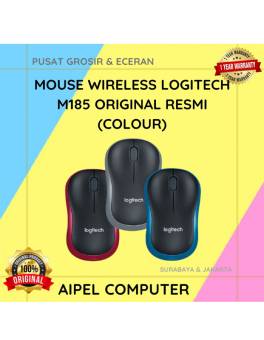
8%
AIPEL COMPUTER – Pusat Grosir dan Eceran – Belanja Hebat dan Hemat – Harga Murah Garansi Prima * GARANSI –… selengkapnya
Rp 138.500 Rp 150.000
25%
A. DESKRIPSI (DESCRIPTION) Second HDD Caddy CENTROO Sata 12.7″ For Laptop adalah solusi praktis untuk memperluas penyimpanan laptop Anda tanpa… selengkapnya
Rp 13.500 Rp 18.000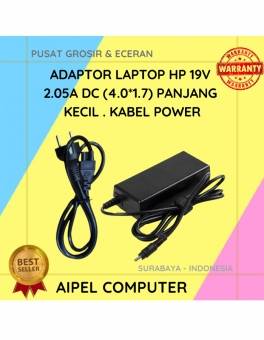
20%
A. DESKRIPSI (DESCRIPTION) Adaptor Laptop HP 19V 2.05A DC (4.0*1.7) Kabel Power Panjang Kecil adalah solusi daya yang praktis dan… selengkapnya
Rp 60.000 Rp 75.000
18%
AIPEL COMPUTER – Pusat Grosir dan Eceran – Belanja Hebat dan Hemat – Harga Murah Garansi Prima * GARANSI –… selengkapnya
Rp 205.000 Rp 250.000
21%
A. DESKRIPSI (DESCRIPTION) Kabel Power Printer CENTROO 1.5 M (Black) adalah solusi ideal untuk kebutuhan daya printer Anda. Dengan panjang… selengkapnya
Rp 5.500 Rp 7.000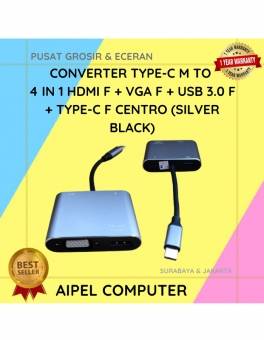
52%
A. DESKRIPSI (DESCRIPTION) Converter Type C To 4 IN 1 HOBOO – HDTV Standard + Type C + 2 Port… selengkapnya
Rp 101.000 Rp 210.000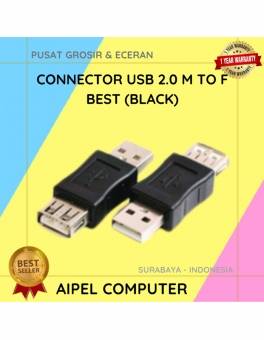
20%
A. DESKRIPSI (DESCRIPTION) Konektor USB 2.0 Male to Female adalah pilihan cerdas untuk memperluas atau memperpanjang port USB tanpa kabel… selengkapnya
Rp 4.000 Rp 5.000



Saat ini belum tersedia komentar.